Getting started(入门指南)
SAML 2.0 (Security Assertion Markup Language) ↗ is an XML-based data format used to exchange authentication and authorization data between a service provider (often abbreviated SP), such as Foundry, and an identity provider (IdP), such as Azure AD or Okta. The most common use case for SAML 2.0 is Single Sign-On (SSO) from a web browser.
Concepts
In the following section, authentication concepts common in Foundry are discussed.
SAML integration metadata
The SAML integration metadata, also called service provider metadata, is the information about Foundry that needs to be passed to the identity provider. This information includes:
- Entity ID: A unique ID identifying Foundry for the identity provider, in a URN ↗ format
urn:uuid:[$UUID]. - Assertion Consumer Service (ACS) URL: The Foundry endpoint that accepts SAML response messages for the purpose of establishing a session based on an assertion.
- Single Logout URL: The Foundry endpoint that accepts SAML single logout requests from the identity provider.
- Certificate: Used for signing the SAML messages sent to the identity provider.
This information is encoded as an auto-generated XML file that can be copied in whole to be uploaded to the identity provider by the customer. In addition, Control Panel extracts the information to separate fields that can be copied individually.
Identity provider metadata
Identity provider metadata is the information about the identity provider that needs to be passed to Foundry. This information includes the identity provider’s entity ID, Single Sign-On (SSO) and Single Logout URLs, and a certificate.
Identity provider metadata is encoded as an XML file that can be uploaded to Control Panel in the following ways:
Upload: Save the XML file from the identity provider and upload it into Control Panel.Fetch: Provide a metadata discovery URI, from which Foundry can retrieve information about your identity provider, including your identity provider's entity ID, Single Sign-On (SSO), Single Logout URLs (SLO), and a certificate. You will also need to configure a network egress policy to enable Foundry to access the metadata discovery URI provided.
SAML certificates have an expiration date, after which users may experience login issues. When the certificate associated with the identity provider is due to expire within the next 30 days, a warning banner will appear in Control Panel.
Email domains
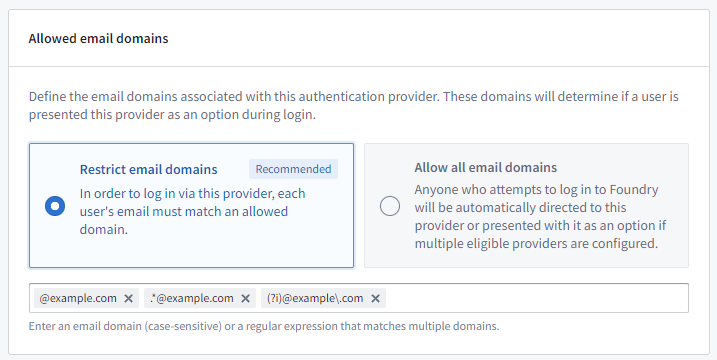
Email domains are used to decide which identity provider integrations are presented to users as a login option. When a user enters their email or username in the login screen, email domains of all the configured identity provider integrations will be tested and only matching identity provider integrations will be shown.
Email domains can be regular expressions, though they are usually of the simple form @example.com, which will be automatically converted into .*@example\.com. Use .* if the identity provider integration should be shown to all users.
:::callout{theme="neutral"}
Note that both the simple form of email domains (@example.com) and regular expressions (.*@example\.com) are case-sensitive by default. Email domains can be made case-insensitive by adding (?i) to the start of the regular expression, so a case-insensitive version of the simple form @example.com would be (?i).*@example\.com or (?i)@example\.com.
:::
Supported hosts
Supported hosts are used to:
- Construct the ACS & Single Logout URLs in the SAML integration metadata.
- Ensure the integration is only presented to users that log in using these hosts.
You can choose from the hosts configured for your enrollment.
Map attributes
Map SAML responses to Foundry to ensure sufficient and correct user attributes are being passed through.
User attributes
After a user authenticates with the identity provider during the SAML login process, a SAML response is sent to Foundry. This SAML response contains the user’s attributes (also called "claims"), such as name, email, and any available additional information. These attributes are sent in a map of attribute key to value (e.g. email → user@example.com) or values.
For Foundry to have the correct values for user attributes, you must map identity provider attributes (or "claims") to matching Foundry attributes. Foundry requires the following mappings:
- ID: Set to
NameIDby default. This value should always be present on SAML assertions and has a static unique value. - Username: Set to
NameIDby default, but can be changed to a different human-readable attribute (e.g.,http://schemas.xmlsoap.org/ws/2005/05/identity/claims/namefor Azure AD). - Email: Should be mapped to the email attribute (e.g.,
http://schemas.xmlsoap.org/ws/2005/05/identity/claims/emailaddressfor Azure AD). - First name: Should be mapped to the first name attribute (e.g.,
http://schemas.xmlsoap.org/ws/2005/05/identity/claims/givennamefor Azure AD). - Last name: Should be mapped to the last name attribute (e.g.,
http://schemas.xmlsoap.org/ws/2005/05/identity/claims/surnamefor Azure AD).
View the reference mappings for Azure AD and Okta.
Additional mappings can be set to create more user attributes in Foundry by clicking Add attribute mapping. Input the attribute name in Foundry in the left field, and the attribute name in the identity provider on the right field.
For each mapping, there is a toggle that lets you choose the behavior when an attribute has multiple values in the SAML response. This toggle can be set to First (which will populate the attribute with the first value received) or All (which will populate the attribute with all the values received).
Provider groups
You can also configure Foundry to create groups based on identity provider attributes (called "provider groups"), allowing you to mirror your existing group memberships in Foundry. You may need to additionally configure your provider to include group attributes in the SAML response.
To set up a mapping for a provider group, click Add attribute mapping under Group attribute mapping. When a user logs in, every value for the configured attribute(s) will be mirrored as provider groups, and the user will be enrolled as a member.
Optionally, you can set a regex pattern to extract groups in cases where the groups are sent as a single value instead of a list. For instance, use [^,]+ for comma-separated groups.
Advanced settings
Asynchronous user managers
Asynchronous user managers (AUMs) are configurable extra steps in the login flow. Expand Asynchronous user managers to see the available AUMs.
Checkpoints Login
Creating a Login Checkpoint redirects users at the time of login to a configurable prompt that can ask for a justification before allowing the login to proceed. To enable a Login Checkpoint, first toggle on the Checkpoints Login AUM, and then follow the steps to create a checkpoint.
Configure SAML 2.0 integration
To configure a new SAML integration, see the specific steps for your identity provider below:
Troubleshooting
“Login failed as a suitable authentication provider could not be located. Please contact your administrator for further assistance.” error
This error indicates that the username entered by the user does not match any of the authentication provider email domains that were configured and allowlisted in Control Panel. It could also mean that the host from which the user is attempting to log in was not added as a supported host for their configured authentication provider.
"There are x providers with certificates expiring within 30 days."
This warning banner indicates that the certificates in the identity provider metadata will expire within 30 days. The identity provider should switch to a new certificate to avoid authentication disruptions. You can resolve this through manual upload or automatic refresh.
Manual upload
- Generate a new certificate in the identity provider. Ensure that the old certificate is still present and active. This way, logins will continue to work until the new metadata is passed to Control Panel.
- Upload the new XML file to your provider in Control Panel via the
Uploadmethod and confirm that you can view both the expiring and the new certificates extracted. - Once saved, the identity provider can switch to using the new certificate and remove the old certificate. The metadata does not need to be re-uploaded once the expiring certificate is removed.
Note that if your identity provider starts signing with the new certificate before you upload the new XML file to Control Panel, users will experience login issues.
Automatic refresh
When you configure the Fetch method described above, you can choose to Automatically refresh the identity provider's metadata using the provider metadata URI. When your identity provider rotates to a new certificate, the next login attempt will initially fail, prompting Foundry to automatically fetch the updated metadata from the metadata discovery URI and retry the request without a disruption to the user's login experience.
Note that automatic metadata refresh will not work if your identity provider changes the metadata URI during certificate rotation. If this occurs, you must manually update the metadata discovery URI in Control Panel before the existing certificate expires.
:::callout{theme="note"}
Some identity providers include a validUntil date in their metadata. This date may be tied to the expiration of the currently active signing certificate rather than the latest expiry across all published certificates. As a result, even if a new certificate has been published in the metadata, the metadata itself will become invalid once the validUntil date passes, causing login failures. When the identity provider switches to using the new certificate, the validUntil date will typically update to reflect the new certificate's expiration.
With automatic metadata refresh enabled, Foundry will fetch the new metadata after the certificate switch, which includes the updated validUntil date, resolving login failures caused by an expired validUntil date without manual intervention. Without automatic metadata refresh, you will need to re-upload the updated provider metadata to Control Panel after the identity provider switches to the new certificate.
:::
中文翻译
入门指南
SAML 2.0(安全断言标记语言)↗是一种基于XML的数据格式,用于在服务提供商(Service Provider,常缩写为SP,如Foundry)和身份提供商(Identity Provider,IdP,如Azure AD或Okta)之间交换身份验证和授权数据。SAML 2.0最常见的用例是通过网页浏览器实现单点登录(Single Sign-On,SSO)。
概念
以下部分将讨论Foundry中常见的身份验证概念。
SAML集成元数据
SAML集成元数据(也称为服务提供商元数据)是需要传递给身份提供商的关于Foundry的信息。这些信息包括:
- 实体ID(Entity ID): 以
urn:uuid:[$UUID]格式的URN ↗标识Foundry的唯一ID。 - 断言消费者服务(ACS)URL: 接受SAML响应消息以基于断言建立会话的Foundry端点。
- 单点注销URL(Single Logout URL): 接受来自身份提供商的SAML单点注销请求的Foundry端点。
- 证书(Certificate): 用于对发送给身份提供商的SAML消息进行签名。
这些信息被编码为一个自动生成的XML文件,客户可以完整复制并上传到身份提供商。此外,控制面板(Control Panel)将这些信息提取到单独的字段中,以便单独复制。
身份提供商元数据
身份提供商元数据是需要传递给Foundry的关于身份提供商的信息。这些信息包括身份提供商的实体ID、单点登录(SSO)和单点注销URL,以及一个证书。
身份提供商元数据被编码为一个XML文件,可以通过以下方式上传到控制面板:
上传(Upload):从身份提供商保存XML文件并上传到控制面板。获取(Fetch):提供一个元数据发现URI,Foundry可以通过该URI检索关于您的身份提供商的信息,包括身份提供商的实体ID、单点登录(SSO)、单点注销URL(SLO)和证书。您还需要配置网络出口策略(network egress policy),以使Foundry能够访问所提供的元数据发现URI。
SAML证书有到期日期,之后用户可能会遇到登录问题。当与身份提供商关联的证书将在30天内到期时,控制面板中会出现警告横幅。
电子邮件域名
电子邮件域名用于决定哪些身份提供商集成将作为登录选项呈现给用户。当用户在登录界面输入电子邮件或用户名时,将测试所有已配置的身份提供商集成的电子邮件域名,并且仅显示匹配的身份提供商集成。
电子邮件域名可以是正则表达式,但通常采用简单的@example.com形式,这将被自动转换为.*@example\.com。如果身份提供商集成应对所有用户显示,请使用.*。
:::callout{theme="neutral"}
请注意,电子邮件域名的简单形式(@example.com)和正则表达式(.*@example\.com)默认都是区分大小写的。可以通过在正则表达式开头添加(?i)使电子邮件域名不区分大小写,因此简单形式@example.com的不区分大小写版本将是(?i).*@example\.com或(?i)@example.com。
:::
支持的主机
支持的主机用于:
- 在SAML集成元数据中构建ACS和单点注销URL。
- 确保该集成仅呈现给使用这些主机登录的用户。
您可以从为您的注册(enrollment)配置的主机中进行选择。
映射属性
将SAML响应映射到Foundry,以确保传递足够且正确的用户属性。
用户属性
用户在SAML登录过程中通过身份提供商进行身份验证后,会向Foundry发送一个SAML响应。此SAML响应包含用户的属性(也称为"声明(claims)"),例如姓名、电子邮件以及任何可用的附加信息。这些属性以属性键到值(例如email → user@example.com)或值的映射形式发送。
为了使Foundry拥有正确的用户属性值,您必须将身份提供商属性(或"声明")映射到匹配的Foundry属性。Foundry需要以下映射:
- ID:默认设置为
NameID。此值应始终存在于SAML断言中,并具有静态唯一值。 - 用户名:默认设置为
NameID,但可以更改为其他人类可读的属性(例如,对于Azure AD,使用http://schemas.xmlsoap.org/ws/2005/05/identity/claims/name)。 - 电子邮件:应映射到电子邮件属性(例如,对于Azure AD,使用
http://schemas.xmlsoap.org/ws/2005/05/identity/claims/emailaddress)。 - 名字:应映射到名字属性(例如,对于Azure AD,使用
http://schemas.xmlsoap.org/ws/2005/05/identity/claims/givenname)。 - 姓氏:应映射到姓氏属性(例如,对于Azure AD,使用
http://schemas.xmlsoap.org/ws/2005/05/identity/claims/surname)。
通过点击添加属性映射(Add attribute mapping),可以设置额外的映射以在Foundry中创建更多用户属性。在左侧字段中输入Foundry中的属性名称,在右侧字段中输入身份提供商中的属性名称。
对于每个映射,都有一个切换开关,允许您选择当SAML响应中的属性具有多个值时的行为。此切换开关可以设置为第一个(First)(将使用接收到的第一个值填充属性)或全部(All)(将使用接收到的所有值填充属性)。
提供商组
您还可以配置Foundry基于身份提供商属性创建组(称为"提供商组"),从而允许您在Foundry中镜像现有的组成员身份。您可能需要额外配置您的提供商,以在SAML响应中包含组属性。
要设置提供商组的映射,请点击组属性映射(Group attribute mapping)下的添加属性映射(Add attribute mapping)。当用户登录时,所配置属性的每个值都将被镜像为提供商组,并且该用户将被注册为成员。
可选地,您可以设置一个正则表达式模式,以便在组作为单个值而不是列表发送时提取组。例如,对于逗号分隔的组,使用[^,]+。
高级设置
异步用户管理器
异步用户管理器(Asynchronous User Managers,AUMs)是登录流程中可配置的额外步骤。展开异步用户管理器以查看可用的AUM。
检查点登录(Checkpoints Login)
创建登录检查点(Login Checkpoint)会在登录时将用户重定向到一个可配置的提示,该提示可以在允许登录继续之前要求提供理由。要启用登录检查点,首先打开检查点登录(Checkpoints Login) AUM的开关,然后按照步骤创建检查点。
配置SAML 2.0集成
要配置新的SAML集成,请参阅下方针对您的身份提供商的具体步骤:
故障排除
"登录失败,因为找不到合适的身份验证提供商。请联系您的管理员以获取进一步帮助。"错误
此错误表示用户输入的用户名与在控制面板中配置并列入允许列表的任何身份验证提供商电子邮件域名都不匹配。这也可能意味着用户尝试登录的主机未被添加为其配置的身份验证提供商的支持主机。
"有x个提供商的证书将在30天内到期。"
此警告横幅表示身份提供商元数据中的证书将在30天内到期。身份提供商应切换到新证书以避免身份验证中断。您可以通过手动上传或自动刷新来解决此问题。
手动上传
- 在身份提供商中生成一个新证书。确保旧证书仍然存在且处于活动状态。 这样,在新元数据传递到控制面板之前,登录将继续正常工作。
- 通过
上传(Upload)方法将新的XML文件上传到控制面板中的您的提供商,并确认您可以看到即将到期和新提取的证书。 - 保存后,身份提供商可以切换到使用新证书并移除旧证书。一旦即将到期的证书被移除,无需重新上传元数据。
请注意,如果您在将新的XML文件上传到控制面板之前,身份提供商已开始使用新证书进行签名,用户将遇到登录问题。
自动刷新
当您配置上述获取(Fetch)方法时,您可以选择使用提供商元数据URI自动刷新身份提供商的元数据(Automatically refresh the identity provider's metadata using the provider metadata URI)。当您的身份提供商轮换到新证书时,下一次登录尝试将最初失败,这会促使Foundry自动从元数据发现URI获取更新的元数据并重试请求,而不会中断用户的登录体验。
请注意,如果您的身份提供商在证书轮换期间更改了元数据URI,自动元数据刷新将无法工作。如果发生这种情况,您必须在现有证书到期之前手动更新控制面板中的元数据发现URI。
:::callout{theme="note"}
一些身份提供商在其元数据中包含一个validUntil日期。此日期可能与当前活动签名证书的到期时间相关联,而不是与所有已发布证书中的最新到期时间相关联。因此,即使元数据中已发布新证书,一旦validUntil日期过去,元数据本身将变为无效,从而导致登录失败。当身份提供商切换到使用新证书时,validUntil日期通常会更新以反映新证书的到期时间。
启用自动元数据刷新后,Foundry将在证书切换后获取新的元数据,其中包含更新后的validUntil日期,从而无需手动干预即可解决由过期的validUntil日期引起的登录失败。如果没有自动元数据刷新,您将需要在身份提供商切换到新证书后,将更新后的提供商元数据重新上传到控制面板。
:::