Build datasets(构建数据集)
You can use the Data Lineage graph to see which datasets in your pipeline are out of date, and then use the Builds helper to start builds directly from Data Lineage.
:::callout{theme="neutral"} Builds triggered from Data Lineage always apply to the branches (including fallback branches) configured in the graph. :::
The following are a few common build workflows:
Build All Ancestors
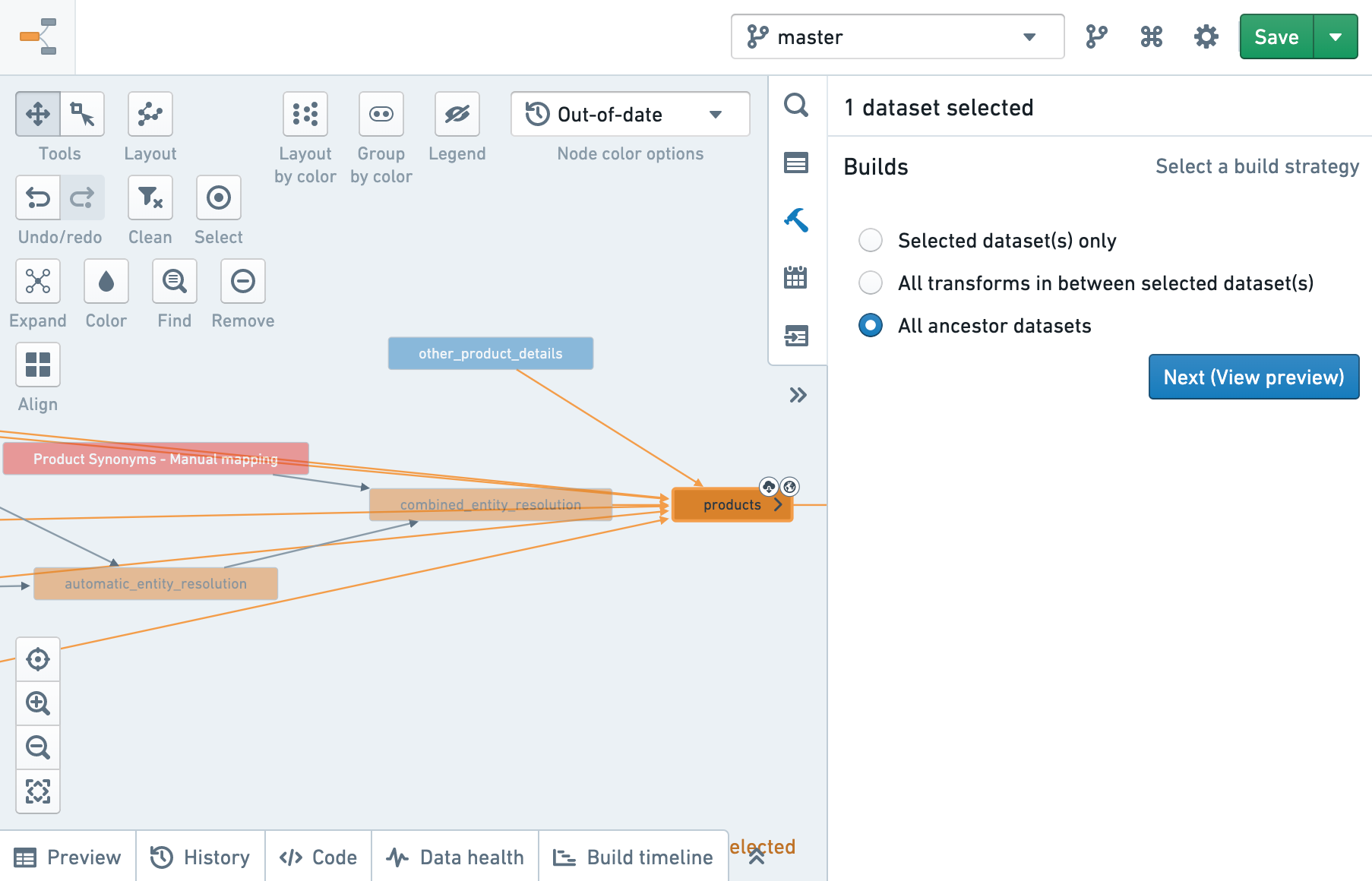
This strategy builds the selected datasets and all ancestor datasets, to ensure that the selected datasets become completely up to date.
:::callout{theme="neutral"} By default, this builds only ancestors that are out of date, but you can choose to force a re-build of up-to-date datasets. Forcing a re-build can be expensive in terms of build time and resources. :::
- Add datasets to the graph or open a saved snapshot.
- Select the dataset that you want to build.
- In the Builds helper, choose All ancestor datasets, then click Next.
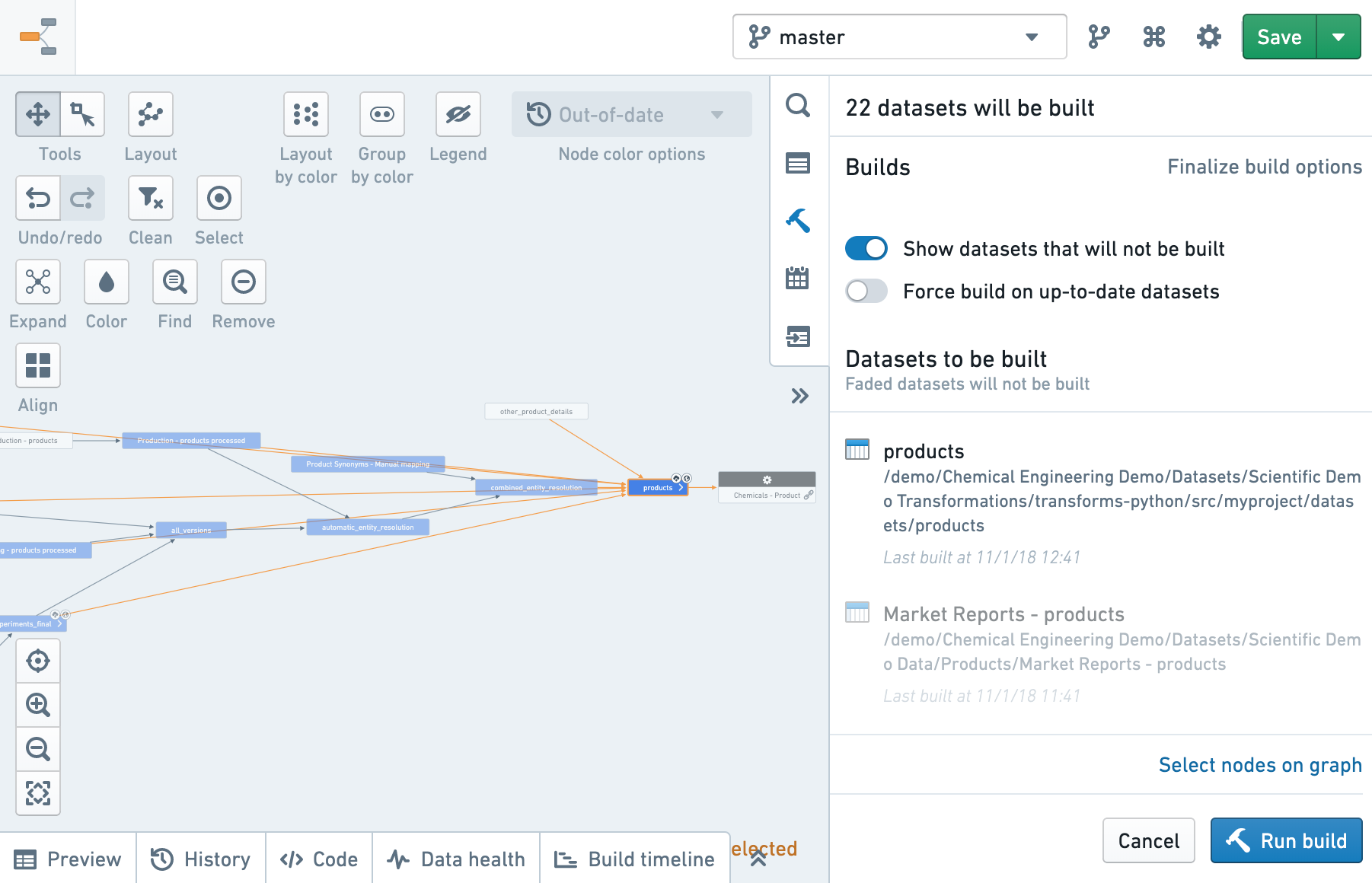
:::callout{theme="neutral"} Clicking Next will not trigger any builds yet. You will simply see a preview of the datasets to be built. :::
- If you want to force a re-build of up-to date datasets, click Force build on up-to-date datasets.
- After examining the list of datasets to be built, click Run build to trigger the builds.
:::callout{theme="neutral"} If you decide you do not want to build all out-of-date ancestors, you must click Cancel on the current build preview, then change the nodes you have selected. You cannot change your selection from the build preview screen. :::
All transforms in between selected datasets
This strategy lets you bind your builds to a subset of your pipeline. A common use case for this strategy can occur when new raw data regularly lands in your pipeline and there is a particular dataset that you want to update to reflect the new data, but you don’t want to build all out-of-date ancestors. You can then use Data Lineage to determine which other datasets need to be built to bring your dataset of interest more up to date.
- Add the dataset you ultimately want to build to the graph.
- Add any raw datasets to the graph (or any upstream dataset)
- Select all nodes.
- In the Builds helper, choose the All transforms in between selected dataset(s) strategy, then click Next.
:::callout{theme="neutral"} Clicking Next will not trigger any builds yet. You will simply see a preview of the datasets to be built based on the nodes you have selected. You can now see exactly what needs to be built to update your dataset of interest. You may not want to build all datasets – maybe there is a very large derived dataset that should only build once a day – so click Add all to graph at the bottom of the list. :::
Selected Datasets
This strategy allows you to pick individual datasets that you want to build. If there are dependencies between the datasets, builds would be executed in the right order to assure descendants are built after their ancestors were built.
:::callout{theme="neutral"} If you want to change the datasets you are building, you must click Cancel on the current build preview, change the nodes you have selected, then enter a new preview. You cannot change your build selection from the build preview screen. :::
After examining the final list of datasets to be built, click Run build to trigger the builds.
中文翻译
构建数据集
您可以使用数据沿袭图(Data Lineage graph)查看管道中哪些数据集已过时,然后使用构建助手(Builds helper)直接从数据沿袭图启动构建。
:::callout{theme="neutral"} 从数据沿袭图触发的构建始终适用于图中配置的分支(包括回退分支)。 :::
以下是几种常见的构建工作流:
构建所有祖先数据集
此策略会构建选定的数据集及其所有祖先数据集,以确保选定的数据集完全更新。
:::callout{theme="neutral"} 默认情况下,此操作仅构建已过时的祖先数据集,但您可以选择强制重新构建已更新的数据集。强制重新构建可能会消耗较多的构建时间和资源。 :::
- 将数据集添加到图中,或打开已保存的快照。
- 选择要构建的数据集。
- 在构建助手中,选择所有祖先数据集,然后单击下一步。
:::callout{theme="neutral"} 单击下一步 不会 立即触发任何构建。您只会看到待构建数据集的预览。 :::
- 如果要强制重新构建已更新的数据集,请对已更新的数据集单击强制构建。
- 检查待构建的数据集列表后,单击运行构建以触发构建。
:::callout{theme="neutral"} 如果您决定不构建所有过时的祖先数据集,则必须单击当前构建预览中的取消,然后更改已选择的节点。您无法在构建预览界面中更改选择。 :::
选定数据集之间的所有转换
此策略允许您将构建绑定到管道的子集。此策略的一个常见用例是:当新原始数据定期进入管道,并且您希望更新某个特定数据集以反映新数据,但又不希望构建所有过时的祖先数据集时。此时,您可以使用数据沿袭图来确定需要构建哪些其他数据集,以使目标数据集更加更新。
- 将最终要构建的数据集添加到图中。
- 将任何原始数据集(或任何上游数据集)添加到图中。
- 选择所有节点。
- 在构建助手中,选择选定数据集之间的所有转换策略,然后单击下一步。
:::callout{theme="neutral"} 单击下一步 不会 立即触发任何构建。您只会看到基于所选节点的待构建数据集预览。现在您可以确切地看到需要构建哪些内容来更新目标数据集。您可能不想构建所有数据集——也许有一个非常大的派生数据集应该每天只构建一次——因此请单击列表底部的全部添加到图。 :::
仅选定数据集
此策略允许您选择要构建的单个数据集。如果数据集之间存在依赖关系,构建将按正确顺序执行,以确保后代数据集在其祖先数据集构建完成后才被构建。
:::callout{theme="neutral"} 如果您想更改正在构建的数据集,则必须单击当前构建预览中的取消,更改已选择的节点,然后进入新的预览。您无法在构建预览界面中更改构建选择。 :::
检查最终待构建的数据集列表后,单击运行构建以触发构建。