Roll back a dataset(回滚数据集)
When building a pipeline, you may need to roll back a dataset to an earlier version. There may be various reasons for this, including the following:
- You identified a mistake in the logic required to build a dataset and need to revert it.
- Incorrect data was pushed into your pipeline from an upstream source.
- An outage occurred, and you want to quickly navigate back to an earlier state of your dataset.
The dataset rollback feature allows you to update the data and job history of a dataset. If the dataset is being built incrementally, the dataset rollback feature also ensures that the incrementality of your dataset is preserved.
Types of dataset rollbacks
The two types of possible rollbacks on a dataset are as follows:
- Rolling back to an earlier transaction: Performed when there is a previous transaction to roll the dataset back to.
- Forcing a snapshot on the next build: Typically applicable for incremental workflows when there is no previous transaction to roll back to, meaning that the dataset needs to be rolled back to a state before the branch or the dataset was created.
:::callout{theme="warning"}
If you accidentally force a snapshot on the next build of a dataset, but you intended to roll back to an earlier transaction, do not proceed with a rollback, as this could leave the dataset in a partially rolled back state.
Instead, build the dataset; it will run as a snapshot since the dataset was configured to snapshot on the next build, and then carry out the intended rollback.
:::
Considerations and limitations
When rolling back a dataset, keep the following considerations in mind:
- Only transactional datasets are supported for rollbacks.
- You are only able to roll back to a successful transaction.
- It is not possible to roll back to a transaction that was deleted based on a retention policy. However, you can roll back to a transaction that was deleted by a dataset rollback in Data Lineage.
- You can only roll back a dataset on which you have the
Editorrole. - After a rollback is carried out, the logic backing the dataset will be left unchanged and will need to be updated in order to apply to the next build.
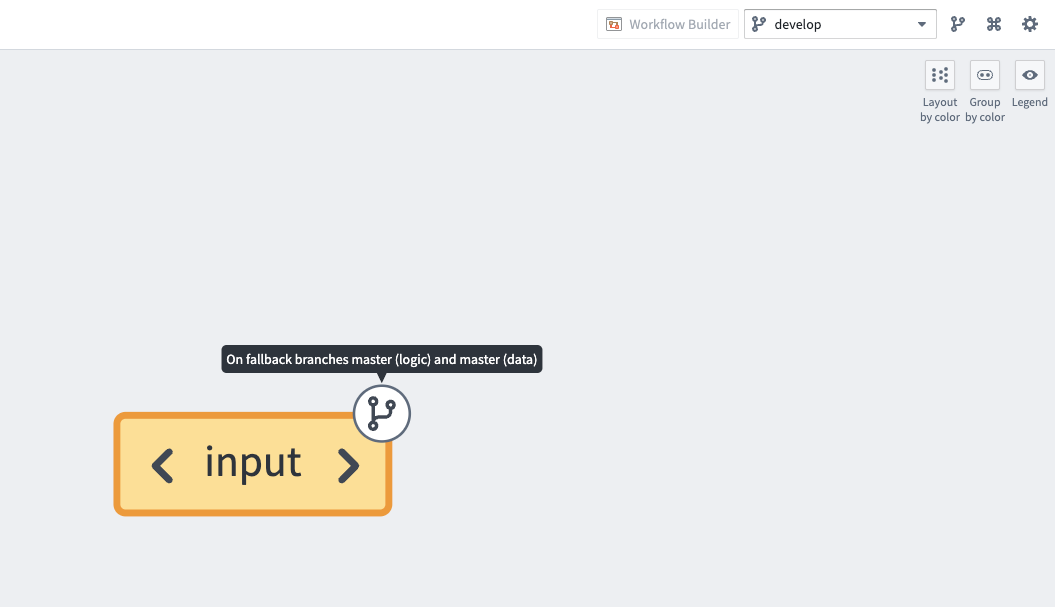
- If the branch on which a rollback is being performed does not exist on the dataset, the rollback will be applied to a fallback branch.
Roll back to an earlier transaction
- Navigate to a Data Lineage graph containing the dataset you would like to roll back.
- Select the dataset in the graph. Then, from the branch selector at the top of the graph, select the branch on which you would like to perform the rollback.

- Select the History tab in the panel at the bottom of the page.
- Select the transaction to roll back to.
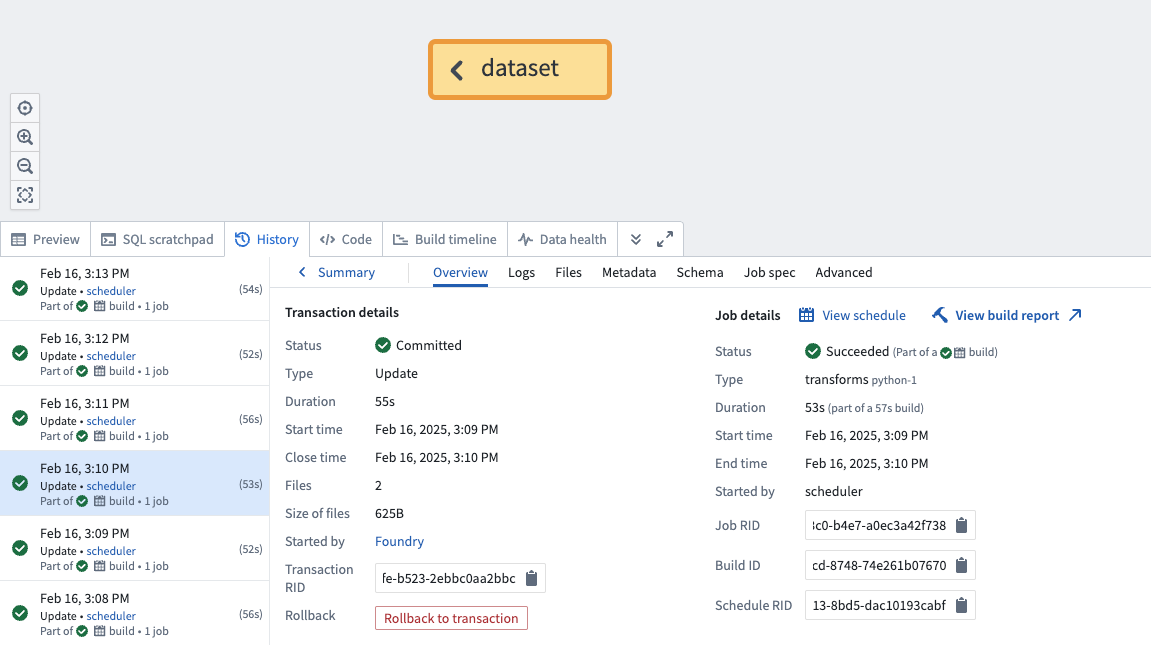
- Select Rollback to transaction.
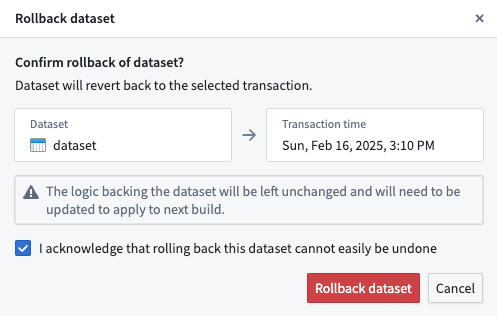
- A confirmation dialog will be displayed.
-
Acknowledge the warning that a rollback cannot easily be undone and select Rollback dataset.
-
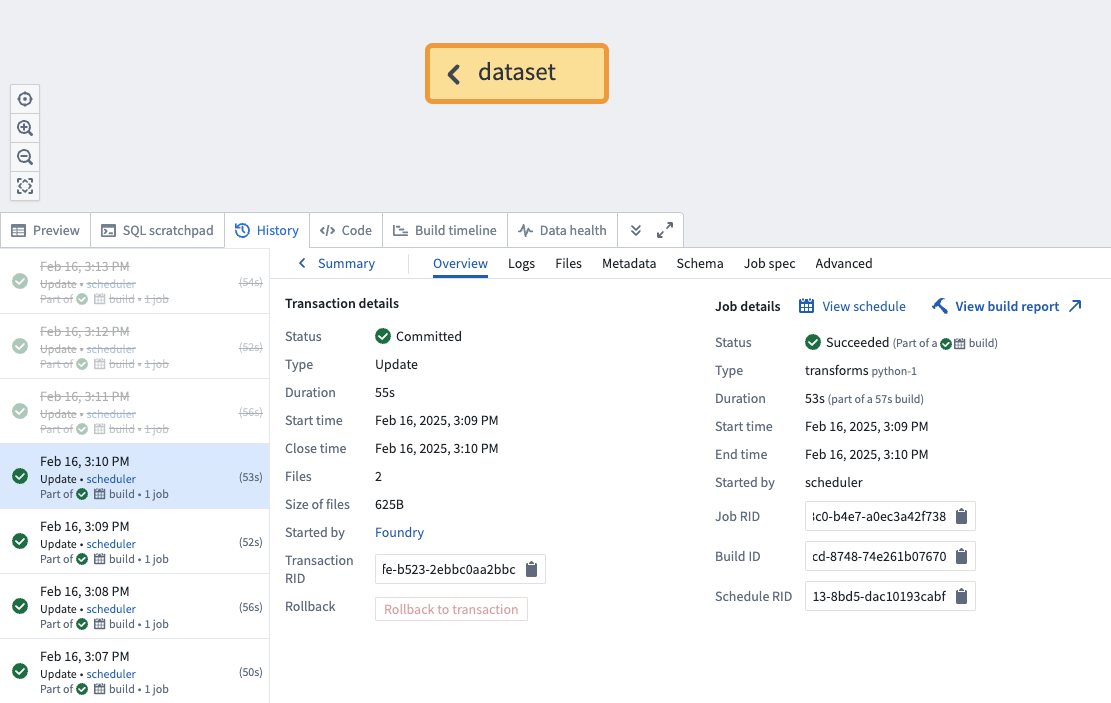
Once the rollback is complete, navigate to the dataset's History tab and ensure that the rolled back transactions are now crossed out, as shown below:
:::callout{theme="warning"} If a dataset backs an object type stored using object storage v2, manual intervention is required to ensure that the object type is reindexed with a successful run of the replacement pipeline to reflect the state after the rollback. :::
Force a snapshot on the next build
:::callout{theme="neutral"}
Forcing a snapshot will not change the dataset’s transaction history or produce immediate visible changes. The snapshot will occur on the next build.
Forcing a snapshot will require a force build to rebuild the dataset if there are no changes to either the input data or the logic backing the dataset.
:::
- Navigate to a Data Lineage graph containing the dataset you would like to force a snapshot on.
- Select the dataset in the graph. Then, from the branch selector at the top of the graph, select the branch on which you would like to perform the rollback.
- Select the History tab in the panel at the bottom of the page. Do not select any transactions.
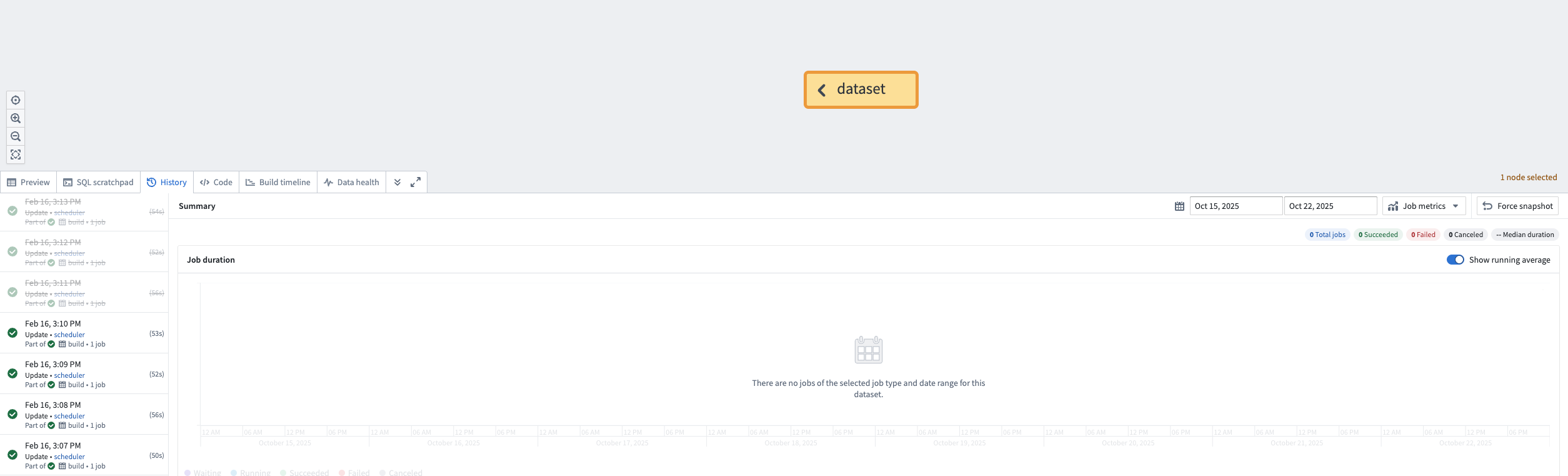
- In the displayed Summary panel, select the Force snapshot option in the toolbar at the top right.

- A confirmation dialog will be displayed.
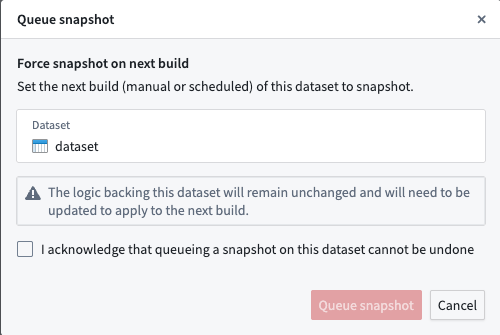
- Acknowledge the warning that a forcing a snapshot on the next build cannot be undone and select Queue snapshot.
中文翻译
回滚数据集
在构建管道(pipeline)时,您可能需要将数据集(dataset)回滚到早期版本。原因可能有很多,包括以下几种:
- 您在构建数据集的逻辑中发现了错误,需要将其还原。
- 上游源向您的管道中推送了错误数据。
- 发生了故障,您希望快速将数据集恢复到早期状态。
数据集回滚功能允许您更新数据集的数据和作业历史记录。如果数据集是以增量(incremental)方式构建的,该功能还能确保保留数据集的增量特性。
数据集回滚类型
数据集支持以下两种回滚类型:
- 回滚到早期事务(transaction): 当存在可供回滚的历史事务时执行。
- 在下次构建时强制生成快照(snapshot): 通常适用于增量工作流,当没有可供回滚的历史事务时使用,这意味着需要将数据集回滚到创建分支(branch)或数据集之前的状态。
:::callout{theme="warning"}
如果您意外地在数据集的下次构建中强制生成快照,但本意是回滚到早期事务,请不要继续执行回滚,因为这可能会导致数据集处于部分回滚状态。
相反,请先构建数据集;由于数据集已配置为在下次构建时生成快照,它将作为快照运行,然后再执行预期的回滚。
:::
注意事项与限制
回滚数据集时,请注意以下事项:
- 仅支持回滚事务型数据集。
- 您只能回滚到成功的事务。
- 无法回滚到已根据保留策略(retention policy)删除的事务。但是,您可以回滚到在数据血缘(Data Lineage)中因数据集回滚而被删除的事务。
- 您只能回滚您拥有
Editor角色的数据集。 - 执行回滚后,支撑数据集的逻辑将保持不变,需要对其进行更新才能应用于下次构建。
- 如果执行回滚的分支在数据集中不存在,回滚将应用于回退分支。
回滚到早期事务
- 导航到包含目标数据集的数据血缘图。
- 在图中选择该数据集。然后,从图顶部的分支选择器中,选择要执行回滚的分支。
- 在页面底部的面板中选择 History 选项卡。
- 选择要回滚到的事务。
- 选择 Rollback to transaction。
- 系统将显示确认对话框。
-
确认已了解回滚操作不易撤销的警告,然后选择 Rollback dataset。
-
回滚完成后,导航到数据集的 History 选项卡,确保已回滚的事务已被划掉,如下所示:
:::callout{theme="warning"} 如果数据集支撑着使用对象存储 v2(object storage v2) 存储的对象类型(object type),则需要手动干预,以确保通过成功运行替换管道(replacement pipeline)对对象类型进行重新索引,从而反映回滚后的状态。 :::
在下次构建时强制生成快照
:::callout{theme="neutral"}
强制生成快照不会更改数据集的事务历史记录,也不会立即产生可见的变化。快照将在下次构建时生成。
如果输入数据或支撑数据集的逻辑均未发生任何更改,强制生成快照将需要强制构建来重新构建数据集。
:::
- 导航到包含目标数据集的数据血缘图。
- 在图中选择该数据集。然后,从图顶部的分支选择器中,选择要执行回滚的分支。
- 在页面底部的面板中选择 History 选项卡。请勿选择任何事务。
- 在显示的 Summary 面板中,选择右上角工具栏中的 Force snapshot 选项。
- 系统将显示确认对话框。
- 确认已了解在下次构建时强制生成快照的操作无法撤销的警告,然后选择 Queue snapshot。