Save and share a graph(保存与共享图谱)
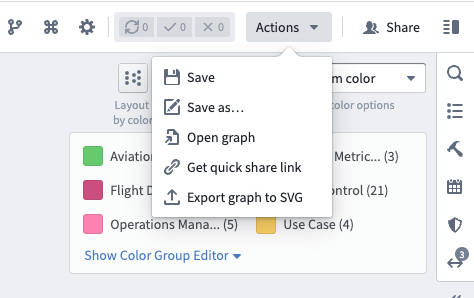
Data Lineage allows you to easily save your graph and share it with other users. You can find multiple ways to save and share by selecting the Actions tab in the upper right of the application and selecting a method from the dropdown menu.
Save a graph
Select the following options in the Actions dropdown menu to save your Data Lineage graph:
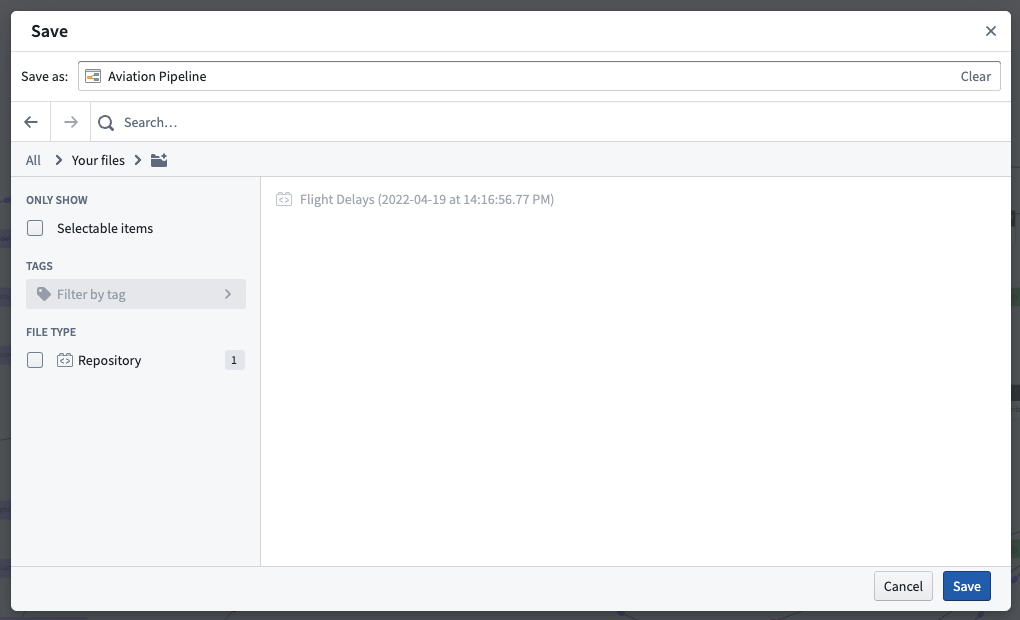
- Save: Save your Data Lineage graph to where it currently lives in your files or Project.
- Save as...: Choose a name for your lineage graph and save it to a new location in your file system.
You can also open a previously saved graph with the following option:
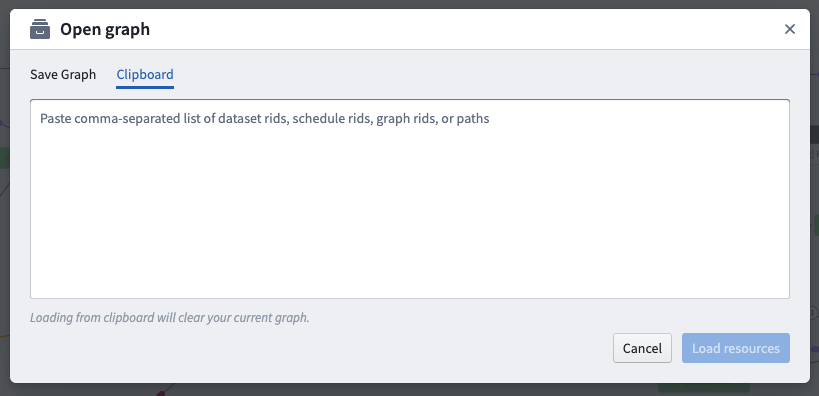
- Open graph: Choose to open a different saved graph to which you have access, or open the Clipboard tab to enter the resource identifier (RID) of a dataset, schedule, graph, or path.
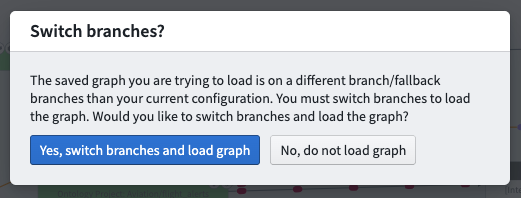
:::callout Your branch choice is saved with your saved graph. If you load a graph with a different branch configuration than you currently have, you will be asked if you would like to switch branches to the saved branch configuration. :::
Share a graph
You can share a graph with other users using the options below:
- Get quick share link: Generate a shareable link that provides read-only access to your graph. Note that this option is only available for users belonging to the same Organization. To share a graph across Organizations, ensure the graph is saved in a shared Project accessible to both Organizations.
- Export graph to SVG: Generate and download a static image of your lineage graph in .svg format.
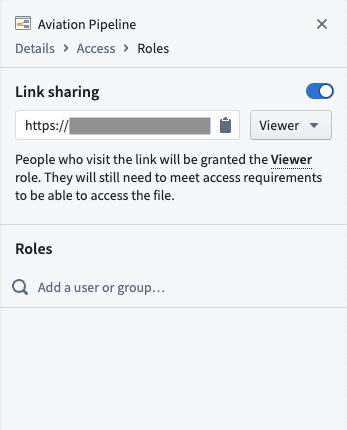
You can also select Share in the upper right of the application to open the sidebar and view Roles details. From here, you can turn on link sharing or give a user or group access to your graph.
中文翻译
保存与共享图谱
数据沿袭(Data Lineage)功能让您能够轻松保存图谱并与他人共享。您可以通过点击应用程序右上角的操作(Actions)选项卡,然后从下拉菜单中选择相应方式,找到多种保存与共享的方法。
保存图谱
在操作(Actions)下拉菜单中选择以下选项,即可保存您的数据沿袭图谱:
- 保存(Save): 将数据沿袭图谱保存到其当前所在的文件或项目(Project)位置。
- 另存为(Save as...): 为沿袭图谱命名,并将其保存到文件系统中的新位置。
您还可以通过以下选项打开之前保存的图谱:
- 打开图谱(Open graph): 选择打开您有权访问的其他已保存图谱,或打开剪贴板(Clipboard)选项卡,输入数据集、调度、图谱或路径的资源标识符(RID)。
:::callout 您的分支选择会随保存的图谱一同保存。如果您加载的图谱分支配置与当前配置不同,系统将询问您是否要切换到已保存的分支配置。 :::
共享图谱
您可以通过以下选项与其他用户共享图谱:
- 获取快速共享链接(Get quick share link): 生成一个可共享的链接,为您的图谱提供只读访问权限。请注意,此选项仅适用于同一组织(Organization)内的用户。如需跨组织共享图谱,请确保将图谱保存在两个组织均可访问的共享项目(shared Project)中。
- 将图谱导出为SVG(Export graph to SVG): 生成并下载沿袭图谱的静态图像,格式为.svg。
您还可以点击应用程序右上角的共享(Share)按钮,打开侧边栏查看角色(Roles)详情。在此处,您可以开启链接共享,或授予特定用户或用户组访问图谱的权限。