See the impact of Marking changes(查看标记(Marking)变更的影响)
You can use Data Lineage to evaluate how changes to dataset Markings can impact derived datasets. This can be useful when removing Markings.
:::callout{theme="warning" title="Warning"} Marking simulation relies on the most recent dataset builds and does not account for changes that are not yet finalized. Confirm that you are working with the most up-to-date version of your data. :::
Access simulation mode
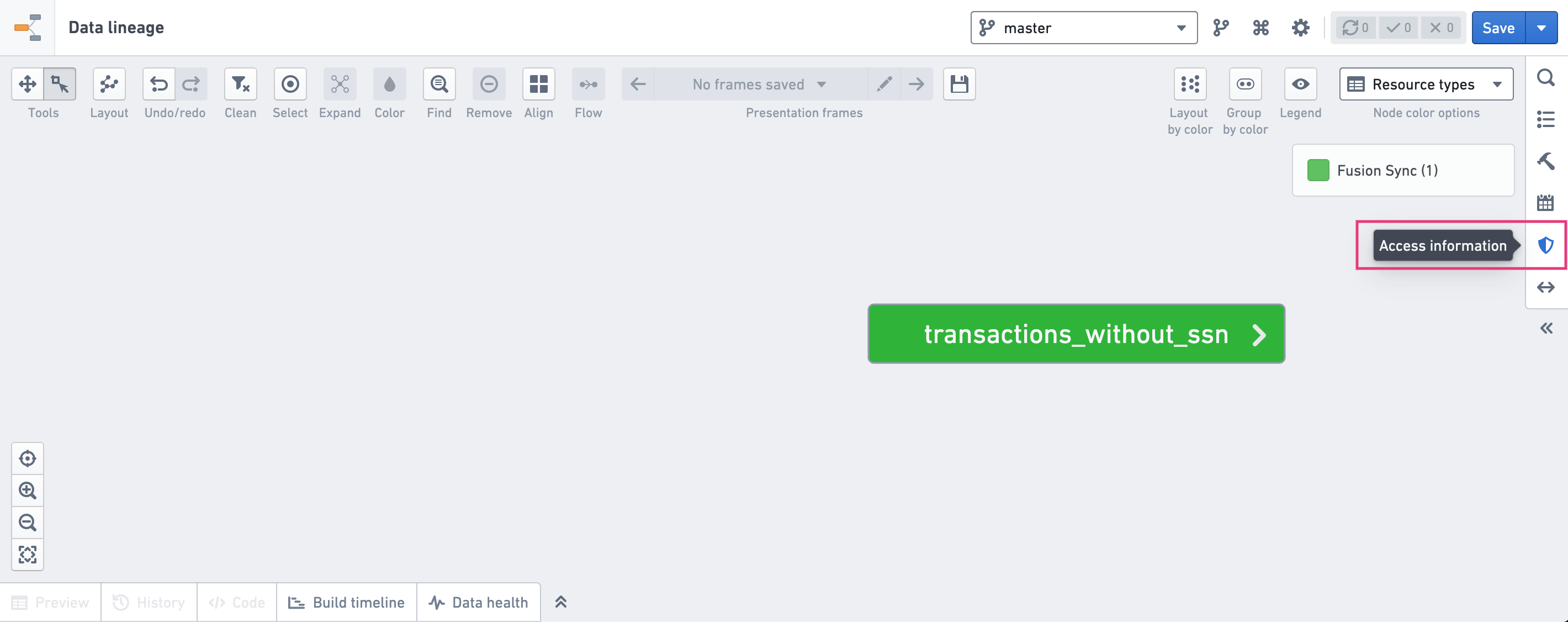
- Open the Access information side panel.
- Toggle on Simulate access requirements.
- Select any dataset on the graph.
- Click Edit markings.
Simulate Marking changes
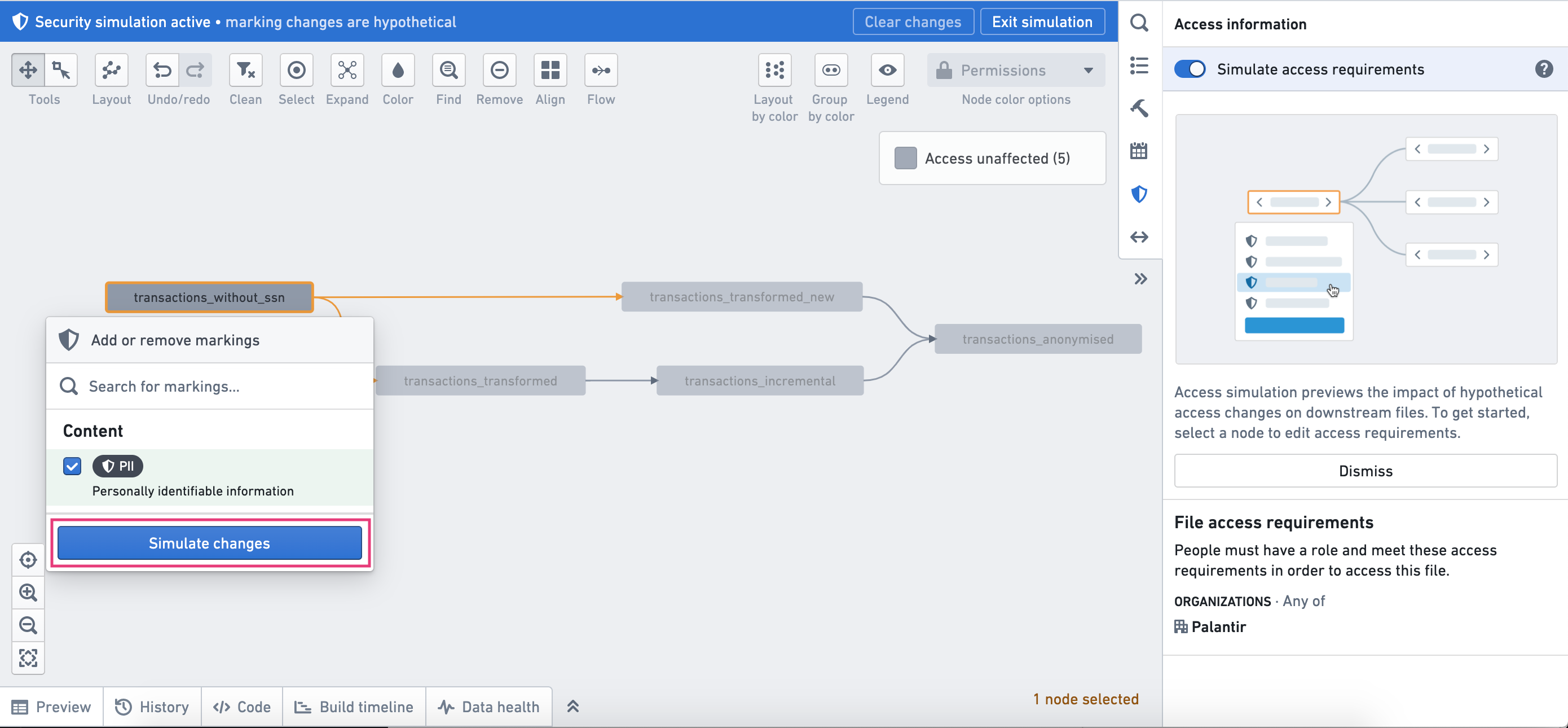
To simulate Marking application, search for the Marking you want to apply, check the box next to the Marking, and then select the Simulate changes button.
Markings that are already applied on a dataset will appear as selected. To simulate Marking removal, uncheck the box next to the Marking and click Simulate changes.
:::callout{theme="neutral"} You can only remove Markings that were applied directly on the dataset. Removal of Markings that were inherited through a dataset's lineage or from the parent Project cannot be simulated. :::
Analyze the simulated graph
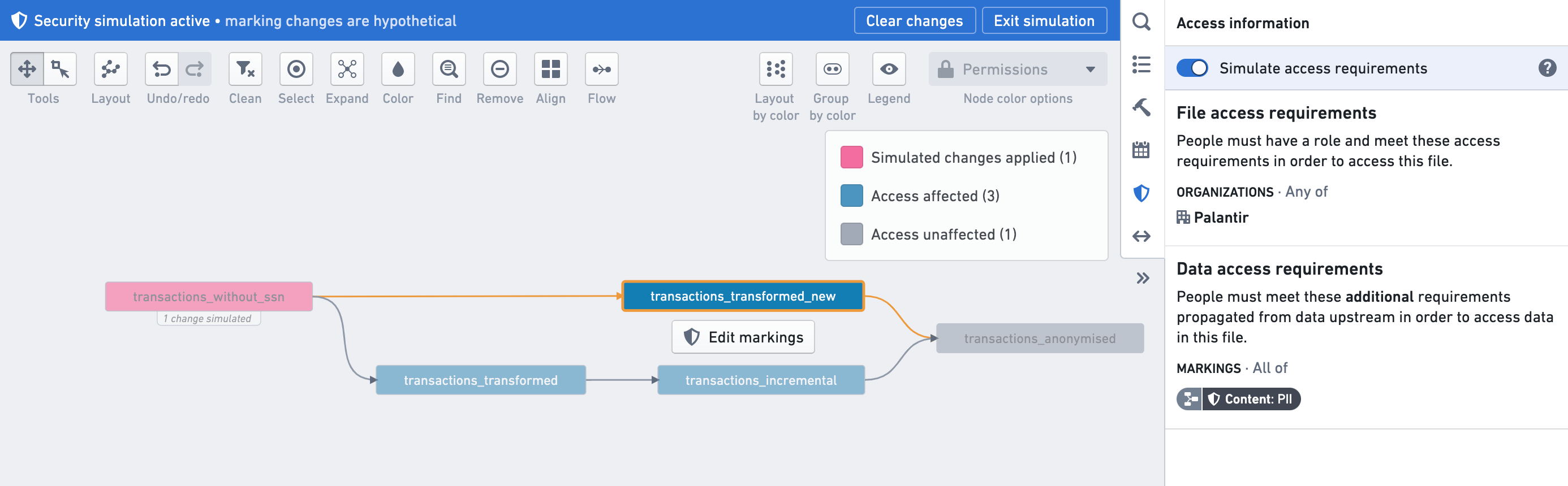
When in simulation mode, the graph coloring will indicate the datasets affected by the Marking changes. The graph colors are labeled in the interface and can represent the following dataset statuses:
- Simulate changes applied appears on the datasets to which you applied changes.
- Access affected appears on datasets for which the Markings before and after the change will be different.
- Access unaffected appears on datasets for which the Markings before and after the change will remain the same.
- No visible transactions appears on datasets that have not been built yet, or where you do not have permission to see transactions.
By selecting any of the datasets, the Access information side panel will show the simulated access requirements. You can toggle simulation mode on and off to view differences without losing any of the simulation changes.
Tips for understanding changes
Before making changes, we suggest consulting the Markings documentation to learn more about the impact of Markings on users.
When simulating Markings, consider the following:
- Datasets can stop propagating Markings via code.

- In the Permissions coloring, nodes on the Data Lineage graph that stop propagating Markings show that data access was modified via code. This message will also appear in the Access information section of the node properties side panel.
- In the Code Helper, you can check the code for a dataset to see if it stops propagating Markings by using the term
stop_propagating. - Datasets can have Markings propagated to them from other inputs; expand the dataset inputs by clicking on the left arrow in the dataset node.
- Markings can be applied on the parent Project or folder; Markings will have a folder icon on their left when simulation mode is not enabled, and will show a folder icon in the Marking simulation menu when simulation mode is enabled.
中文翻译
查看标记(Marking)变更的影响
您可以使用数据沿袭(Data Lineage)来评估数据集标记(Marking)变更如何影响衍生数据集。这在移除标记时非常有用。
:::callout{theme="warning" title="警告"} 标记模拟依赖于最近的数据集构建,不会考虑尚未最终确定的变更。请确认您正在使用最新版本的数据。 :::
进入模拟模式
- 打开访问信息(Access information)侧面板。
- 开启模拟访问要求(Simulate access requirements)开关。
- 在图谱上选择任意数据集。
- 点击编辑标记(Edit markings)。
模拟标记变更
要模拟标记应用,请搜索您想要应用的标记,勾选该标记旁边的复选框,然后选择模拟变更(Simulate changes)按钮。
已应用于数据集的标记将显示为已选中状态。要模拟标记移除,请取消勾选标记旁边的复选框,然后点击模拟变更(Simulate changes)。
:::callout{theme="neutral"} 您只能移除直接应用于数据集的标记。无法模拟移除通过数据集沿袭或父项目(Project)继承的标记。 :::
分析模拟图谱
在模拟模式下,图谱的颜色将指示受标记变更影响的数据集。图谱颜色在界面中有标注,可表示以下数据集状态:
- 已应用模拟变更(Simulate changes applied):显示在您应用了变更的数据集上。
- 访问受影响(Access affected):显示在变更前后标记将发生变化的数据集上。
- 访问不受影响(Access unaffected):显示在变更前后标记保持不变的数据集上。
- 无可见事务(No visible transactions):显示在尚未构建或您没有权限查看事务的数据集上。
选择任意数据集后,访问信息(Access information)侧面板将显示模拟的访问要求。您可以开启和关闭模拟模式来查看差异,而不会丢失任何模拟变更。
理解变更的技巧
在进行变更之前,我们建议查阅标记文档,以了解更多关于标记对用户影响的信息。
在模拟标记时,请考虑以下几点:
- 数据集可以通过代码停止传播标记。
- 在权限(Permissions)着色中,数据沿袭图谱上停止传播标记的节点会显示数据访问已通过代码修改(modified via code)。此消息也会出现在节点属性侧面板的访问信息(Access information)部分。
- 在代码助手(Code Helper)中,您可以检查数据集的代码,通过查找
stop_propagating术语来判断其是否停止传播标记。 - 数据集可以从其他输入(other inputs)接收传播的标记;点击数据集节点上的左箭头可展开数据集输入。
- 标记可以应用于父项目或文件夹(parent Project or folder);当模拟模式未启用时,标记左侧会显示文件夹图标;当模拟模式启用时,标记模拟菜单中会显示文件夹图标。