Manage organizations and spaces(管理组织与空间(Organizations and Spaces))
Organizations
Organization permissions should be managed via Control Panel. Further Organization configuration is managed in the Foundry Settings tab.
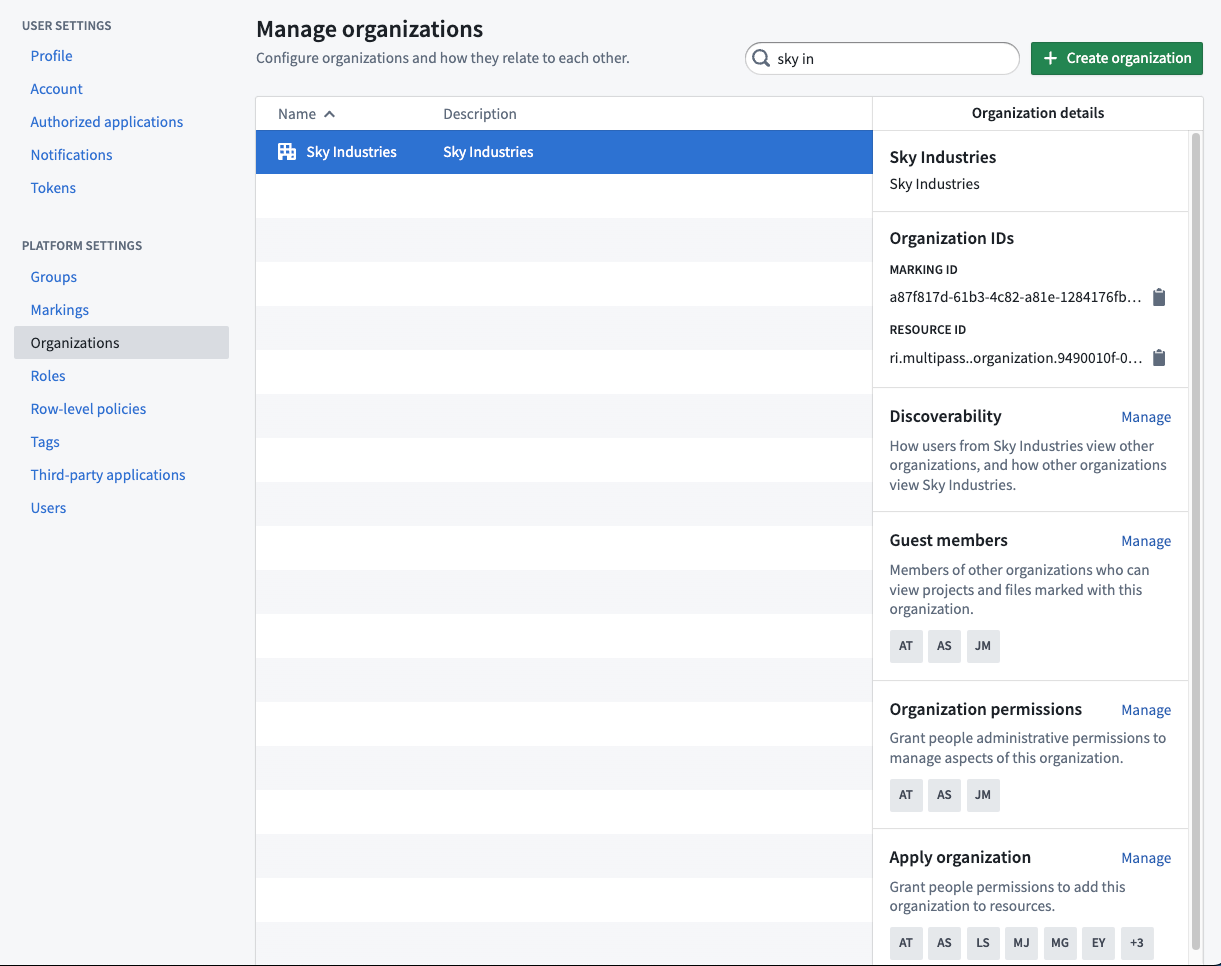
Organization permissions
Organizations have their own set of permissions that control how users can interact with organization access requirements on resources. These permissions are managed in Control Panel.
Marking permissions
Organizations use two permissions that govern how users can modify organization access requirements on resources:
- Apply organization: Allows a user to add this organization to resources. A user with this permission can apply the organization as an access requirement on a resource, folder, or project.
- Expand access: Allows a user to expand access to resources by adding other organizations or removing this organization. This permission is required when a user needs to broaden the audience that can access a resource by modifying its organization access requirements.
For more information on these terms, see the security glossary.
:::callout{theme="warning" title="Common error: missing Expand access permission"} If a user receives an error stating they lack the Expand access permission after trying to move a resource to a different organization or to remove an organization from a resource, an administrator must grant the user the Expand access permission on the source organization in Control Panel by navigating to Organization permissions > Marking permissions. :::
Home folders and organizations
When Foundry home folders are enabled, they are automatically marked with the organization of the user.
:::callout{theme="neutral" title="Beta"} Configuration options to disable home folders are in the beta phase of development and may not be available on your enrollment. Functionality may change during active development. Contact Palantir Support to request access to this feature. :::
Spaces
:::callout{theme="neutral"} Spaces have been rebranded from their previous name, namespaces. :::
Spaces settings are managed in Control Panel on the Space management page of enrollment settings.
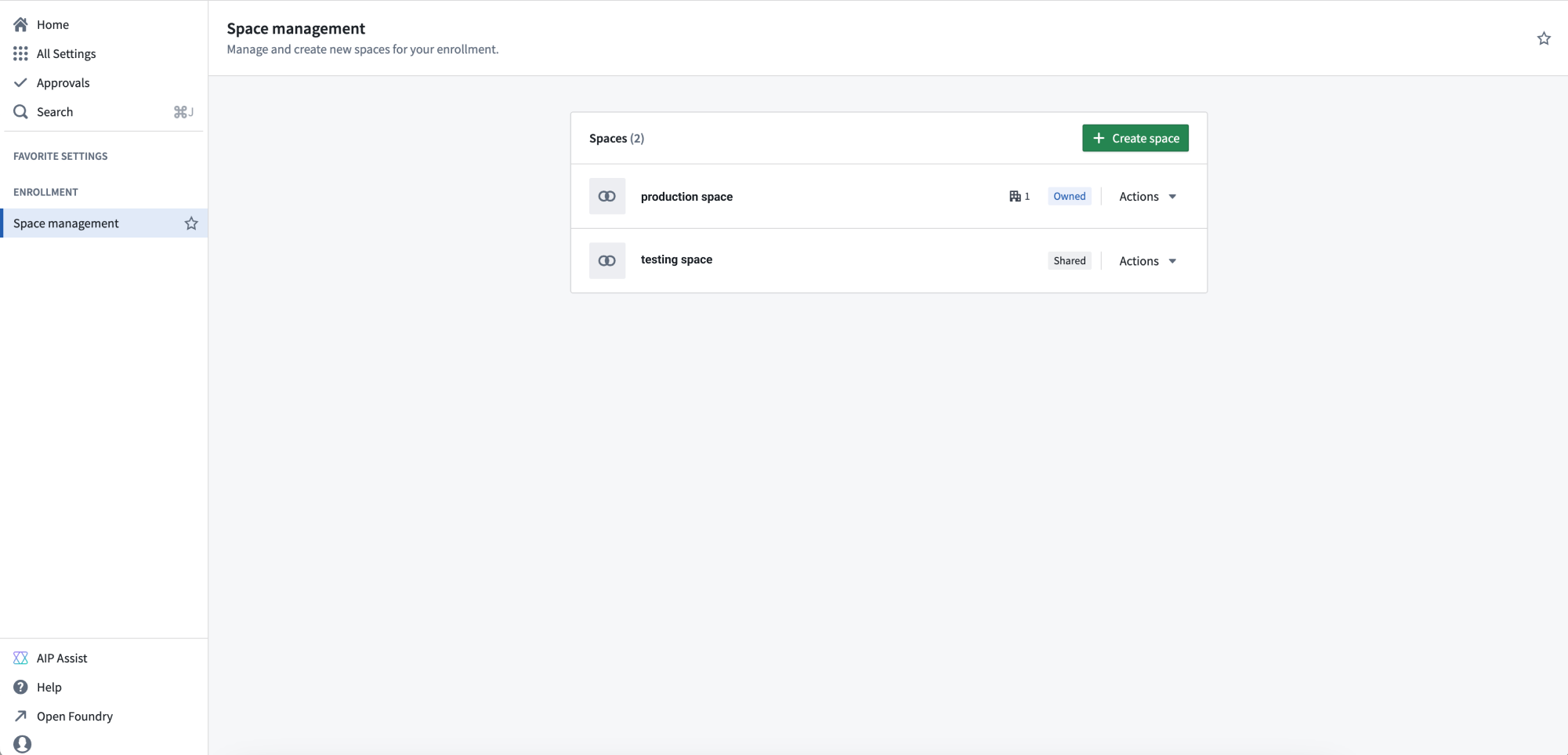
Create a space
From the Space management page, select + Create space.
As part of space creation, you will be asked to specify the following settings:
- Access requirements: Users need permission from at least one organization to access this space. Projects in this space can only be visible by organizations in this list.
- Deletion policy: Defines when the space and its projects are deleted. The space is deleted only after all organizations in this policy have been deleted.
- Filesystem: Where project data is stored. Cannot be changed after creation.
- Usage account: Tracks resource usage costs. Sets the default billing account for projects in this space. Can be overridden per project.
- Resource queue: Where projects get their compute resources from. All projects in this space use this queue.
- Role set: Controls which roles are available to projects. Defaults to
Project defaults, but you can use a custom role set instead.
If you are an enrollment admin but are not able to create a new space, it may be because your enrollment is not suitable or you have hit a quota limit; contact Palantir Support for more information.
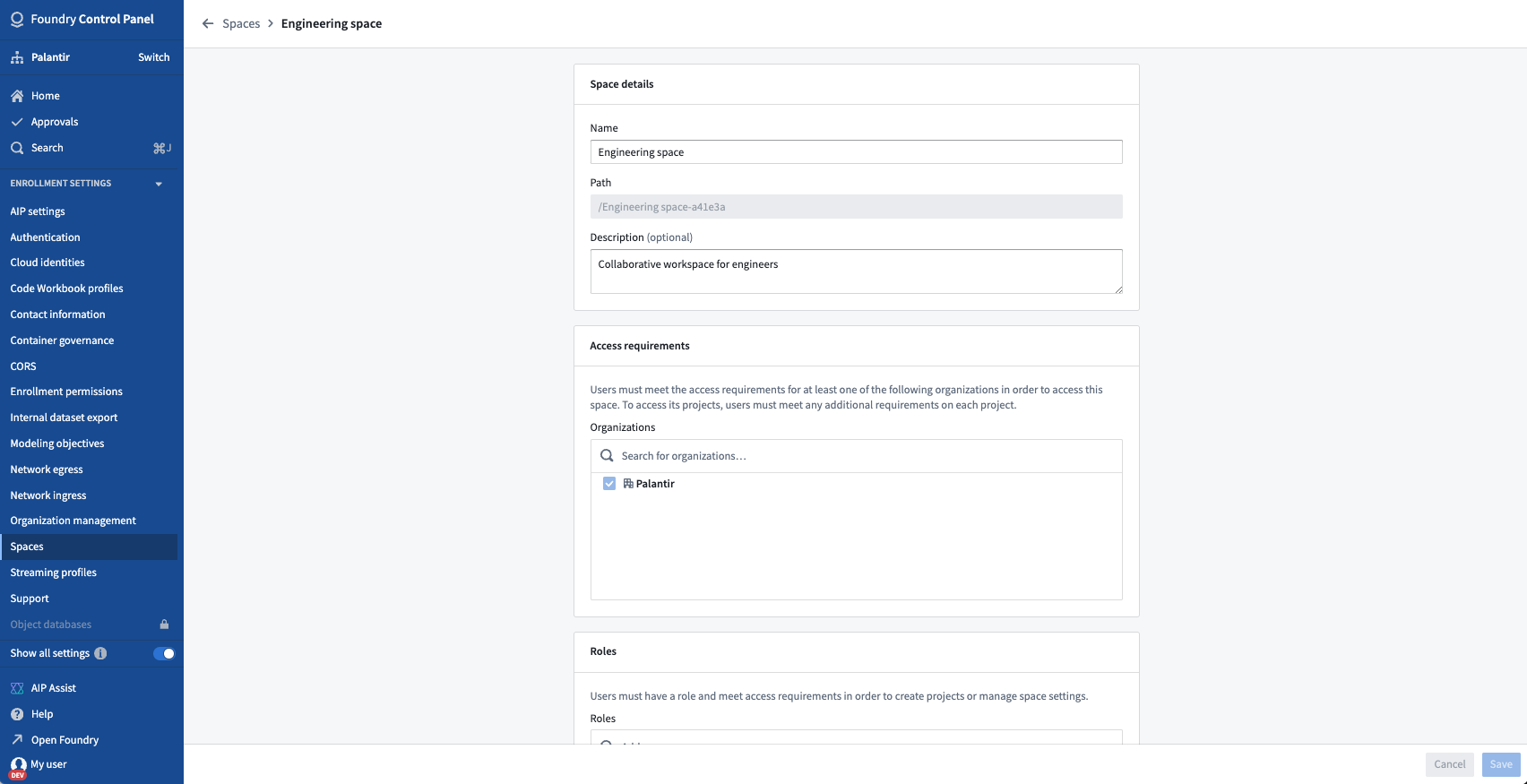
Manage a space
From the Actions dropdown menu, you can Manage the settings of a space. In addition to the settings mentioned above, you can configure:
- Maven identifier: Uniquely identifies resources published from this space.
- Project inherited roles: roles that all projects in the space inherit. These role grants appear in the Compass side panel for the project in this space. There are two inheritance role grant pickers, one for regular projects and one for locked marketplace projects.
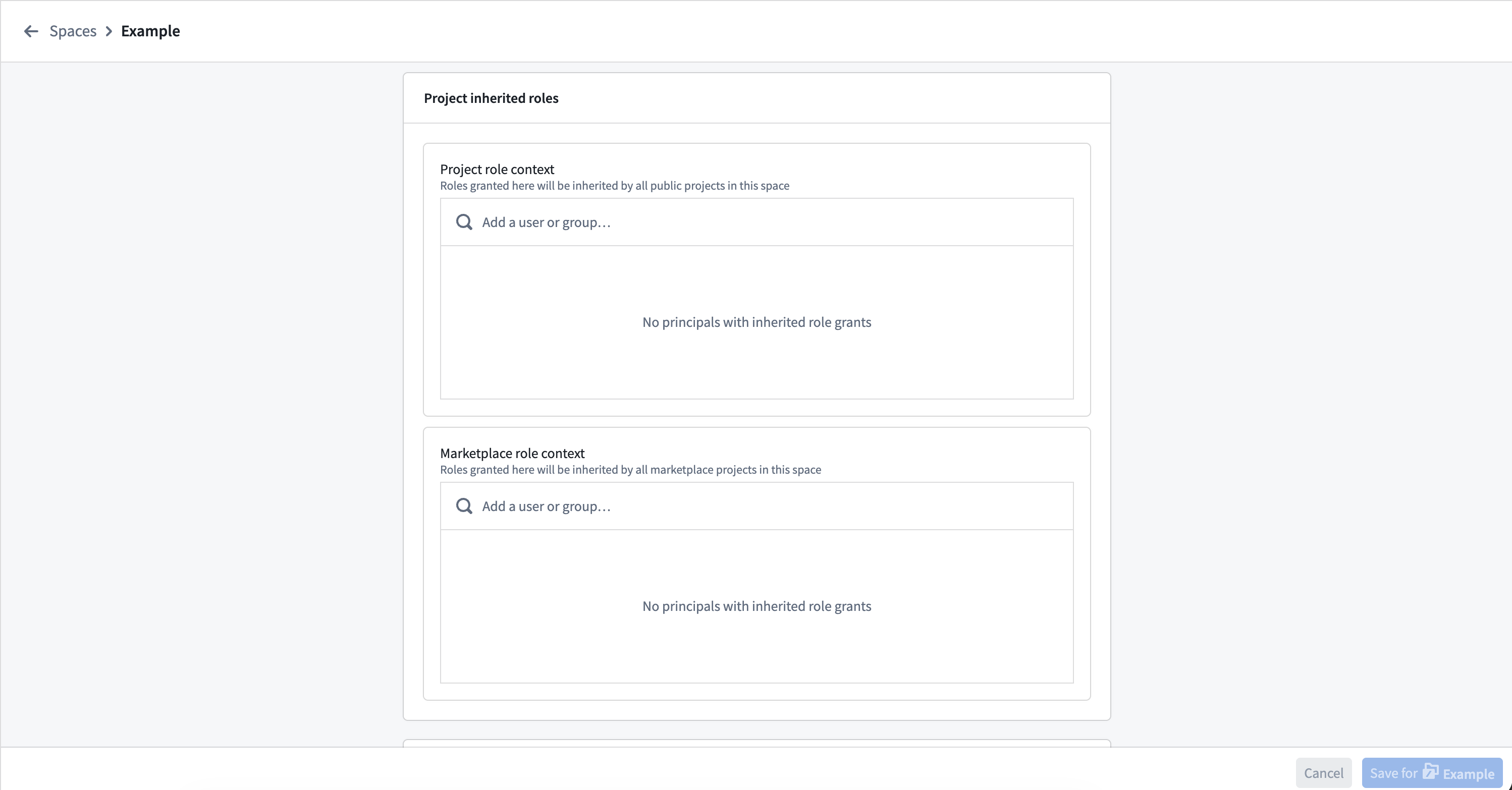
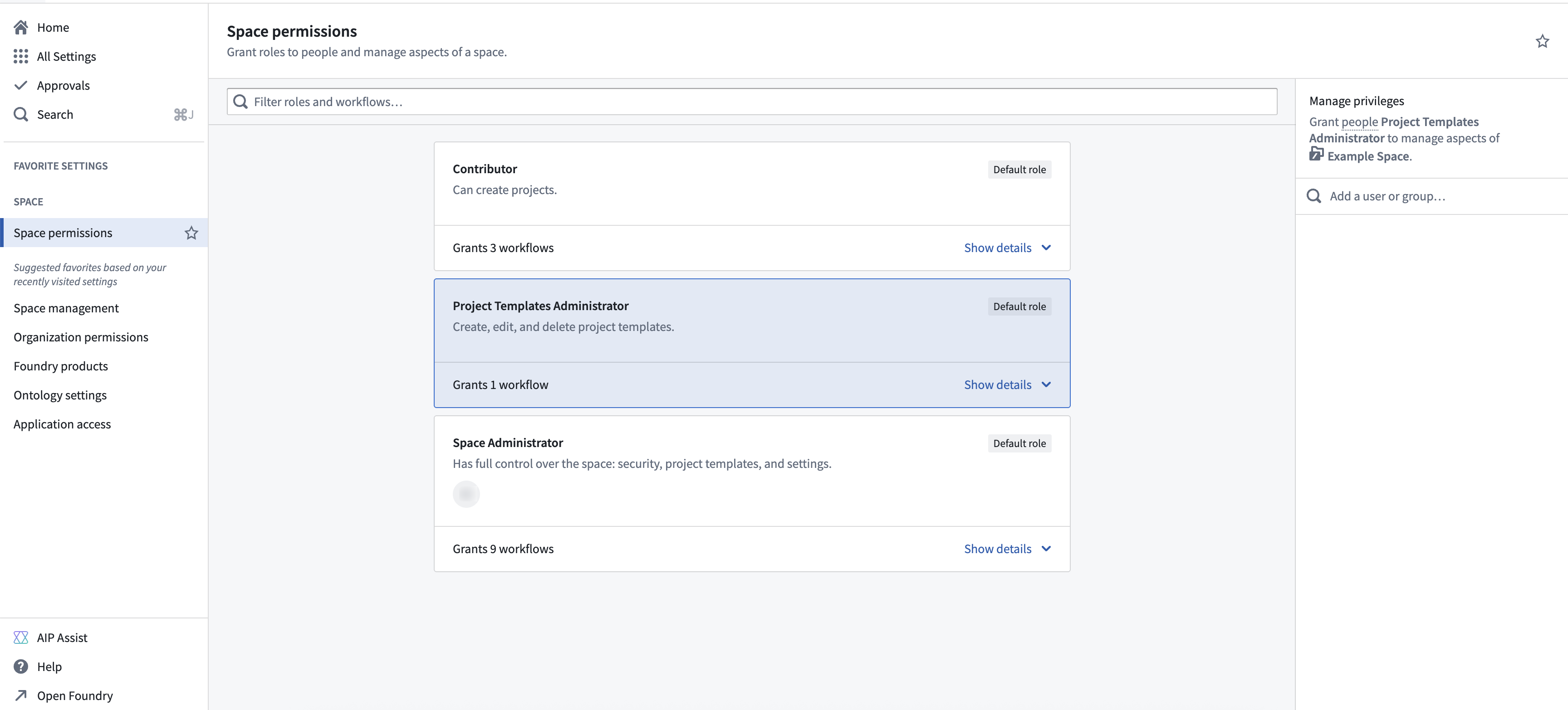
From the Space permissions page in Control Panel, you can set the roles users have in the space. Each space comes with a set of default roles and the ability to create custom roles for greater flexibility in managing permissions. For each role, you can open the workflows dropdown menu to view the permissions granted with the role. Select a role to view the role grants in the panel on the right, where you can add or remove users.
To create a custom role, select + New role in the top right of the page, then select which workflows to include with this role. After creating the custom role, you can grant that role to users the same way you would for other roles. Custom roles can be edited or deleted through the Actions menu in the top right of each custom role.
:::callout{theme="warning"} Custom roles are "frozen", meaning that new workflows added to default roles will not automatically apply to custom roles. To include new workflows in a custom role, select Edit role and add them manually. :::
Legacy spaces might provide additional configuration settings. Below is a description of those settings:
- Roles: Users must have a role on the space and meet its access requirements to create projects or manage space settings.
- Role grants on folders and files: When enabled, users can be assigned roles on folders and files in new projects by default. This setting only initializes this behavior when a new project is created and does not enforce this behavior for existing projects. Learn more about disabling role grants on folder and files.
中文翻译
管理组织与空间(Organizations and Spaces)
组织(Organizations)
组织权限应通过控制面板(Control Panel)进行管理。其他组织配置则在 Foundry 设置(Foundry Settings)标签页中完成。
组织权限(Organization Permissions)
组织拥有自己的一套权限,用于控制用户如何与资源上的组织访问要求进行交互。这些权限在控制面板中进行管理。
标记权限(Marking Permissions)
组织使用两种权限来管理用户如何修改资源上的组织访问要求:
- 应用组织(Apply organization): 允许用户将本组织添加到资源中。拥有此权限的用户可以将该组织作为访问要求应用于某个资源、文件夹或项目。
- 扩展访问(Expand access): 允许用户通过添加其他组织或移除本组织来扩展对资源的访问权限。当用户需要修改资源的组织访问要求以扩大可访问该资源的受众范围时,必须拥有此权限。
有关这些术语的更多信息,请参阅安全术语表(security glossary)。
:::callout{theme="warning" title="常见错误:缺少扩展访问权限"} 如果用户在尝试将资源移动到其他组织或从资源中移除某个组织时收到错误提示,指出其缺少扩展访问(Expand access)权限,则管理员必须在控制面板中,通过导航至组织权限(Organization permissions)> 标记权限(Marking permissions),为用户授予源组织的扩展访问权限。 :::
主文件夹(Home Folders)与组织
当启用 Foundry 主文件夹功能时,这些文件夹会自动标记为用户所属的组织。
:::callout{theme="neutral" title="Beta 测试版"} 用于禁用主文件夹的配置选项目前处于测试版(beta)开发阶段,可能不适用于您的注册环境。功能在活跃开发期间可能会发生变化。请联系 Palantir 支持团队以请求访问此功能。 :::
空间(Spaces)
:::callout{theme="neutral"} 空间(Spaces) 已从之前的名称命名空间(namespaces) 更名而来。 :::
空间设置通过控制面板中注册设置(Enrollment Settings)的空间管理(Space management)页面进行管理。
创建空间
在空间管理页面,选择+ 创建空间(+ Create space)。
在创建空间的过程中,您需要指定以下设置:
- 访问要求(Access requirements): 用户需要获得至少一个组织的权限才能访问此空间。此空间中的项目仅对列表中的组织可见。
- 删除策略(Deletion policy): 定义空间及其项目的删除时间。只有当此策略中的所有组织都被删除后,空间才会被删除。
- 文件系统(Filesystem): 项目数据的存储位置。创建后无法更改。
- 使用账户(Usage account): 跟踪资源使用成本。设置此空间中项目的默认计费账户。可按项目进行覆盖。
- 资源队列(Resource queue): 项目获取计算资源的来源。此空间中的所有项目均使用此队列。
- 角色集(Role set): 控制哪些角色可用于项目。默认为
项目默认值(Project defaults),但您也可以使用自定义角色集(custom role set)。
如果您是注册管理员但无法创建新空间,可能是因为您的注册环境不适用或已达到配额限制;请联系 Palantir 支持团队以获取更多信息。
管理空间
从操作(Actions)下拉菜单中,您可以管理(Manage)空间的设置。除上述设置外,您还可以配置:
- Maven 标识符(Maven identifier): 唯一标识从此空间发布的资源。
- 项目继承角色(Project inherited roles): 空间中所有项目继承的角色。这些角色授权会显示在 Compass 侧面板中该空间的项目上。有两个继承角色授权选择器,一个用于常规项目,另一个用于锁定的市场项目。
在控制面板的空间权限(Space permissions)页面中,您可以设置用户在空间中的角色。每个空间都附带一组默认角色,并且可以创建自定义角色以实现更灵活的权限管理。对于每个角色,您可以打开工作流(Workflows)下拉菜单来查看该角色授予的权限。选择一个角色可在右侧面板中查看角色授权,您可以在其中添加或移除用户。
要创建自定义角色,请选择页面右上角的+ 新建角色(+ New role),然后选择要包含在此角色中的工作流。创建自定义角色后,您可以像对待其他角色一样将该角色授予用户。自定义角色可以通过每个自定义角色右上角的操作(Actions)菜单进行编辑或删除。
:::callout{theme="warning"} 自定义角色是"冻结的",这意味着添加到默认角色的新工作流不会自动应用于自定义角色。要将新工作流包含在自定义角色中,请选择编辑角色(Edit role)并手动添加。 :::
旧版空间可能提供额外的配置设置。以下是这些设置的说明:
- 角色(Roles): 用户必须在空间中拥有角色并满足其访问要求,才能创建项目或管理空间设置。
- 文件夹和文件上的角色授权(Role grants on folders and files): 启用后,默认情况下用户可以在新项目的文件夹和文件上被分配角色。此设置仅在新项目创建时初始化此行为,不会对现有项目强制执行。了解更多关于禁用文件夹和文件上的角色授权的信息。