Manage roles(管理角色)
Roles are managed in the Foundry Settings under the Roles section.
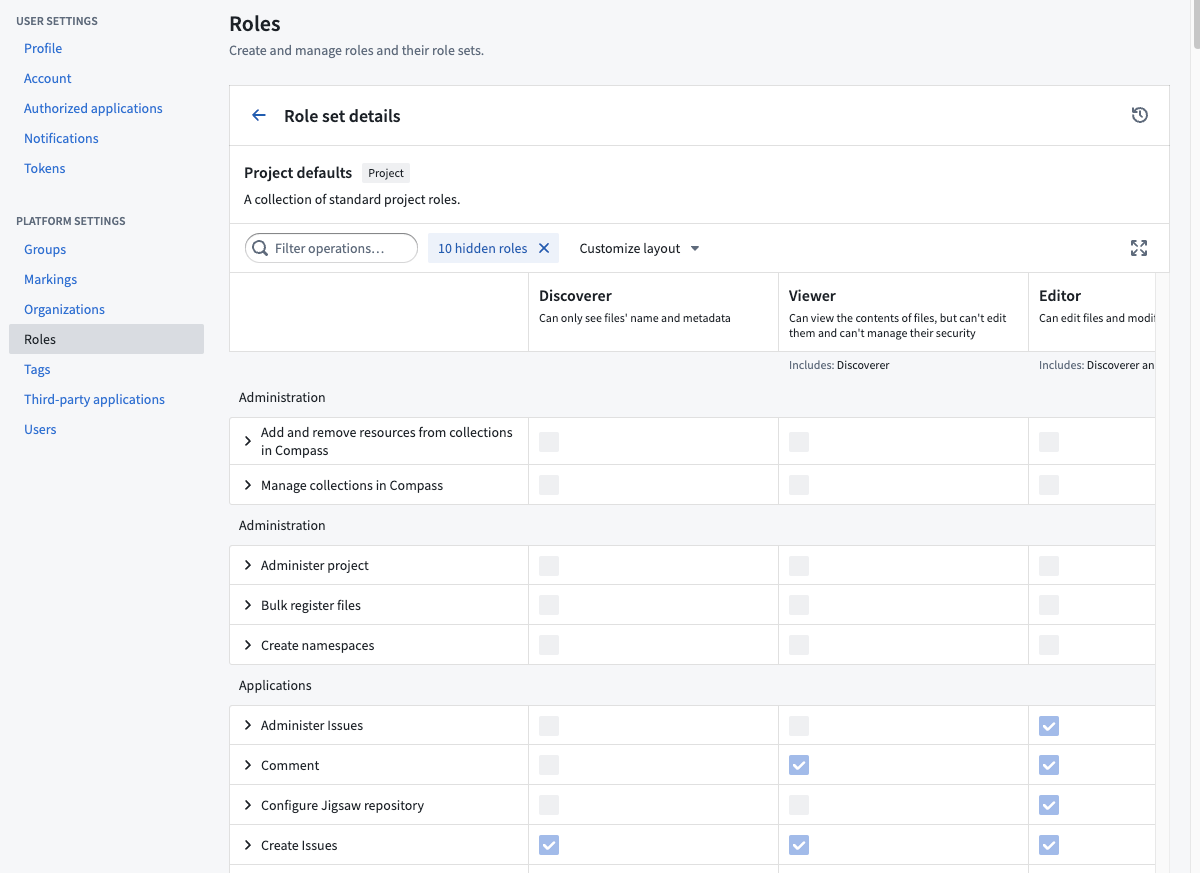
Customizing the default roles
:::callout{theme="success"} To customize the roles for your Organization, you must be granted the Organization administrator permission in Control Panel. :::
Understanding roles and operations
To understand role customizations, we need to zoom in one level deeper to operations.
Operations are individual permissions that Foundry applications check to verify a user has permission to perform a given action. Roles are sets of operations: when you grant someone a role on a resource (like a Project or a dataset), you are granting them a set of operations on that resource and any child resources underneath it. Each operation has a name and unique identifier.
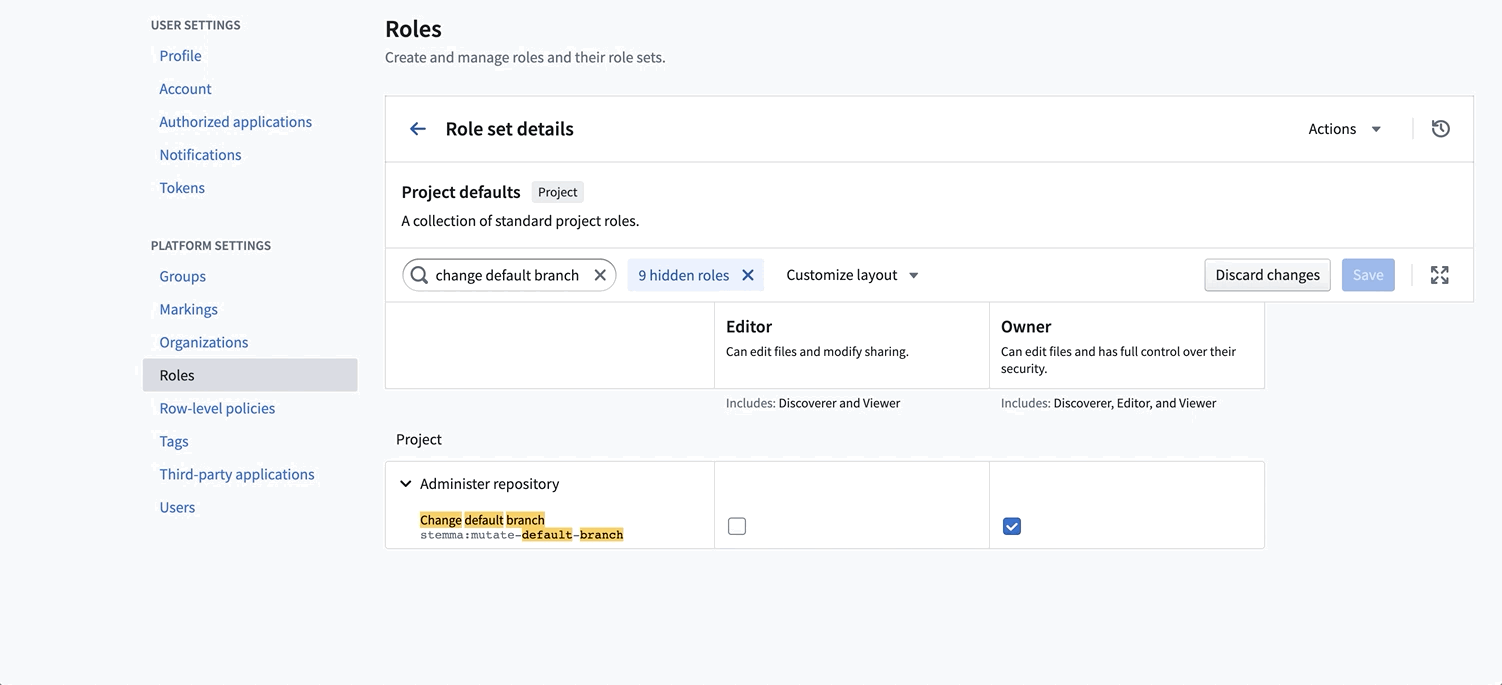
For example, one of the operations included in the default Owner role (but none of the lesser roles) is named “Change default branch” operation (with identifier: stemma:mutate-default-branch) which allows you change a Code Repository’s default branch. When you grant a user the Owner role on a Project, that user is granted stemma:mutate-branch on all resources in that Project, so they can change the default branch of any Code Repository inside.
Creating a custom role
:::callout{theme="success"} The role management UI can be found under the Roles tab of the platform settings page. :::
You can create your own entirely new custom role. You might want to create your own custom role to support different types of users in your Organization, such as the Merger or Supporter roles detailed below.
To create your own custom role, simply click “New Role”, and you’ll be prompted with the New Role dialog:
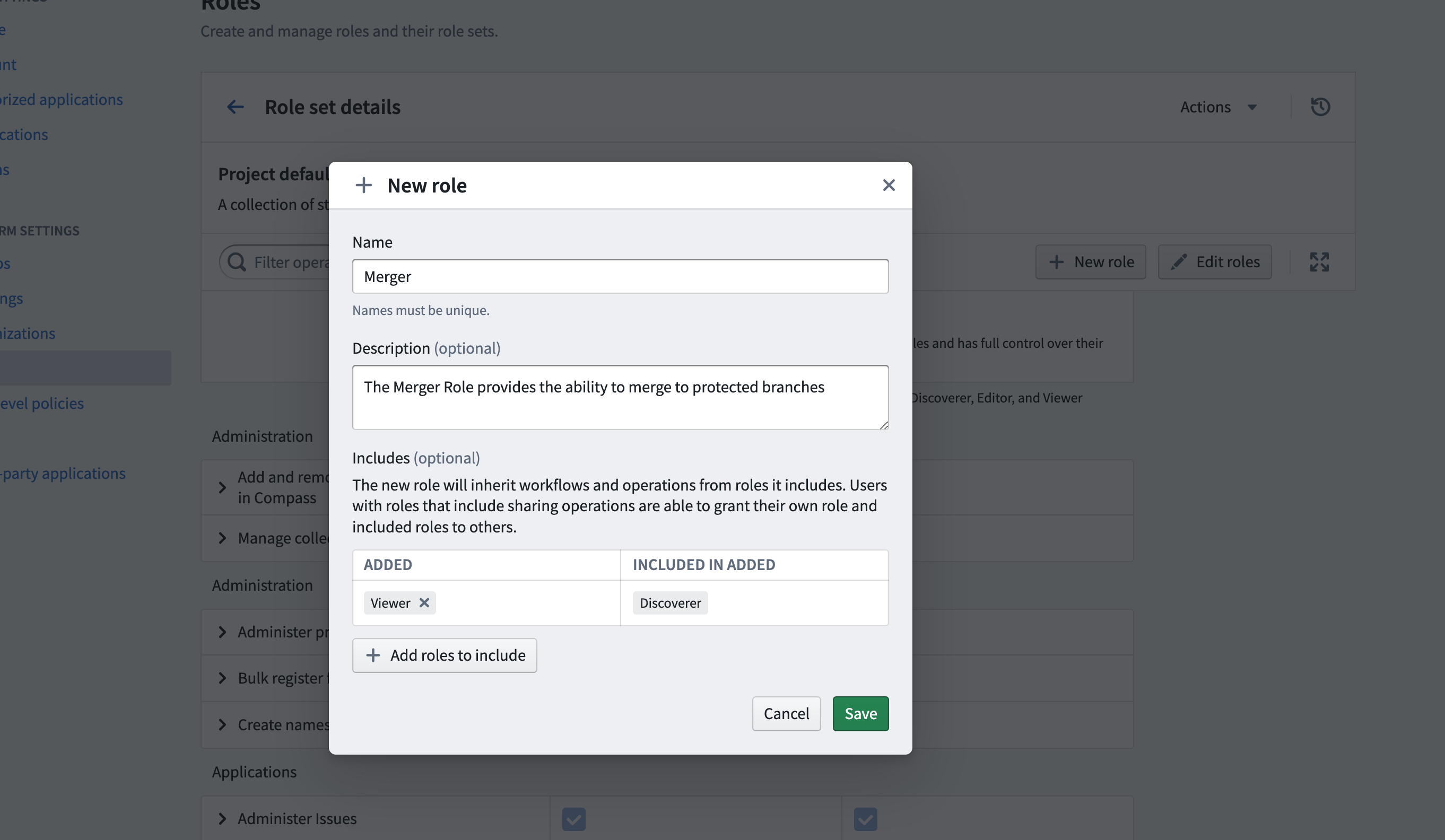
You can “Include” other roles. For the new Merger role above, we’ve included the Viewer role, meaning all permissions granted by Viewer will be granted in the Merger role. Once created, you can customize this role with additional operations.
Editing the default roles
You can only edit default roles (e.g. Viewer) for a custom role set. So to customize your Organization's roles, you first need to create a custom role set of the default roles. Then you can edit these default roles.
For example, if you’d like all Editors on your instance to be able to change the default branch of repositories, you can simply edit the Editor role to include this operation.
Sample custom roles
Below are a few examples of custom roles you could create if they’re useful for your situation.
Merger
The Merger role provides the ability to merge to protected branches, and should be granted in addition to the Viewer role. Create a custom role including the following operations:
- Manage Artifacts repository
- Merge to protected branch
- Merge pull request
- Update pull request
Supporter
A supporter is able to see the issues associated with a Project, but is unable to see any metadata (such as schema, name of datasets, and so on). This is primarily for Palantir or third-party support teams, who may not be onboarded or cleared to see certain data. The supporter Role can be created by including the following operations:
- Apply Assignment Rules
- Archive issues
- Edit issues
- Close and reopen issues
- View issues
Role sets
Role sets are a group of roles that allow the customization of role permissions at the Organization level and are used in a specific context, such as in Projects or the Ontology. Role sets add flexibility when Organizations in the same enrollment want different roles. Role sets provide the following guarantees:
- Roles in the same set are not dependent on any role outside of that set.
- All roles belong to one and only one role set.
- Roles in the set belong to the same Organization and are permissioned uniformly.
- Roles in the set are designed to work together, in the same context. Currently, the three available contexts for role sets are the Project context, Ontology context, and Marketplace Installation context.
Every enrollment will have at least three default role sets: Project defaults (Owner, Editor, etc.), Ontology defaults (Ontology Owner, Ontology Editor, etc.), and Marketplace Installation defaults (Marketplace Installation Editor, Marketplace Installation Viewer, etc.). Default role sets and the roles within them are always available to all Organizations.
Create new role sets
Role administrators must have Manage roles and role sets permissions on the Organization for which they are managing roles. This permission is granted in Control Panel under the Organization Administrator role. Only an administrator with this permission may create new role sets for the organization and customize existing roles in the role sets that belong to the Organization.
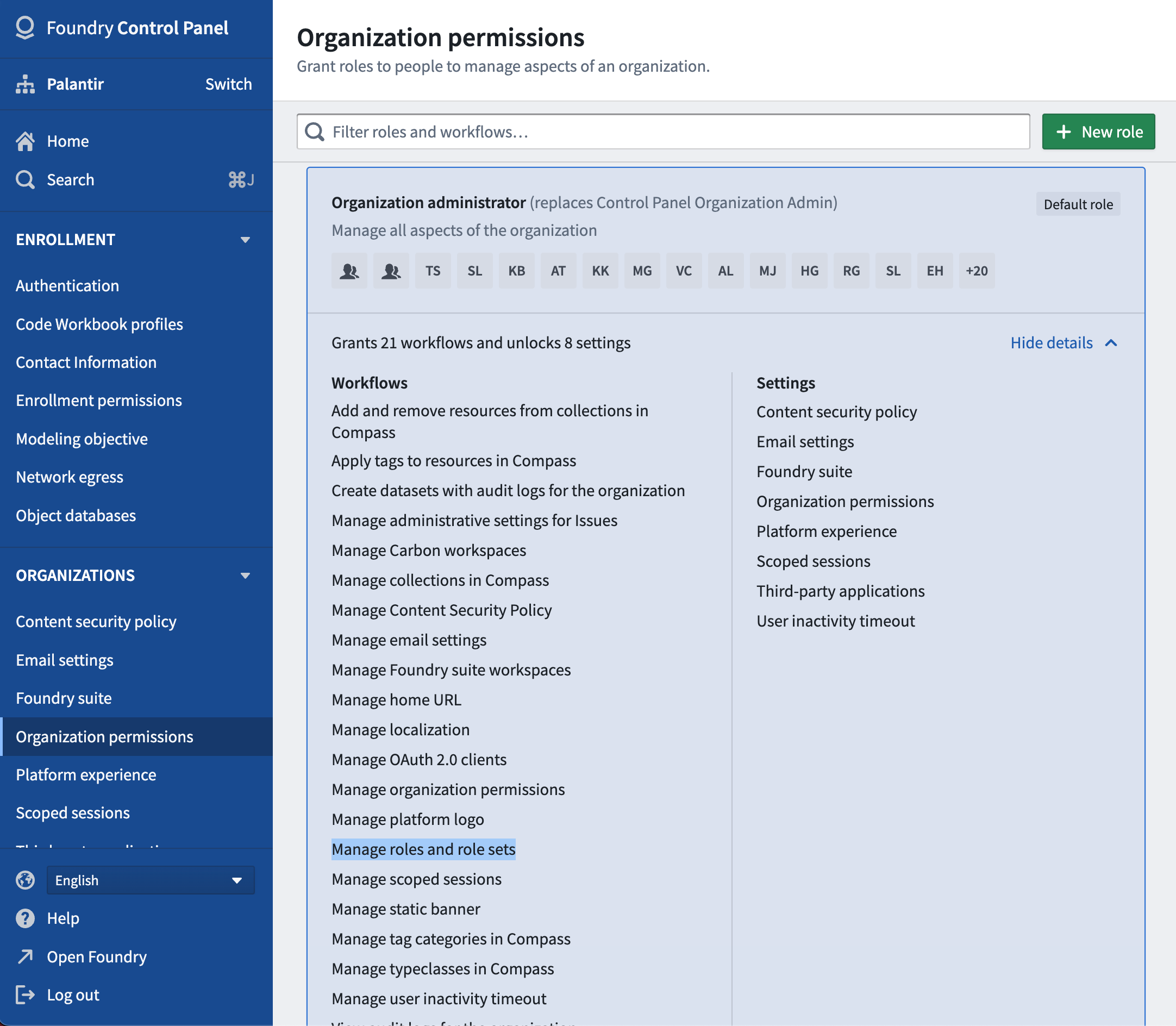
To customize roles for a given Organization, an administrator should first create a new role set.
To do so:
- Enter Platform Settings and click Create role set under the Roles section located on the top right.
- Complete the new role set form.
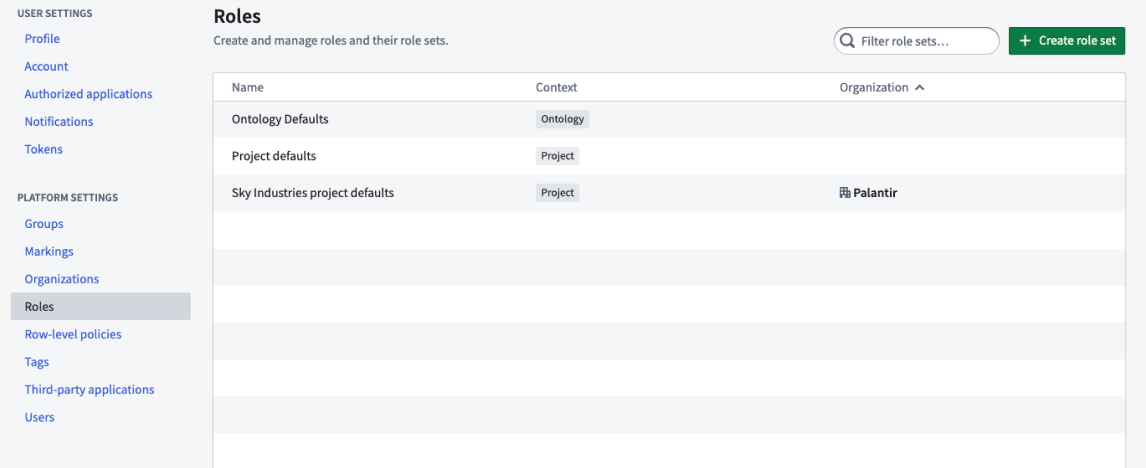
When creating a new role set, the administrator is required to copy roles from an existing role set. The administrator then only has to make relevant changes from an existing role set.
Additionally, when copying the Project default role set or another role set that depends on the Project default role set, the newly copied role set will be automatically updated with any role updates to the Project default role set. As Foundry development continues, new roles may be added by Palantir; receiving these permission updates automatically can reduce future administrative work.
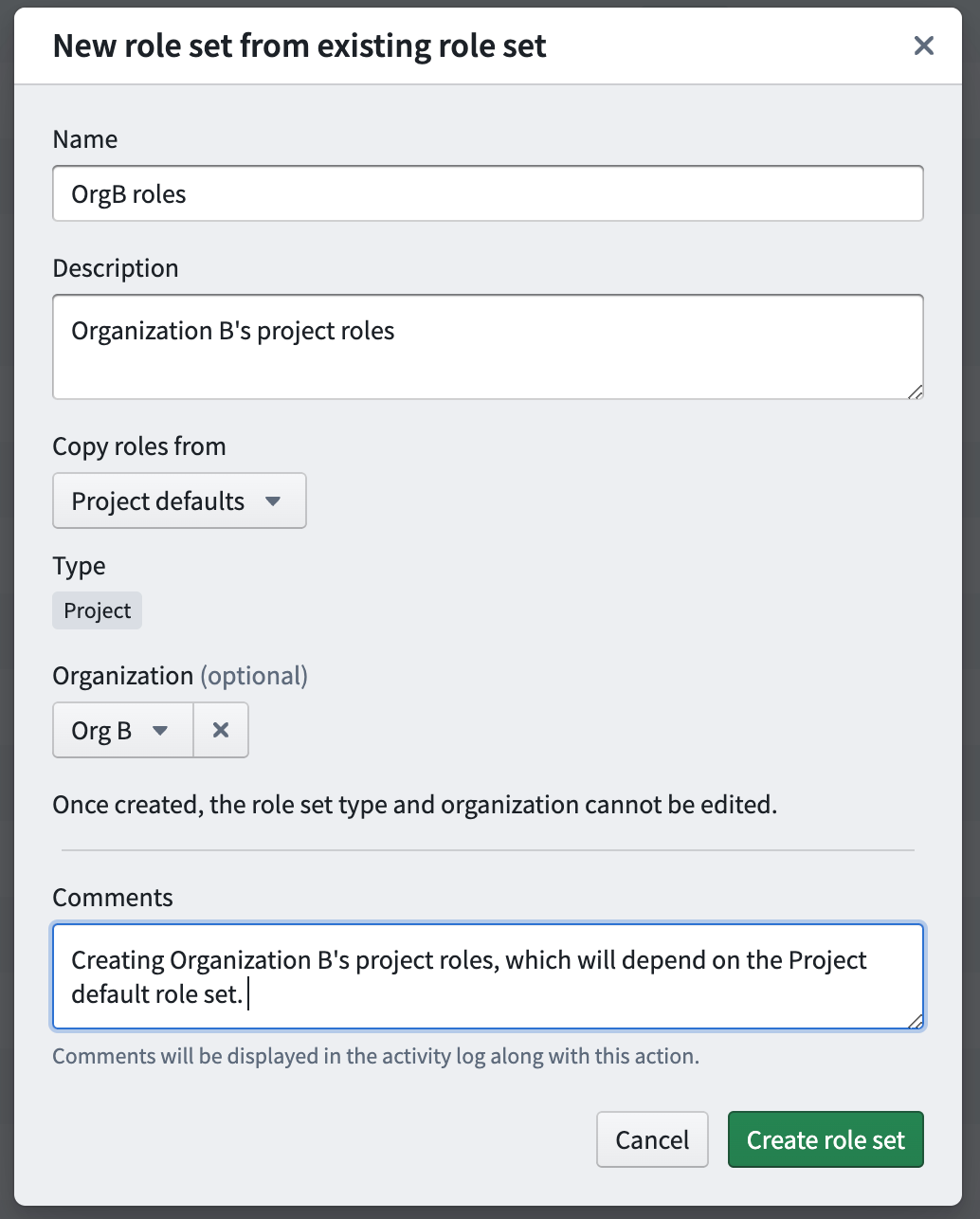
After creation of the role set above, any administrator who has the Manage roles and role sets permission on Org B will be able to edit this new role set.
Share role sets
The visibility of role sets is determined by Organization discoverability. Organization discoverability is managed in the Organization section under Platform Settings.
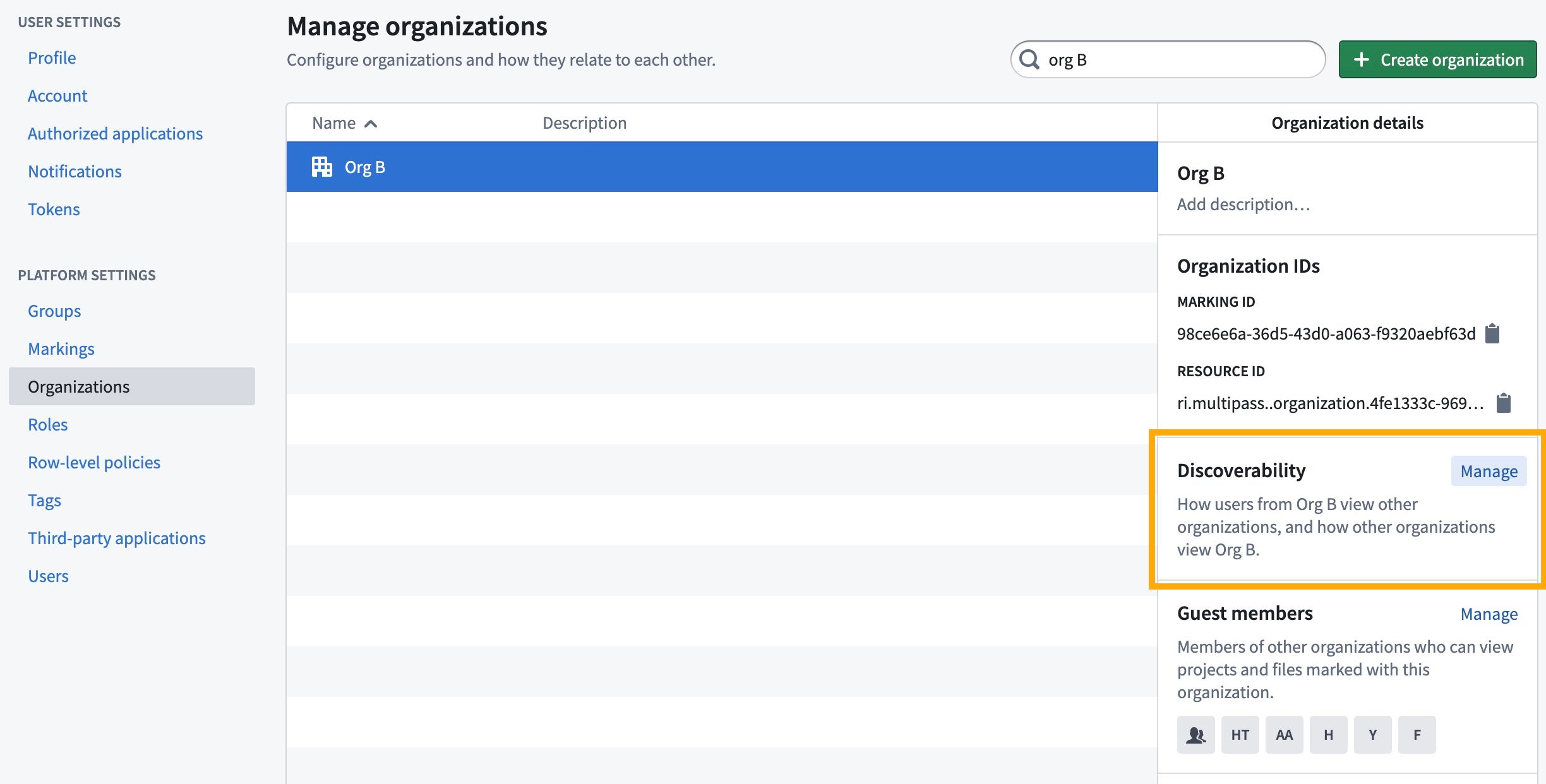

In the above example, Org B’s owned role sets are visible to only Org A and Org D, because they are mutually discoverable (in this case, the first column toggle is selected for all 3 rows). Org B and Org C users cannot see each other's role sets. Allowing users from mutually discoverable Organizations to see each other's role sets facilitates cross-Organization collaboration. For instance, in a Project with both Org A and Org B applied to it, an administrator may want users from both Org A and Org B to receive custom roles defined only by Org B.
Apply role sets
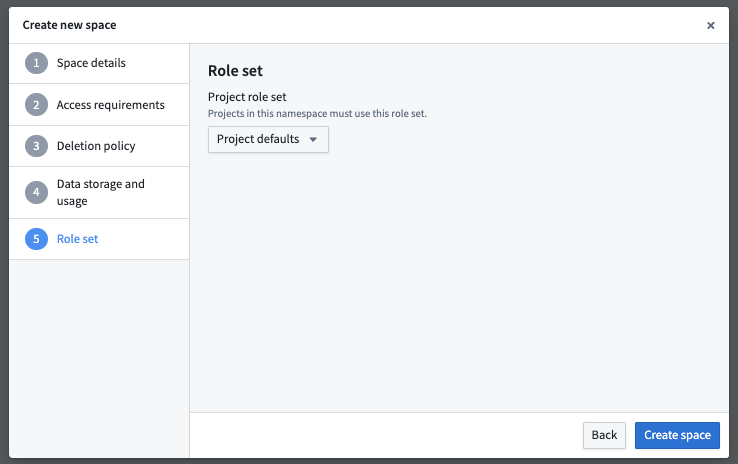
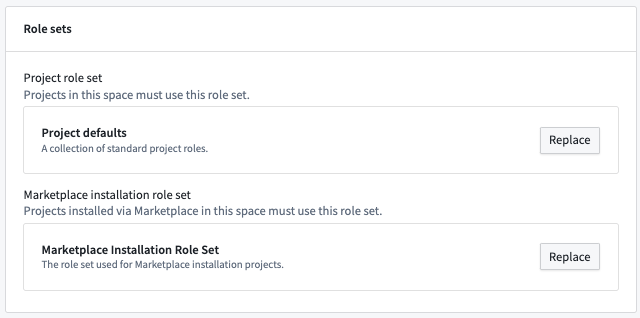
Role sets can only be applied at the space level. All the Projects, folders, and files within that space can only use the roles defined in the role set applied in the space settings. To manage this, an administrator can:
- Access the Space management page in Control Panel.
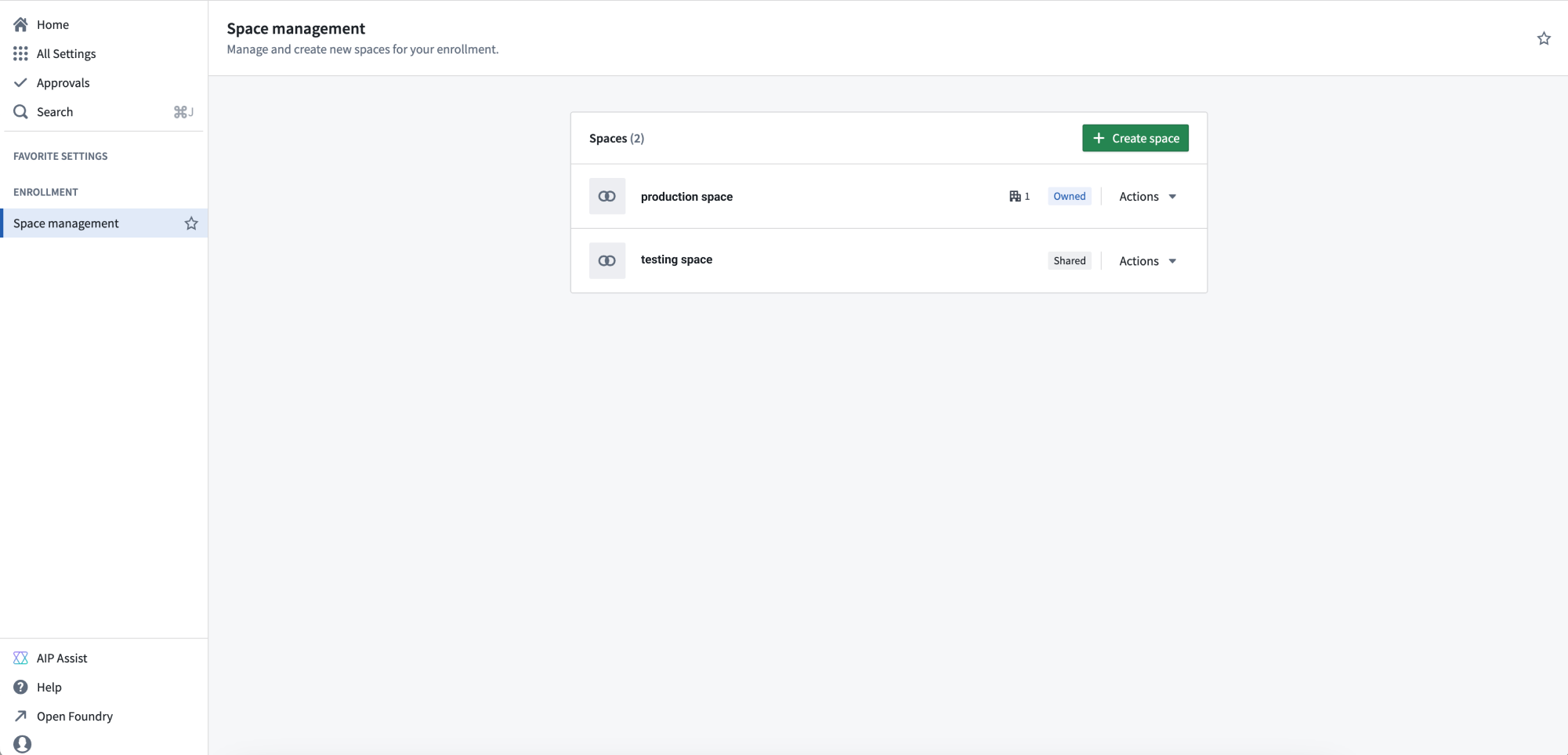
- Pick the role set during the space creation dialog, shown below.
- An existing role set can also be replaced with a new one in space settings under the Role sets card, shown below.
If an administrator replaces the current role set on a space with a new role set, each current role must be mapped to the replacement role. Below is an example of the mapping dialog when updating a role set on an existing space.
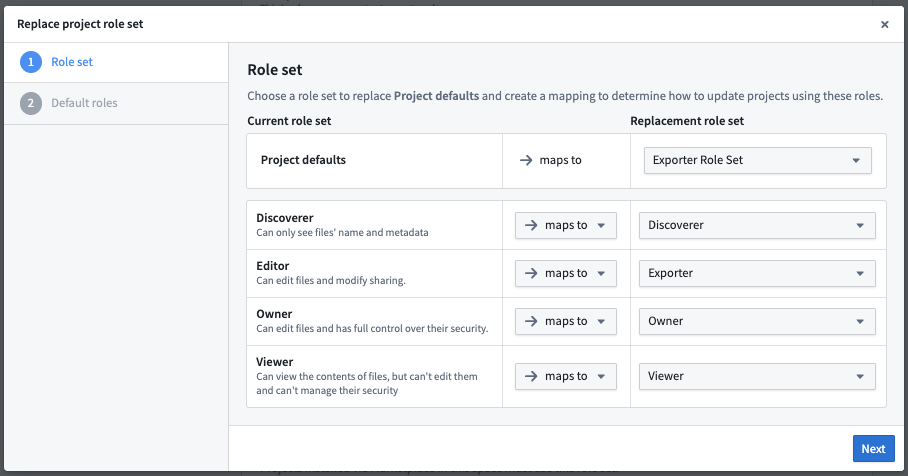
When complete, all role grants throughout the space will be updated to their new replacement role.
When a user moves a resource (Project, folder, or file) across role set boundaries and the resource has a role directly applied to it, the above mapping dialog will also be shown.
中文翻译
管理角色
角色在 Foundry 设置的"角色"部分进行管理。
自定义默认角色
:::callout{theme="success"} 要自定义组织的角色,您必须在控制面板中被授予"组织管理员"权限。 :::
理解角色与操作
要理解角色自定义,我们需要深入一层,了解操作(operations)。
操作是 Foundry 应用程序检查用户是否有权执行特定操作的单个权限。角色(roles)是操作的集合:当您授予某人在某个资源(如项目或数据集)上的角色时,您实际上是在授予他们对该资源及其所有子资源的一组操作。每个操作都有一个名称和唯一标识符。
例如,默认的"所有者"角色(而非任何较低级别的角色)中包含的一个操作名为"更改默认分支"(标识符:stemma:mutate-default-branch),该操作允许您更改代码仓库的默认分支。当您授予用户对某个项目的"所有者"角色时,该用户将获得该项目中所有资源的 stemma:mutate-branch 权限,因此他们可以更改其中任何代码仓库的默认分支。
创建自定义角色
:::callout{theme="success"} 角色管理界面可在平台设置页面的"角色"选项卡下找到。 :::
您可以创建全新的自定义角色。您可能希望创建自己的自定义角色来支持组织中的不同类型用户,例如下文详述的"合并者"或"支持者"角色。
要创建自定义角色,只需点击"新建角色",系统将弹出新建角色对话框:
您可以"包含"其他角色。对于上述新的"合并者"角色,我们包含了"查看者"角色,这意味着"查看者"授予的所有权限都将在"合并者"角色中授予。创建完成后,您可以通过添加其他操作来自定义此角色。
编辑默认角色
您只能为自定义的角色集编辑默认角色(例如"查看者")。因此,要自定义组织的角色,您首先需要创建一个包含默认角色的自定义角色集。然后才能编辑这些默认角色。
例如,如果您希望实例上的所有"编辑者"都能更改仓库的默认分支,只需编辑"编辑者"角色以包含此操作即可。
示例自定义角色
以下是一些自定义角色的示例,如果它们对您的情况有用,您可以创建这些角色。
合并者
"合并者"角色提供合并到受保护分支的能力,应作为"查看者"角色的补充授予。创建一个包含以下操作的自定义角色:
- 管理制品仓库
- 合并到受保护分支
- 合并拉取请求
- 更新拉取请求
支持者
"支持者"能够查看与项目相关的问题,但无法查看任何元数据(如模式、数据集名称等)。这主要适用于 Palantir 或第三方支持团队,他们可能尚未入职或未被授权查看某些数据。可以通过包含以下操作来创建"支持者"角色:
- 应用分配规则
- 归档问题
- 编辑问题
- 关闭和重新打开问题
- 查看问题
角色集
角色集是一组角色,允许在组织级别自定义角色权限,并在特定上下文中使用,例如在项目或本体中。当同一注册中的组织需要不同角色时,角色集增加了灵活性。角色集提供以下保证:
- 同一角色集中的角色不依赖于该角色集之外的任何角色。
- 所有角色属于且仅属于一个角色集。
- 角色集中的角色属于同一组织,并具有统一的权限。
- 角色集中的角色设计为在同一上下文中协同工作。目前,角色集的三种可用上下文是项目上下文、本体上下文和市场安装上下文。
每个注册至少有三个默认角色集:项目默认角色集(所有者、编辑者等)、本体默认角色集(本体所有者、本体编辑者等)和市场安装默认角色集(市场安装编辑者、市场安装查看者等)。默认角色集及其中的角色始终对所有组织可用。
创建新角色集
角色管理员必须对其管理角色的组织拥有"管理角色和角色集"权限。此权限在控制面板的"组织管理员"角色下授予。只有拥有此权限的管理员才能为组织创建新的角色集,并自定义属于该组织的角色集中的现有角色。
要为特定组织自定义角色,管理员应首先创建一个新的角色集。
操作步骤如下:
- 进入平台设置,点击右上角"角色"部分下的创建角色集。
- 填写新角色集表单。
创建新角色集时,管理员需要从现有角色集中复制角色。然后,管理员只需对现有角色集进行相关更改。
此外,当复制项目默认角色集或其他依赖于项目默认角色集的角色集时,新复制的角色集将自动更新项目默认角色集中的任何角色更新。随着 Foundry 的持续开发,Palantir 可能会添加新角色;自动接收这些权限更新可以减少未来的管理工作。
创建上述角色集后,任何对组织 B 拥有"管理角色和角色集"权限的管理员都可以编辑这个新角色集。
共享角色集
角色集的可见性由组织的可发现性决定。组织可发现性在平台设置下的组织部分进行管理。
在上述示例中,组织 B 拥有的角色集仅对组织 A 和组织 D 可见,因为它们彼此可发现(在此情况下,所有 3 行的第一列切换开关均已选中)。组织 B 和组织 C 的用户无法看到彼此的角色集。允许来自相互可发现组织的用户看到彼此的角色集有助于跨组织协作。例如,在同时应用了组织 A 和组织 B 的项目中,管理员可能希望来自组织 A 和组织 B 的用户都能获得仅由组织 B 定义的自定义角色。
应用角色集
角色集只能在空间级别应用。该空间内的所有项目、文件夹和文件只能使用空间设置中应用的角色集所定义的角色。要管理此设置,管理员可以:
- 访问控制面板中的空间管理页面。
- 在空间创建对话框中选择角色集,如下所示。
- 也可以在空间设置的角色集卡片中将现有角色集替换为新角色集,如下所示。
如果管理员将空间上的当前角色集替换为新角色集,则必须将每个当前角色映射到替换角色。以下是在更新现有空间上的角色集时映射对话框的示例。
完成后,整个空间中的所有角色授予都将更新为其新的替换角色。
当用户跨角色集边界移动资源(项目、文件夹或文件),且该资源直接应用了角色时,也会显示上述映射对话框。