Authorizing third-party application access(授权第三方应用程序访问)
Authorizing third-party applications
Once a third-party application has been registered and enabled in the Foundry platform, the process for authorizing the third-party application to Foundry is simple.
:::callout{theme="neutral"} If the desired third-party application has not been registered and enabled in the Foundry platform, register and enable it before proceeding with the authorization process or contact your Palantir representative to request registration and/or enablement. :::
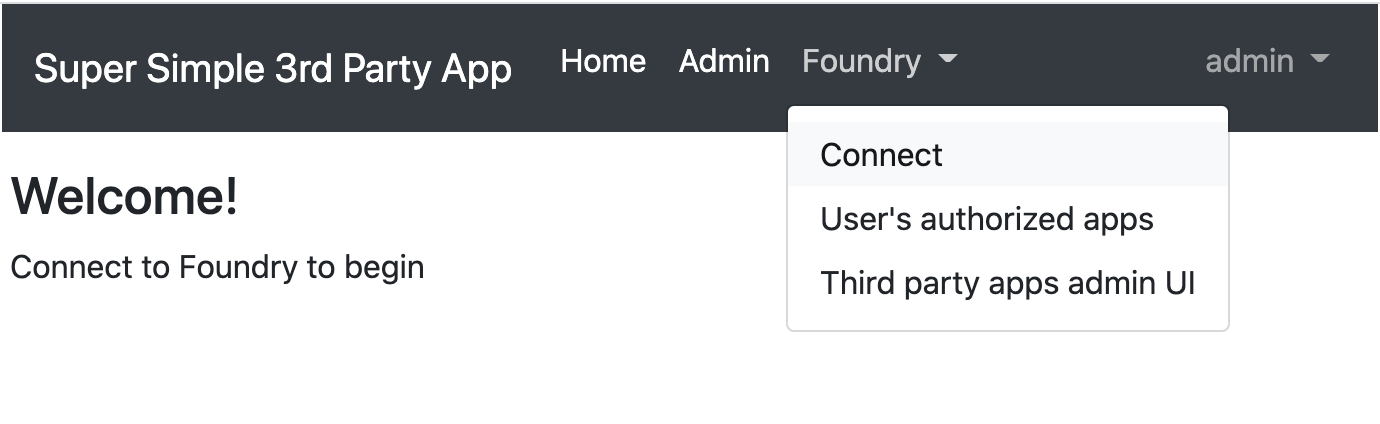
In this example, we’ll use a simple test application to demonstrate the workflow for authorizing a registered and enabled third-party application for Foundry access. Third-party applications may offer some kind of Connect option, as seen below.
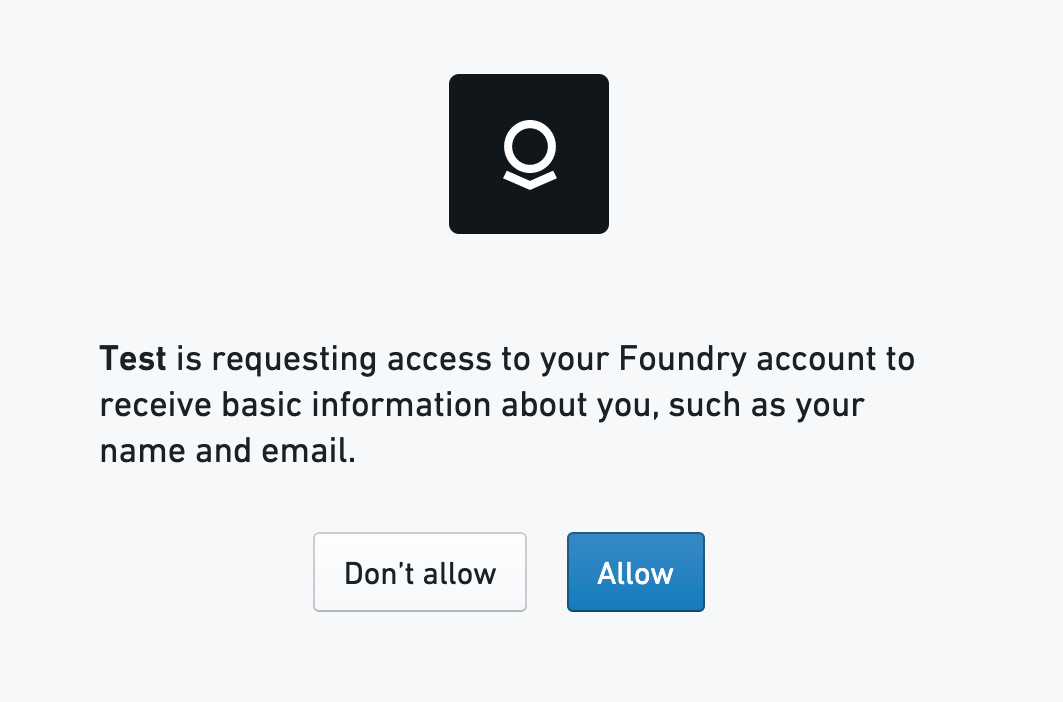
Attempting to connect or authorize a third-party application that has been registered and enabled will direct you to Foundry and open a confirmation screen, as seen below, in which you can choose to Allow or Don’t allow access. On this confirmation screen, Foundry will display the set of operations for which the third-party application is requesting permissions; this set of operations is determined by the author of the third-party application connector.
After allowing access, you should be redirected back to the third-party application and receive a confirmation of access permission.
Managing Authorized Applications
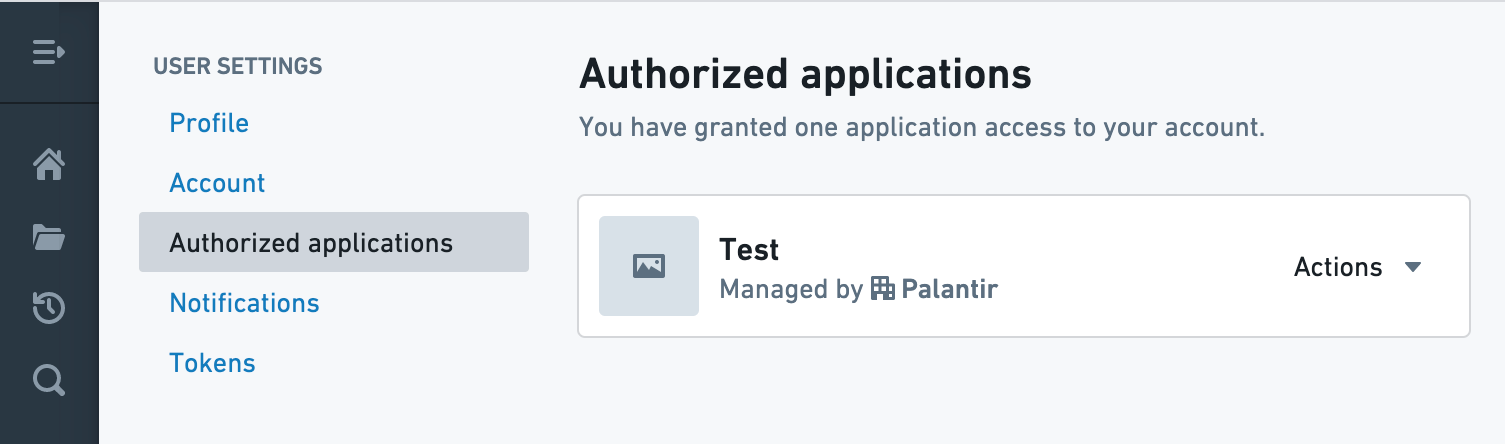
On Foundry’s Settings page, the Authorized Applications tab displays the third-party applications that have been approved for access. At this point, we can see that the Test application has been granted access to your account.
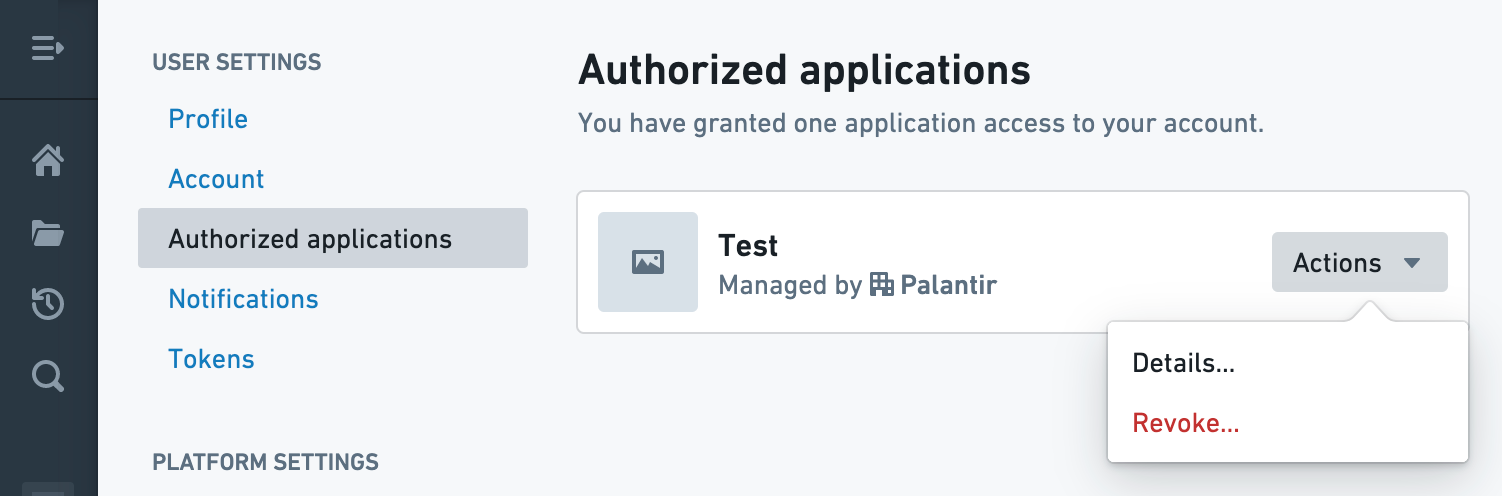
Clicking on the Actions dropdown brings up the following options: Details and Revoke.
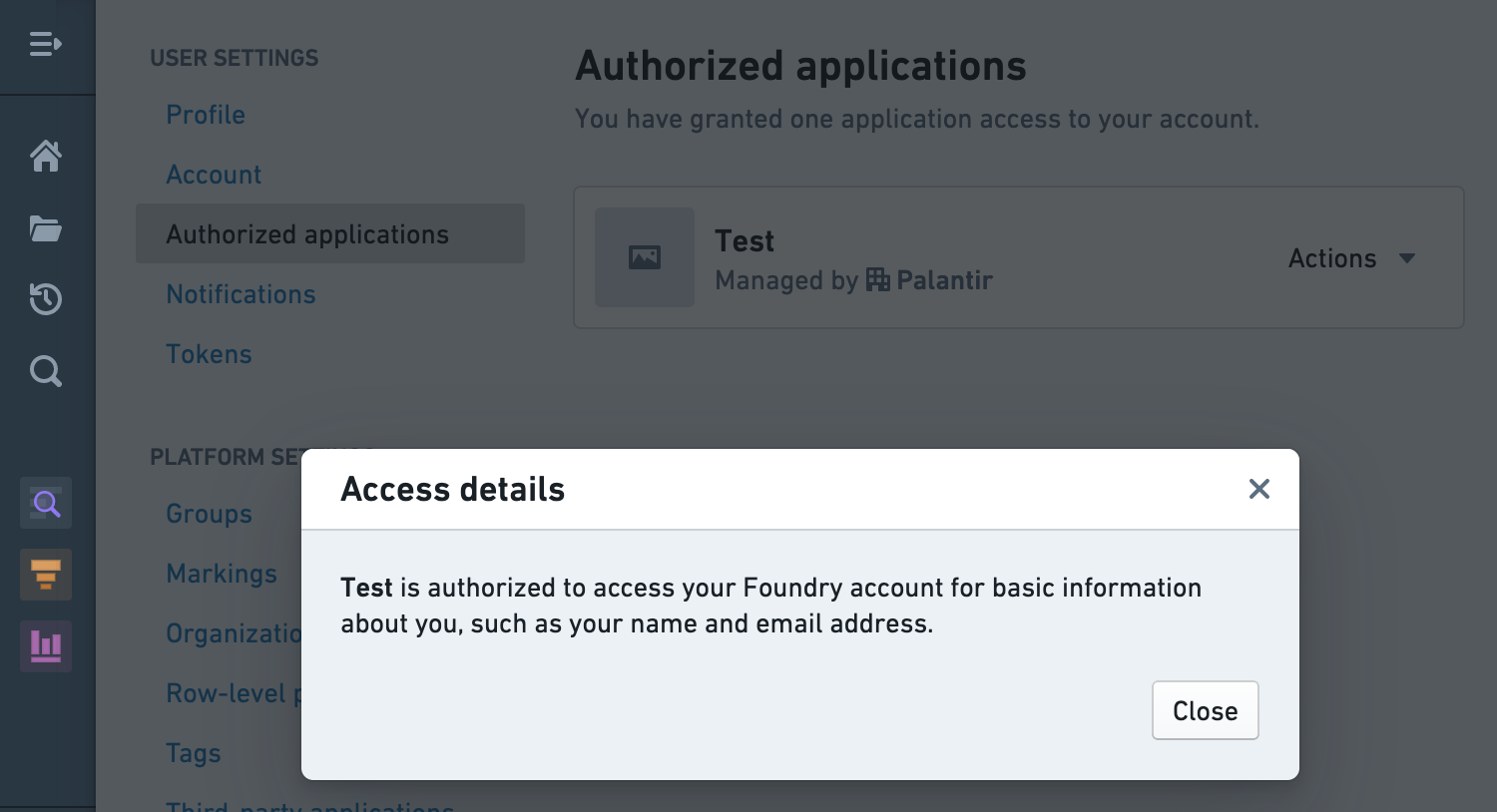
Selecting Details displays information about the data that the third-party application can access.
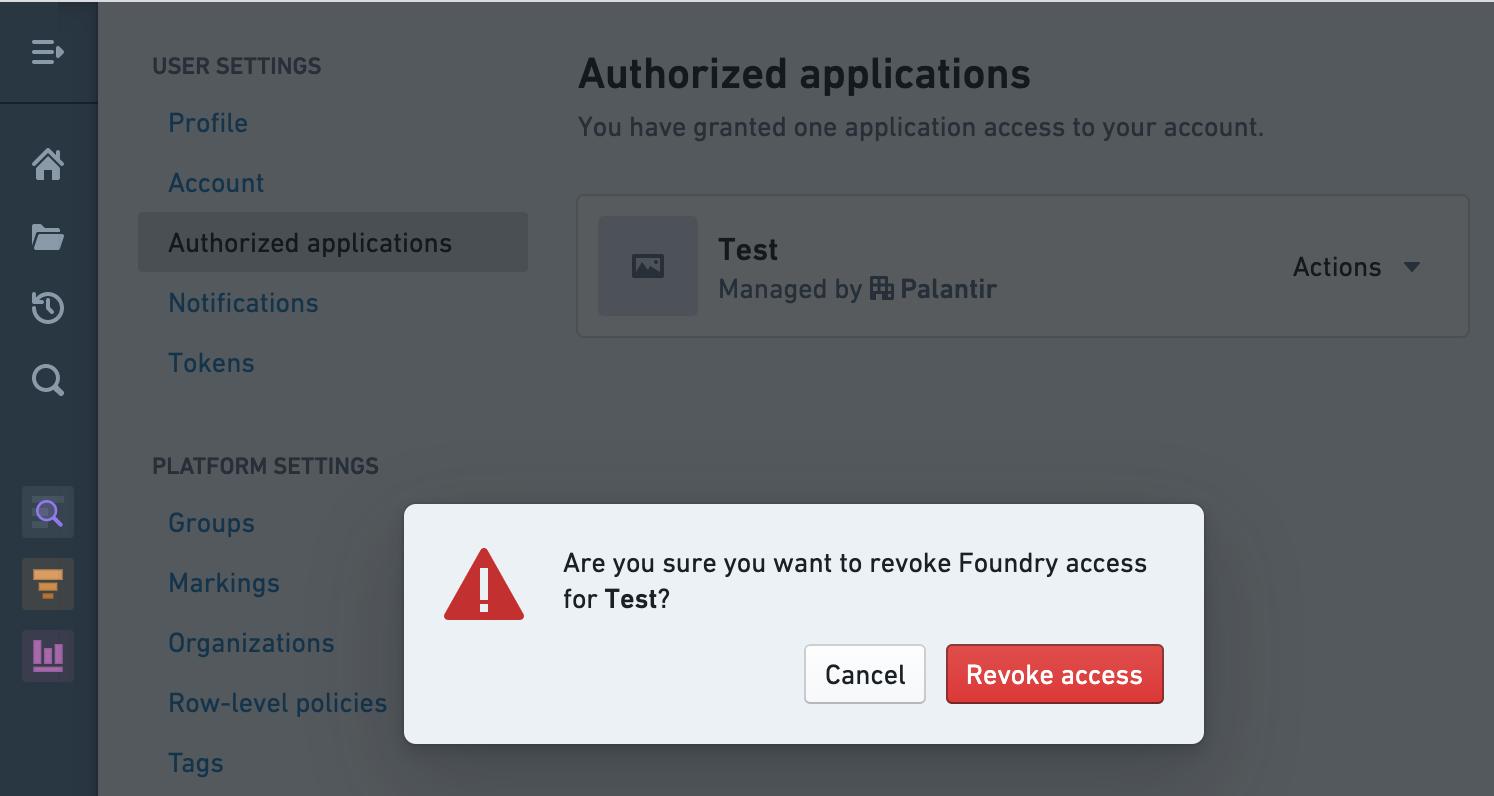
Selecting Revoke brings up a confirmation screen; revoking access removes the application’s ability to access information in your account.
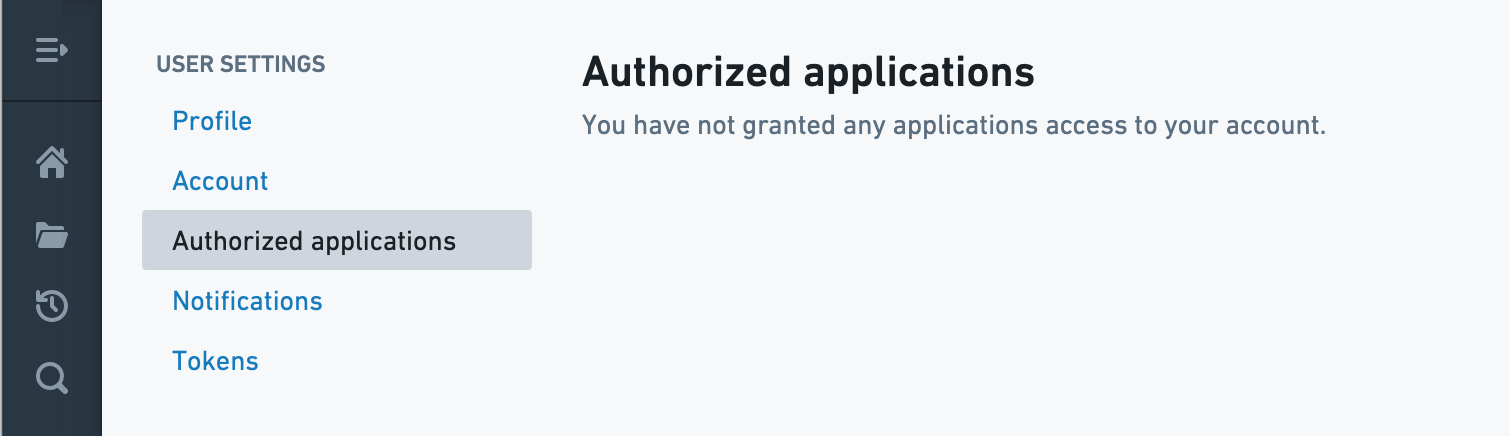
After revoking access, we see that no applications have been authorized to access your account. An application whose access has been revoked can be added again by repeating this workflow.
中文翻译
授权第三方应用程序访问
授权第三方应用程序
一旦第三方应用程序(third-party application)已在 Foundry 平台中注册并启用,授权该应用程序访问 Foundry 的流程非常简单。
:::callout{theme="neutral"} 如果所需的第三方应用程序尚未在 Foundry 平台中注册和启用,请先完成注册和启用,再继续授权流程;或联系您的 Palantir 代表,请求注册和/或启用。 :::
在本示例中,我们将使用一个简单的测试应用程序来演示授权已注册并启用的第三方应用程序访问 Foundry 的工作流程。第三方应用程序可能会提供某种连接(Connect)选项,如下所示。
尝试连接或授权已注册并启用的第三方应用程序时,系统会将您引导至 Foundry 并打开一个确认屏幕(如下所示),您可以在其中选择允许(Allow)或不允许(Don’t allow)访问。在此确认屏幕上,Foundry 将显示第三方应用程序请求权限的操作集;该操作集由第三方应用程序连接器(connector)的开发者决定。
允许访问后,您应被重定向回第三方应用程序,并收到访问权限的确认信息。
管理已授权的应用程序
在 Foundry 的设置(Settings)页面中,已授权的应用程序(Authorized Applications)选项卡会显示已批准访问的第三方应用程序。此时,我们可以看到测试应用程序已被授予访问您账户的权限。
点击操作(Actions)下拉菜单,会显示以下选项:详情(Details)和撤销(Revoke)。
选择详情会显示第三方应用程序可以访问的数据信息。
选择撤销会弹出一个确认屏幕;撤销访问权限将移除该应用程序访问您账户信息的能力。
撤销访问权限后,我们可以看到没有应用程序被授权访问您的账户。被撤销访问权限的应用程序可以通过重复此工作流程重新添加。