Registering third-party applications(注册第三方应用)
:::callout{theme="warning"} Users should use Developer Console to register a new application configuration. The Control Panel view only applies if Developer Console has not been enabled for the user. :::
Before a third-party application can be connected to Foundry, it must be registered on the Foundry platform. The initial registration process creates a name, a client ID, and a client secret for the third-party application; see the OAuth.com docs ↗ for more information on client IDs and client secrets, which are used in the authorization workflow. Then, a third-party application will need to be configured with a redirect URL for the authorization process, as well as a name, description, and icon which are used for the in-platform representation of the third-party application.
Registration
- To begin the process of registering a new application, navigate to the Third-party applications tab in Control Panel and click New application.

- This will open the Register new application wizard. There will be four steps in the following order: Details, Client type, Authorization grant types, and Summary.
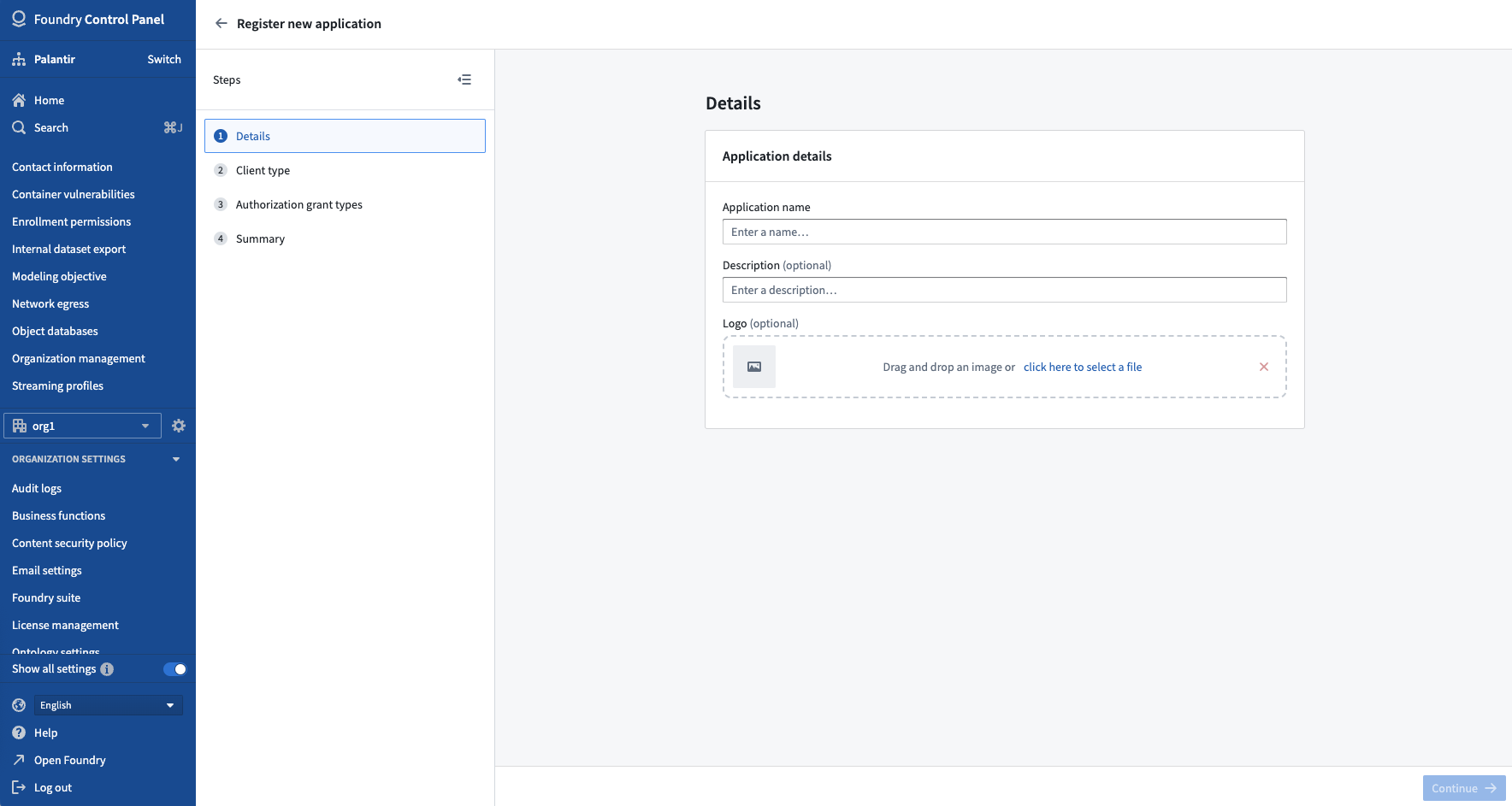
- In the Details step, provide your application a name, description (optional), and logo (optional).
- In the Client type step, specify the client type for your application. Client type refers to an OAuth2 standard regarding whether a client application can securely store a secret. The two options for client type are:
- Confidential client ↗: This is intended for clients that are able to hold their credentials securely; for example, a client implemented on a secure server with restricted access to the client credentials. This client type supports both authorization code grant and client credentials grant options for authorization.
- Public client ↗: This is intended for clients that cannot hold their credentials securely; for example, a browser-based application where the authorization client runs on the web browser itself. This client type supports authorization code grant with PKCE, which means that using the
code_verifierandcode_challengeparameters is required. Client credentials grant is not supported.
For more information about these client types, see the documentation on writing OAuth2 clients.
:::callout{theme="warning" title="Warning"} Native or single-page applications, such as mobile apps, are distributed to users for deployment. Thus, the application binaries are available and can be disassembled to extract a client secret. The client secret could then be used to impersonate an authorized user in an attack. Proof Key for Code Exchange (PKCE) ↗ is used to prevent such attacks. :::
-
In the Authorization grant types step, you will see the grant types supported by the client type chosen in the previous step. If you choose to enable the Authorization code grant, you will be asked to specify at least one redirect URL.
-
In the authorization process, OAuth2 uses browser redirects to send a user from the authorization provider (in this case, Foundry) back to the client that the user is trying to authorize (in this case, the third-party application). Thus, specifying redirect URLs helps provide additional security when a third-party application asks for permission to access Foundry resources.
- Note redirect URLs can be updated later in the Manage application screen.
If you choose to enable the Client credentials grant (this will only be available to confidential clients), a service user will be created for the application. The service user can be permissioned to access Foundry resources for requests on behalf of the application.
-
In the Summary step, an overview of all the information provided will be shown along with any missing pieces that still need to be given. When required fields are completed, you can click Register application on the bottom right of the screen.
-
Upon submission, you will be presented with the newly created client's ID and secret, if applicable.
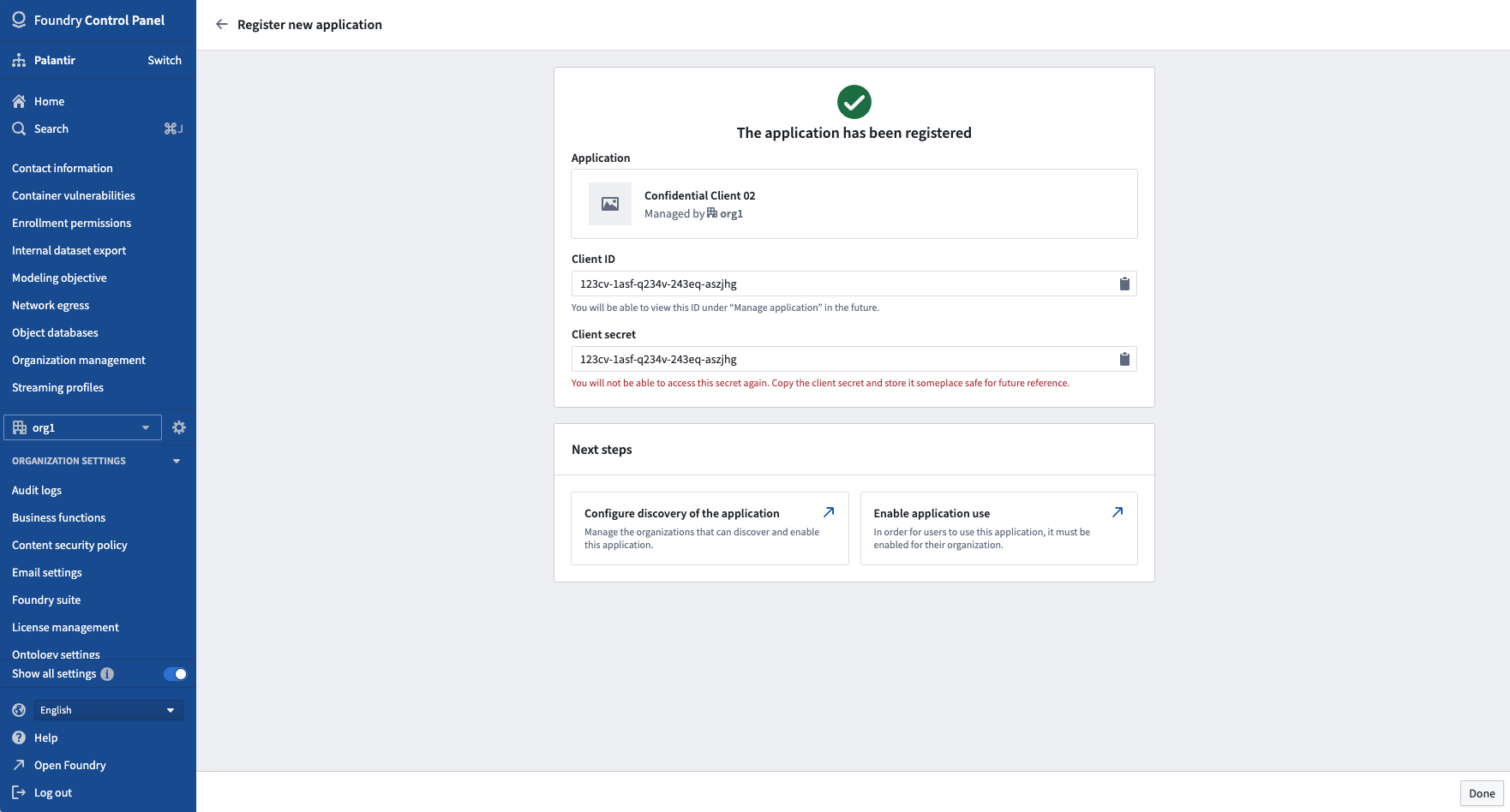
:::callout{theme="warning" title="Warning"} If using a confidential client, you must copy the client secret at this point. The secret will not be available again after leaving this page. If you lose access to the client secret, you will need to rotate the secret. :::
中文翻译
注册第三方应用
:::callout{theme="warning"} 用户应使用开发者控制台(Developer Console)注册新的应用配置。仅当用户尚未启用开发者控制台(Developer Console)时,才适用控制面板(Control Panel)视图。 :::
在第三方应用能够连接到Foundry之前,必须先在该平台上完成注册。初始注册过程会为第三方应用创建名称、客户端ID(Client ID)和客户端密钥(Client Secret);有关客户端ID和客户端密钥的更多信息,请参阅OAuth.com文档 ↗,这些信息用于授权工作流。随后,第三方应用需要配置授权过程的重定向URL(Redirect URL),以及用于在平台内展示该应用的名称、描述和图标。
注册流程
- 要开始注册新应用,请导航至控制面板(Control Panel)中的第三方应用(Third-party applications)选项卡,然后点击新建应用(New application)。
- 这将打开注册新应用(Register new application)向导。该向导包含以下四个步骤:详细信息(Details)、客户端类型(Client type)、授权许可类型(Authorization grant types)和摘要(Summary)。
- 在详细信息(Details)步骤中,为您的应用提供名称、描述(可选)和徽标(可选)。
- 在客户端类型(Client type)步骤中,指定应用的客户端类型。客户端类型涉及OAuth2标准,用于判断客户端应用能否安全存储密钥。两种客户端类型选项为:
- 机密客户端(Confidential client) ↗:适用于能够安全保管凭证的客户端;例如,在安全服务器上实现且对客户端凭证访问受限的客户端。此客户端类型支持授权码许可(Authorization code grant)和客户端凭证许可(Client credentials grant)两种授权选项。
- 公共客户端(Public client) ↗:适用于无法安全保管凭证的客户端;例如,授权客户端直接在Web浏览器上运行的基于浏览器的应用。此客户端类型支持带有PKCE的授权码许可(Authorization code grant),这意味着必须使用
code_verifier和code_challenge参数。客户端凭证许可(Client credentials grant)则不受支持。
有关这些客户端类型的更多信息,请参阅编写OAuth2客户端文档。
:::callout{theme="warning" title="警告"} 原生应用或单页应用(如移动应用)会分发给用户部署。因此,应用二进制文件可供获取,并可能被反编译以提取客户端密钥。攻击者可能利用该客户端密钥冒充授权用户。授权码交换证明密钥(PKCE) ↗用于防止此类攻击。 :::
-
在授权许可类型(Authorization grant types)步骤中,您将看到上一步所选客户端类型支持的许可类型。如果您选择启用授权码许可(Authorization code grant),系统将要求您指定至少一个重定向URL(Redirect URL)。
-
在授权过程中,OAuth2使用浏览器重定向将用户从授权提供方(此处为Foundry)引导回用户试图授权的客户端(此处为第三方应用)。因此,指定重定向URL有助于在第三方应用请求访问Foundry资源时提供额外的安全保障。
- 请注意,重定向URL可在后续的管理应用(Manage application)界面中更新。
如果您选择启用客户端凭证许可(Client credentials grant)(仅限机密客户端使用),系统将为该应用创建一个服务用户(Service User)。该服务用户可以被授予权限,以代表应用访问Foundry资源。
-
在摘要(Summary)步骤中,将显示所有已提供信息的概览,以及仍需补充的缺失项。当必填字段全部完成后,您可以点击屏幕右下角的注册应用(Register application)。
-
提交后,系统将显示新创建的客户端ID和密钥(如适用)。
:::callout{theme="warning" title="警告"} 如果使用机密客户端(Confidential client),您必须在此刻复制客户端密钥。离开此页面后,该密钥将无法再次获取。如果您丢失了客户端密钥的访问权限,则需要轮换密钥。 :::