Third-party applications(第三方应用程序(Third-party applications))
Foundry’s platform security controls ensure that integration and interoperability with third-party applications can be centrally managed while respecting established security measures. Third-party application authorization supports the OAuth 2.0 framework.
:::callout{theme="warning"} Users should use Developer Console to manage their application configuration. The Control Panel view only applies if Developer Console has not been enabled for the user. :::
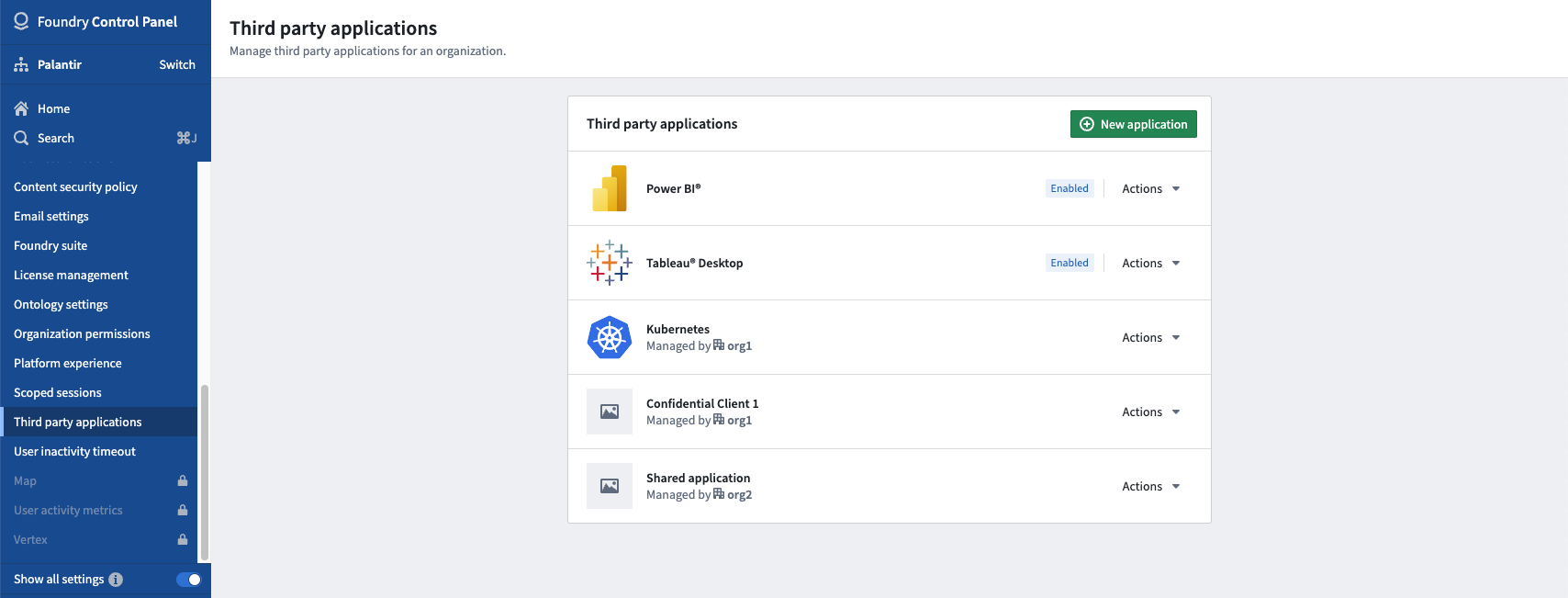
Third-party application permissions should be managed by Foundry administrators to ensure the security of the Foundry platform. The third-party application interface in Control Panel enables Foundry administrators to see which applications have been registered on Foundry as well as which applications have been enabled for access. From the third-party application interface, administrators can register new applications, manage existing applications, and enable or disable applications.
Accessing the third-party applications user interface
For users with the appropriate permissions, the third-party application management interface can be reached by clicking Open other workspaces > Control Panel located at the lower corner of the left navigation bar. Then, choose an enrollment and an associated organization before finally selecting the Third-party applications tab under Organization Settings.
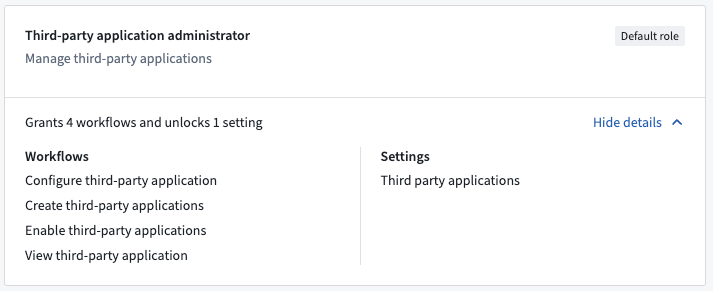
Users must hold the Third-party application administrator role for the selected organization in order to access the third-party application management interface.
For more details, review Permissions in Control Panel.
中文翻译
第三方应用程序(Third-party applications)
Foundry 的平台安全控制确保与第三方应用程序的集成和互操作性可以在遵守既定安全措施的前提下进行集中管理。第三方应用程序授权支持 OAuth 2.0 框架。
:::callout{theme="warning"} 用户应使用 开发者控制台(Developer Console) 管理其应用程序配置。控制面板(Control Panel) 视图仅适用于尚未为用户启用 开发者控制台 的情况。 :::
第三方应用程序权限应由 Foundry 管理员管理,以确保 Foundry 平台的安全性。控制面板(Control Panel) 中的第三方应用程序界面使 Foundry 管理员能够查看已在 Foundry 上注册的应用程序以及已启用访问权限的应用程序。通过第三方应用程序界面,管理员可以注册新应用程序、管理现有应用程序以及启用或禁用应用程序。
访问第三方应用程序用户界面
拥有适当权限的用户可通过点击左侧导航栏底部的 打开其他工作区(Open other workspaces)> 控制面板(Control Panel) 进入第三方应用程序管理界面。然后,选择一个注册(enrollment)及关联的组织(organization),最后在 组织设置(Organization Settings) 下选择 第三方应用程序(Third-party applications) 选项卡。
用户必须持有所选组织的 第三方应用程序管理员(Third-party application administrator) 角色,才能访问第三方应用程序管理界面。
更多详情,请参阅控制面板中的权限(Permissions in Control Panel)。