Media set scanning(媒体集扫描)
Sensitive Data Scanner (SDS) can scan media sets for data matching a particular regex. SDS will convert the media items in a media set to text, and then run the regex against the extracted text. The text extraction method used will depend on the type of the media set being scanned.
Text extraction methods are as follows:
- Image and PDF media sets: Optical character recognition (OCR)
- Audio media sets: Transcription
Media sets can only be scanned with content-only regex match conditions.
Issue match actions will automatically be aggregated. This means that for a given media set, even if there are multiple media items that match a given match condition, only a single issue will be opened on the media set.
Text extraction limitations
OCR and audio transcription may not produce exact replicas of the text in the original media content. For example, OCR may split a single word into two strings, capitalize letters, or incorrectly extract text from images that do not contain text. This can lead to unexpected behavior when matching against a regex, especially if the regex assumes that text will conform to certain formatting or capitalization rules.
To see the text that SDS ran a regex against, you can create a Pipeline Builder pipeline that takes a media set as input and applies the following transforms for media set types:
- PDF media sets: Extract text from PDFs using OCR.
- Image media sets: Extract text from images using OCR.
- Audio media sets: Transcribe audio into text.
Inspect media set scanning results
Select the Open scan details button to review the scan configuration and inspect the results. Similar to scanned datasets, the Scan results section is where SDS lists all the media sets with scan matches as well as their exact match conditions.

Hover your cursor over any match condition to render a preview of media items which triggered the match condition.
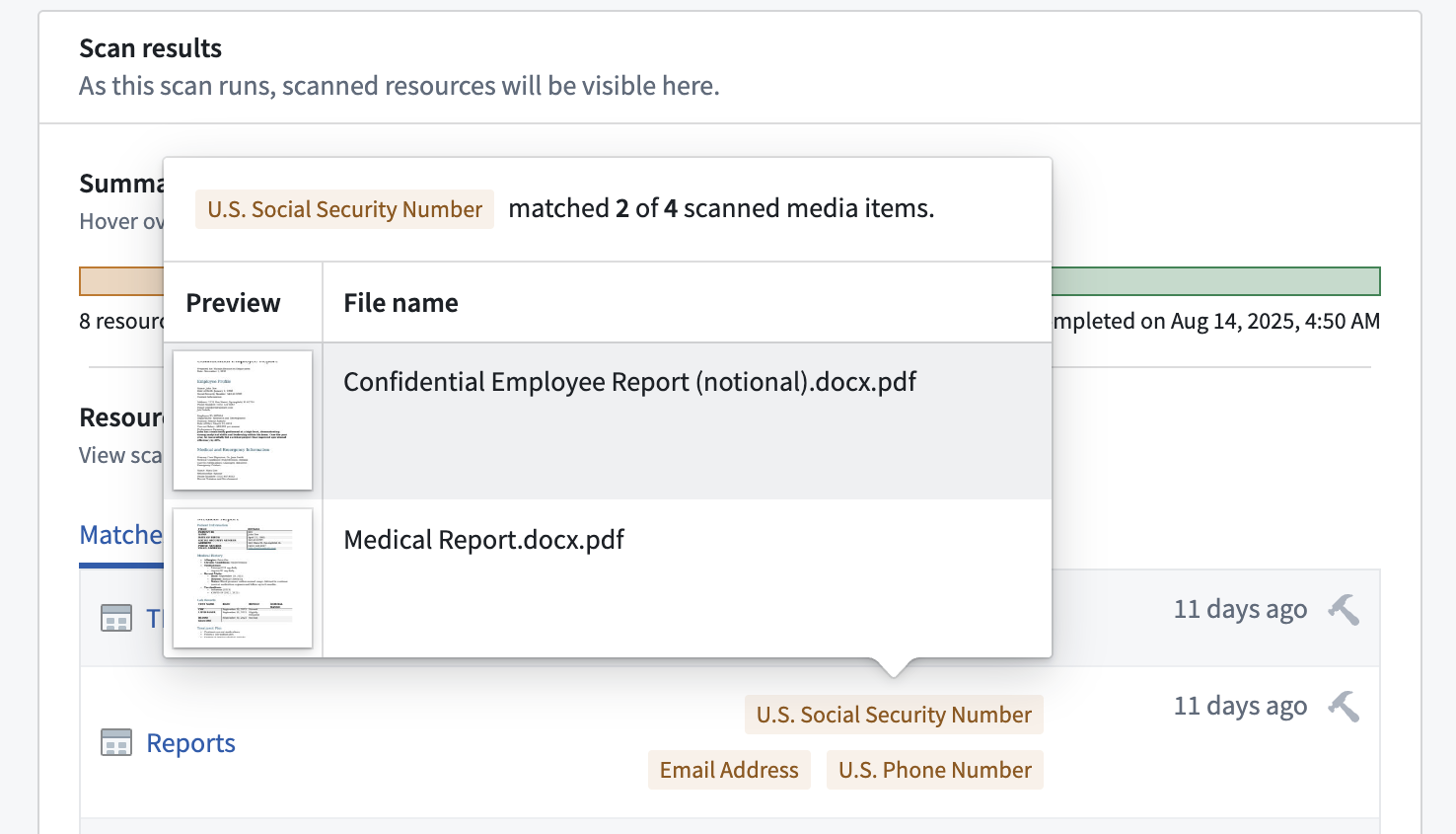
You will also see the total number of matched and scanned media items. If a media set contains a large number of matches, then Foundry displays a preview of the first ten.
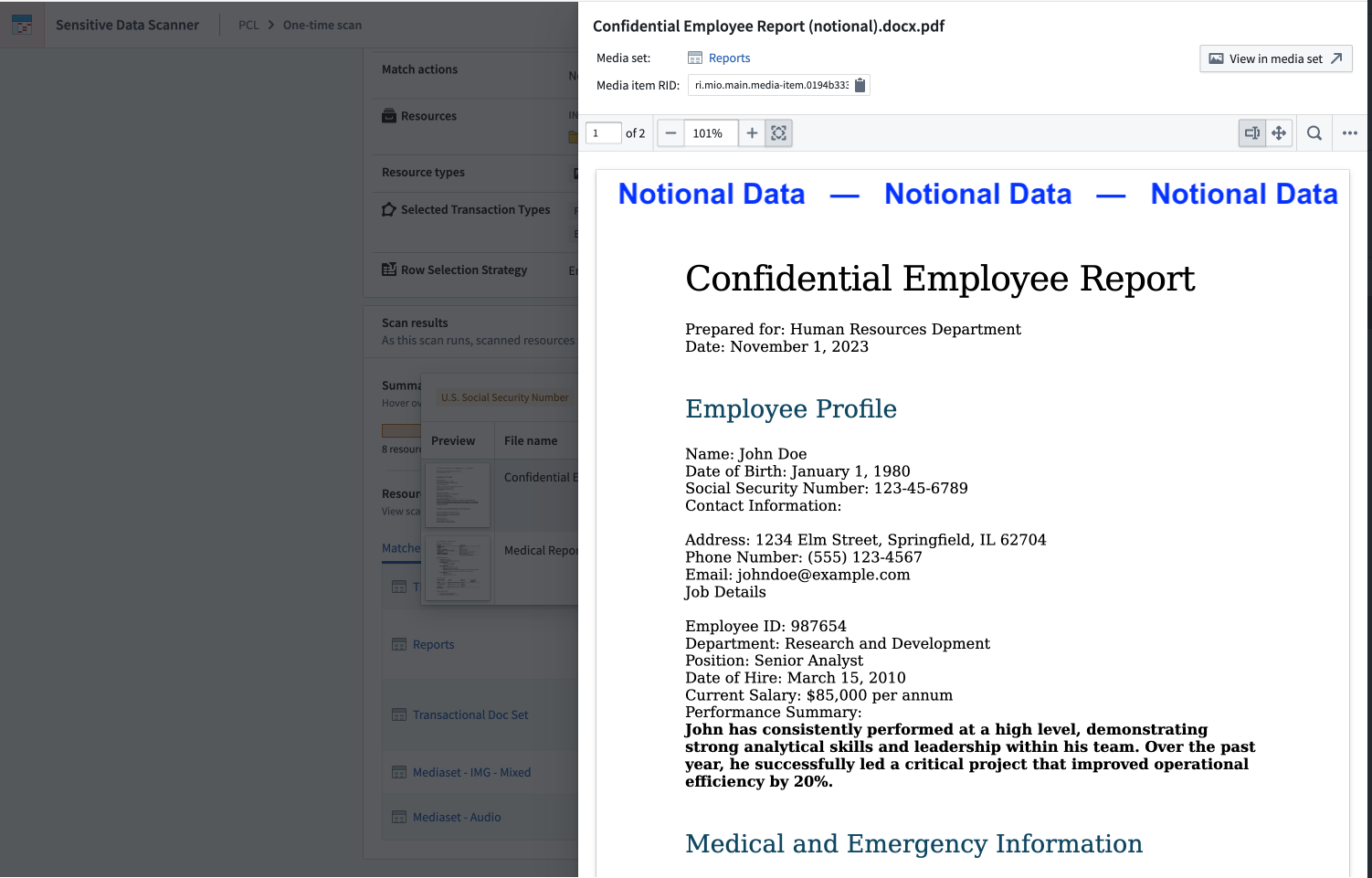
Select a thumbnail to open a detailed view of the media item for further exploration, such as zooming in on an image or reviewing multi-page documents.
Optimize SDS performance
SDS extracts text from every media item, so scanning media sets can be computationally expensive. You can use the following strategies to manage compute costs and optimize scan performance:
- Subset sampling: To limit computational cost and reduce scan durations, you can leverage sampling strategies if you only want to scan a subset of the media items in your media set. Analogous to sampling rows of a dataset, these strategies also apply to sampling media items of a media set.
- Scheduled scans: If you want to run recurring scans on a media set, you can use a low-frequency scheduled scan, such as one that runs on a weekly or monthly basis, instead of a continuous scan.
Incremental Scans
In recurring scans, SDS scans media sets incrementally. This means that SDS will scan only media items that have been added or updated since the last successful scan. This significantly reduces the duration and compute required for recurring media scans, as SDS does not need to process already scanned media items.
If a scan was performed incrementally, an info icon will be shown in the scan row of the results table.
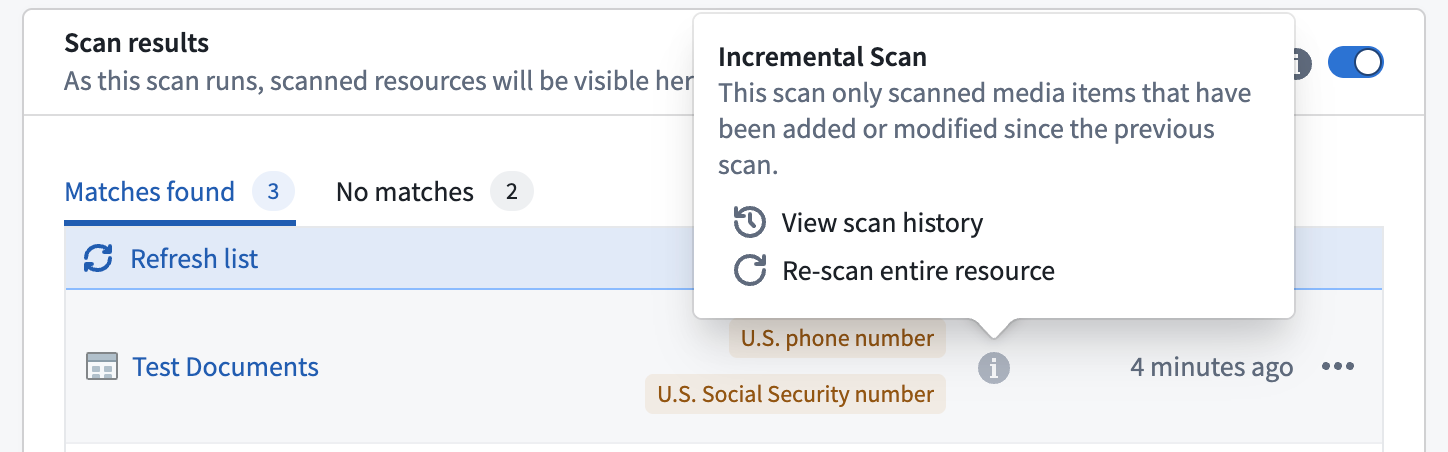
You can open a resource's scan history by selecting View scan history in the scan result's context menu. The scan history displays a timeline of all previous incremental scans, including the number of scanned items and the detected match conditions. The top card of the history view shows you an aggregated overview of all the detected match conditions across all incremental scans. You also have the option to trigger a full re-scan of the entire resource. This is recommended after you delete PII from a dataset, as it helps you verify whether the match condition is still detected, or whether all matching data has been removed.
You can also trigger a full re-scan of the entire resource. Run a full re-scan after you delete PII from a dataset to verify whether the match condition is still detected, or whether all matching data has been removed.

中文翻译
媒体集扫描
敏感数据扫描器(Sensitive Data Scanner, SDS)可扫描媒体集(media set),查找与特定正则表达式匹配的数据。SDS 会将媒体集中的媒体项转换为文本,然后对提取的文本运行正则表达式。所使用的文本提取方法取决于被扫描媒体集的类型。
文本提取方法如下:
- 图像和 PDF 媒体集: 光学字符识别(Optical Character Recognition, OCR)
- 音频媒体集: 转录(Transcription)
媒体集只能使用纯内容正则表达式匹配条件(match condition)进行扫描。
问题匹配操作(match action)将自动聚合。这意味着,对于给定的媒体集,即使有多个媒体项匹配同一匹配条件,也只会针对该媒体集创建一个问题。
文本提取限制
OCR 和音频转录可能无法精确还原原始媒体内容中的文本。例如,OCR 可能将一个单词拆分为两个字符串、将字母大写,或从不含文本的图像中错误提取文本。这可能导致与正则表达式匹配时出现意外行为,尤其是当正则表达式假设文本符合特定格式或大小写规则时。
要查看 SDS 运行正则表达式所针对的文本,您可以创建一个管道构建器(Pipeline Builder)管道,该管道以媒体集为输入,并对以下媒体集类型应用相应的转换:
- PDF 媒体集: 使用 OCR 从 PDF 中提取文本。
- 图像媒体集: 使用 OCR 从图像中提取文本。
- 音频媒体集: 将音频转录为文本。
检查媒体集扫描结果
选择 打开扫描详情 按钮以查看扫描配置并检查结果。与扫描的数据集类似,扫描结果部分列出了所有包含扫描匹配项的媒体集及其精确匹配条件。
将鼠标悬停在任意匹配条件上,即可预览触发该匹配条件的媒体项。
您还将看到匹配和扫描的媒体项总数。如果媒体集包含大量匹配项,Foundry 会显示前十个的预览。
选择缩略图可打开媒体项的详细视图,以便进一步查看,例如放大图像或查看多页文档。
优化 SDS 性能
SDS 会从每个媒体项中提取文本,因此扫描媒体集可能计算成本较高。您可以使用以下策略来管理计算成本并优化扫描性能:
- 子集采样: 如果只想扫描媒体集中的部分媒体项,可以利用采样策略(sampling strategy)来限制计算成本并缩短扫描时长。与对数据集行进行采样类似,这些策略也适用于对媒体集中的媒体项进行采样。
- 定时扫描: 如果希望对媒体集进行定期扫描,可以使用低频率的定时扫描(scheduled scan)(例如每周或每月运行一次),而不是持续扫描。
增量扫描
在定期扫描中,SDS 会以增量方式扫描媒体集。这意味着 SDS 仅扫描自上次成功扫描以来新增或更新的媒体项。这显著减少了定期媒体扫描所需的时长和计算资源,因为 SDS 无需处理已扫描过的媒体项。
如果扫描是以增量方式执行的,结果表的扫描行中会显示一个信息图标。
您可以通过在扫描结果的上下文菜单中选择“查看扫描历史”来打开资源的扫描历史。扫描历史会显示所有先前增量扫描的时间线,包括扫描项数量和检测到的匹配条件。历史视图顶部的卡片会显示所有增量扫描中检测到的匹配条件的聚合概览。您还可以选择对整个资源触发一次完全重新扫描。建议在从数据集中删除个人身份信息(PII)后执行此操作,因为它有助于验证匹配条件是否仍然被检测到,或者所有匹配数据是否已被移除。
您也可以对整个资源触发一次完全重新扫描。在从数据集中删除 PII 后运行完全重新扫描,以验证匹配条件是否仍然被检测到,或者所有匹配数据是否已被移除。