Use Cipher for visual obfuscation(使用 Cipher 进行视觉混淆)
The Visual Obfuscation algorithm in Cipher is used to obfuscate portions of images. A user with access to an appropriate Cipher license can view the original image data by using a decryption Cipher license.
Cipher obfuscates the image by using the Cipher Channel's image scrambling seed to scramble the RGB values of the pixels in a polygon. This operation is commutative and reversible. Thus, on the image with the scrambled values, Cipher will apply the reversed scramble to recover the original values of the pixels. This is not just an overlay; the pixels themselves are manipulated.
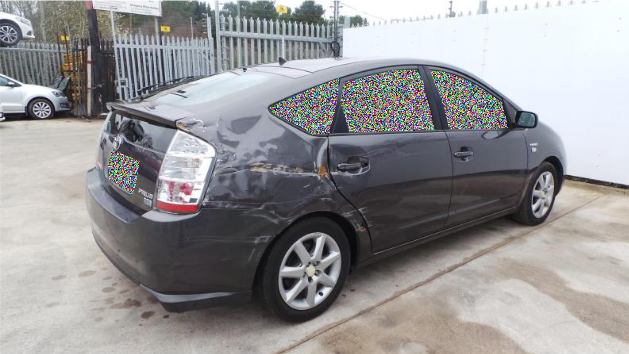
This image is an example where Cipher is applied atop the "Car Parts and Car Damages" dataset ↗ provided by "Humans in the Loop" under a CC0 license.
Steps to reproduce
- Set up relevant Cipher resources.
- Create a Cipher Channel with a Visual obfuscation algorithm.
- Issue an Admin License which allows encryption. Grant a relevant admin user access to this license.
- Note: Visual obfuscation is currently only supported in Code Repositories, so you will need to Grant cryptographic key access on this license.
-
Issue an Operational User License which allows decryption. Grant operational users access to this license.
-
Set up your data.
- Import your images into a Media Set.
- Note: Visual obfuscation currently only supports PNG images. PNG is a lossless format; therefore, encryption and decryption will not leave compression artifacts.
-
Create an output Media Set with a PNG image type.
-
Visually obfuscate your images.
- Set up a Python transform with a media set input and a media set output.
-
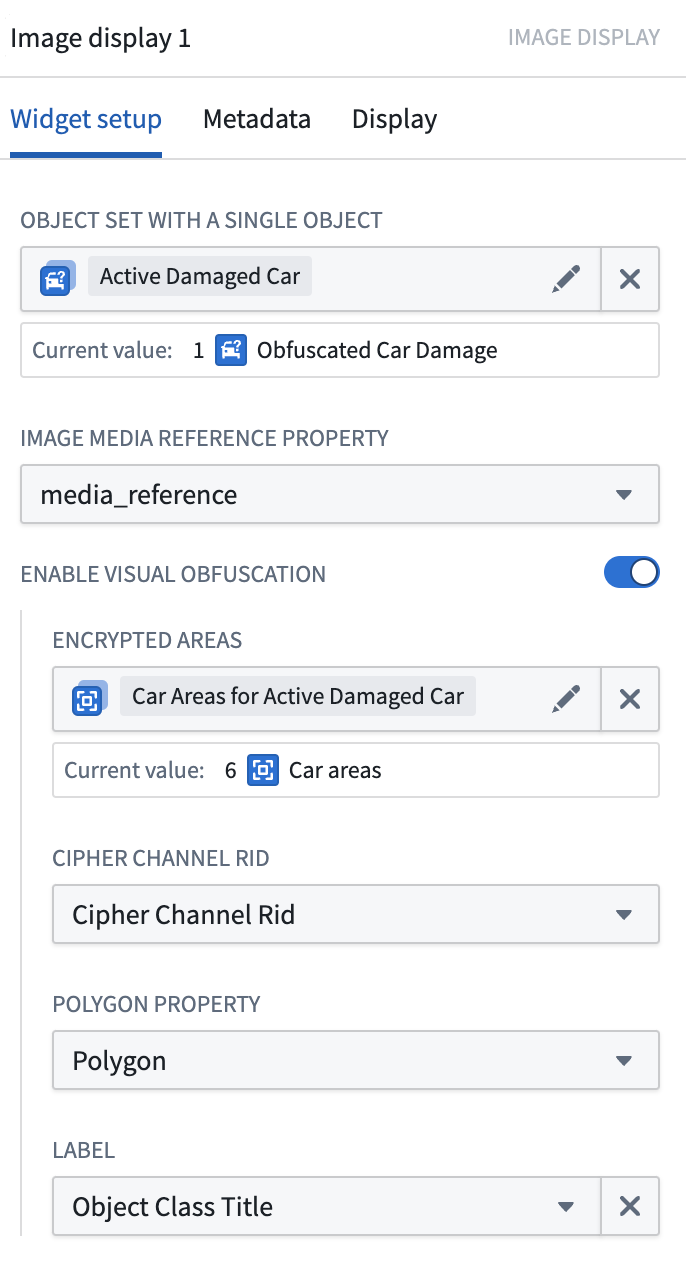
[Beta] Interact with the encrypted image using the Image Display widget in Workshop.
- Back your obfuscated images into an Ontology object using Pipeline Builder.
- Back your polygons into another Ontology object with this schema (or an equivalent schema):
- polygonId: Primary key
- imagePath: string; Foreign key to link to the obfuscated images.
- cipherChannelRid: string; RID of the Cipher Channel used to encrypt this polygon. The format should follow this structure:
ri.bellaso.main.cipher-channel.<uuid> - polygon: string; Polygon, represented as a list of coordinates, json-serialized. Example:
[[0,0][100,0][100,100][0,100]]. - label: string (optional); Label for the polygon.
- Link the polygons to the obfuscated images as a many-to-one link.
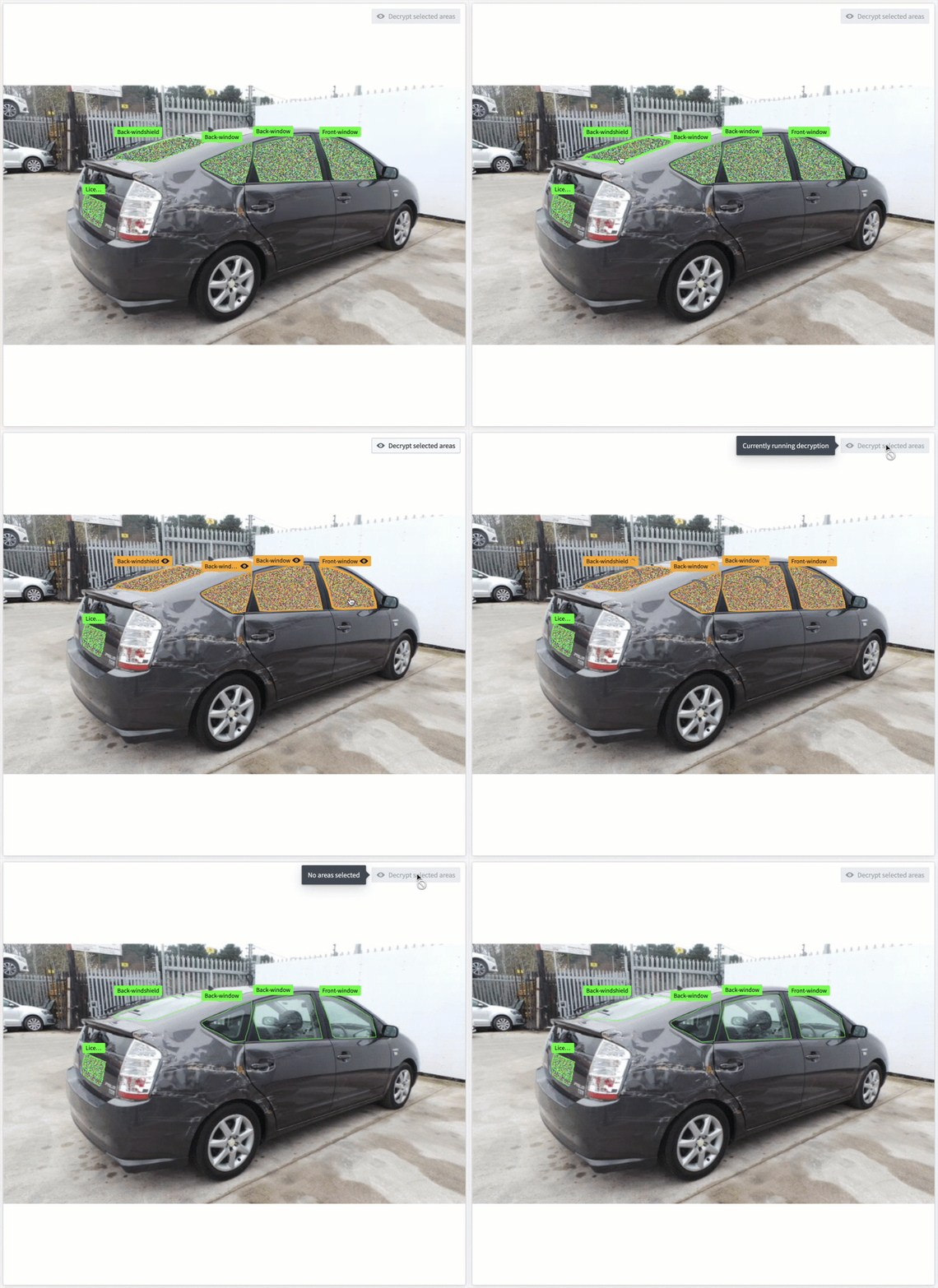
- In a Workshop application, set up the image display widget with the polygon objects.
- Select desired areas and choose Decrypt selected areas to view the original image.
中文翻译
使用 Cipher 进行视觉混淆
Cipher 中的视觉混淆算法用于对图像的部分区域进行混淆处理。拥有相应 Cipher 许可证的用户可通过解密许可证查看原始图像数据。
Cipher 利用 Cipher Channel 的图像混淆种子,对多边形内像素的 RGB 值进行混淆处理。该操作具有交换性和可逆性。因此,对于已混淆的图像,Cipher 会应用反向混淆操作来恢复像素的原始值。这并非简单的叠加图层,而是直接对像素本身进行处理。
上图展示了 Cipher 应用于 "Car Parts and Car Damages" 数据集 ↗ 的效果,该数据集由 "Humans in the Loop" 根据 CC0 许可证提供。
操作步骤
- 配置相关 Cipher 资源。
- 创建一个 Cipher Channel,并选择视觉混淆算法。
- 颁发管理员许可证,该许可证允许加密。授予相关管理员用户对此许可证的访问权限。
- 注意:视觉混淆目前仅在代码仓库中支持,因此您需要在此许可证上授予加密密钥访问权限。
-
颁发操作用户许可证,该许可证允许解密。授予操作用户对此许可证的访问权限。
-
准备数据。
- 将图像导入媒体集。
- 注意:视觉混淆目前仅支持 PNG 图像。PNG 是一种无损格式,因此加密和解密不会产生压缩伪影。
-
创建一个输出媒体集,图像类型设置为 PNG。
-
对图像进行视觉混淆。
- 设置一个包含媒体集输入和媒体集输出的 Python 转换。
-
[Beta] 在 Workshop 中使用图像显示组件与加密图像交互。
- 使用 Pipeline Builder 将混淆后的图像备份到本体对象中。
- 将多边形备份到另一个本体对象中,其架构(或等效架构)如下:
- polygonId: 主键
- imagePath: 字符串;外键,用于关联混淆后的图像。
- cipherChannelRid: 字符串;用于加密该多边形的 Cipher Channel 的 RID。格式应遵循以下结构:
ri.bellaso.main.cipher-channel.<uuid> - polygon: 字符串;多边形,表示为坐标列表,JSON 序列化。示例:
[[0,0][100,0][100,100][0,100]]。 - label: 字符串(可选);多边形的标签。
- 将多边形与混淆后的图像建立多对一关联。
- 在 Workshop 应用中,使用多边形对象配置图像显示组件。
- 选择所需区域,然后点击解密所选区域以查看原始图像。