Configure file peering(配置文件对等连接)
After you establish a peering relationship between two spaces, you can use Peer Manager to configure file peering. File peering enables you to synchronize Gotham files, such as Gaia maps, between your enrollment and another across a peer connection.
:::callout{theme="neutral"}
To peer files between spaces, your enrollment must use both Foundry and Gotham.
Contact Palantir Support with questions about Gotham files or their additional documentation present in platform.
:::
Enable file peering for each file type
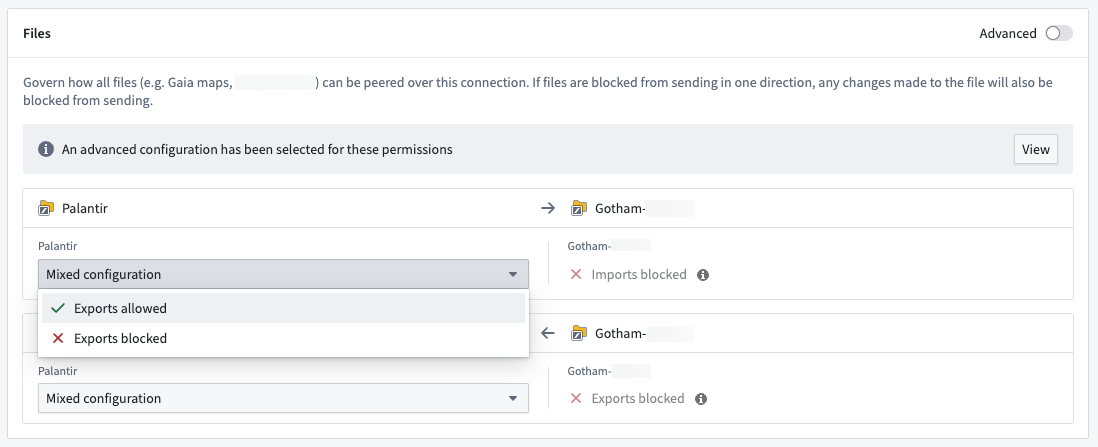
Before you are able to peer files across a peer connection, navigate to the connection in Peer Manager and select Settings from the top ribbon to ensure the connection's settings enable file export and import.
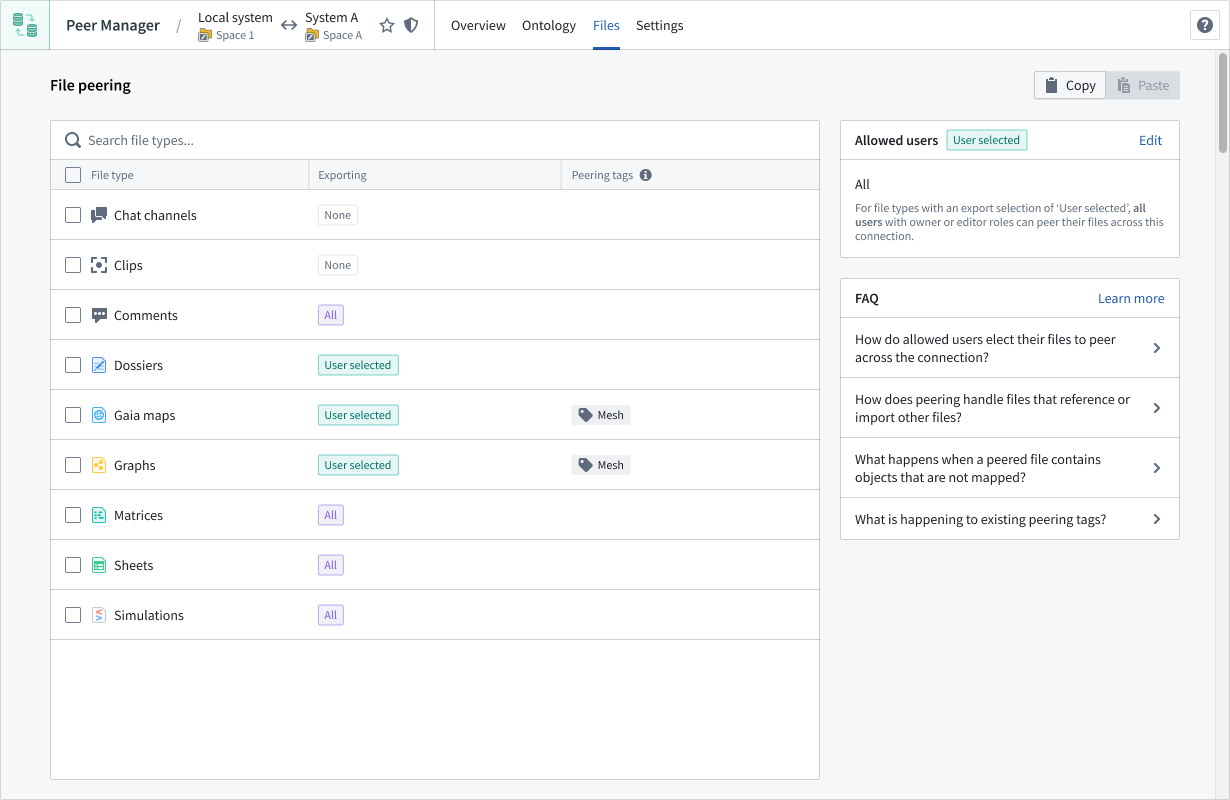
Once you configure the peer connection's file export and import settings, select Files to set the desired peer behavior for each file type. Choose a File type from the File peering panel to launch its configuration in a drawer popover on the right side of your screen.
:::callout{theme="neutral"} You must configure file type peering behavior on both the local and remote sides of the peer connection. :::
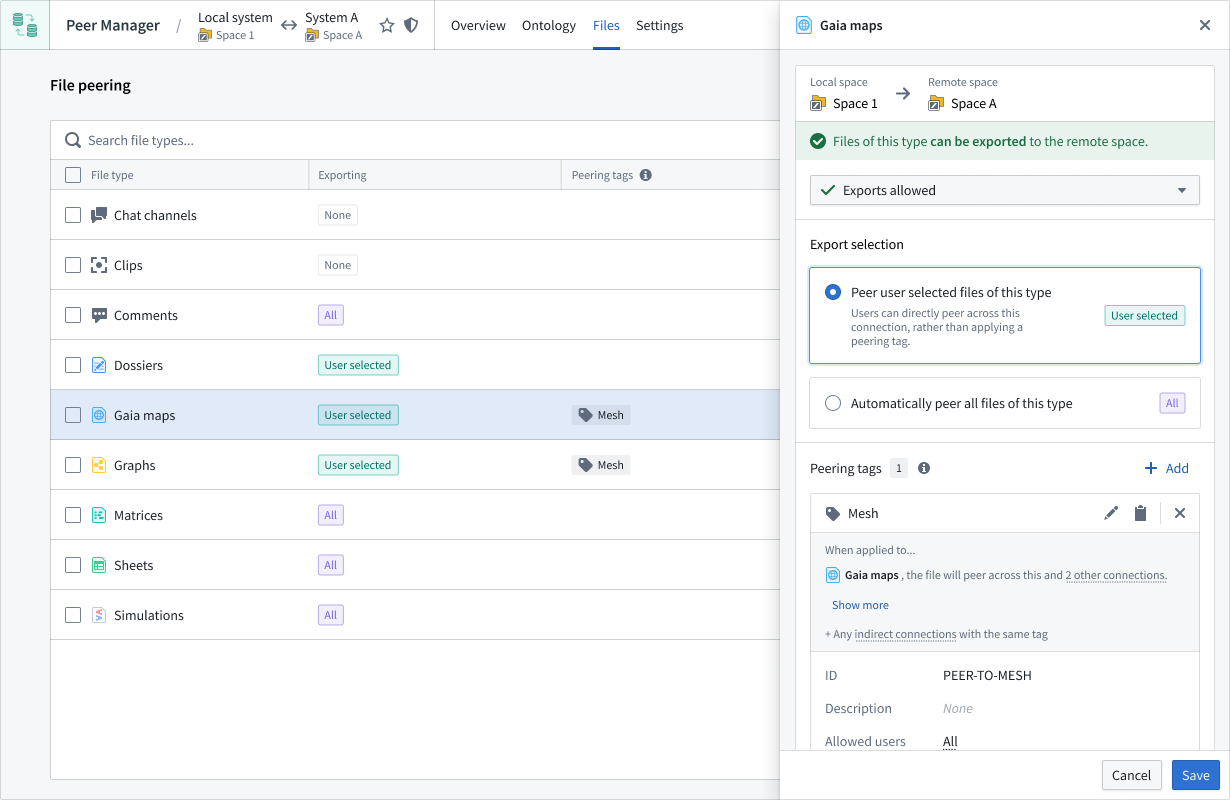
Within the drawer popover, you can set the file's Export selection to automatically peer all files or only a selection based on an applied tag or temporal parameter.
中文翻译
配置文件对等连接
在建立两个空间之间的对等关系后,您可以使用 Peer Manager 配置文件对等连接(file peering)。文件对等连接使您能够在对等连接上,在您的注册环境(enrollment)与另一个注册环境之间同步 Gotham 文件,例如 Gaia 地图。
:::callout{theme="neutral"}
要在空间之间对等传输文件,您的注册环境必须同时使用 Foundry 和 Gotham。
如有关于 Gotham 文件或平台中其他相关文档的问题,请联系 Palantir 支持团队。
:::
为每种文件类型启用文件对等连接
在您能够通过对等连接对等传输文件之前,请先在 Peer Manager 中导航至该连接,并从顶部功能区选择 设置(Settings),以确保连接的设置启用了文件导出和导入功能。
配置好对等连接的文件导出和导入设置后,选择 文件(Files) 来为每种文件类型设置所需的对等行为。从 文件对等(File peering) 面板中选择一种 文件类型(File type),即可在屏幕右侧的抽屉式弹出面板中启动其配置。
:::callout{theme="neutral"} 您必须在本地和远程两侧的对等连接上分别配置文件类型的对等行为。 :::
在抽屉式弹出面板中,您可以将文件的 导出选择(Export selection) 设置为自动对等所有文件,或仅对等基于应用标签或时间参数筛选出的文件。