Establish a Multipass exchanger connection(建立 Multipass 交换器连接)
A Multipass exchanger (MPX) connection enables Enrollment administrators to create a secure communication channel between two enrollments across a network as a prerequisite to creating a peer connection. Before you establish an MPX connection, contact Palantir Support for help configuring the network setup required between the enrollments you will connect, including firewall rules, certificate trust, and any other network configuration needed for the enrollments to communicate.
The instructions in the sections below outline actions an Enrollment administrator on each enrollment must take to establish the connection, such as generating an invite code, sharing the code with the other Enrollment administrator, and pasting the invite code in the Network connections tab in Peer Manager.
:::callout{theme="neutral"} Use an MPX connection when a network connection is available between the two enrollments. If no network connection is available, establish a data relay connection as an alternative to an MPX connection. A data relay connection establishes peering over an enrollment's existing cross-domain solution. :::
Coordinate the connection direction
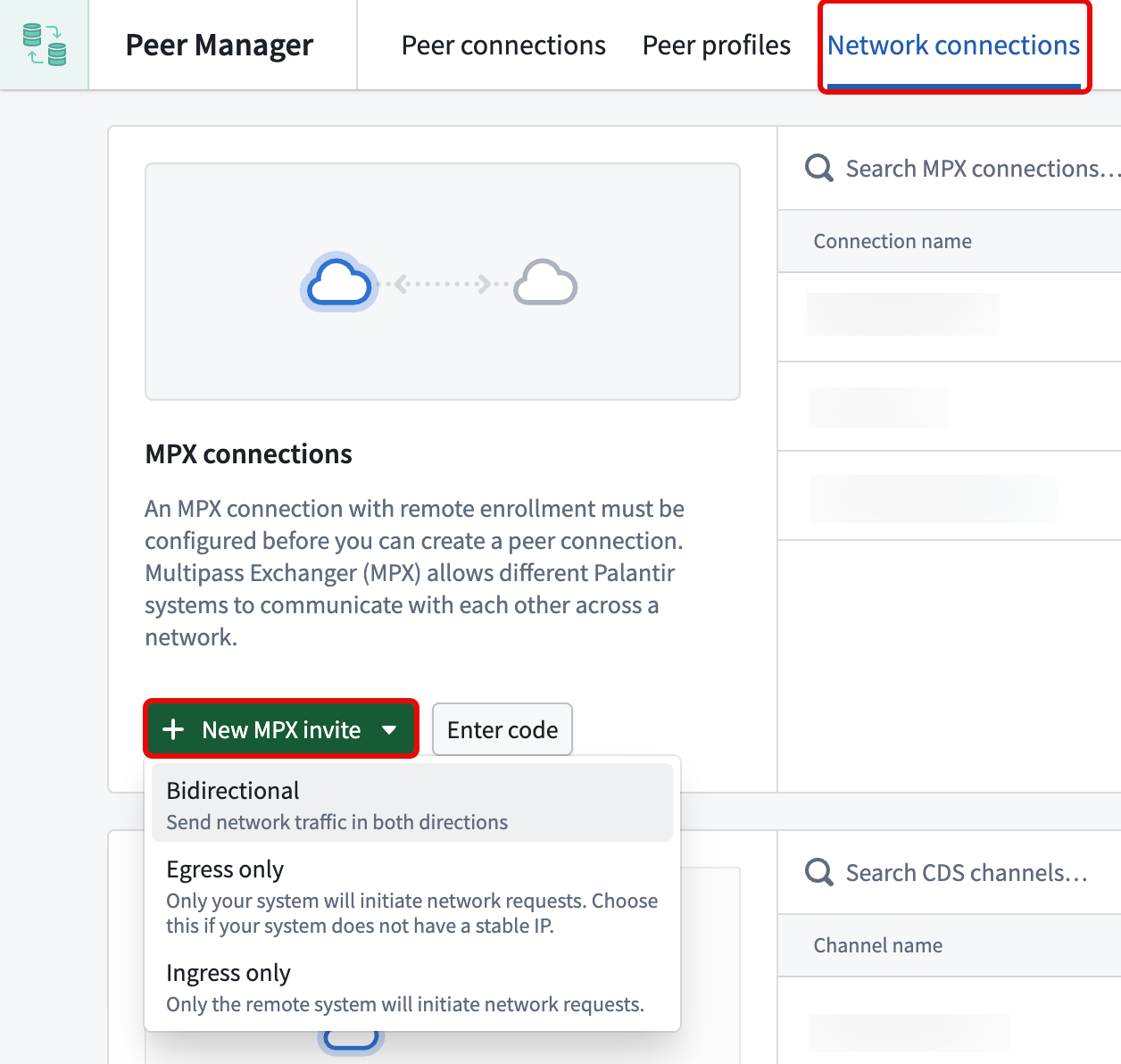
Before you generate an invite code by selecting New MPX invite in the Network connections tab of Peer Manager, coordinate with the other enrollment's administrator so that each side selects the matching direction when generating their invite code:
- Bidirectional connection: To create a bidirectional connection where network traffic is sent in both directions, both administrators select Bidirectional.
- Unidirectional connection from
Enrollment AtoEnrollment B: To create a unidirectional connection whereEnrollment Ainitiates network requests toEnrollment B: - The administrator on
Enrollment Aselects Egress only. - The administrator on
Enrollment Bselects Ingress only.
Create a new MPX invite code
After you determine the connection's direction alongside the other Enrollment administrator, select from the options listed under New MPX invite to generate an invite code to share:
- Bidirectional: Both systems can initiate network requests to each other. Use this option if both enrollments have stable IPs.
- Egress only: Only your enrollment will initiate network requests. Choose this option if your system does not have a stable IP.
- Ingress only: Only the remote enrollment will initiate network requests. Choose this option if the remote enrollment does not have a stable IP.
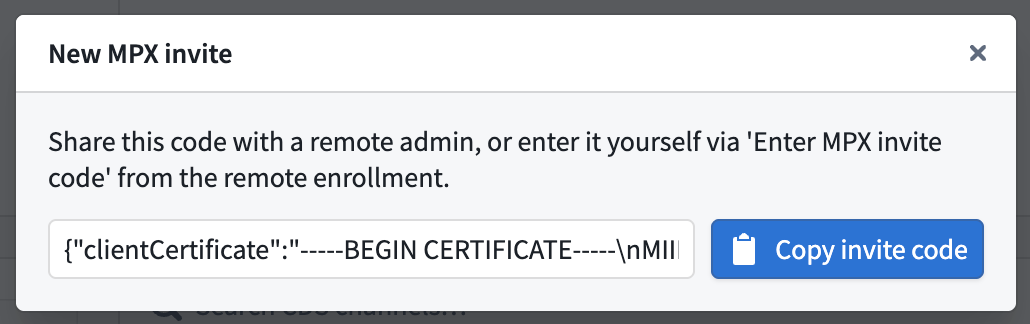
After you select a direction, Peer Manager displays the New MPX invite dialog, where you can copy the invite code to share with the other Enrollment administrator.
Enter an MPX invite code
After you receive an invite code from the Enrollment administrator on the other enrollment, follow the steps below to enter the code on your enrollment and complete your side of the connection:
- Select Enter code next to New MPX invite.
- Paste the invite code in the Enter MPX invite code dialog. Peer Manager validates the code and routes you to the MPX connection creation page.
- Provide a Name for the MPX connection.
- Confirm that a network egress policy is configured for your enrollment, as noted in the Before you proceed section.
- Select Create connection.
Both administrators must create their own and enter the enrollment's MPX invite codes. After the MPX connection is established on both enrollments, you can return to Peer Manager to create a peer connection that uses the MPX connection.
中文翻译
建立 Multipass 交换器连接
Multipass 交换器(MPX)连接使注册管理员能够在两个注册实例之间建立安全的通信通道,这是创建对等连接的前提条件。在建立 MPX 连接之前,请联系 Palantir 支持团队,以帮助配置所需连接的两个注册实例之间的网络设置,包括防火墙规则、证书信任以及注册实例通信所需的任何其他网络配置。
以下各节中的说明概述了每个注册实例上的注册管理员为建立连接所需执行的操作,例如生成邀请码、与另一位注册管理员共享该代码,以及在 Peer Manager 的网络连接选项卡中粘贴邀请码。
:::callout{theme="neutral"} 当两个注册实例之间存在网络连接时,请使用 MPX 连接。如果不存在网络连接,请建立数据中继连接作为 MPX 连接的替代方案。数据中继连接通过注册实例现有的跨域解决方案建立对等连接。 :::
协调连接方向
在通过选择 Peer Manager 的网络连接选项卡中的新建 MPX 邀请生成邀请码之前,请与另一位注册实例的管理员协调,以便双方在生成邀请码时选择匹配的方向:
- 双向连接:要创建网络流量双向发送的双向连接,双方管理员均选择双向。
- 从
注册实例 A到注册实例 B的单向连接:要创建注册实例 A向注册实例 B发起网络请求的单向连接: 注册实例 A的管理员选择仅出站。注册实例 B的管理员选择仅入站。
创建新的 MPX 邀请码
在与另一位注册管理员确定连接方向后,从新建 MPX 邀请下列出的选项中选择一项以生成要共享的邀请码:
- 双向:两个系统均可相互发起网络请求。如果两个注册实例都有稳定的 IP,请使用此选项。
- 仅出站:只有您的注册实例会发起网络请求。如果您的系统没有稳定的 IP,请选择此选项。
- 仅入站:只有远程注册实例会发起网络请求。如果远程注册实例没有稳定的 IP,请选择此选项。
选择方向后,Peer Manager 会显示新建 MPX 邀请对话框,您可以在其中复制邀请码以与另一位注册管理员共享。
输入 MPX 邀请码
从另一位注册实例的注册管理员处收到邀请码后,请按照以下步骤在您的注册实例上输入该代码并完成您这一侧的连接:
- 选择新建 MPX 邀请旁边的输入代码。
- 在输入 MPX 邀请码对话框中粘贴邀请码。Peer Manager 会验证该代码,并将您引导至 MPX 连接创建页面。
- 为 MPX 连接提供一个名称。
- 确认已为您的注册实例配置了网络出站策略,如开始之前部分所述。
- 选择创建连接。
双方管理员都必须创建各自的并输入注册实例的 MPX 邀请码。在两个注册实例上都建立 MPX 连接后,您可以返回 Peer Manager 创建使用该 MPX 连接的对等连接。