Anomaly detection(异常检测)
:::callout{theme="neutral"} The Resource Management anomaly detection functionality is only available for customers who have an active usage-based contract with Palantir. :::
Anomaly detection in Resource Management proactively notifies users of anomalous resource usage patterns. An anomaly detector consists of the following:
- Scope: The entity to be monitored. See the Scopes section below for more details.
- Strategy: A method of detecting anomalies. Each strategy has a unique configuration.
- Anomalies: Events that were considered anomalous by the selected strategy.
- Subscribers The groups/users who will be notified when an anomaly is detected.
Users create anomaly detectors; each anomaly detector relies on a scope and strategy to detect anomalies and notify its subscribers.
:::callout{theme="warning"} Due to expected latency in measuring usage, an anomaly could be detected after it has occurred (for example, configuring a strategy that detects when usage exceeds 70% of the moving average may result in an anomaly detected at 75%). In some rare cases, this latency could take up to 26 hours. :::
Scopes
Anomaly detectors are currently designed to monitor all usage for an enrollment. In the future, they will also be equipped to work with usage accounts.
Strategies
Anomaly detectors currently support 2 different strategies:
- Deviation from the moving average: Notifies subscribers when usage exceeds or falls below the moving average; this strategy can highlight temporal increases and decreases in usage.
- Zero usage: Notifies subscribers when usage is nearly zero for some extended period of time; this strategy can indicate a major issue, such as a data pipeline failure.
Permissions
To use anomaly detection, one or more of the following roles are required:
Enrollment administrator: View, create, edit, and delete anomaly detectors.Resource management administrator: View, create, edit, and delete anomaly detectors.Resource management viewer: View anomaly detectors.
Roles are granted through the Enrollment permissions page in Control Panel.
View all anomaly detectors
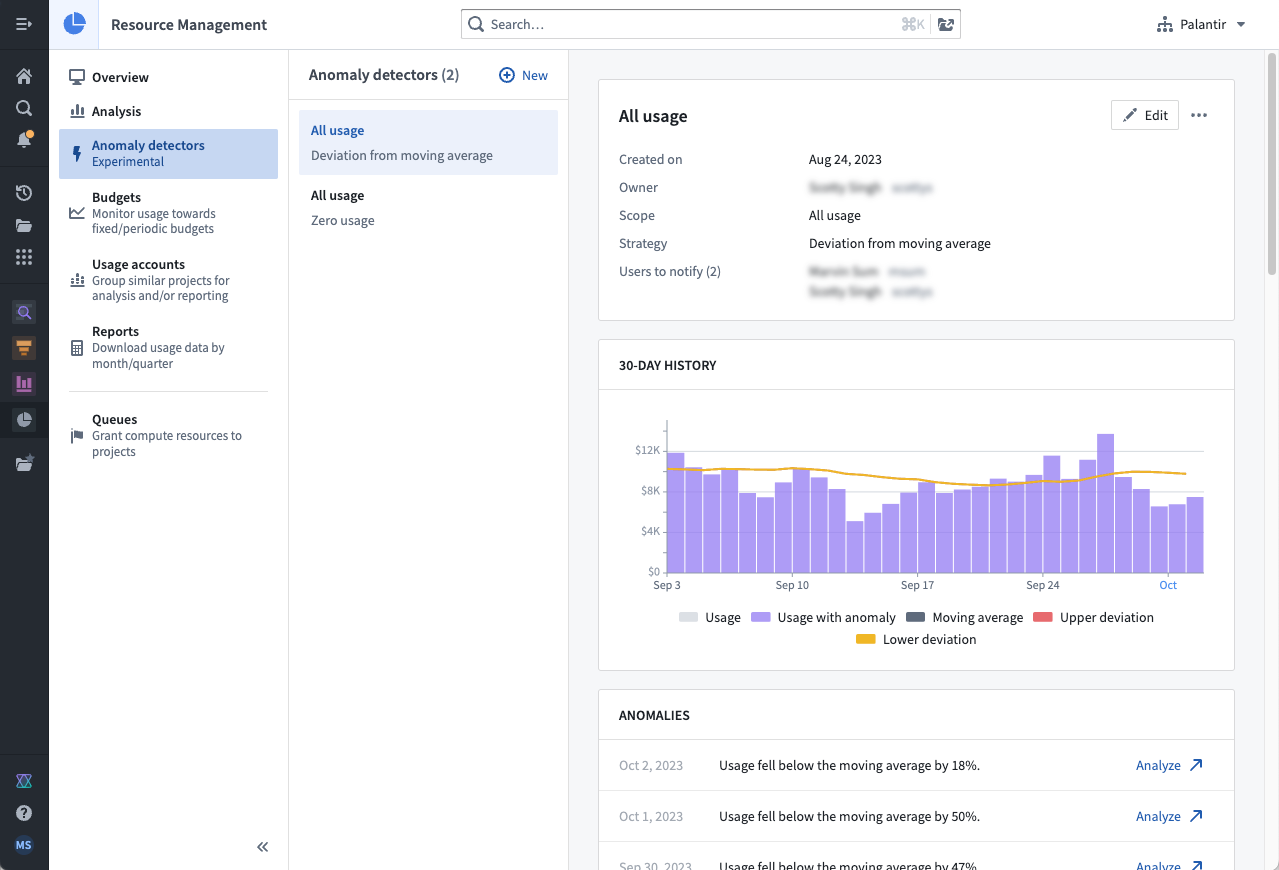
In Resource Management, select Anomaly detectors in the left sidebar. This will display a list of all anomaly detectors available in your enrollment. Select a single anomaly detector to view its anomalies and details. Regular observation can be helpful to learn how often anomalies are detected and whether the detector provides useful signal.
Create an anomaly detector
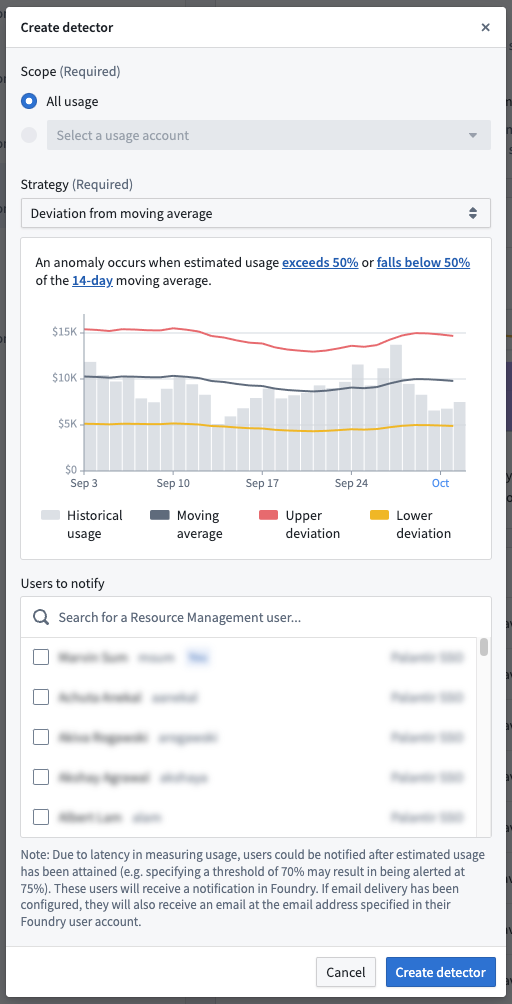
To create an anomaly detector, select the New button while viewing all anomaly detectors. Select a scope, configure a strategy, and specify the subscribers. Then, select Create detector.
Delete an anomaly detector
:::callout{theme="danger"} Deleting an anomaly detector also deletes its anomalies and unsubscribes all subscribers. This action cannot be undone. :::
While viewing a single anomaly detector, select the actions menu at the top right, and select Delete. When the warning dialog appears, select Delete detector.
中文翻译
异常检测
:::callout{theme="neutral"} 资源管理的异常检测功能仅适用于与 Palantir 签订了活跃的按用量计费合同的客户。 :::
资源管理中的异常检测(Anomaly detection)功能可主动通知用户有关异常资源使用模式的信息。一个异常检测器(anomaly detector)包含以下组成部分:
- 范围(Scope):需要监控的实体。详见下文范围部分。
- 策略(Strategy):检测异常的方法。每种策略都有独特的配置。
- 异常(Anomalies):被所选策略判定为异常的事件。
- 订阅者(Subscribers):检测到异常时将收到通知的群组/用户。
用户创建异常检测器;每个异常检测器依赖一个范围和策略来检测异常并通知其订阅者。
:::callout{theme="warning"} 由于用量测量存在预期延迟,异常可能在发生后才会被检测到(例如,配置一个检测用量超过移动平均值70%的策略,可能导致在用量达到75%时才检测到异常)。在极少数情况下,这种延迟可能长达26小时。 :::
范围
异常检测器目前设计用于监控一个注册(enrollment)的所有用量。未来,它们还将支持与用量账户(usage accounts)配合使用。
策略
异常检测器目前支持两种不同的策略:
- 偏离移动平均值(Deviation from the moving average):当用量超过或低于移动平均值时通知订阅者;该策略可以突出显示用量的临时增加和减少。
- 零用量(Zero usage):当用量在较长时间内几乎为零时通知订阅者;该策略可以指示重大问题,例如数据管道故障。
权限
要使用异常检测功能,需要具备以下一个或多个角色:
注册管理员(Enrollment administrator):查看、创建、编辑和删除异常检测器。资源管理管理员(Resource management administrator):查看、创建、编辑和删除异常检测器。资源管理查看者(Resource management viewer):查看异常检测器。
角色通过控制面板中的注册权限页面授予。
查看所有异常检测器
在资源管理中,选择左侧边栏中的异常检测器(Anomaly detectors)。这将显示您的注册中所有可用的异常检测器列表。选择单个异常检测器可查看其异常和详细信息。定期观察有助于了解异常检测的频率以及检测器是否提供了有用的信号。
创建异常检测器
要创建异常检测器,请在查看所有异常检测器时选择新建(New)按钮。选择一个范围,配置策略,并指定订阅者。然后,选择创建检测器(Create detector)。
删除异常检测器
:::callout{theme="danger"} 删除异常检测器也会同时删除其异常记录并取消所有订阅者的订阅。此操作无法撤销。 :::
在查看单个异常检测器时,选择右上角的操作菜单,然后选择删除(Delete)。当警告对话框出现时,选择删除检测器(Delete detector)。