Monitors(监控器(Monitors))
:::callout{theme="warning"} Monitors have been deprecated in favor of anomaly detection. :::
Monitors in Resource Management allow users to track usage patterns and spend activity, without needing to monitor the application itself. Subscribers to monitors will receive notifications to take action when estimated usage approaches a budget.
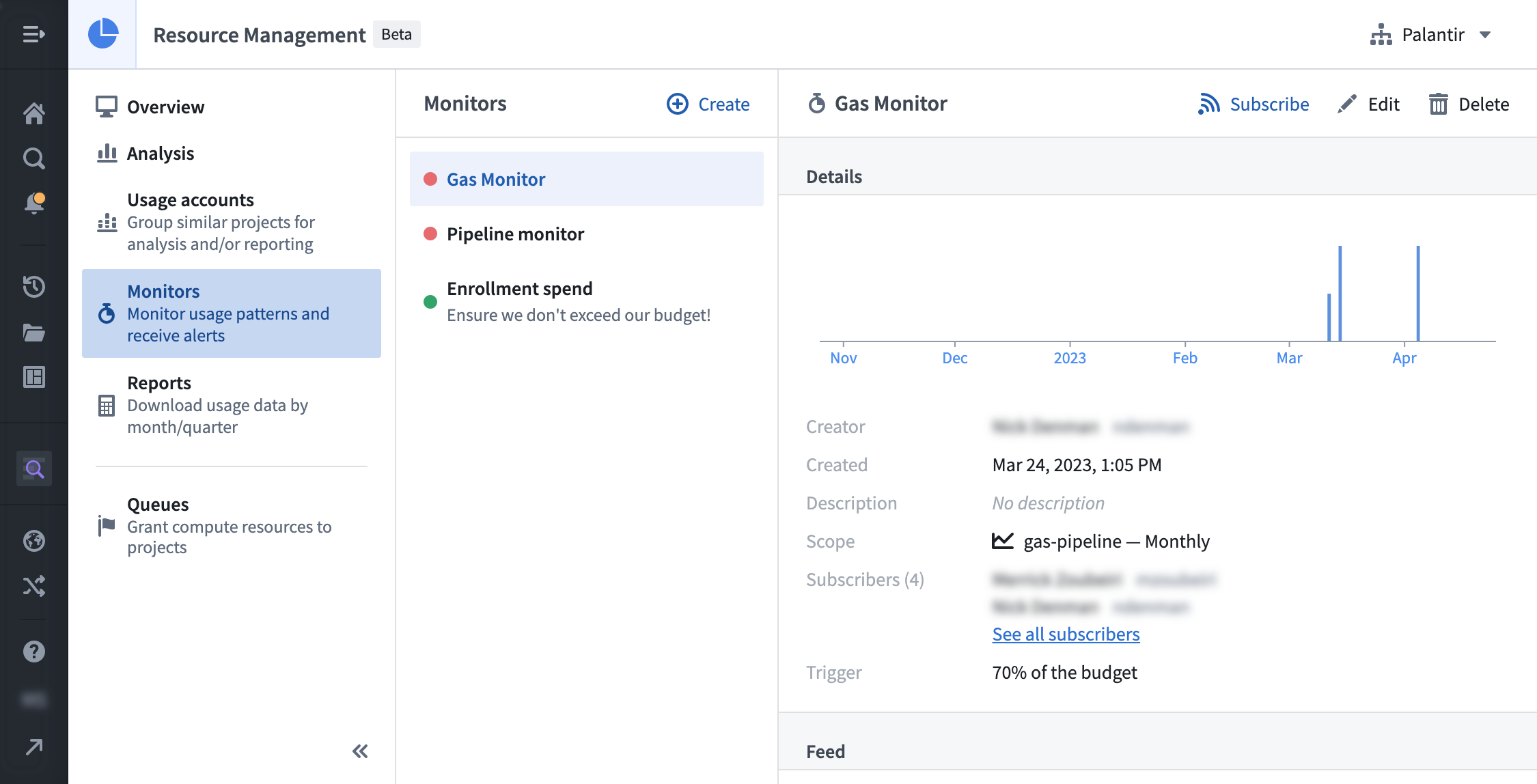
A monitor has a scope, a trigger, events, and subscriber(s).
- Scope: The entity to be monitored. See the Monitor scopes section below for more details.
- Trigger: The condition required to prompt the monitor.
- Event: A time when the monitor was triggered.
- Subscriber(s): The user(s) who will be notified when the monitor is triggered.
If the trigger on the scope is fulfilled, an event is created and the subscriber(s) is/are notified.
:::callout{theme="warning"} Due to expected latency in measuring usage, an event could be triggered after the trigger has been breached (for example, specifying a trigger of 70% may result in an event triggered at 75%). In some rare cases, this latency could take up to 26 hours. :::
Monitor scopes
Monitors are currently designed to track budgets. In the future, they will also be equipped to track enrollments and usage accounts.
- Budgets: An event is triggered when usage exceeds a percentage of the budget. For periodic budgets, events are triggered once every period (for example, once a month for a monthly budget). If the percentage is updated, it may cause another event to trigger in the same period.
Permissions
To use monitors, one or more of the following roles are required:
Enrollment administrator: View, create, edit, and delete monitors.Resource management administrator: View, create, edit, and delete monitors.Resource management viewer: View monitors.
Roles are granted through the Enrollment permissions page in Control Panel.
View all monitors
In Resource Management, select Monitors in the left sidebar. This will display a list of all monitors available in your enrollment. Select a single monitor to view its trend, details, and events. Regular observation can be helpful to learn how often a monitor is triggered and whether it provides useful signal.
Create a monitor
You can create a monitor in two ways:
- While viewing all monitors, select the Create button.
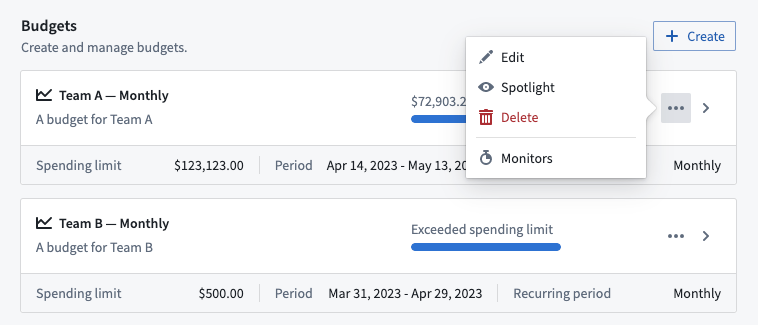
- While viewing the list of budgets, select the Actions button, then select Monitors. Doing so displays the list of monitors for the chosen budget. Select New monitor to create a new monitor that tracks the chosen budget.
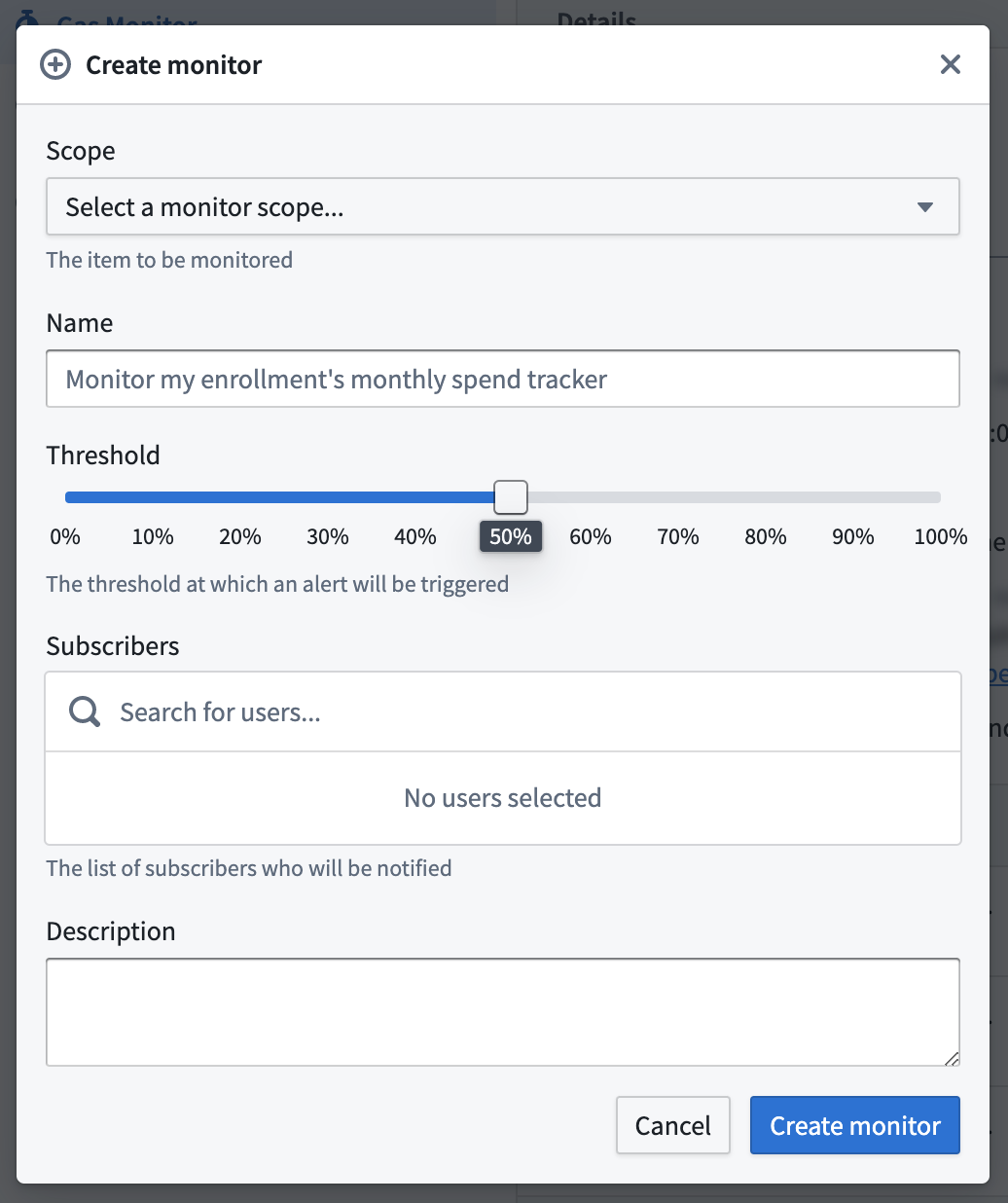
Enter the remaining information, then select Create monitor. The following details can be specified:
- Scope: The budget that this monitor will be tracking.
- Name: The name of this monitor.
- Threshold: The percentage of the budget at which the monitor will be triggered.
- Subscribers: The users who will be notified when the monitor is triggered.
Delete a monitor
:::callout{theme="danger"} Deleting a monitor also deletes its events and unsubscribes all subscribers. This action cannot be undone. :::
While viewing a single monitor, select the Delete button. When the warning dialog appears, select Confirm.
中文翻译
监控器(Monitors)
:::callout{theme="warning"} 监控器(Monitors)已弃用,建议改用异常检测(anomaly detection)。 :::
资源管理(Resource Management)中的监控器允许用户追踪使用模式(usage patterns)和支出活动(spend activity),无需自行监控应用程序。监控器的订阅者(subscribers)将在预估使用量接近预算(budget)时收到通知,以便采取相应行动。
一个监控器包含范围(scope)、触发器(trigger)、事件(events)和订阅者(subscriber(s))。
- 范围(Scope): 被监控的实体。详见下文监控器范围部分。
- 触发器(Trigger): 触发监控器的条件。
- 事件(Event): 监控器被触发的时间点。
- 订阅者(Subscriber(s)): 监控器被触发时将收到通知的用户。
如果范围上的触发器条件满足,则会创建一个事件,并通知订阅者。
:::callout{theme="warning"} 由于使用量测量存在预期延迟,事件可能在触发器阈值被突破后才被触发(例如,设置70%的触发器可能导致事件在75%时触发)。在极少数情况下,此延迟可能长达26小时。 :::
监控器范围(Monitor scopes)
监控器目前设计用于追踪预算(budgets)。未来还将支持追踪注册(enrollments)和使用账户(usage accounts)。
- 预算(Budgets): 当使用量超过预算的某个百分比时触发事件。对于周期性预算(periodic budgets),每个周期触发一次事件(例如,月度预算每月触发一次)。如果更新百分比,可能在同一个周期内再次触发事件。
权限(Permissions)
要使用监控器,需要具备以下一个或多个角色:
注册管理员(Enrollment administrator):查看、创建、编辑和删除监控器。资源管理管理员(Resource management administrator):查看、创建、编辑和删除监控器。资源管理查看者(Resource management viewer):查看监控器。
角色通过控制面板(Control Panel)中的注册权限页面(Enrollment permissions page)授予。
查看所有监控器
在资源管理中,选择左侧边栏的监控器(Monitors)。这将显示您的注册中所有可用的监控器列表。选择单个监控器可查看其趋势(trend)、详情(details)和事件(events)。定期观察有助于了解监控器的触发频率及其是否提供有效信号。
创建监控器
您可以通过两种方式创建监控器:
- 在查看所有监控器时,选择创建(Create)按钮。
- 在查看预算列表时,选择操作(Actions)按钮,然后选择监控器(Monitors)。这将显示所选预算的监控器列表。选择新建监控器(New monitor)以创建一个追踪该预算的新监控器。
填写剩余信息,然后选择创建监控器(Create monitor)。可指定以下详细信息:
- 范围(Scope): 此监控器将追踪的预算。
- 名称(Name): 此监控器的名称。
- 阈值(Threshold): 触发监控器的预算百分比。
- 订阅者(Subscribers): 监控器被触发时将收到通知的用户。
删除监控器
:::callout{theme="danger"} 删除监控器也会删除其事件并取消所有订阅者的订阅。此操作无法撤销。 :::
在查看单个监控器时,选择删除(Delete)按钮。当警告对话框出现时,选择确认(Confirm)。