Resource queues(资源队列)
Resource queues are used to limit the available compute resources that can be utilized concurrently. Examples of compute resources include virtual CPUs (vCPUs) and virtual GPUs (vGPUs).
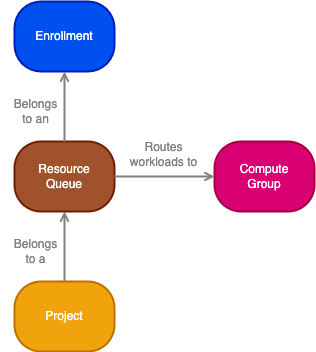
- Enrollment: An enrollment is the primary identity of your Organization and establishes your company's identity with Foundry services and the Foundry platform.
- Resource: A resource queue resource is a compute resource, such as a virtual CPU (vCPU) or virtual GPU (vGPU), that is needed to run a workload in a project.
- Resource queue: A resource queue is a first in, first out (FIFO) queue for requesting service-level resources (such as vCPUs or vGPUs). See resource queue details below for more information.
- Compute group: A compute group is a group of machines (compute hardware of a specific type) on which Foundry workloads can be run. These machines provide the resources that are used by workloads.
- Project: A project is a collaborative space that brings together users, files, and folders for a particular purpose. Projects are the primary security boundary in Foundry and can be thought of as buckets of shared work. Workloads that require resources run in projects.
:::callout{theme="warning"} Resource queues for streaming resources may not be available in your enrollment. Contact Palantir Support for more information. :::
Enrollment details
Resource queues belong to an enrollment, and an enrollment has a vCPU and a vGPU limit, which limits the total amount of vCPUs and vGPUs allowed through resource queues. In other words, the sum of all vCPU limits of all resource queues in an enrollment must be less than or equal to the enrollment vCPU limit; the same rule applies to the queue vGPU limit and enrollment vGPU limit.
An enrollment also has a default queue to which all projects are automatically assigned unless otherwise specified. This default queue cannot be deleted.
Projects in a space are automatically assigned to the space's default resource queue. The space's default resource queue is the same as the enrollment default resource queue unless otherwise configured. Learn more about Organizations and spaces and how they relate to Organizations and enrollments.
Set enrollment limits
Contact Palantir Support to modify your enrollment limits.
Resource queue details
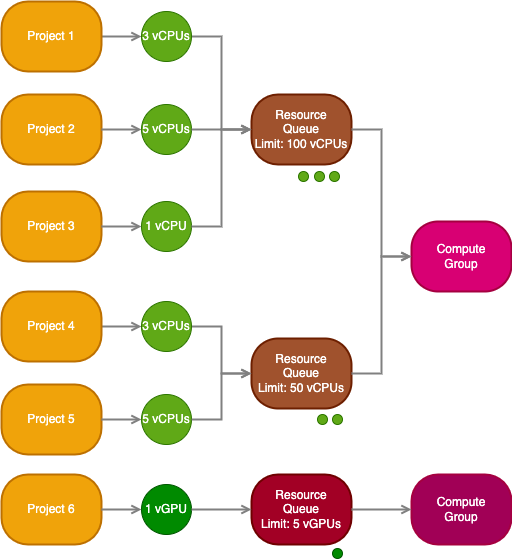
A resource queue is a first in, first out (FIFO) queue used to limit the number of compute resources that can be used concurrently. A resource queue limits the use of service-level resources like virtual CPUs (vCPUs) and virtual GPUs (vGPUs) that are available in compute groups.
Resources are requested by workloads running in projects, and those requests are then queued in a resource queue. When a resource queue is full, requests must wait until space is available again in the queue. The queue is first in, first out; requests are processed in the order in which the requests were created.
Workloads are then sent to run in the compute group specified by the resource queue, and resources are released once the workload completes or is terminated.
Create resource queues
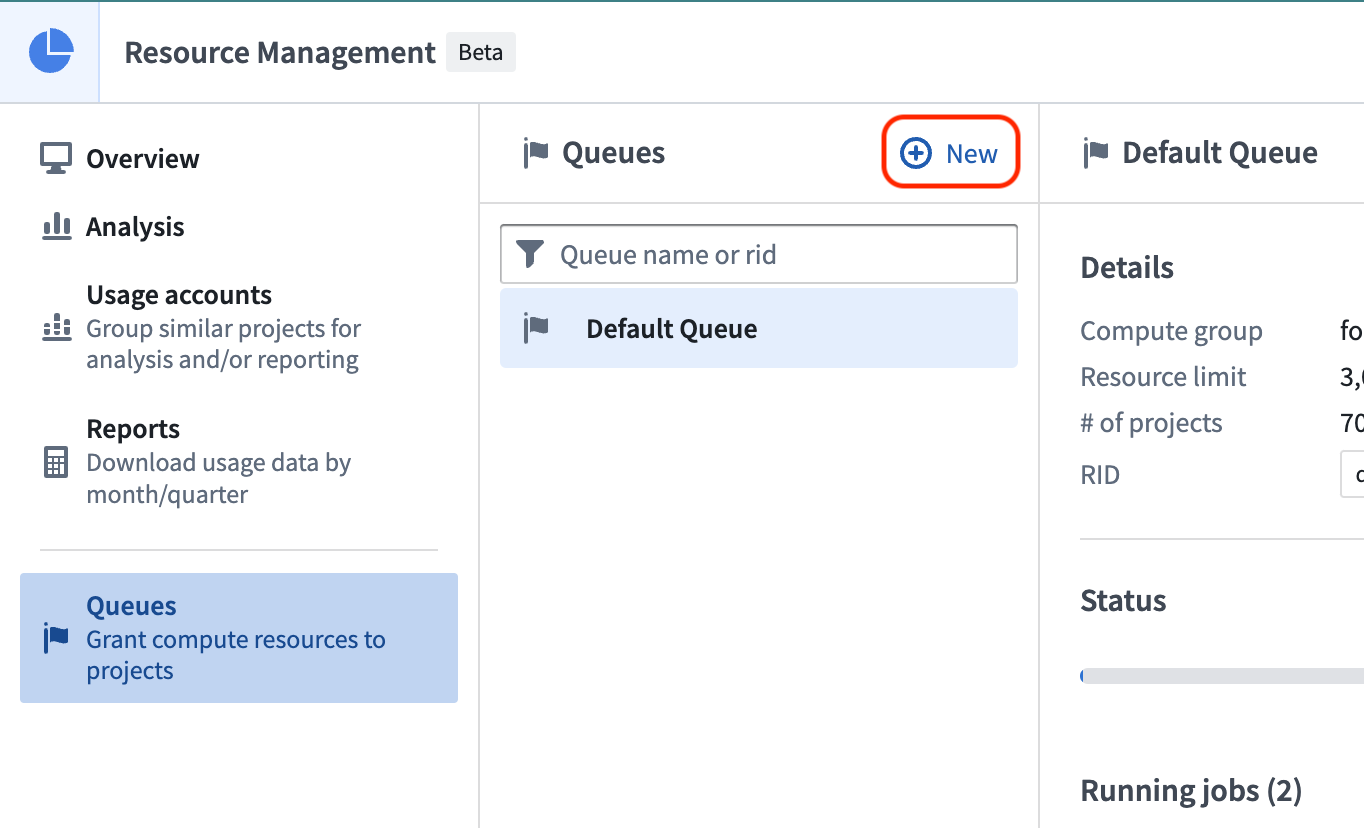
To create a resource queue, navigate to the Resource Management application, select Queues on the left, then select New.
Resource queue types
There are currently two resource queue types: vCPU resource queues and vGPU resource queues. Most workloads will only need CPUs, and so most projects will be backed by a vCPU resource queue. Workloads requiring GPUs must be sent to a vGPU resource queue, and so can only run in projects backed by a vGPU resource queue. The type of GPUs (for example, V100, T4) used by the workload in a project is determined by the compute group to which the workload will be routed. This compute group is associated with the resource queue that backs the project. Learn more about compute groups.
Use GPUs
If you want to use a GPU in your project, you must create a GPU resource queue and assign your project to that queue. It may be useful to use a GPU when running workloads for training machine learning models, for example. Learn more about model integration. Learn more about how to use GPUs for model training in the GPU training documentation.
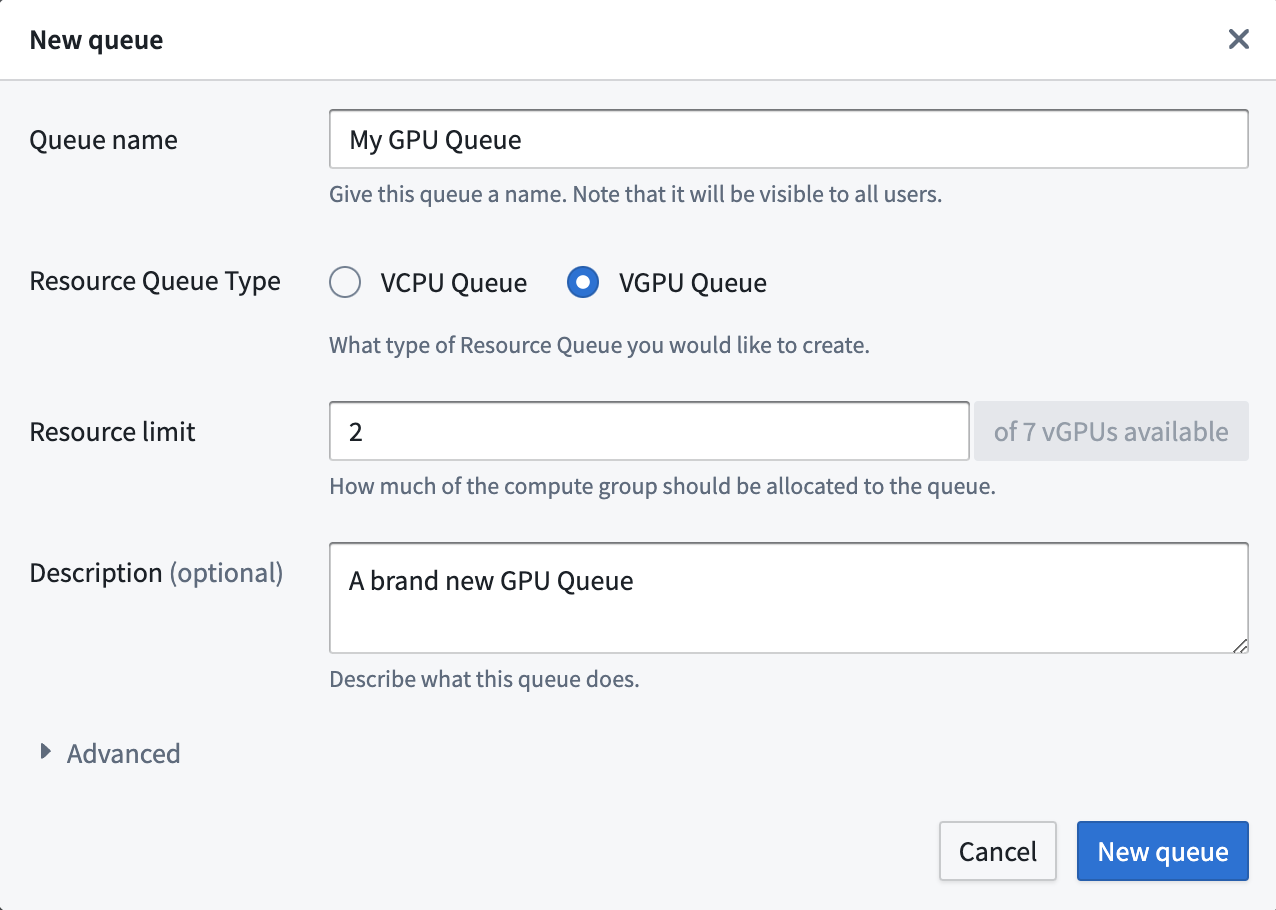
:::callout{theme="warning"} Be sure your enrollment level GPU limits are set to allow the creation of GPU resource queues. :::
Once the resource queue is created and your project is assigned, import a GPU profile (such as DRIVER_GPU_ENABLED) into your project and use it in your code repository. Learn more about importing spark profiles.
Assign projects to resource queues
Each project is assigned to a vCPU resource queue; optionally, projects can also be assigned to a vGPU resource queue. If a project is not assigned to a vGPU queue, then it cannot execute workloads that require GPUs.
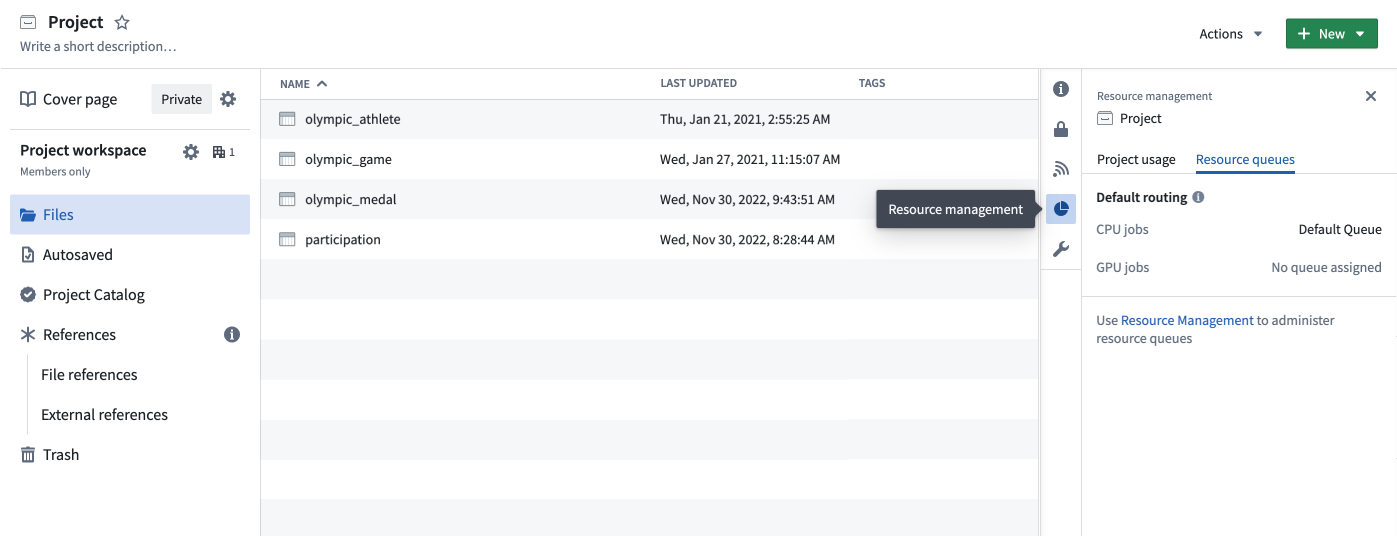
To view and manage the projects that are assigned to a resource queue, select the Projects tab while viewing the details for that queue. A project's resource queue assignments can also be viewed in the Resource management tab in the platform filesystem sidebar.
Priority branches
Priority branches are used to support critical workflows that require dedicated compute resources. For example, it may be acceptable for workloads to queue during development but not in production. Consider using a protected branch from Code Repositories or Pipeline Builder as a priority branch.
When a priority branch is configured for a project, workloads on that branch use the resource queues that are assigned to the priority branch. All other workloads continue to use the resource queues that are assigned to the project. Like projects, each priority branch is assigned to a vCPU resource queue, and they can also optionally be assigned to a vGPU resource queue.
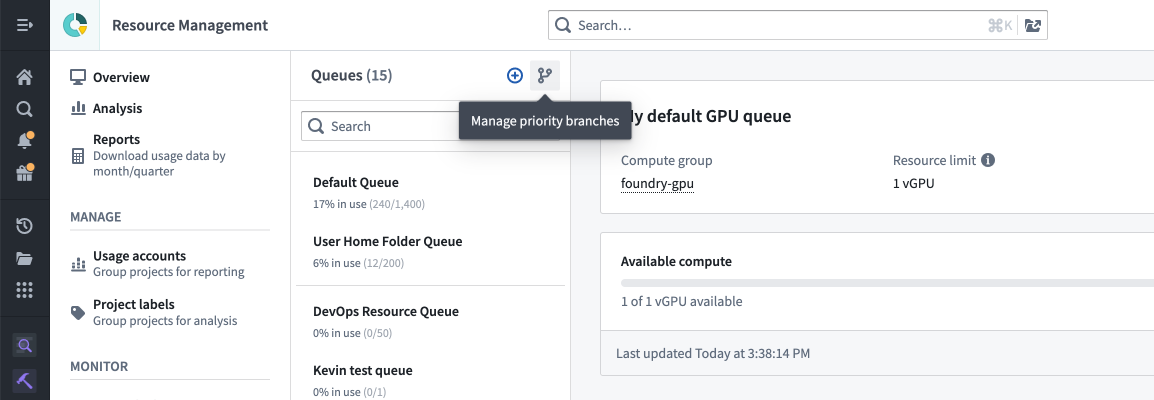
To view or manage the priority branch settings for a project, select the branching icon shown below:
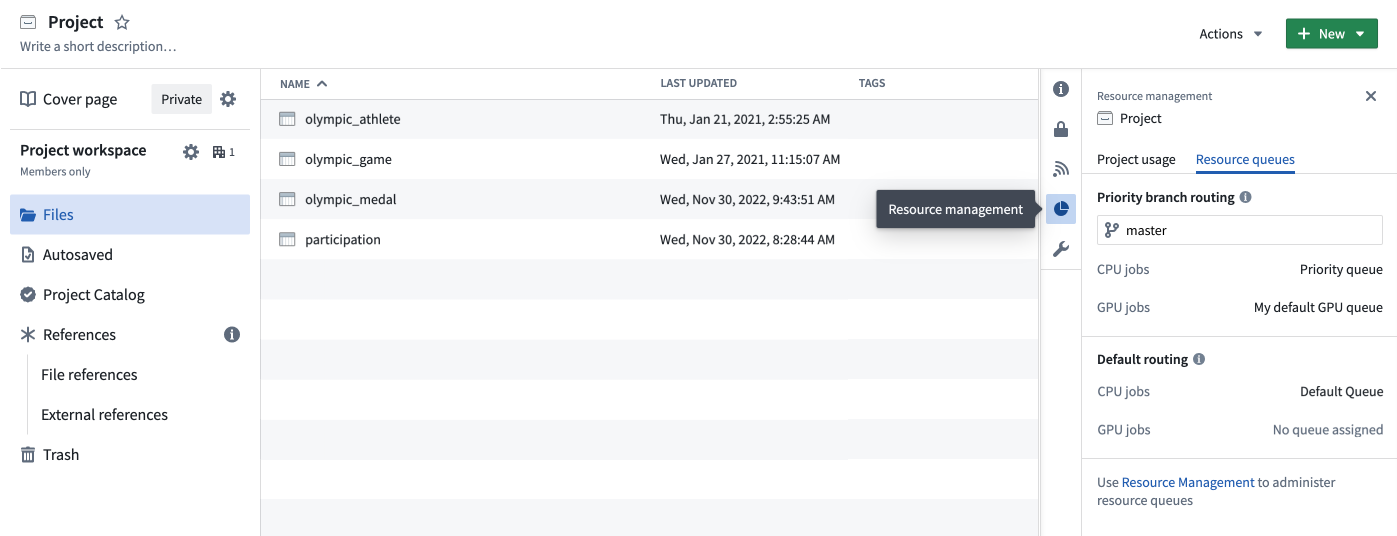
A project's priority branch settings can also be viewed in the Resource management tab in the platform filesystem sidebar.
To view and manage the priority branches that are assigned to a resource queue, select the Priority branches tab while viewing the details for that queue.
Compute group details
Compute groups are auto scaling groups of hardware resources of homogenous type. For example, a compute group might have machines with 16GB of memory and 4 compute cores (CPUs) available; another compute group may have machines with a V100 GPU with 16 compute cores and 32GB of memory. Compute groups are available to Foundry users and limited by resource queues.
Compute types
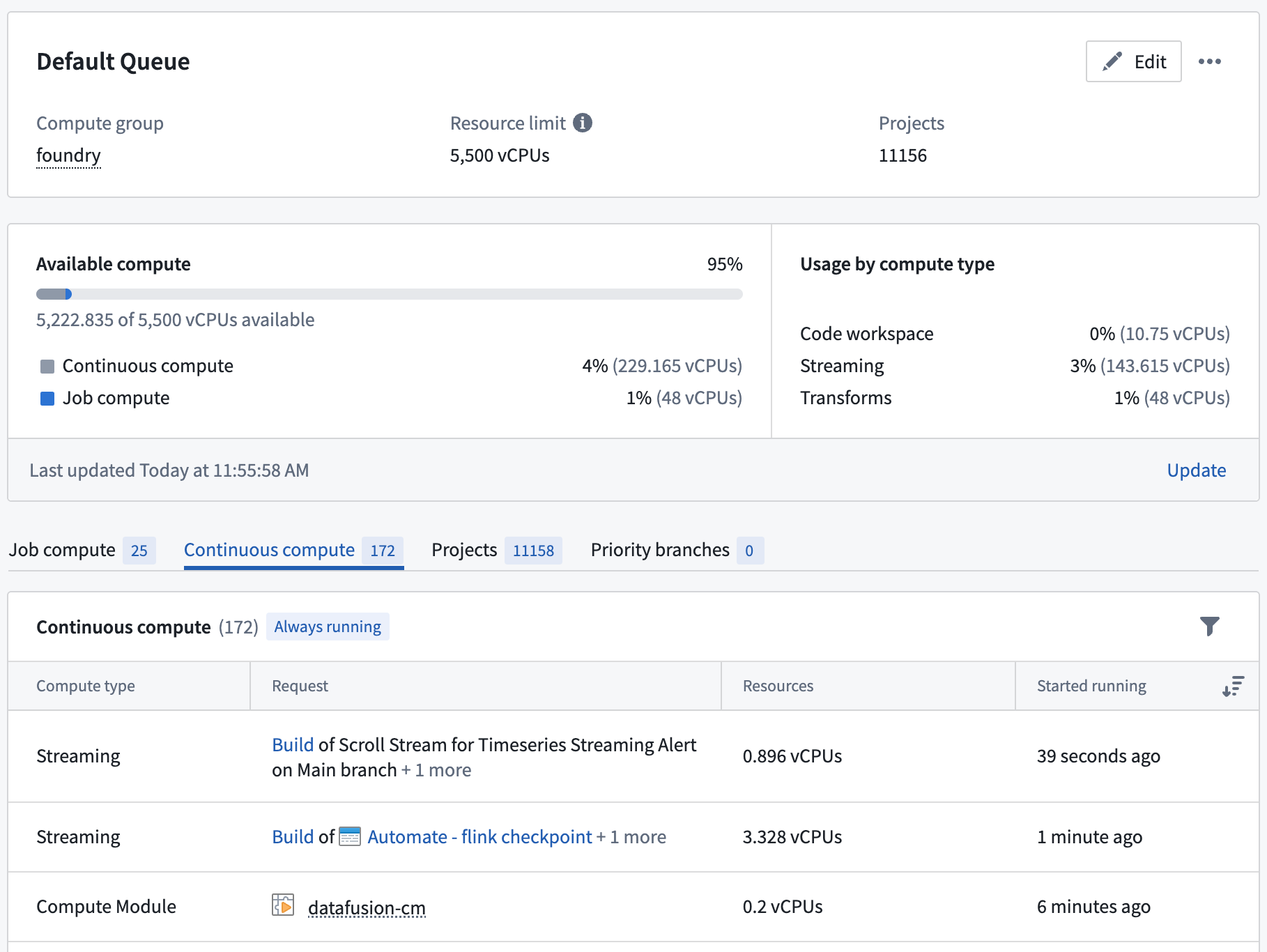
Each resource queue can guard Job compute, Continuous compute, and Session compute:
- Job compute includes batch transforms, such as the build of a Python transform.
- Continuous compute covers non-transform compute that is often long-lived, such as a compute module or streaming.
- Session compute covers interactive workloads where users are actively waiting for results, such as when coding in a code workspace.
The Resource Management application shows the granular split of your resource queue usage across different compute types.
Utilization history
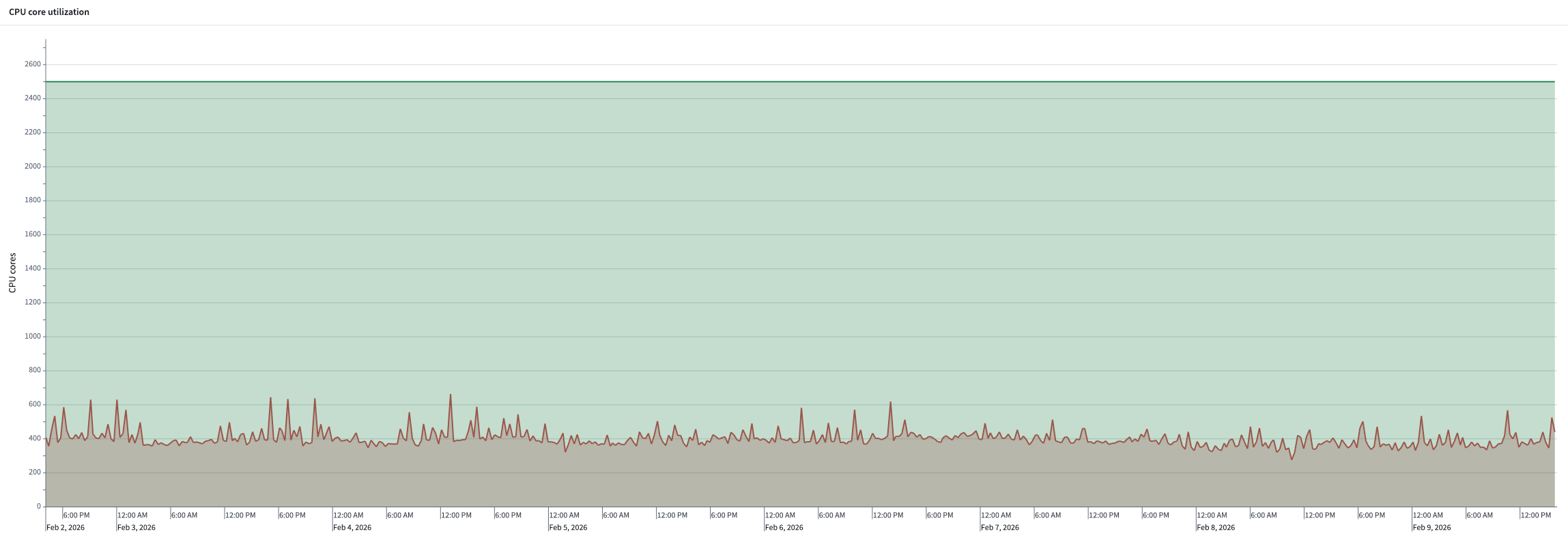
The Utilization history option on the resource queue page shows the utilization of the resource queue over the past 7 days. It shows the amount of used vCPU or vGPU cores compared to the maximum available cores on the queue. This can be used to determine whether a resource queue is close to capacity. If the queue is consistently close to being full, consider increasing the amount of cores in the resource queue.
Set up utilization monitors
A resource queue that reaches capacity causes all new workloads to wait, resulting in delayed builds and poor user experience. To be alerted before this happens, select Create monitor to configure a utilization monitor in the Data Health application.
中文翻译
资源队列
资源队列用于限制可同时使用的计算资源。计算资源包括虚拟CPU(vCPU)和虚拟GPU(vGPU)等。
- 注册(Enrollment): 注册是您组织的首要身份标识,用于在Foundry服务和Foundry平台中建立贵公司的身份。
- 资源(Resource): 资源队列资源是一种计算资源,例如虚拟CPU(vCPU)或虚拟GPU(vGPU),用于在项目中运行工作负载。
- 资源队列(Resource queue): 资源队列是一种先进先出(FIFO)队列,用于请求服务级资源(如vCPU或vGPU)。更多信息请参见下文资源队列详情。
- 计算组(Compute group): 计算组是一组机器(特定类型的计算硬件),可在其上运行Foundry工作负载。这些机器提供工作负载所使用的资源。
- 项目(Project): 项目是一个协作空间,为特定目的汇集用户、文件和文件夹。项目是Foundry中的主要安全边界,可视为共享工作桶。需要资源的工作负载在项目中运行。
:::callout{theme="warning"} 流式资源的资源队列可能在您的注册中不可用。请联系Palantir支持以获取更多信息。 :::
注册详情
资源队列归属于某个注册,每个注册都有vCPU和vGPU限制,用于限制通过资源队列允许使用的vCPU和vGPU总量。换句话说,注册中所有资源队列的vCPU限制之和必须小于或等于注册的vCPU限制;队列的vGPU限制与注册的vGPU限制也适用相同规则。
每个注册还有一个默认队列,除非另有指定,否则所有项目都会自动分配到该队列。此默认队列无法删除。
空间中的项目会自动分配到该空间的默认资源队列。除非另有配置,否则空间的默认资源队列与注册的默认资源队列相同。了解更多关于组织和空间以及它们与组织和注册的关系。
设置注册限制
请联系Palantir支持以修改您的注册限制。
资源队列详情
资源队列是一种先进先出(FIFO)队列,用于限制可同时使用的计算资源数量。资源队列限制了对计算组中可用的服务级资源(如虚拟CPU(vCPU)和虚拟GPU(vGPU))的使用。
资源由项目中运行的工作负载请求,这些请求随后在资源队列中排队。当资源队列已满时,请求必须等待,直到队列中有可用空间。队列采用先进先出原则;请求按照创建顺序进行处理。
工作负载随后被发送到资源队列指定的计算组中运行,一旦工作负载完成或终止,资源即被释放。
创建资源队列
要创建资源队列,请导航至资源管理(Resource Management)应用程序,在左侧选择队列(Queues),然后选择新建(New)。
资源队列类型
目前有两种资源队列类型:vCPU资源队列和vGPU资源队列。大多数工作负载仅需要CPU,因此大多数项目将由vCPU资源队列支持。需要GPU的工作负载必须发送到vGPU资源队列,因此只能在由vGPU资源队列支持的项目中运行。项目中工作负载使用的GPU类型(例如V100、T4)由工作负载将路由到的计算组决定。该计算组与支持项目的资源队列相关联。了解更多关于计算组的信息。
使用GPU
如果您想在项目中使用GPU,必须创建一个GPU资源队列并将您的项目分配到该队列。例如,在运行机器学习模型训练的工作负载时,使用GPU可能会很有用。了解更多关于模型集成的信息。在GPU训练文档中了解更多关于如何使用GPU进行模型训练的信息。
:::callout{theme="warning"} 请确保您的注册级别GPU限制已设置,以允许创建GPU资源队列。 :::
创建资源队列并将项目分配后,请将GPU配置文件(例如DRIVER_GPU_ENABLED)导入您的项目,并在代码仓库中使用。了解更多关于导入Spark配置文件的信息。
将项目分配到资源队列
每个项目都分配到一个vCPU资源队列;项目也可以选择性地分配到一个vGPU资源队列。如果项目未分配到vGPU队列,则无法执行需要GPU的工作负载。
要查看和管理分配到某个资源队列的项目,请在查看该队列详情时选择项目(Projects)选项卡。项目的资源队列分配也可以在平台文件系统侧边栏的资源管理(Resource management)选项卡中查看。
优先级分支
优先级分支用于支持需要专用计算资源的关键工作流。例如,在开发过程中工作负载排队可能可以接受,但在生产环境中则不行。考虑使用来自代码仓库或管道构建器的保护分支作为优先级分支。
当为项目配置了优先级分支后,该分支上的工作负载将使用分配给优先级分支的资源队列。所有其他工作负载继续使用分配给项目的资源队列。与项目类似,每个优先级分支都分配到一个vCPU资源队列,并且也可以选择性地分配到一个vGPU资源队列。
要查看或管理项目的优先级分支设置,请选择如下所示的分支图标:
项目的优先级分支设置也可以在平台文件系统侧边栏的资源管理(Resource management)选项卡中查看。
要查看和管理分配到某个资源队列的优先级分支,请在查看该队列详情时选择优先级分支(Priority branches)选项卡。
计算组详情
计算组是同类型硬件资源的自动扩展组。例如,一个计算组可能拥有配备16GB内存和4个计算核心(CPU)的机器;另一个计算组可能拥有配备V100 GPU、16个计算核心和32GB内存的机器。计算组可供Foundry用户使用,并受资源队列限制。
计算类型
每个资源队列可以保护作业计算(Job compute)、持续计算(Continuous compute)和会话计算(Session compute):
- 作业计算包括批量转换,例如Python转换的构建。
- 持续计算涵盖通常长期运行的非转换计算,例如计算模块或流式处理。
- 会话计算涵盖用户主动等待结果的交互式工作负载,例如在代码工作区中编码时。
资源管理(Resource Management)应用程序会显示您的资源队列使用情况在不同计算类型上的细粒度拆分。
使用历史
资源队列页面上的使用历史(Utilization history)选项显示了过去7天内资源队列的使用情况。它显示了已使用的vCPU或vGPU核心数量与队列上最大可用核心数量的对比。这可用于判断资源队列是否接近容量上限。如果队列持续接近满载,请考虑增加资源队列中的核心数量。
设置使用监控器
达到容量的资源队列会导致所有新工作负载等待,从而导致构建延迟和用户体验不佳。要在这种情况发生前收到警报,请选择创建监控器(Create monitor),在数据健康(Data Health)应用程序中配置使用监控器。