General configuration(通用配置)
By default, the workspace editing panel will open on the General configuration tab. In the General configuration tab, you can configure the following parts of your workspace:
- General configuration
- Workspace name and description
- Discoverable modules
- Appearance
- External links
- Menu bar utilities
- Search bar
- Delete workspace
You may also use the General tab to delete a workspace. Deleting a workspace is in the “Danger Zone” as it is a permanent action that cannot be undone.

Workspace name and description
Each workspace has a name and a description. A workspace’s name is always displayed in the top left corner of the workspace interface as part of the navigation menu dropdown. If a user has access to multiple workspaces, the navigation menu displays the name and description of each available workspace.
We recommend using clear and concise workspace names and descriptions; as a best practice, choose a naming convention that makes sense and is understandable to the intended users of the workspace.

Discoverable modules
In the Discoverable modules section, you can control the list of modules for which the Open In action is available in Object Explorer. Learn more about configuring module discovery.

Appearance
You can override the organization-level light/dark theme in the Appearance section. To do so, check the Manage appearance box and select which theme you would like the workspace to be displayed in. If the Manage appearance box is not checked, the organization-level setting will be used.

Navigation out of Carbon
This configuration determines whether or not Carbon displays buttons and links that lead users out of the workspace. Note that this is required for using external links and some menu bar utilities.

External links
In the External links section, you can override the links to resources outside of Carbon that are listed in the Navigation Menu when a user is viewing the current workspace.

To do so, check the Manage external links box and add the desired links along with an optional section title that will be displayed at the top of the list. The Copy from Organization button will populate the list with the external links set at the organization level, which you can add or remove.

Menu bar utilities
In the Menu bar utilities section, you can customize the actions available in the upper right corner of the workspace.

If Show Notifications is checked, a notifications option will be displayed in the menu bar and display the user's recent Foundry notifications.
Search bar
When a workspace is created, by default there is an Ontology-aware search bar on the home page that can be used to discover objects, object types, and other object resources, such as Explorations and Workshop modules.
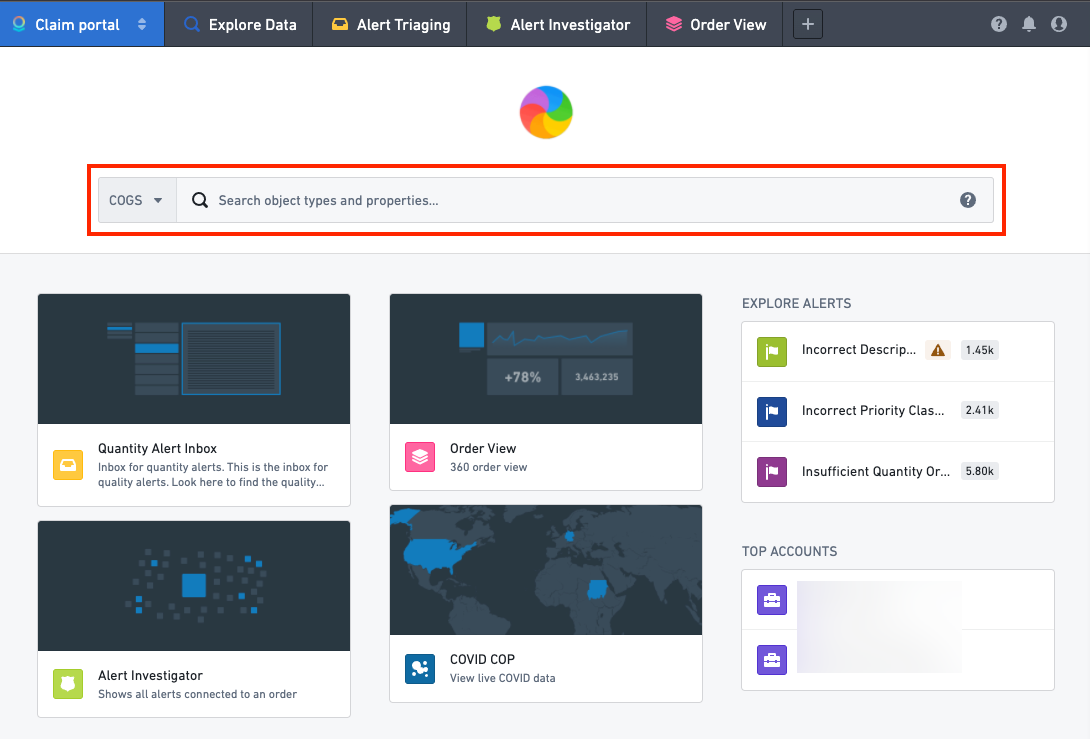
In the Search bar section, you can choose to hide the search bar from the workspace home page. Alternatively, to create a more customized experience for the intended users of a workspace, you can add default search filters to the search bar. This will narrow the search down to certain object types or search groups that are most relevant to the users of the workspace. Users can change or remove these filters in the dropdown on the left side of the search bar.

Enable AIP Assist
Users can interact with AIP Assist chatbots (formerly AIP Assist agents) from their Carbon workspace if the Enable AIP Assist option is selected and the user has access to one or more configured chatbots. This requires dedicated AIP Assist chatbots to be configured in Chatbot Studio, and users need permission to access these chatbots in order to interact with AIP Assist.
:::callout{theme="neutral"} By default, users will not have access to AIP Assist in Carbon workspaces, so an agent must be selected and a user must have access to it for this feature to be enabled and available. :::

Delete workspace
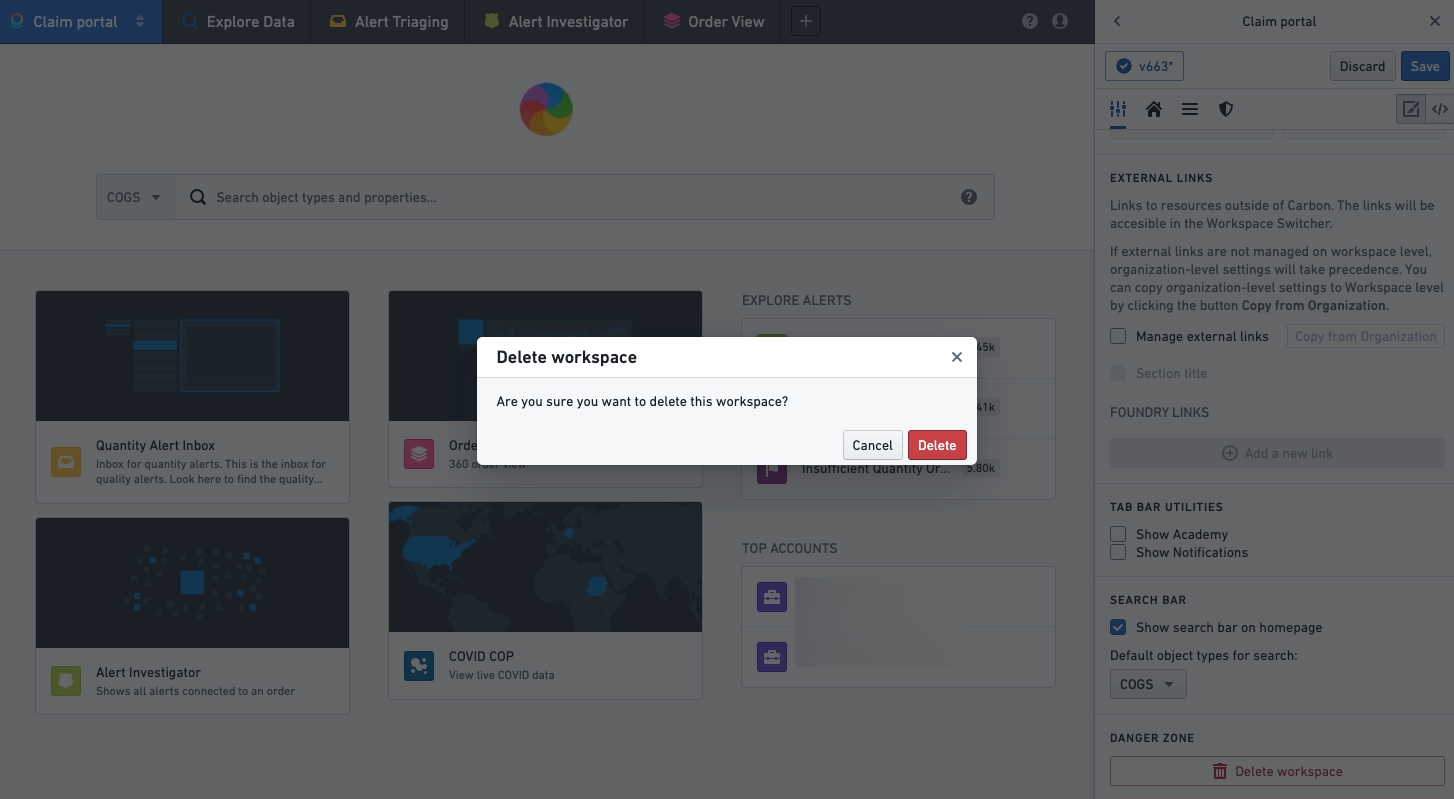
In the Danger zone section, you can delete a workspace by selecting the Delete workspace button.
:::callout{theme="danger" title="Warning"} Deletion of a workspace is permanent and cannot be undone. Be very careful before deleting a workspace. :::

Selecting Delete workspace will present a confirmation screen; if you confirm the deletion by selecting Delete, the workspace will be immediately deleted. After deleting the workspace, you will be redirected back to your default Carbon workspace.
中文翻译
通用配置
默认情况下,工作区编辑面板会打开通用配置选项卡。在通用配置选项卡中,您可以配置工作区的以下部分:
您也可以使用通用选项卡来删除工作区。删除工作区属于"危险操作",因为这是不可撤销的永久性操作。
工作区名称与描述
每个工作区都有名称和描述。工作区名称始终显示在工作区界面左上角的导航菜单下拉列表中。如果用户有权访问多个工作区,导航菜单会显示每个可用工作区的名称和描述。
我们建议使用清晰简洁的工作区名称和描述;最佳实践是选择对工作区目标用户而言合理且易于理解的命名规范。
可发现模块
在可发现模块部分,您可以控制对象资源管理器(Object Explorer)中"打开方式"(Open In)操作可用的模块列表。了解有关配置模块发现的更多信息。
外观
您可以在外观部分覆盖组织级别的亮色/暗色主题。为此,请勾选管理外观复选框,然后选择您希望工作区显示的主题。如果未勾选管理外观复选框,则将使用组织级别的设置。
导航离开 Carbon
此配置决定 Carbon 是否显示引导用户离开工作区的按钮和链接。请注意,这是使用外部链接和某些菜单栏工具所必需的。
外部链接
在外部链接部分,您可以覆盖用户查看当前工作区时导航菜单中列出的 Carbon 外部资源链接。
为此,请勾选管理外部链接复选框,然后添加所需链接以及可选的章节标题(将显示在列表顶部)。从组织复制按钮将使用组织级别设置的外部链接填充列表,您可以在此基础上添加或删除链接。
菜单栏工具
在菜单栏工具部分,您可以自定义工作区右上角可用的操作。
如果勾选了显示通知,菜单栏中将显示通知选项,并展示用户最近的 Foundry 通知。
搜索栏
创建工作区时,默认情况下主页上会有一个支持本体感知(Ontology-aware)的搜索栏,可用于发现对象、对象类型以及其他对象资源,例如探索(Explorations)和 Workshop 模块。
在搜索栏部分,您可以选择从工作区主页隐藏搜索栏。或者,为了为目标用户创建更定制化的体验,您可以为搜索栏添加默认搜索过滤器。这将把搜索范围缩小到与工作区用户最相关的特定对象类型或搜索组。用户可以在搜索栏左侧的下拉菜单中更改或移除这些过滤器。
启用 AIP Assist
如果选择了启用 AIP Assist 选项,并且用户有权访问一个或多个已配置的聊天机器人,则用户可以从其 Carbon 工作区与 AIP Assist 聊天机器人(原 AIP Assist 代理)进行交互。这需要在聊天机器人工作室(Chatbot Studio)中配置专用的 AIP Assist 聊天机器人,并且用户需要拥有访问这些聊天机器人的权限才能与 AIP Assist 交互。
:::callout{theme="neutral"} 默认情况下,用户无法在 Carbon 工作区中使用 AIP Assist,因此必须选择一个代理,并且用户必须拥有访问权限,此功能才能启用和使用。 :::
删除工作区
在危险区域部分,您可以通过选择删除工作区按钮来删除工作区。
:::callout{theme="danger" title="警告"} 删除工作区是永久性操作,无法撤销。删除工作区前请务必谨慎。 :::
选择删除工作区将显示确认屏幕;如果您通过选择删除来确认删除,工作区将立即被删除。删除工作区后,您将被重定向回默认的 Carbon 工作区。