Configure module discovery(配置模块发现(Module Discovery))
The Object Explorer application includes an Open in button that enables users working in one platform application to open a result set in another platform application. The list of available options for the Open in button can be configured in the Carbon editing sidebar's discoverable modules section. The "discoverable" options available for inclusion in the Open in menu include:
Module discovery behavior - that is, the options that appear in the Open in menu - differs depending on whether the user is working in Carbon or outside of a Carbon Workspace. Learn more about module discovery behavior inside or outside of Carbon.
Workshop modules
Making a specific Workshop module discoverable by the Open in button requires configuration in the Carbon editing sidebar as well as in the Workshop application.
Carbon editing sidebar
The first steps of making a Workshop module discoverable by the Open in button occur in the Carbon editing sidebar.
- In the Carbon editor, navigate to the General tab and add the module to the list of Discoverable modules.
- Select the Add item button to open a pop-up that prompts for Module Type.
- Select Workshop module in the Module Type dropdown and then select Open Compass dialog to choose the specific Workshop module that you want to make discoverable.

Workshop
After configuration in the Carbon editing sidebar is complete, the next steps of making a Workshop module discoverable by the Open in button take place in the Workshop tool itself.
- In Workshop, open the Workshop module you want to make discoverable.
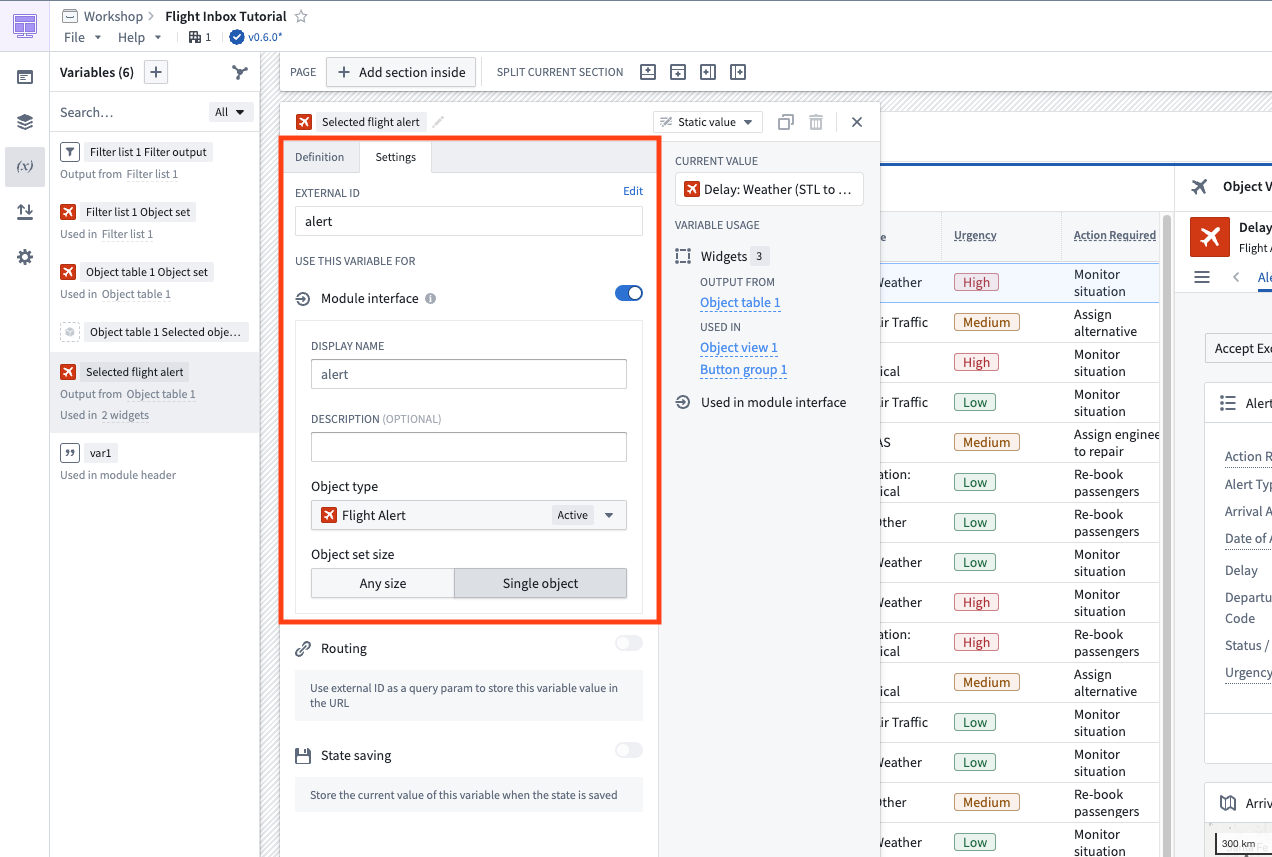
- Create a module interface variable for the input object set, by adding an external ID in the variable Settings panel.
- Set a constraint to the input object type.
- If no constraint is set, the module will be discoverable for all object types on the Open in button.
Quiver dashboards
Quiver dashboards can also be added to the Open in menu. The action will appear in the Open in menu in explorations on the object type by which the dashboard was created.
For example, if you were to create this Quiver dashboard and add it as a discoverable module in your workspace, then Open in Aircraft Dashboard would appear in explorations on the Aircraft object type.

Slate applications
If you select a Slate application that contains a variable, it will appear in the Open in menu in explorations on all object types.
Vertex graph
Selecting Vertex will add an Open in Vertex graph option to explorations on all object types.
Module discovery behavior in Carbon and outside Carbon
Module discovery behavior - that is, the options that appear in the Open in menu - differs depending on whether the user is working in Carbon or outside of the Carbon interface.
When working in a Carbon workspace, the Open in button will surface only the discoverable modules configured for the currently selected workspace.
Outside of Carbon, the Open in button will surface a union of all the modules discoverable across the promoted Workspaces for which a user has access. Learn more about promoted Workspaces.
The following example illustrates this difference:
- Zayna is a member of two different promoted Carbon workspaces:
- Claims Workspace
- Actuary Workspace
- In the Claims Workspace, there are two different modules configured to be discoverable:
- Claim Alert Application
- Claim Investigator Application
- In the Actuary Workspace, there is one module configured to be discoverable:
- Claim Cohorts Application
Because of this configuration, Zayna will see different sets of modules in the Open in button depending on where she is working:
- In the Claims Workspace, the Open in button will display:
- Claim Alert Application
- Claim Investigator Application
- In the Actuary Workspace, the Open in button will display:
- Claim Cohorts Application
- Outside of Carbon, the Open in button will display:
- Claim Alert Application
- Claim Investigator Application
- Claim Cohorts Application
Learn more about configuration of navigation between modules.
中文翻译
配置模块发现(Module Discovery)
对象浏览器(Object Explorer)应用包含一个在其他应用中打开(Open in)按钮,使用户能够在一个平台应用中工作时,在另一个平台应用中打开结果集。Open in按钮的可用选项列表可在Carbon编辑侧边栏的可发现模块(discoverable modules)部分进行配置。可纳入Open in菜单的"可发现"选项包括:
模块发现行为(Module discovery behavior)——即Open in菜单中显示的选项——根据用户是在Carbon内还是在Carbon工作区外操作而有所不同。了解Carbon内外的模块发现行为。
Workshop模块
要使特定Workshop模块能被Open in按钮发现,需要在Carbon编辑侧边栏以及Workshop应用中进行配置。
Carbon编辑侧边栏
使Workshop模块能被Open in按钮发现的第一步在Carbon编辑侧边栏中完成。
- 在Carbon编辑器中,导航至通用(General)选项卡,将模块添加到可发现模块(Discoverable modules)列表中。
- 选择添加项目(Add item)按钮,打开提示选择模块类型(Module Type)的弹窗。
- 在模块类型(Module Type)下拉菜单中选择Workshop模块(Workshop module),然后选择打开Compass对话框(Open Compass dialog)以选择您希望设为可发现的特定Workshop模块。
Workshop
在Carbon编辑侧边栏配置完成后,使Workshop模块能被Open in按钮发现的后续步骤在Workshop工具本身中进行。
- 在Workshop中,打开您希望设为可发现的Workshop模块。
- 为输入对象集创建一个模块接口变量,方法是在变量设置(Settings)面板中添加一个外部ID。
- 为输入对象类型设置约束。
- 如果未设置约束,该模块将在Open in按钮上对所有对象类型可发现。
Quiver仪表盘
Quiver仪表盘(Quiver dashboards)也可以添加到Open in菜单中。该操作将出现在基于创建仪表盘的对象类型进行探索时的Open in菜单中。
例如,如果您创建了这个Quiver仪表盘并将其添加为工作区中的可发现模块,那么在飞机(Aircraft)对象类型的探索中,将显示在飞机仪表盘中打开(Open in Aircraft Dashboard)选项。
Slate应用
如果您选择包含变量(variable)的Slate应用,它将在所有对象类型的探索中出现在Open in菜单中。
Vertex图
选择Vertex将为所有对象类型的探索添加在Vertex图中打开(Open in Vertex graph)选项。
Carbon内外的模块发现行为
模块发现行为——即Open in菜单中显示的选项——根据用户是在Carbon内还是在Carbon界面外操作而有所不同。
在Carbon工作区内操作时,Open in按钮将仅显示当前所选工作区配置的可发现模块。
在Carbon外操作时,Open in按钮将显示用户有权访问的所有已推广工作区(Promoted Workspaces)中可发现模块的并集。了解有关已推广工作区(Promoted Workspaces)的更多信息。
以下示例说明了这一差异:
- Zayna是两个不同已推广Carbon工作区的成员:
- 理赔工作区(Claims Workspace)
- 精算工作区(Actuary Workspace)
- 在理赔工作区中,配置了两个可发现的模块:
- 理赔警报应用(Claim Alert Application)
- 理赔调查员应用(Claim Investigator Application)
- 在精算工作区中,配置了一个可发现的模块:
- 理赔队列应用(Claim Cohorts Application)
由于这种配置,Zayna根据其工作位置的不同,将在Open in按钮中看到不同的模块集合:
- 在理赔工作区中,Open in按钮将显示:
- 理赔警报应用
- 理赔调查员应用
- 在精算工作区中,Open in按钮将显示:
- 理赔队列应用
- 在Carbon外,Open in按钮将显示:
- 理赔警报应用
- 理赔调查员应用
- 理赔队列应用