Configure navigation between modules(配置模块间的导航)
One of the advantages of Carbon workspaces is the ability to perform workflows which span more than just a single module. This provides users with a unified workflow rather than a set of siloed and disconnected applications.
When performing their workflows, users should not have to think in terms of particular products, modules, or interfaces. Instead, users should be able to proceed seamlessly through their work. Carbon provides a navigation framework which enables an object or a set of objects to be passed as parameters from one module to another.
Introduction to navigation in Carbon
As a builder in Carbon, you can define the input and output for each module as well as what object or set of objects is currently actionable. The actionable object or object set could be a selection on a list, the results of a function, all objects of a given type, or any other object set that can be encoded using Ontology primitives. On the receiving end, another module can specify (with appropriate constraints) which one of its parameters can accept the output described above.
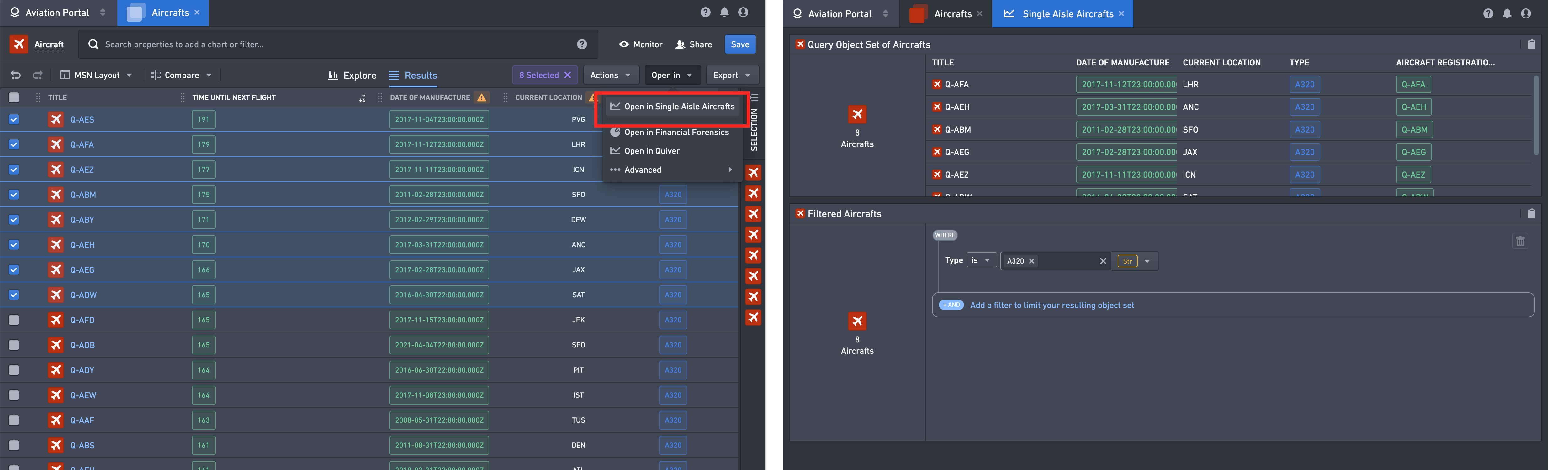
Navigating between modules
If the user decides to perform a navigation action from one module to another (usually via a button in an action menu or other action triggered from a frontend component), Carbon will open the receiving module in a new tab, allowing the user to move step-by-step through a workflow without losing the state preserved in the module of origin.
This helps with composing complex workflows by making it easier for the results of one module to be branched into multiple instances of another module. For example, results in an Object Explorer list can be opened independently as Object View tabs and inspected without losing track of the original result list.
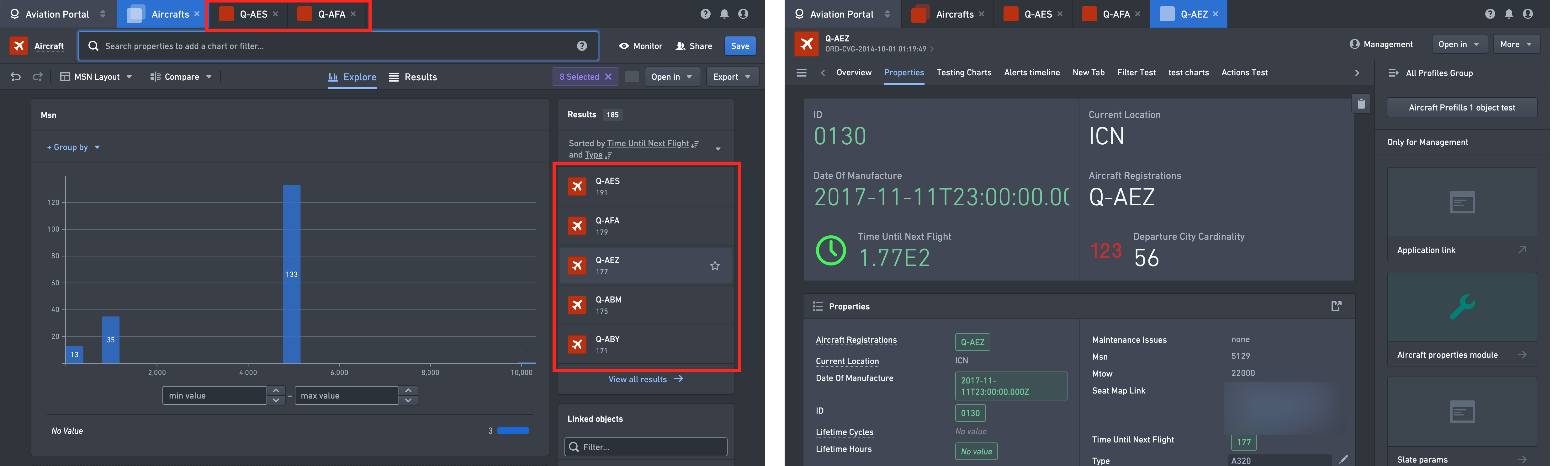
Multiple navigation steps
There is no limit on the number of navigation actions between modules. This means that any number of workflow steps can be facilitated by the navigation framework, since the output from each subsequent module can be an input to another module. The same module can even appear more than once in a workflow, as shown below, with possibly different inputs each time.
Example with multiple navigation steps
In the workflow depicted below, we are interested in using the tools available in our Carbon workspace to find a particular single-aisle Aircraft from which to start a Quiver analysis.
First, we search for the keyword aircraft; the navigation framework takes us to the Search module with aircraft as the input.

We select Aircraft object type from the search results. The navigation framework takes us to the Object Explorer module with Aircraft object type as the input.

Now, we want to analyze the entire set of object results in the Single Aisle Aircrafts Quiver module. The navigation framework opens the Single Aisle Aircrafts Quiver module with the 185 objects of Aircraft type as the input.

From this module, we select the Q-AGM Aircraft for further inspection. The navigation framework opens the Object View module with Q-AGM Aircraft as the input.

At this point, we decide that further analysis is needed on this object. For example, we may want to inspect the object's links or examine associated time series data. To accomplish this, the navigation framework is used again to open the Single Aisle Aircrafts Quiver module, this time with the Q-AGM Aircraft object as the input.

Navigation outside of Carbon
It is important to note that although the navigation framework was designed primarily for operational use cases in Carbon, the navigation framework is also used in standalone frontend applications in the objects realm. When working in these applications outside of Carbon, navigation actions will open the receiving application in a new browser tab (as opposed to opening in a Carbon tab), but all benefits still hold true. As a result of this, neither end users nor builders need to distinguish between in-Carbon and outside-Carbon use cases.
Module discovery or using an integrated module in a Carbon workspace
To create high-quality operational interfaces in Carbon, builders must be able to designate which modules can be used for navigation in order to curate a workspace tailored to the steps of the end user workflows.
These usable modules are called discoverable modules and corresponding navigation actions are accessible in the Open in menus present in some of the modules, like Object Explorer or Object View (note that only the actions for which the constraints are met will be displayed). Other modules like Workshop allow builders to specify a concrete navigation action to be triggered after a user interaction, such as a button click. You can find details and examples for how each module type handles navigation actions in the Integration with the navigation framework for Carbon Modules section below.
Module discovery behavior - that is, the options that appear in the Open in menu - differs depending on whether the user is working in Carbon or outside of a Carbon workspace. This is described in the documentation below.
Configuring discoverable modules in Carbon config editor
- In the Carbon editor (accessed via
/workspace/carbon/edit), navigate to the General tab and add the module to the list of Discoverable Modules. - Select the Add an element button to open a pop-up that prompts for Module Type.
- Select the desired module type in the Module Type dropdown and then select Open Compass dialog to choose the specific module that you want to make discoverable.

Module discovery behavior in Carbon and outside Carbon
Module discovery behavior - that is, the options that appear in the Open in menu - differs depending on whether the user is working in Carbon or outside of the Carbon interface.
When working in a Carbon workspace, the Open in menu will surface only the discoverable modules configured for the currently selected workspace. This way, each workspace can serve as a space with a concrete, curated set of navigation actions aimed at a well-defined collection of operational workflows.
When working outside of Carbon, the Open in button will surface all discoverable modules across all promoted workspaces for which a user has access. This gives users the full capabilities of Foundry when operating outside of a particular Carbon workspace. The set of all discoverable modules is determined by a UNION operation as follows:
- First, consider all the Organizations to which the user has access, including the primary Organization of the user and all of the Organizations for which the user has guest access.
- For each Organization, consider all promoted workspaces for that Organization and union all discoverable modules for these workspaces.
- Filter the modules down to the ones which can be applied to the current output of the module displaying the Open in menu.
The following example illustrates the difference between module discovery in Carbon and outside of Carbon.
- Zayna's primary Organization is Primary Org, and she also has guest access to Guest Org.


- Zayna is a member of two different Carbon workspaces from Primary Org:
- The Claims Workspace, with two modules configured to be discoverable (Claim Alert Application and Claim Investigator Application).

-
The Actuary Workspace, with one module configured to be discoverable (Claim Cohorts Application).

-
Zayna is also a member of a single Carbon workspace from Guest Org, the Flight Workspace.
- The Flight Workspace has one module configured to be discoverable (the Flight Tracker).

Because of this configuration, Zayna will see different sets of modules in the Open in button depending on where she is working:
- In the Claims Workspace, the Open in button will display the Claim Alert Application and the Claim Investigator Application.

- In the Actuary Workspace, the Open in button will display the Claim Cohorts Application.

- In the Flight Workspace, the Open in button will display the Flight Tracker.

- Outside of Carbon, the Open in button will display four modules: the Claim Alert Application, the Claim Investigator Application, the Claim Cohorts Application, and the Flight Tracker.

Setting up navigation when Carbon is not accessed directly by users
In some circumstances, there may not be any operational users or use cases for Carbon workspaces. However, you may still want to configure the Open in actions to navigate between stand-alone objects applications, as described earlier in Module discovery or using an integrated Module in a Carbon workspace.
The recommended solution is to create a Carbon workspace which would be accessible to the desired set of users (preferably by using Project-level permissions), and configure the set of discoverable modules there. The workspace must be a promoted workspace in order for its discoverable modules to appear under Open in actions outside of Carbon.
We recommend ensuring that discoverable modules are themselves accessible to users - the simplest way is to put them inside the same Project as the Carbon workspace itself.
The following example demonstrates this process:
- Create a new Project with the workspace resource (Carbon) and the module resource (Workshop) inside. The default Role is set to Viewer to grant access to all users in the Organization. Note that the workspace resource needs to be created inside of Carbon and placed in the Project, as it is not possible to create a workspace directly from a Project.
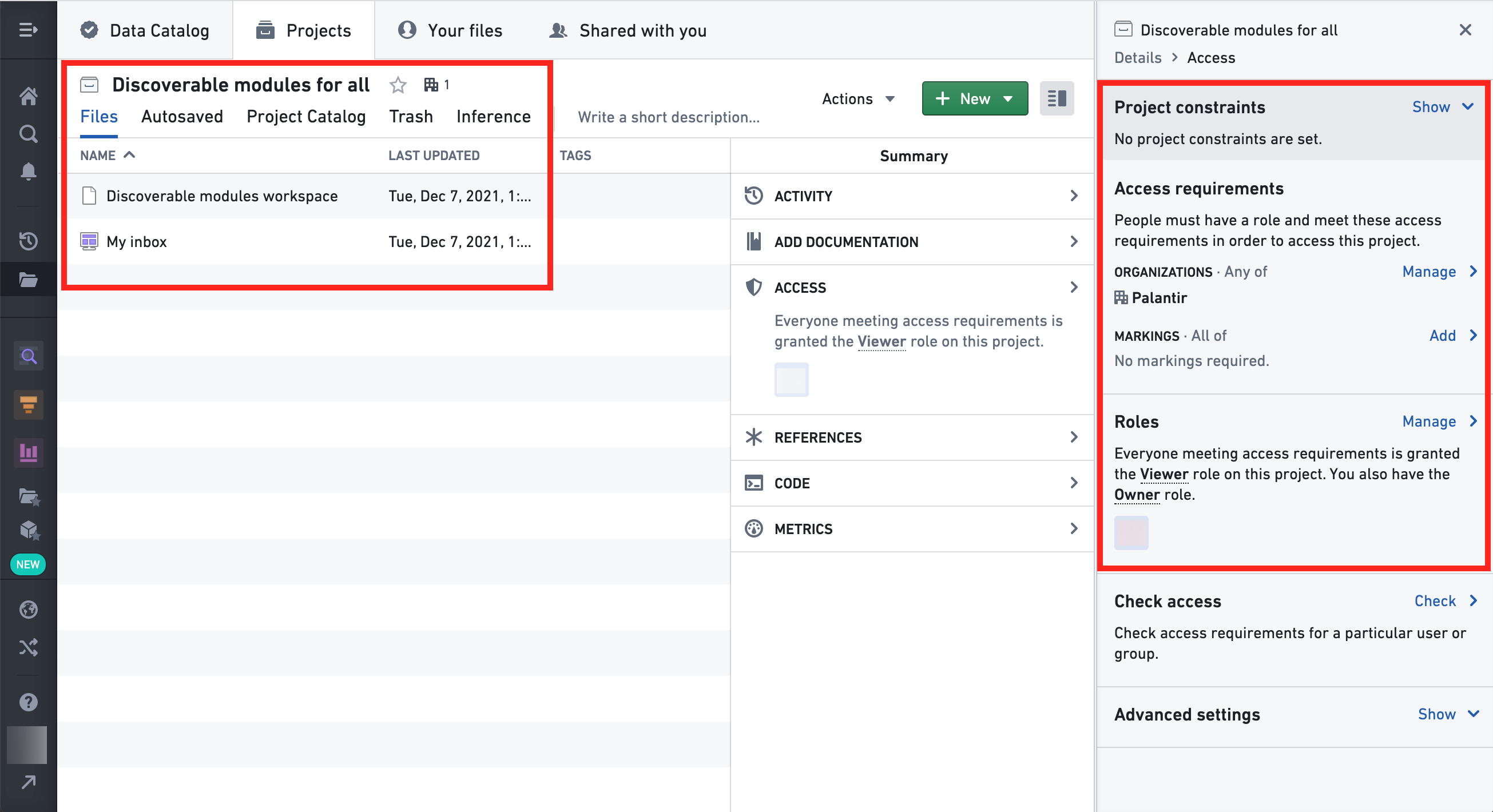
- Add the
My inboxmodule to the list of Discoverable modules for the workspace: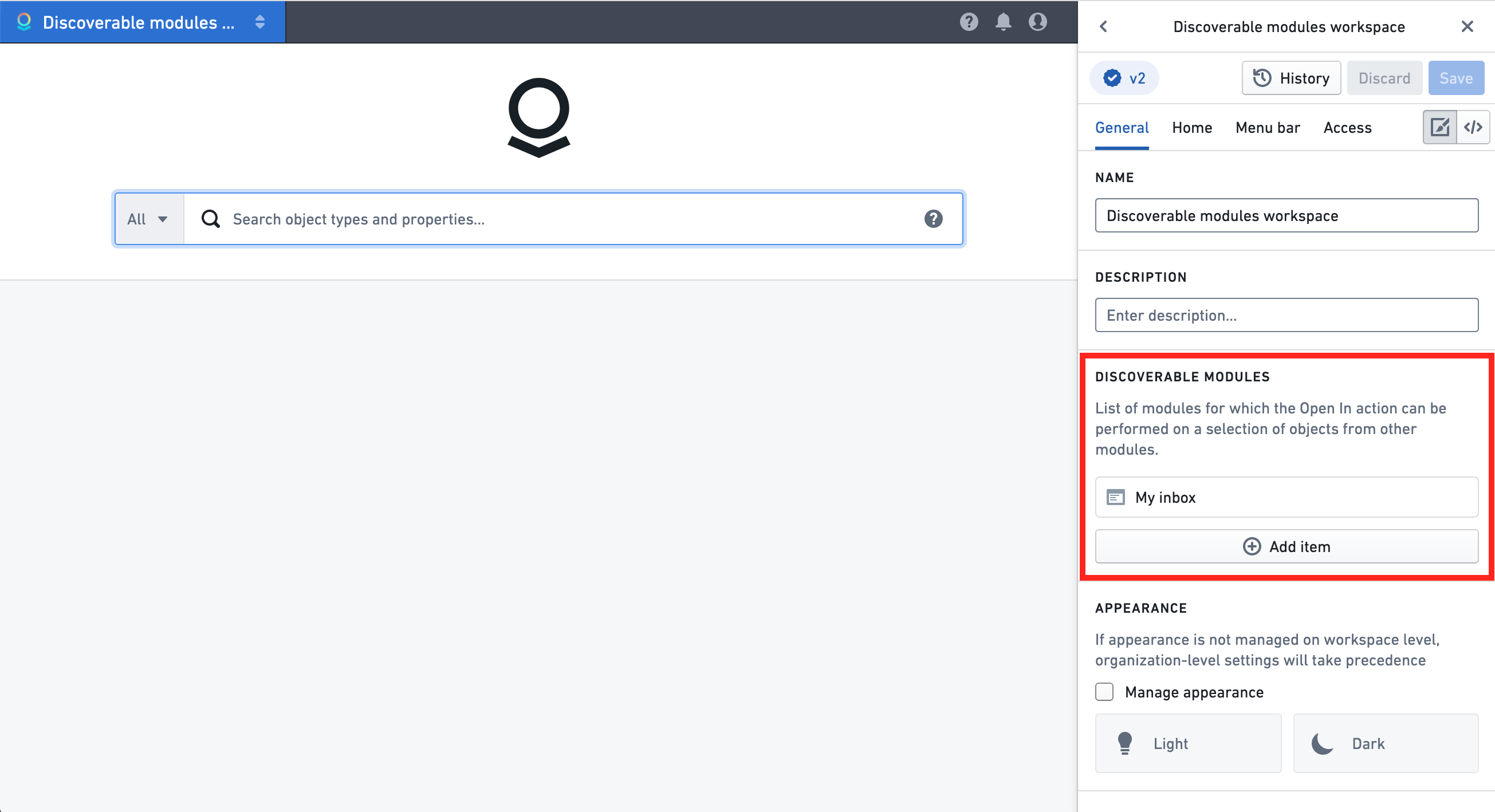
- Make the workspace
prominentfor the Organization so that the navigation framework recognizes the discoverable modules outside of Carbon: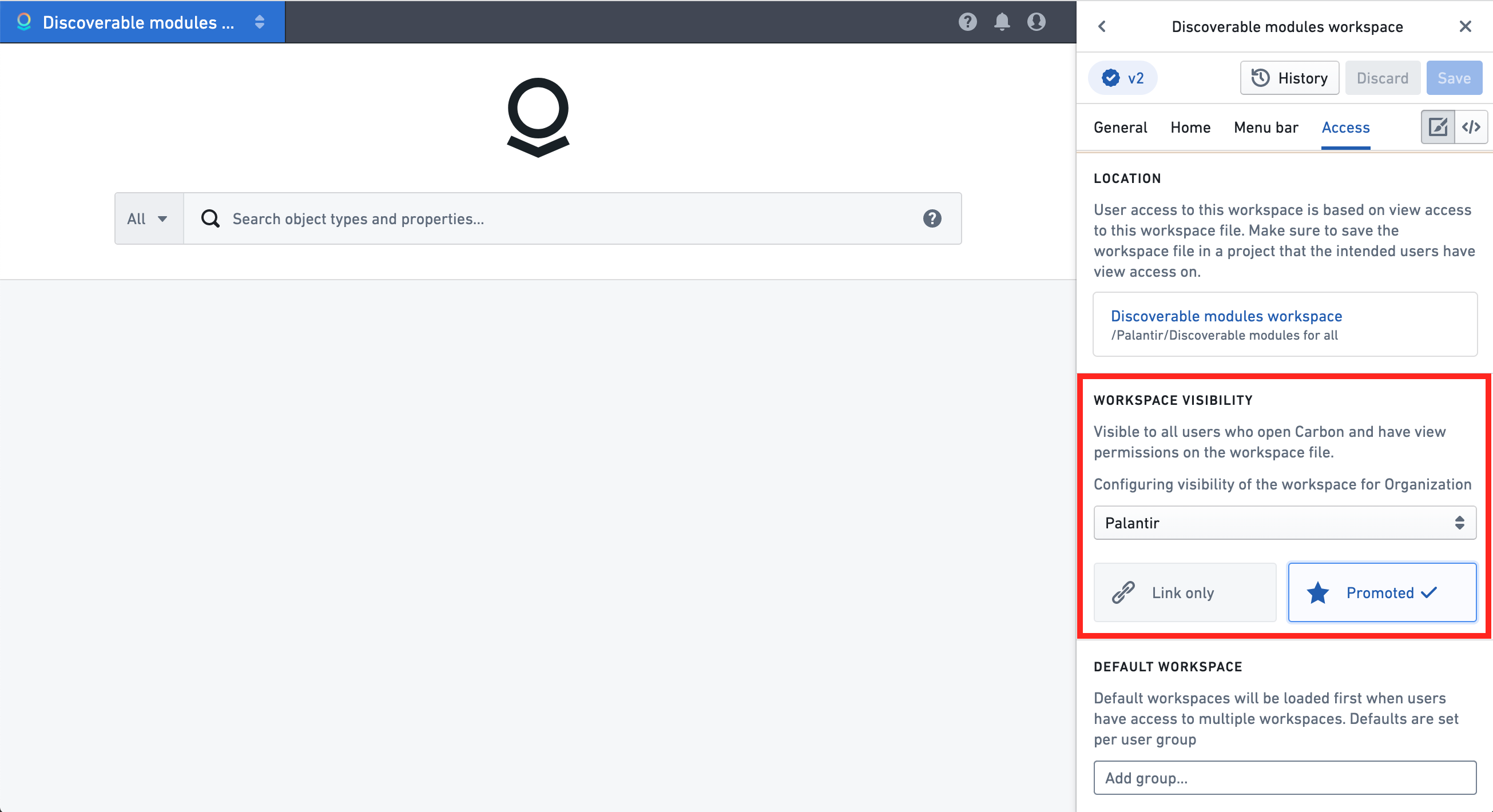
- The
My inboxmodule is now accessible outside of Carbon via the Open in menu in Object Explorer.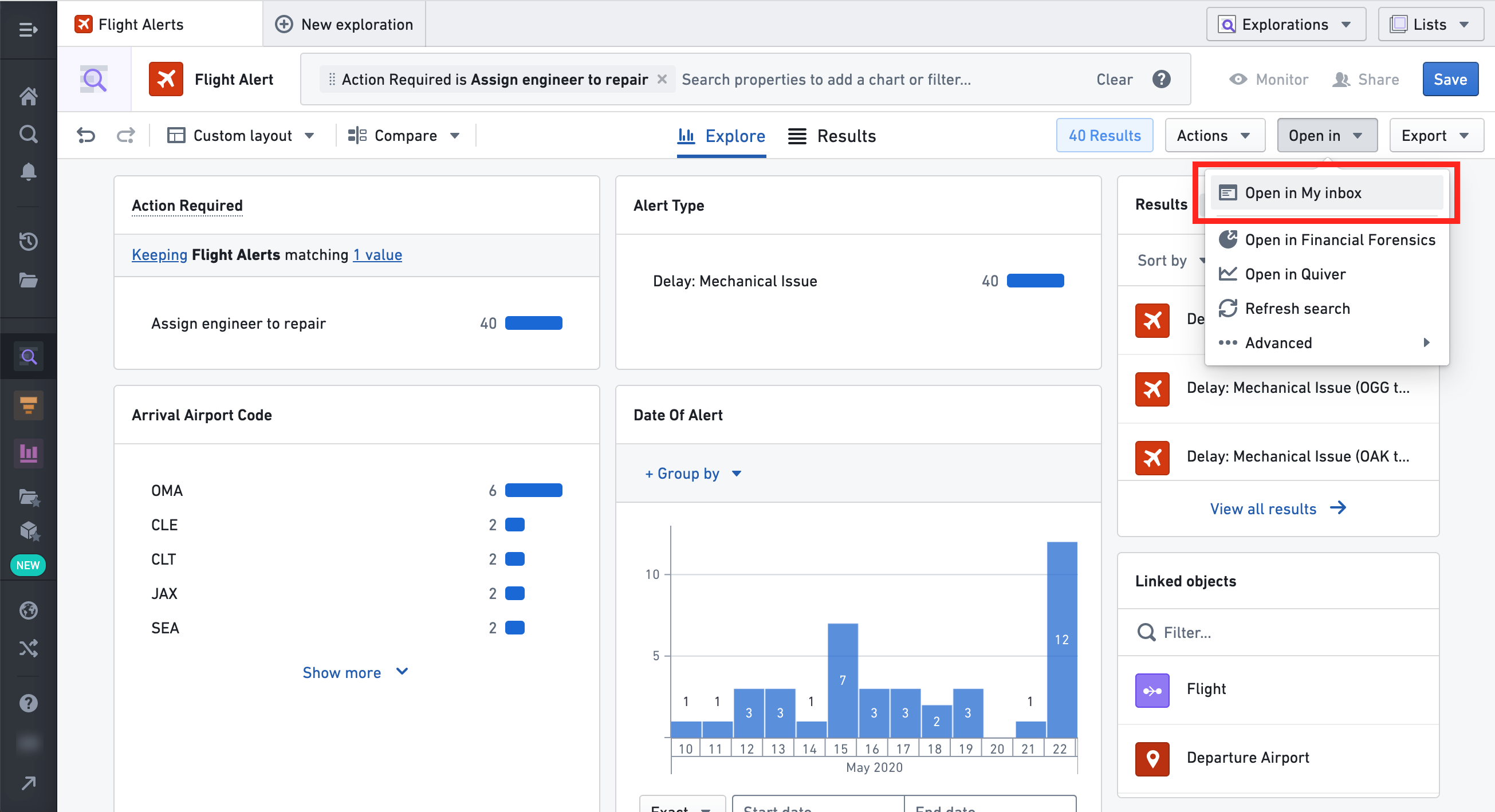
Integration with the navigation framework for Carbon modules
This section contains information on how each type of Carbon module can be integrated with the navigation framework. You will find details on what is considered an output for a navigation action in the context of each module type, and how a Carbon parameter can become an input of a navigation action.
For modules which do not have an associated Foundry Resource (Object View, Object Explorer, Search), the inputs and outputs are pre-defined and cannot be changed or configured. For example, an Object View will always accept any single object as its input, while the output of Object Explorer is set to the current results of the user's Exploration. We call such modules built-in; built-in modules do not need to be explicitly made discoverable.
Modules that can be created by builders (e.g. Workshop, Slate, Quiver, or Map) have more complex and robust ways of specifying an input and output, usually through a variable or a parameter defined in the context of such module. We call such modules dynamic and they must be made discoverable explicitly.
Object View (built-in)
Object View: Input via module discovery
The Object View module supports a single object of any object type as its input. A navigation action to open an Object View module is present by default in most context or action menus related to a single selected object. It is not possible to disable this navigation action or to configure the Object View module as discoverable in the Workspace configuration editor.
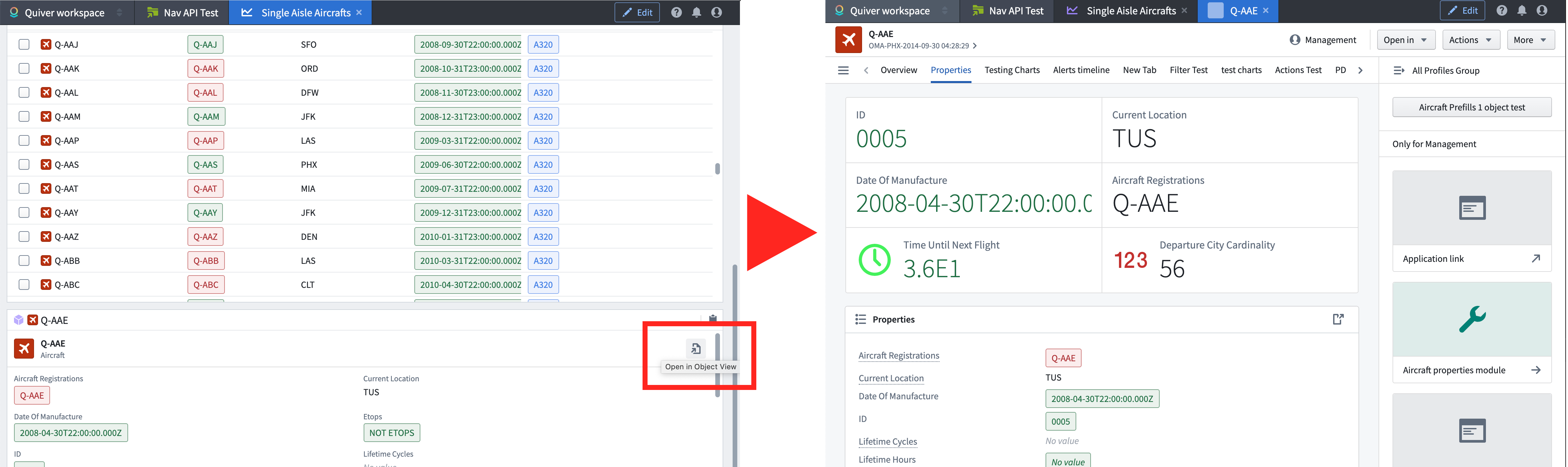
Object View: Input via UI elements
In dynamic modules it is possible to create UI elements which would trigger a navigation action into an Object View:
- In Workshop, you can define an Event of type Open Object view.

- In Slate, navigation through a regular HTML link to a standalone Object View application will be intercepted by Carbon and a new Object View module will open instead with the object RID present in the link. See the Slate module documentation for more details.

Object View: Output
The currently displayed object in the Object View is the output of the module.
Object Explorer
Object Explorer: Input via module discovery
The Object Explorer module supports a single object set (versioned or unversioned) as its input. A navigation action to open an Object Explorer module is present in most context or action menus related to a single selected object set, or where there is a link to an object set (see the image below for an example of an object's property rendered as a link to an object set). It is not possible to disable this action or to configure the Object Explorer module as discoverable in the Workspace configuration editor.

It is also possible to navigate to the Object Explorer module from the Search module in multiple ways, such as:
- Opening a saved exploration,
- Opening a saved object list,
- Starting an exploration on an object type, and
- Opening a shortcut to a module.


Object Explorer: Input via UI elements
In dynamic modules it is possible to create UI elements which would trigger a navigation action into an Object Exploration:
- In Workshop, you can define an Event of type Open Object explorer.

- In Slate, navigation through a regular HTML link to a standalone Object Explorer application will be intercepted by Carbon and a new Object Explorer module will open instead with the object set RID present in the link. See the Slate module documentation for more details.

Object Explorer: Output
The currently selected object set in Object Explorer is the output of the module.
Search (built-in)
The Search module is the gateway to opening various Ontology artifacts, providing the ability to filter object types and their properties with a keyword and to browse through lists of resources like Explorations, Lists, and Modules.
Search: Input via module discovery
The Search module can only be accessed directly through module shortcuts in a Workspace or through the Carbon home module's search bar (see below).
Search: Input via UI elements
The Carbon home module can be configured to show a search bar. The query entered in the search bar becomes the parameter value used to open the search module.

Search: Output
When a particular resource is acted on by the user in the search module, a corresponding module will be opened in a new tab in Carbon. With the exception of module artifacts (where only the selected module will be opened), Object Explorer will receive the input object set:
- For an object type, a new Exploration based on that type will open.
- For an Exploration, a new Exploration based on a versioned object set the exploration is backed by will open.
- For a List, a new Exploration based on the objects included on the list will open.
- For a Comparison, a new Exploration in comparison mode based on the comparison view will open.

Workshop
Workshop: Input via module discovery
Any Workshop module with at least one module interface variable of object set type can be configured to be discoverable, as discussed in the Configure module discovery, Workshop modules, section.
Workshop: Input via UI elements
In dynamic modules it is possible to create UI elements which would trigger a navigation action into a Workshop module:
- In Workshop, you can define an Event of Open Workshop type.

- In Slate, navigation through a regular HTML link to a standalone Workshop application will be intercepted by Carbon and a new Workshop module will open instead with the object set RID present in the link. See the documentation on Slate for more details.

Workshop: module interface
Workshop variables can be added to the module interface by setting an external ID in the variable Settings panel to enable parameterization of the Workshop module. Values for module interface variables can be passed into a standalone Workshop application via URL, or into a Carbon Workshop module via parameters.
Via URL
To pass parameters through the URL to a Workshop application from within a Carbon module, you must add param.variable. before the parameter in the URL.
Example:
workspace/carbon/ri.carbon.main.workspace.../ri.workshop.main.module...?param.variable.flight_id=1000,1001¶m.variable.route=100,200
Via parameters
When used as a Carbon parameter (for example, in the top bar module shortcuts), the name of the parameter must be the variable external ID prefixed with string variable. (including the dot).
Limitations
Currently, Carbon navigation does not support the following types of module interface variables:
- Object set variables that have an empty object set as their value
- Number variables with a value of
NaN(Not a Number) - Time series set variables
- Geoshape and geopoint variables
- Struct variables
- Scenario variables
Workshop: events
In a Workshop module, there might be multiple object sets being actioned at the same time via the variables concept laid out in the paragraph above. It is possible to pass any such object set as the input of a navigation action into many types of other modules, using the Open Application type of a Workshop Event.
The following types of modules are currently supported:
- Workshop
- Object View
- Object Explorer
- Notepad (read-only)
- Vertex exploration

Once the type of application or module to be opened is chosen (and in the case of dynamic modules, a module selected via Resource Selector), a particular variable can be chosen as the input.


When the configured event is triggered inside of a Workshop module, a navigation action will be constructed with the current value of the chosen variable and a new Carbon tab opened.
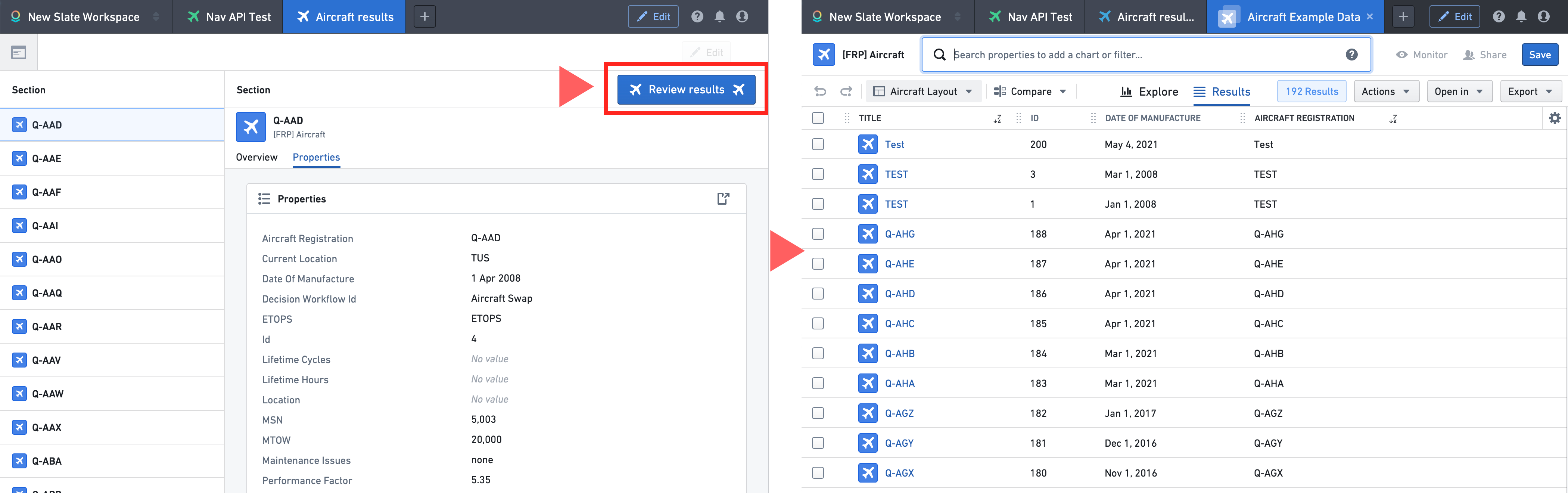
Slate
Configure a Slate document to use as a Carbon module
Carbon can display Slate modules in inline frames (iframes). Slate uses a document API to preserve the state of its widgets, such as remembering which value is selected in a dropdown, or whether a given checkbox is checked.
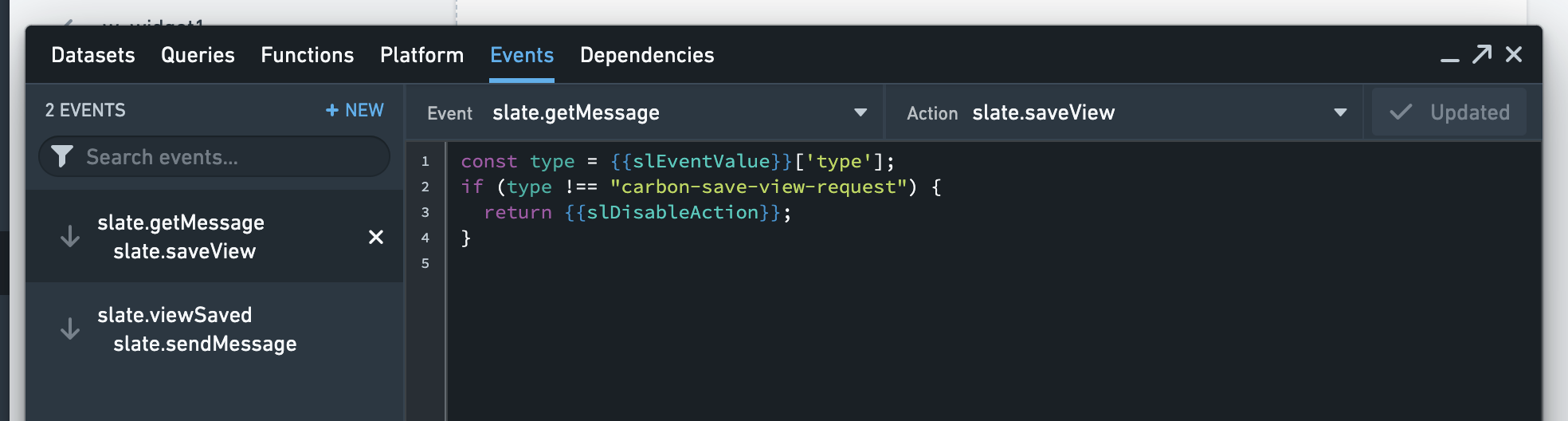
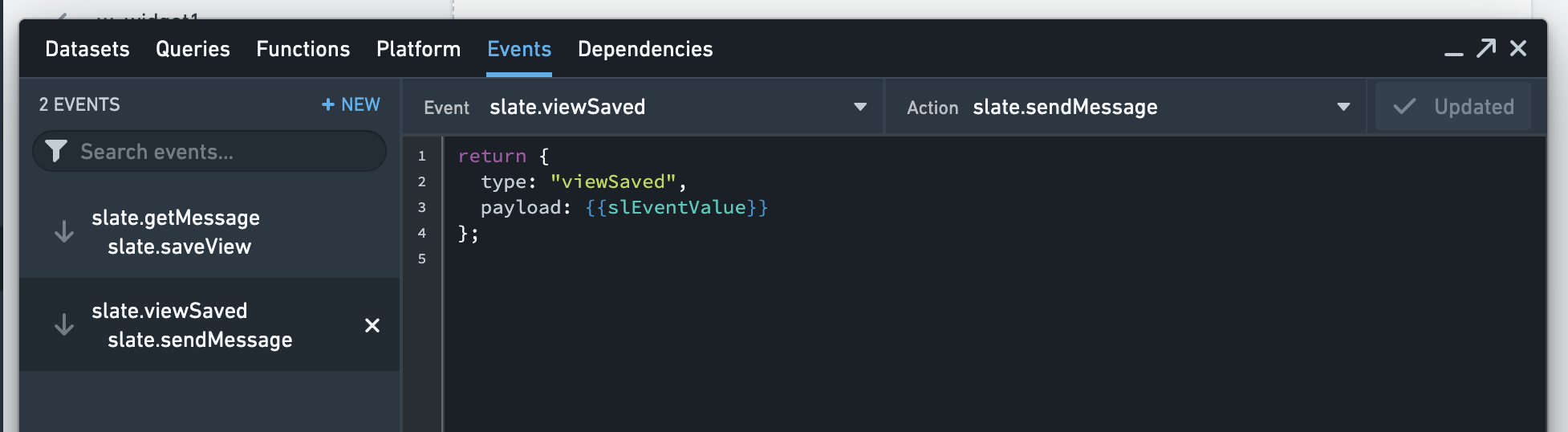
Preserving the state of Slate widgets requires communication between Carbon and the Slate module. When a user navigates away from a Slate module in Carbon, Carbon will send a POST message to the Slate module's iframe to notify the underlying Slate document to save its state and report a corresponding identifier back to Carbon. This identifier is converted into a Carbon module parameter. In order for a Slate module to understand the POST message from Carbon and successfully save state during navigation, two small events must be added to the Slate document backing the module, listed below:
Event to save the view upon Carbon’s request
Event: slate.getMessage
Action: slate.saveView
const type = {{slEventValue}}['type'];
if (type !== "carbon-save-view-request") {
  return {{slDisableAction}};
}
Event to message the saved view identifier to iframe parent (Carbon)
Event: slate.viewSaved
Action: slate.sendMessage
return {
  type: "viewSaved",
  payload: {{slEventValue}}
};
Slate variables and Carbon parameters
Slate module inputs employ Slate variables, which are converted into Carbon module parameters to specify Carbon features like Menu Bar Items. The following section contains more information on how Slate variables can be converted and typed in a format that Carbon accepts.
Slate variables:

Slate menu bar item:

Slate parameters

Carbon parameter type determinations for Slate variables
Slate variables are untyped; there is no mechanism to declare that a given variable is a string, a number, or an object. Because of this, Carbon checks the default value of a variable to determine its type. In the screenshots above, v_var3 has an object RID as its default value. This lets us specify an object as a value for the corresponding Carbon parameter. If it does not make sense for your Slate document's variables to have default values, there are two variable names that are auto-typed by Carbon:
  v_objectSetPassedFromCarbon # auto-typed as objectSet
  v_objectPassedFromCarbon    # auto-typed as object
If defined in a Slate document, these variables will always be typed as described above, regardless of their default value. This can be particularly useful if you want to make your Slate module discoverable and have a selection of objects (or a single object) passed via a Carbon parameter to the module from another module or an application like Object Explorer.

Slate: Input via module discovery
A Slate module supports a single object or a single object set (versioned or unversioned) as its input. It is important to ensure that Carbon can interpret exactly one of the Slate document's variables-turned-carbon-parameters as being of such type, otherwise a corresponding navigation action will not be available.
Slate: Input via UI elements
Currently there is no support for navigating to a Slate module via UI elements other than from another Slate module (see the Output section below).
Slate: Output
Slate modules are integrated with the navigation framework in a specific way. Whenever navigation would occur in the Slate document (for example, by clicking a link), Carbon intercepts such navigation and tries to interpret it. If the address to which navigation occurred can be recognized as a standalone frontend application, and if that application has a corresponding Carbon module, that module will be opened in a new Carbon tab. For example:
- A link to
workspace/hubble/objects/ri.phonograph2-objects.main.object.4202d614-bb6e-471d-80d2-2cf9c735caf3will be interpreted as opening the Object View module with object RIDri.phonograph2-objects.main.object.4202d614-bb6e-471d-80d2-2cf9c735caf3. - A link to
workspace/module/view/latest/ri.workshop.main.module.25b772f5-a095-48c6-a889-a960eeb93ce1?orderInput=ri.object-set.main.object-set.63417288-3e8d-4b34-a995-d6c2c6054e27will be interpreted as opening the Workshop module with module RIDri.workshop.main.module.a1838b32-448d-43f6-beff-3c9e40a34929and parameterorderInputequal tori.object-set.main.object-set.63417288-3e8d-4b34-a995-d6c2c6054e27. - A link to
workspace/slate/documents/another-slate-docwill be interpreted as opening the Slate module with module RID corresponding to the Slate permalinkanother-slate-doc. - A link to
workspace/quiver/dashboard/view/ri.quiver.main.dashboard.b5597828-d4a2-4fec-964f-304a3ad7f1a9will be interpreted as opening the Quiver Dashboard module with the module RIDri.quiver.main.dashboard.b5597828-d4a2-4fec-964f-304a3ad7f1a9. - A link to
workspace/hubble/exploration/saved/ri.object-set.main.versioned-object-set.ba21a7b3-3407-4bb1-ae9f-aae3d70c4a40will be interpreted as opening the Object Explorer module with object set RIDri.object-set.main.versioned-object-set.ba21a7b3-3407-4bb1-ae9f-aae3d70c4a40.
Therefore, there is no particular output of the Slate module based on the state of widgets in the Slate document; each navigation action is a result of a user's action and the output is determined based on that action.
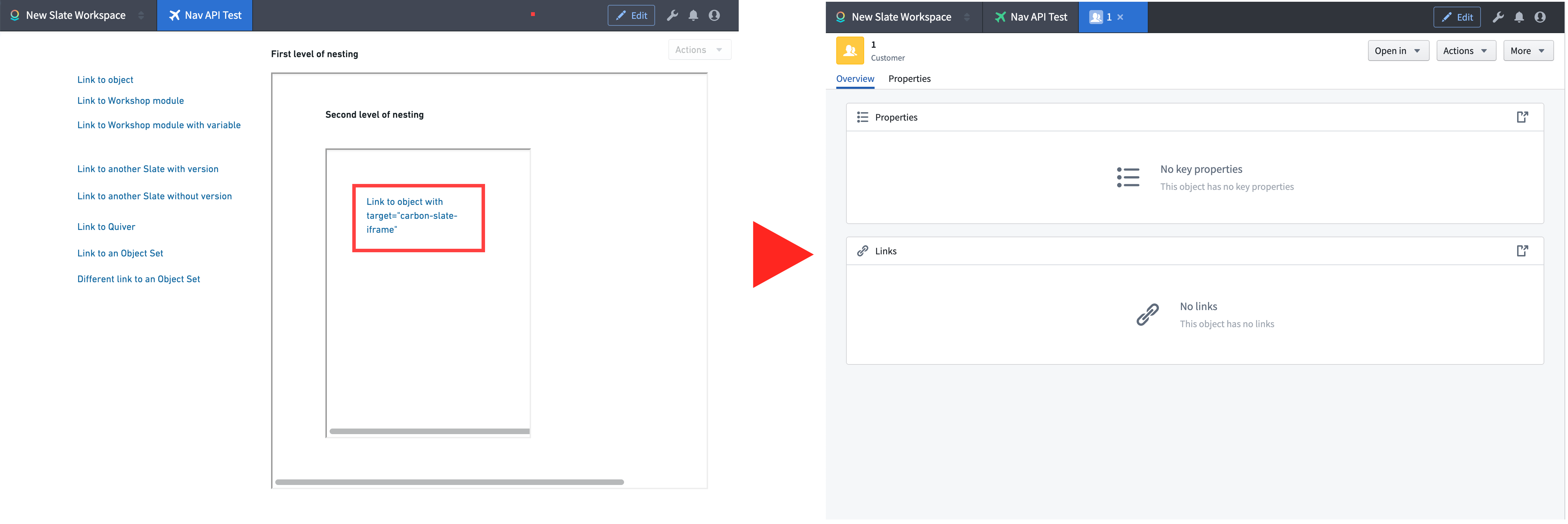
Navigation from nested iframes in a Slate module
Slate has the capability of embedding an iframe inside of a document. Any navigation via a link inside of such iframe will fall into one the following categories:
- Navigation occurs within the iframe: The iframe will change its own source URL. For example, the iframe may be considered a sub-view which keeps content changes inside the iframe.
- Navigation occurs outside of the iframe: When the link in an iframe is clicked, a new Carbon tab will be opened. For example, when a link in an iframe points to an object, clicking the link will open that object in a new tab.
In the latter case, for the mechanism described in the output section for Slate modules to take effect, the link in the nested iframe has to specify the outermost Slate iframe (the one in which Carbon displays the top-level Slate module) as its target. Carbon sets the name of that iframe to carbon-navigation-target. An example HTML snippet for a link can be found below:
<a
  href="/workspace/hubble/objects/ri.phonograph2-objects.main.object.4202d614-bb6e-471d-80d2-2cf9c735caf3"
  target="carbon-navigation-target"
>
  Link to an object with target="carbon-navigation-target"
</a>
This approach will work correctly with any depth of iframe nesting. For example, you can embed a third iframe inside of the second iframe, embedded inside the top-level Slate module iframe created by Carbon.
Quiver
Among Quiver artifacts, only Quiver dashboards can be used as Carbon modules. See the Create and embed dashboards in Quiver documentation to learn about the difference between a dashboard and an analysis, as well as how to create dashboards.
A Quiver dashboard can take objects or object sets as input.
In both cases, the object or object set has to be of a specified type. This is to ensure that whenever a parameter - either an object or an object set - is piped into the dashboard, all the defined transformations will work well (for example, that the same set of object properties and ontology links will always be considered).
As a consequence, the object type which the dashboard is based on is converted into a constraint on possible inputs. See Module discovery or using an integrated Module in a Carbon Workspace for more details on how constraints affect the availability of navigation actions leading to Quiver modules.
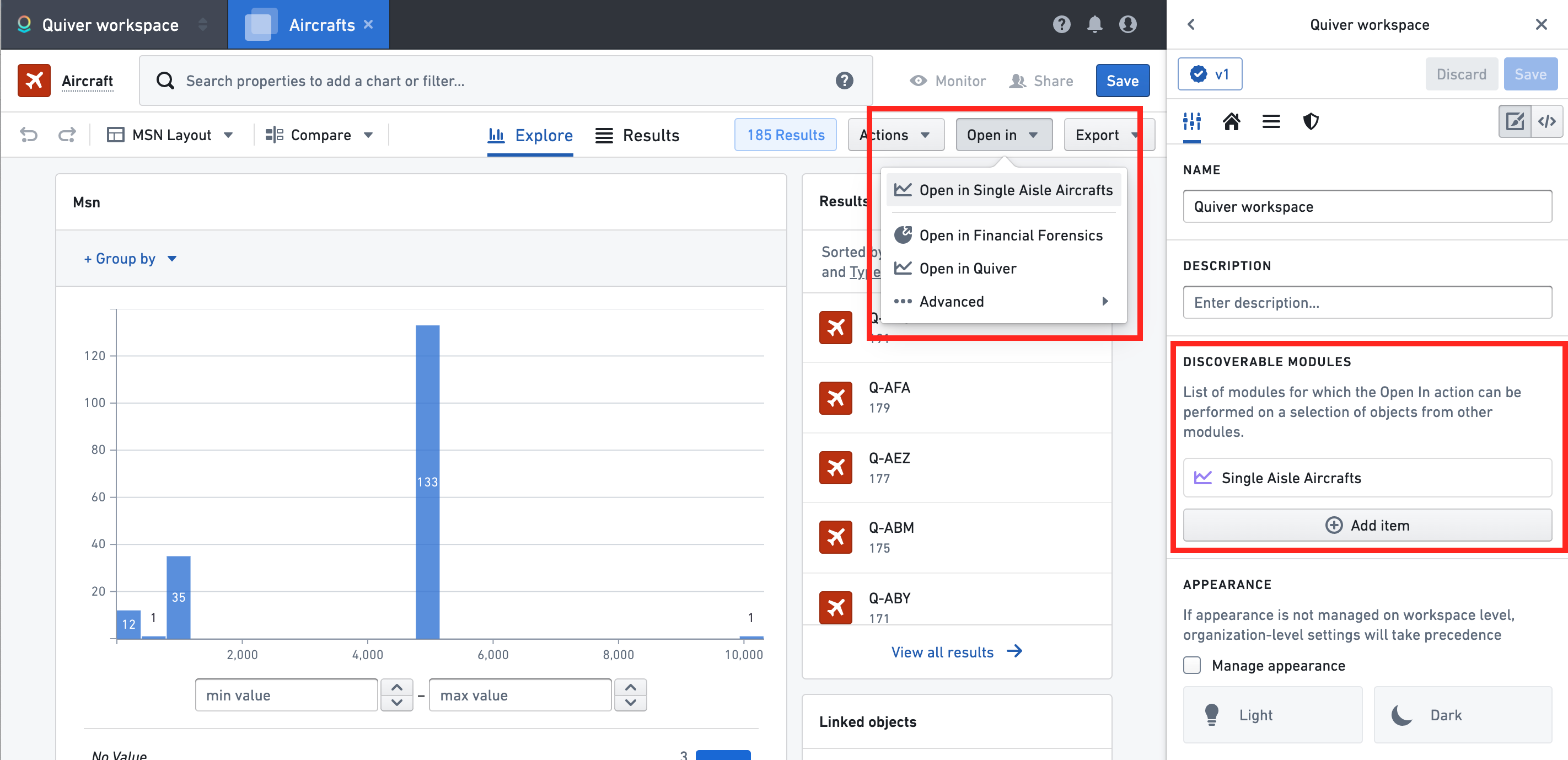
For example, assume that the Single Aisle Aircrafts dashboard has an object set as input with the Aircraft object type.
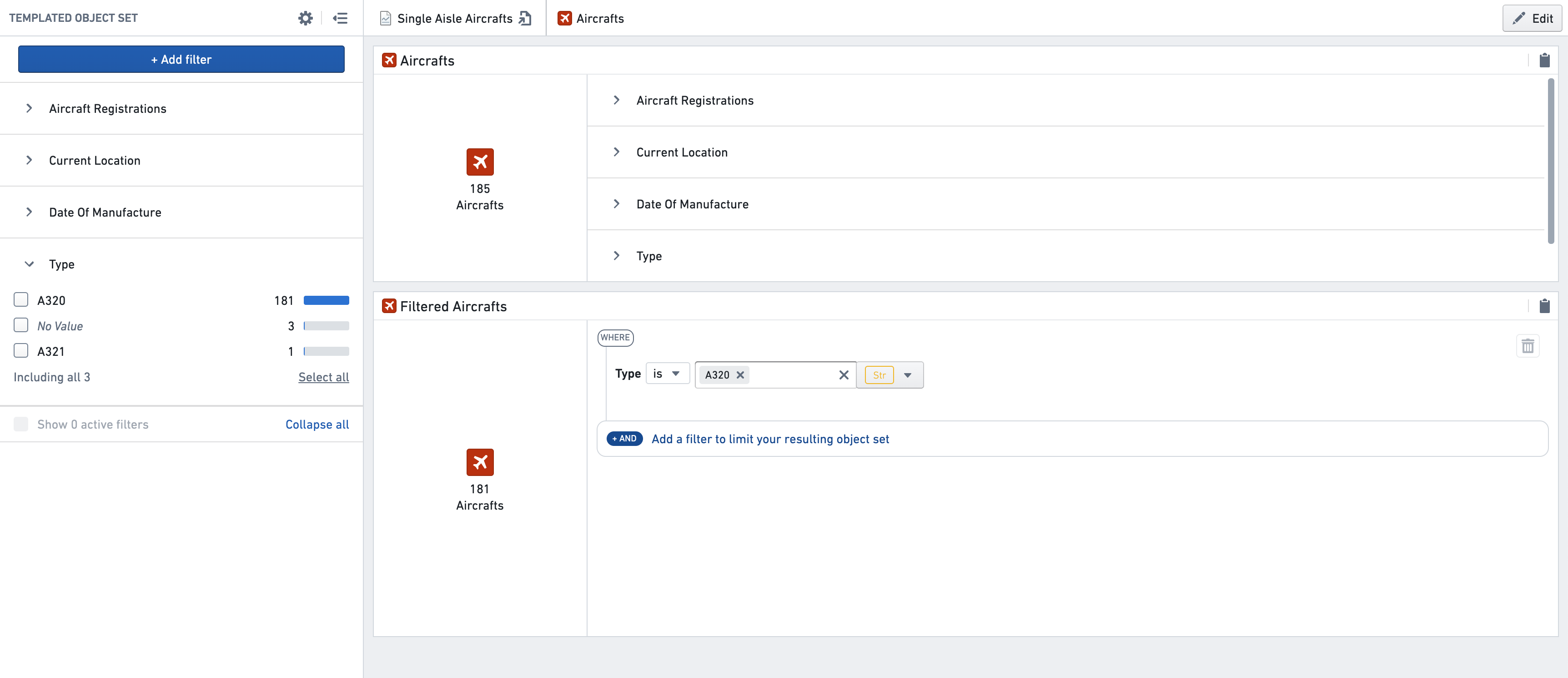
An inferred constraint for the navigation action is that the object set input has to contain only Aircraft objects. In a Carbon workspace, the Single Aisle Aircrafts module is added to the Discoverable Modules section of the configuration.
When inspecting a set of results of the Aircraft object type in the Object Explorer module, the navigation action is shown in the Open in menu since the action's constraint is satisfied (because the object set contains objects of type Aircraft):
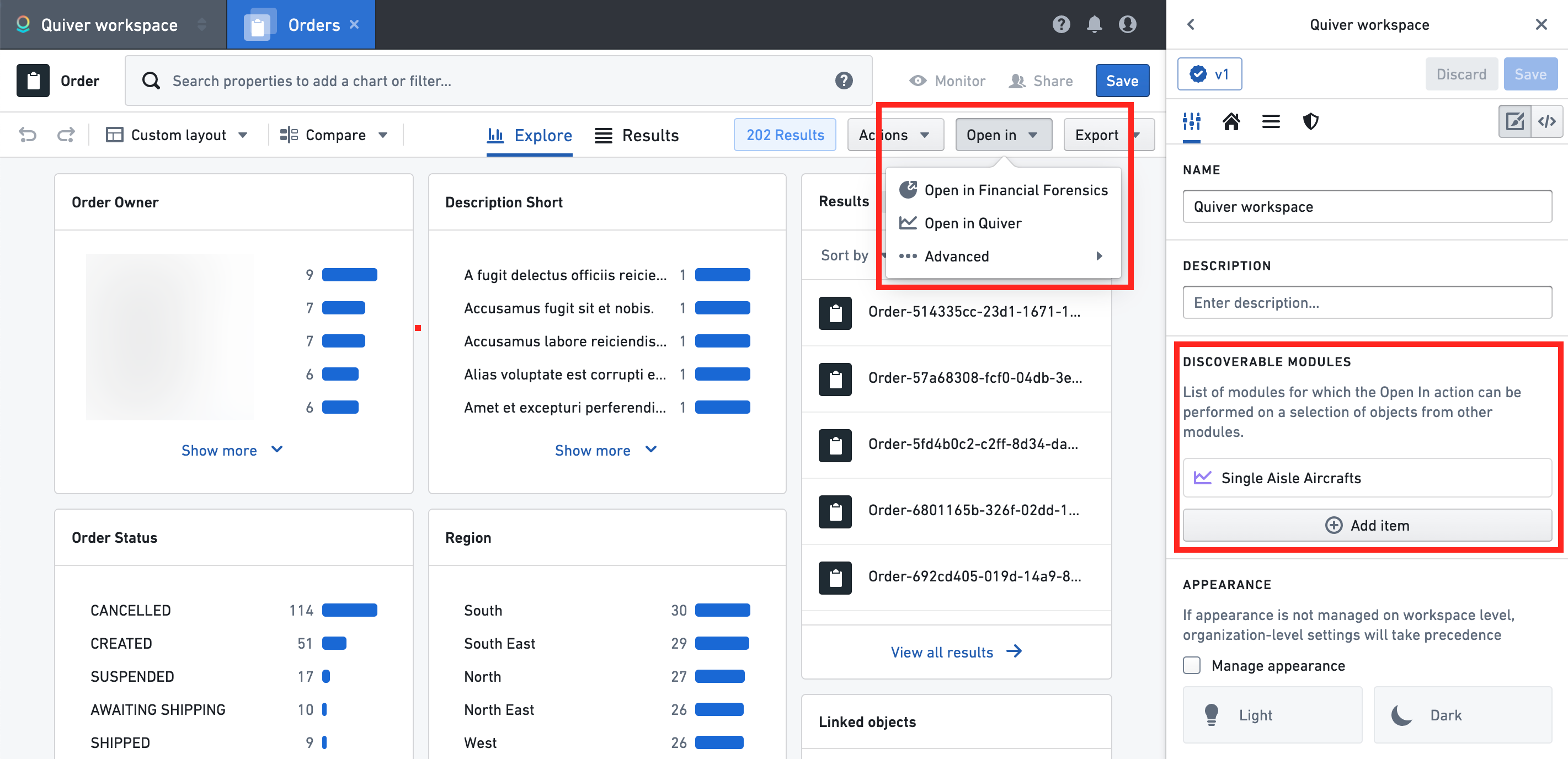
When inspecting a set of results of the Order object type in the Object Explorer module, the navigation action is not present in the Open in menu. This is because the object set contains objects of a different type than Aircraft and the navigation action's constraint is not satisfied:
Quiver: Input via module discovery
Any non-empty Quiver Dashboard module can be configured to be discoverable, as described in the previous sections.
Quiver: Input via UI elements
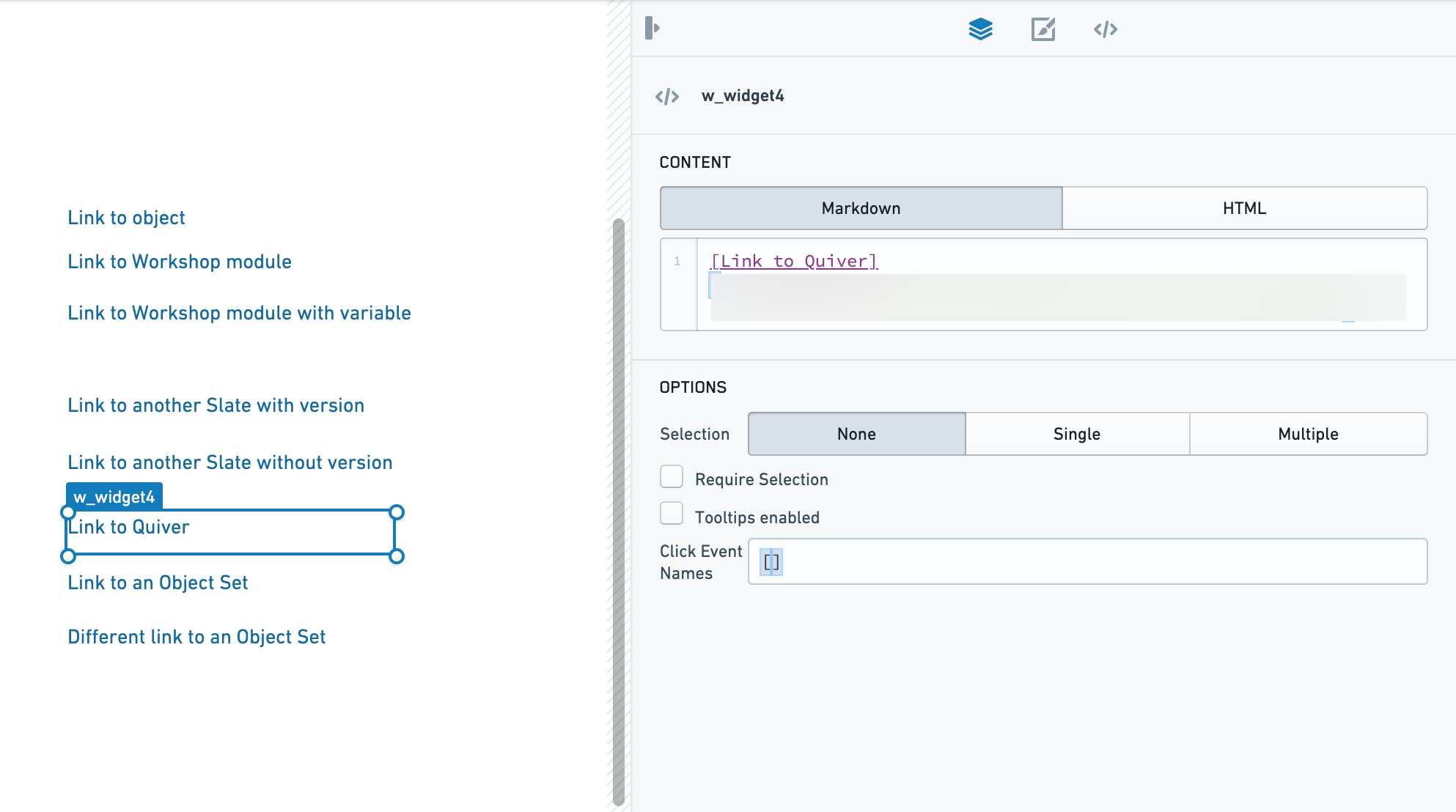
Currently, among dynamic modules, a Quiver Dashboard module can be opened via UI elements in Slate. In a Slate module, navigation through a regular HTML link to a standalone Quiver application will be intercepted by Carbon and a new Quiver Dashboard module will be opened instead. See the Slate module documentation for more details.
Quiver: Output
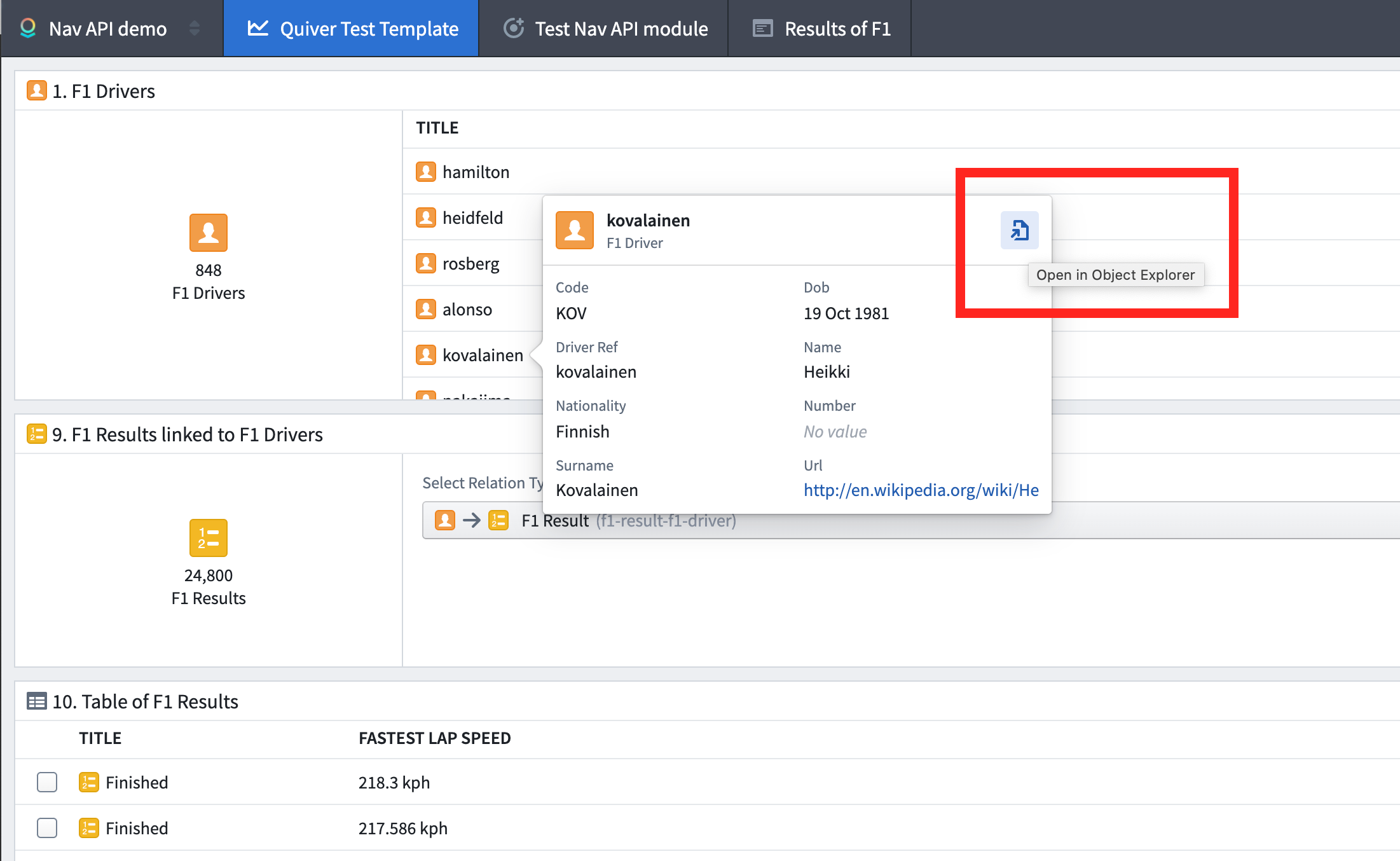
Quiver dashboards provide very basic integration with the navigation framework on the output side. Each object displayed in a card can be inspected in a pop-over, and the navigation action to the Object View can be triggered from there.
中文翻译
配置模块间的导航
Carbon 工作区的一大优势是能够执行跨越多个模块的工作流。这为用户提供了统一的工作流,而非一系列孤立、不连贯的应用程序。
在执行工作流时,用户不应考虑特定的产品、模块或界面。相反,用户应该能够无缝地推进工作。Carbon 提供了一个导航框架,允许将一个或多个对象作为参数从一个模块传递到另一个模块。
Carbon 导航简介
作为 Carbon 的构建者,您可以定义每个模块的输入和输出,以及当前可操作的对象或对象集。可操作的对象或对象集可以是列表中的选择项、函数的结果、给定类型的所有对象,或任何其他可以使用 Ontology 原语(Ontology primitives)编码的对象集。在接收端,另一个模块可以(在适当的约束条件下)指定其哪个参数可以接受上述输出。
在模块间导航
如果用户决定从一个模块执行导航操作到另一个模块(通常通过操作菜单中的按钮或从前端组件触发的其他操作),Carbon 将在新标签页中打开接收模块,允许用户逐步完成工作流,同时不会丢失原始模块中保存的状态。
这有助于组合复杂的工作流,使一个模块的结果更容易分支到另一个模块的多个实例中。例如,对象资源管理器(Object Explorer)列表中的结果可以独立地作为对象视图(Object View)标签页打开并进行检查,而不会丢失原始结果列表的踪迹。
多步导航
模块间的导航操作次数没有限制。这意味着导航框架可以支持任意数量的工作流步骤,因为每个后续模块的输出都可以成为另一个模块的输入。同一个模块甚至可以在工作流中出现多次,如下所示,每次可能使用不同的输入。
多步导航示例
在下面描述的工作流中,我们希望使用 Carbon 工作区中的可用工具来查找特定的单通道飞机(Aircraft),以便开始 Quiver 分析。
首先,我们搜索关键字 aircraft;导航框架将我们带到搜索(Search)模块,并将 aircraft 作为输入。
我们从搜索结果中选择 Aircraft object type。导航框架将我们带到对象资源管理器(Object Explorer)模块,并将 Aircraft object type 作为输入。
现在,我们想要分析单通道飞机(Single Aisle Aircrafts) Quiver 模块中的整个对象结果集。导航框架打开单通道飞机 Quiver 模块,并将 185 个 Aircraft 类型的对象作为输入。
在此模块中,我们选择 Q-AGM 飞机进行进一步检查。导航框架打开对象视图(Object View)模块,并将 Q-AGM Aircraft 作为输入。
此时,我们认为需要对此对象进行进一步分析。例如,我们可能想要检查对象的链接或检查相关的时间序列数据。为此,再次使用导航框架打开单通道飞机 Quiver 模块,这次将 Q-AGM Aircraft 对象作为输入。
Carbon 外部的导航
需要注意的是,尽管导航框架主要是为 Carbon 中的操作用例设计的,但它也用于对象领域(objects realm)的独立前端应用程序中。在 Carbon 外部的这些应用程序中工作时,导航操作将在新的浏览器标签页中打开接收应用程序(而不是在 Carbon 标签页中打开),但所有优势仍然存在。因此,最终用户和构建者都无需区分 Carbon 内部和 Carbon 外部的用例。
模块发现或在 Carbon 工作区中使用集成模块
为了在 Carbon 中创建高质量的操作界面,构建者必须能够指定哪些模块可用于导航,以便策划一个适合最终用户工作流步骤的工作区。
这些可用的模块称为可发现模块(discoverable modules),相应的导航操作可在某些模块(如对象资源管理器或对象视图)中的在...中打开(Open in) 菜单中找到(请注意,仅显示满足约束条件的操作)。其他模块(如 Workshop)允许构建者指定在用户交互(例如按钮点击)后触发的具体导航操作。您可以在下面的与 Carbon 模块的导航框架集成部分找到每种模块类型如何处理导航操作的详细信息和示例。
模块发现行为——即在...中打开菜单中显示的选项——取决于用户是在 Carbon 工作区内还是外部工作。这在下面的文档中进行了描述。
在 Carbon 配置编辑器中配置可发现模块
- 在 Carbon 编辑器(通过
/workspace/carbon/edit访问)中,导航到常规(General) 选项卡,并将模块添加到可发现模块(Discoverable Modules) 列表中。 - 选择添加元素(Add an element) 按钮以打开一个弹出窗口,提示输入模块类型(Module Type)。
- 在模块类型下拉菜单中选择所需的模块类型,然后选择打开 Compass 对话框(Open Compass dialog) 以选择您想要使其可发现的特定模块。
Carbon 内部和外部的模块发现行为
模块发现行为——即在...中打开菜单中显示的选项——取决于用户是在 Carbon 界面内部还是外部工作。
在 Carbon 工作区中工作时,在...中打开菜单将仅显示为当前所选工作区配置的可发现模块。这样,每个工作区都可以作为一个空间,其中包含一组针对明确定义的操作工作流的具体、精选的导航操作。
在 Carbon 外部工作时,在...中打开按钮将显示用户有权访问的所有已推广工作区(promoted workspaces)中的所有可发现模块。这使用户在特定 Carbon 工作区之外操作时能够使用 Foundry 的全部功能。所有可发现模块的集合通过 UNION 操作确定,如下所示:
- 首先,考虑用户有权访问的所有组织(Organization),包括用户的主要组织以及用户拥有访客权限的所有组织。
- 对于每个组织,考虑该组织的所有已推广工作区,并合并所有这些工作区的可发现模块。
- 将模块过滤为可以应用于显示在...中打开菜单的模块的当前输出的那些模块。
以下示例说明了 Carbon 内部和外部模块发现之间的区别。
- Zayna 的主要组织是 Primary Org,她还有对 Guest Org 的访客权限。
- Zayna 是 Primary Org 中两个不同 Carbon 工作区的成员:
- 索赔工作区(Claims Workspace),配置了两个可发现模块(索赔警报应用程序和索赔调查员应用程序)。
-
精算工作区(Actuary Workspace),配置了一个可发现模块(索赔队列应用程序)。
-
Zayna 也是 Guest Org 中一个 Carbon 工作区(航班工作区)的成员。
- 航班工作区配置了一个可发现模块(航班追踪器)。
由于此配置,Zayna 将根据其工作位置在在...中打开按钮中看到不同的模块集:
- 在索赔工作区中,在...中打开按钮将显示索赔警报应用程序和索赔调查员应用程序。
- 在精算工作区中,在...中打开按钮将显示索赔队列应用程序。
- 在航班工作区中,在...中打开按钮将显示航班追踪器。
- 在 Carbon 外部,在...中打开按钮将显示四个模块:索赔警报应用程序、索赔调查员应用程序、索赔队列应用程序和航班追踪器。
当用户不直接访问 Carbon 时设置导航
在某些情况下,可能没有 Carbon 工作区的操作用户或用例。但是,您可能仍希望配置在...中打开操作以在独立的对象应用程序之间导航,如前面模块发现或在 Carbon 工作区中使用集成模块中所述。
推荐的解决方案是创建一个 Carbon 工作区,该工作区可供所需用户集访问(最好使用项目级权限),并在其中配置可发现模块集。该工作区必须是已推广的工作区,以便其可发现模块出现在 Carbon 外部的在...中打开操作下。
我们建议确保可发现模块本身对用户可访问——最简单的方法是将它们放在与 Carbon 工作区本身相同的项目中。
以下示例演示了此过程:
- 创建一个新项目,其中包含工作区资源(Carbon)和模块资源(Workshop)。默认角色设置为查看者(Viewer),以授予组织中所有用户的访问权限。 请注意,工作区资源需要在 Carbon 内部创建并放置在项目中,因为无法直接从项目创建工作区。
- 将
My inbox模块添加到工作区的可发现模块列表中: - 使工作区对组织
突出显示(prominent),以便导航框架识别 Carbon 外部的可发现模块: My inbox模块现在可以通过对象资源管理器中的在...中打开菜单在 Carbon 外部访问。
与 Carbon 模块的导航框架集成
本节包含有关每种类型的 Carbon 模块如何与导航框架集成的信息。您将了解在每种模块类型的上下文中,什么被视为导航操作的输出,以及 Carbon 参数如何成为导航操作的输入。
对于没有关联 Foundry 资源(对象视图、对象资源管理器、搜索)的模块,输入和输出是预定义的,无法更改或配置。例如,对象视图始终接受任何单个对象作为其输入,而对象资源管理器的输出则设置为用户探索的当前结果。我们将此类模块称为内置(built-in) 模块;内置模块无需显式设置为可发现。
可以由构建者创建的模块(例如 Workshop、Slate、Quiver 或 Map)具有更复杂、更强大的方式来指定输入和输出,通常通过在此类模块上下文中定义的变量或参数。我们将此类模块称为动态(dynamic) 模块,并且必须显式地使其可发现。
对象视图(内置)
对象视图:通过模块发现输入
对象视图模块支持任何对象类型的单个对象作为其输入。打开对象视图模块的导航操作默认出现在大多数与单个选定对象相关的上下文菜单或操作菜单中。无法禁用此导航操作,也无法在工作区配置编辑器中将对象视图模块配置为可发现。
对象视图:通过 UI 元素输入
在动态模块中,可以创建触发导航操作到对象视图的 UI 元素:
- 在 Workshop 中,您可以定义类型为打开对象视图(Open Object view) 的事件。
- 在 Slate 中,通过常规 HTML 链接到独立对象视图应用程序的导航将被 Carbon 拦截,并将打开一个新的对象视图模块,其中包含链接中存在的对象 RID。有关更多详细信息,请参阅 Slate 模块文档。
对象视图:输出
对象视图中当前显示的对象是该模块的输出。
对象资源管理器
对象资源管理器:通过模块发现输入
对象资源管理器模块支持单个对象集(版本化或非版本化)作为其输入。打开对象资源管理器模块的导航操作出现在大多数与单个选定对象集相关的上下文菜单或操作菜单中,或者存在指向对象集的链接时(请参见下图,其中对象的属性呈现为指向对象集的链接)。无法禁用此操作,也无法在工作区配置编辑器中将对象资源管理器模块配置为可发现。
也可以通过多种方式从搜索模块导航到对象资源管理器模块,例如:
- 打开已保存的探索,
- 打开已保存的对象列表,
- 开始对对象类型的探索,以及
- 打开模块的快捷方式。
对象资源管理器:通过 UI 元素输入
在动态模块中,可以创建触发导航操作到对象探索的 UI 元素:
- 在 Workshop 中,您可以定义类型为打开对象资源管理器(Open Object explorer) 的事件。
- 在 Slate 中,通过常规 HTML 链接到独立对象资源管理器应用程序的导航将被 Carbon 拦截,并将打开一个新的对象资源管理器模块,其中包含链接中存在的对象集 RID。有关更多详细信息,请参阅 Slate 模块文档。
对象资源管理器:输出
对象资源管理器中当前选定的对象集是该模块的输出。
搜索(内置)
搜索模块是打开各种 Ontology 工件(Ontology artifacts)的门户,提供使用关键字过滤对象类型及其属性以及浏览资源列表(如探索、列表和模块)的功能。
搜索:通过模块发现输入
搜索模块只能通过工作区中的模块快捷方式或通过 Carbon 主页模块的搜索栏(见下文)直接访问。
搜索:通过 UI 元素输入
Carbon 主页模块可以配置为显示搜索栏。在搜索栏中输入的查询成为用于打开搜索模块的参数值。
搜索:输出
当用户在搜索模块中对特定资源执行操作时,相应的模块将在 Carbon 的新标签页中打开。除了模块工件(仅打开选定的模块)之外,对象资源管理器将接收输入对象集:
- 对于对象类型,将打开基于该类型的新探索。
- 对于探索,将打开基于该探索所支持的版本化对象集的新探索。
- 对于列表,将打开基于列表中包含的对象的新探索。
- 对于比较,将打开基于比较视图的比较模式下的新探索。
Workshop
Workshop:通过模块发现输入
任何至少有一个对象集类型的模块接口变量(module interface variable)的 Workshop 模块都可以配置为可发现,如配置模块发现,Workshop 模块部分所述。
Workshop:通过 UI 元素输入
在动态模块中,可以创建触发导航操作到 Workshop 模块的 UI 元素:
- 在 Workshop 中,您可以定义打开 Workshop(Open Workshop) 类型的事件。
- 在 Slate 中,通过常规 HTML 链接到独立 Workshop 应用程序的导航将被 Carbon 拦截,并将打开一个新的 Workshop 模块,其中包含链接中存在的对象集 RID。有关更多详细信息,请参阅 Slate 文档。
Workshop:模块接口
可以通过在变量设置面板中设置外部 ID(external ID)来将 Workshop 变量添加到模块接口,以实现 Workshop 模块的参数化。模块接口变量的值可以通过 URL 传递到独立的 Workshop 应用程序,或通过参数传递到 Carbon Workshop 模块。
通过 URL
要从 Carbon 模块内部通过 URL 将参数传递到 Workshop 应用程序,您必须在 URL 中的参数前添加 param.variable.。
示例:
workspace/carbon/ri.carbon.main.workspace.../ri.workshop.main.module...?param.variable.flight_id=1000,1001¶m.variable.route=100,200
通过参数
当用作 Carbon 参数时(例如,在顶部栏模块快捷方式中),参数的名称必须是变量外部 ID,并以字符串 variable.(包括点号)为前缀。
限制
目前,Carbon 导航不支持以下类型的模块接口变量:
- 值为空对象集的对象集变量
- 值为
NaN(非数字)的数字变量 - 时间序列集变量
- 地理形状和地理点变量
- 结构体变量
- 场景变量
Workshop:事件
在 Workshop 模块中,可能通过上面段落中阐述的变量概念同时操作多个对象集。可以使用 Workshop 事件的打开应用程序(Open Application) 类型,将任何此类对象集作为导航操作的输入传递到许多其他类型的模块。
目前支持以下类型的模块:
- Workshop
- 对象视图
- 对象资源管理器
- 记事本(只读)
- Vertex 探索
一旦选择了要打开的应用程序或模块的类型(对于动态模块,通过资源选择器选择模块),就可以选择特定的变量作为输入。
当在 Workshop 模块内部触发配置的事件时,将使用所选变量的当前值构建一个导航操作,并打开一个新的 Carbon 标签页。
Slate
配置用作 Carbon 模块的 Slate 文档
Carbon 可以在内联框架(iframe)中显示 Slate 模块。Slate 使用文档 API 来保存其小部件的状态,例如记住下拉菜单中选择了哪个值,或者某个复选框是否被选中。
保存 Slate 小部件的状态需要 Carbon 和 Slate 模块之间的通信。当用户在 Carbon 中导航离开 Slate 模块时,Carbon 将向 Slate 模块的 iframe 发送 POST 消息,以通知底层 Slate 文档保存其状态并将相应的标识符报告回 Carbon。此标识符被转换为 Carbon 模块参数。为了使 Slate 模块能够理解来自 Carbon 的 POST 消息并在导航期间成功保存状态,必须向支持该模块的 Slate 文档添加两个小事件,如下所列:
根据 Carbon 请求保存视图的事件
Event: slate.getMessage
Action: slate.saveView
const type = {{slEventValue}}['type'];
if (type !== "carbon-save-view-request") {
  return {{slDisableAction}};
}
将已保存的视图标识符消息发送到 iframe 父级(Carbon)的事件
Event: slate.viewSaved
Action: slate.sendMessage
return {
  type: "viewSaved",
  payload: {{slEventValue}}
};
Slate 变量和 Carbon 参数
Slate 模块输入使用 Slate 变量,这些变量被转换为 Carbon 模块参数,以指定诸如菜单栏项之类的 Carbon 功能。以下部分包含有关如何转换 Slate 变量并将其类型化为 Carbon 接受的格式的更多信息。
Slate 变量:
Slate 菜单栏项:
Slate 参数
Slate 变量的 Carbon 参数类型确定
Slate 变量是无类型的;没有机制来声明给定变量是字符串、数字还是对象。因此,Carbon 会检查变量的默认值以确定其类型。在上面的屏幕截图中,v_var3 的默认值是一个对象 RID。这使我们能够将对象指定为相应 Carbon 参数的值。如果为 Slate 文档的变量设置默认值没有意义,则有两个变量名称由 Carbon 自动类型化:
  v_objectSetPassedFromCarbon # 自动类型化为 objectSet
  v_objectPassedFromCarbon    # 自动类型化为 object
如果在 Slate 文档中定义,这些变量将始终按上述方式类型化,无论其默认值如何。如果您希望使 Slate 模块可发现,并允许通过 Carbon 参数从另一个模块或应用程序(如对象资源管理器)将对象选择(或单个对象)传递到该模块,这将特别有用。
Slate:通过模块发现输入
Slate 模块支持单个对象或单个对象集(版本化或非版本化)作为其输入。确保 Carbon 能够将 Slate 文档的一个变量(已转换为 Carbon 参数)解释为此类类型至关重要,否则相应的导航操作将不可用。
Slate:通过 UI 元素输入
目前,除了从另一个 Slate 模块(请参阅下面的输出部分)之外,不支持通过 UI 元素导航到 Slate 模块。
Slate:输出
Slate 模块以特定方式与导航框架集成。每当 Slate 文档中发生导航时(例如,通过单击链接),Carbon 会拦截此类导航并尝试解释它。如果导航到的地址可以被识别为独立的前端应用程序,并且该应用程序具有相应的 Carbon 模块,则该模块将在新的 Carbon 标签页中打开。例如:
- 指向
workspace/hubble/objects/ri.phonograph2-objects.main.object.4202d614-bb6e-471d-80d2-2cf9c735caf3的链接将被解释为打开对象 RID 为ri.phonograph2-objects.main.object.4202d614-bb6e-471d-80d2-2cf9c735caf3的对象视图模块。 - 指向
workspace/module/view/latest/ri.workshop.main.module.25b772f5-a095-48c6-a889-a960eeb93ce1?orderInput=ri.object-set.main.object-set.63417288-3e8d-4b34-a995-d6c2c6054e27的链接将被解释为打开模块 RID 为ri.workshop.main.module.a1838b32-448d-43f6-beff-3c9e40a34929且参数orderInput等于ri.object-set.main.object-set.63417288-3e8d-4b34-a995-d6c2c6054e27的 Workshop 模块。 - 指向
workspace/slate/documents/another-slate-doc的链接将被解释为打开模块 RID 对应于 Slate 永久链接another-slate-doc的 Slate 模块。 - 指向
workspace/quiver/dashboard/view/ri.quiver.main.dashboard.b5597828-d4a2-4fec-964f-304a3ad7f1a9的链接将被解释为打开模块 RID 为ri.quiver.main.dashboard.b5597828-d4a2-4fec-964f-304a3ad7f1a9的 Quiver 仪表盘模块。 - 指向
workspace/hubble/exploration/saved/ri.object-set.main.versioned-object-set.ba21a7b3-3407-4bb1-ae9f-aae3d70c4a40的链接将被解释为打开对象集 RID 为ri.object-set.main.versioned-object-set.ba21a7b3-3407-4bb1-ae9f-aae3d70c4a40的对象资源管理器模块。
因此,Slate 模块没有基于 Slate 文档中小部件状态的特定输出;每个导航操作都是用户操作的结果,输出基于该操作确定。
从 Slate 模块中的嵌套 iframe 导航
Slate 具有在文档中嵌入 iframe 的能力。通过此类 iframe 内的链接进行的任何导航将属于以下类别之一:
- 导航发生在 iframe 内部: iframe 将更改其自身的源 URL。例如,iframe 可能被视为一个子视图,将内容更改保留在 iframe 内部。
- 导航发生在 iframe 外部: 当单击 iframe 中的链接时,将打开一个新的 Carbon 标签页。例如,当 iframe 中的链接指向一个对象时,单击该链接将在新标签页中打开该对象。
在后一种情况下,为了使 Slate 模块的输出部分中描述的机制生效,嵌套 iframe 中的链接必须将最外层的 Slate iframe(Carbon 在其中显示顶级 Slate 模块的 iframe)指定为其 target。Carbon 将该 iframe 的名称设置为 carbon-navigation-target。下面可以找到一个链接的 HTML 片段示例:
<a
  href="/workspace/hubble/objects/ri.phonograph2-objects.main.object.4202d614-bb6e-471d-80d2-2cf9c735caf3"
  target="carbon-navigation-target"
>
  指向对象的链接,target="carbon-navigation-target"
</a>
这种方法对于任何深度的 iframe 嵌套都能正常工作。例如,您可以在第二个 iframe 内部嵌入第三个 iframe,而第二个 iframe 又嵌入在 Carbon 创建的顶级 Slate 模块 iframe 中。
Quiver
在 Quiver 工件中,只有 Quiver 仪表盘(dashboards)可以用作 Carbon 模块。请参阅 Quiver 中的创建和嵌入仪表盘文档,了解仪表盘和分析之间的区别,以及如何创建仪表盘。
Quiver 仪表盘可以将对象或对象集作为输入。
在这两种情况下,对象或对象集必须是指定的类型。这是为了确保每当参数(无论是对象还是对象集)被输入到仪表盘时,所有定义的转换都能正常工作(例如,始终考虑相同的对象属性和 Ontology 链接集)。
因此,仪表盘所基于的对象类型被转换为对可能输入的约束。有关约束如何影响导致 Quiver 模块的导航操作的可用性的更多详细信息,请参阅模块发现或在 Carbon 工作区中使用集成模块。
例如,假设 Single Aisle Aircrafts 仪表盘将对象集作为输入,对象类型为 Aircraft。
导航操作的推断约束是对象集输入必须仅包含 Aircraft 对象。在 Carbon 工作区中,Single Aisle Aircrafts 模块被添加到配置的可发现模块部分。
当在对象资源管理器模块中检查 Aircraft 对象类型的结果集时,在...中打开菜单中会显示导航操作,因为该操作的约束已满足(因为对象集包含类型为 Aircraft 的对象):
当在对象资源管理器模块中检查 Order 对象类型的结果集时,在...中打开菜单中不会出现导航操作。这是因为对象集包含与 Aircraft 不同类型的对象,并且导航操作的约束未满足:
Quiver:通过模块发现输入
任何非空的 Quiver 仪表盘模块都可以配置为可发现,如前面部分所述。
Quiver:通过 UI 元素输入
目前,在动态模块中,可以通过 Slate 中的 UI 元素打开 Quiver 仪表盘模块。在 Slate 模块中,通过常规 HTML 链接到独立 Quiver 应用程序的导航将被 Carbon 拦截,并将打开一个新的 Quiver 仪表盘模块。有关更多详细信息,请参阅 Slate 模块文档。
Quiver:输出
Quiver 仪表盘在输出方面提供了与导航框架非常基本的集成。可以在弹出窗口中检查卡片中显示的每个对象,并可以从那里触发到对象视图的导航操作。