Carbon
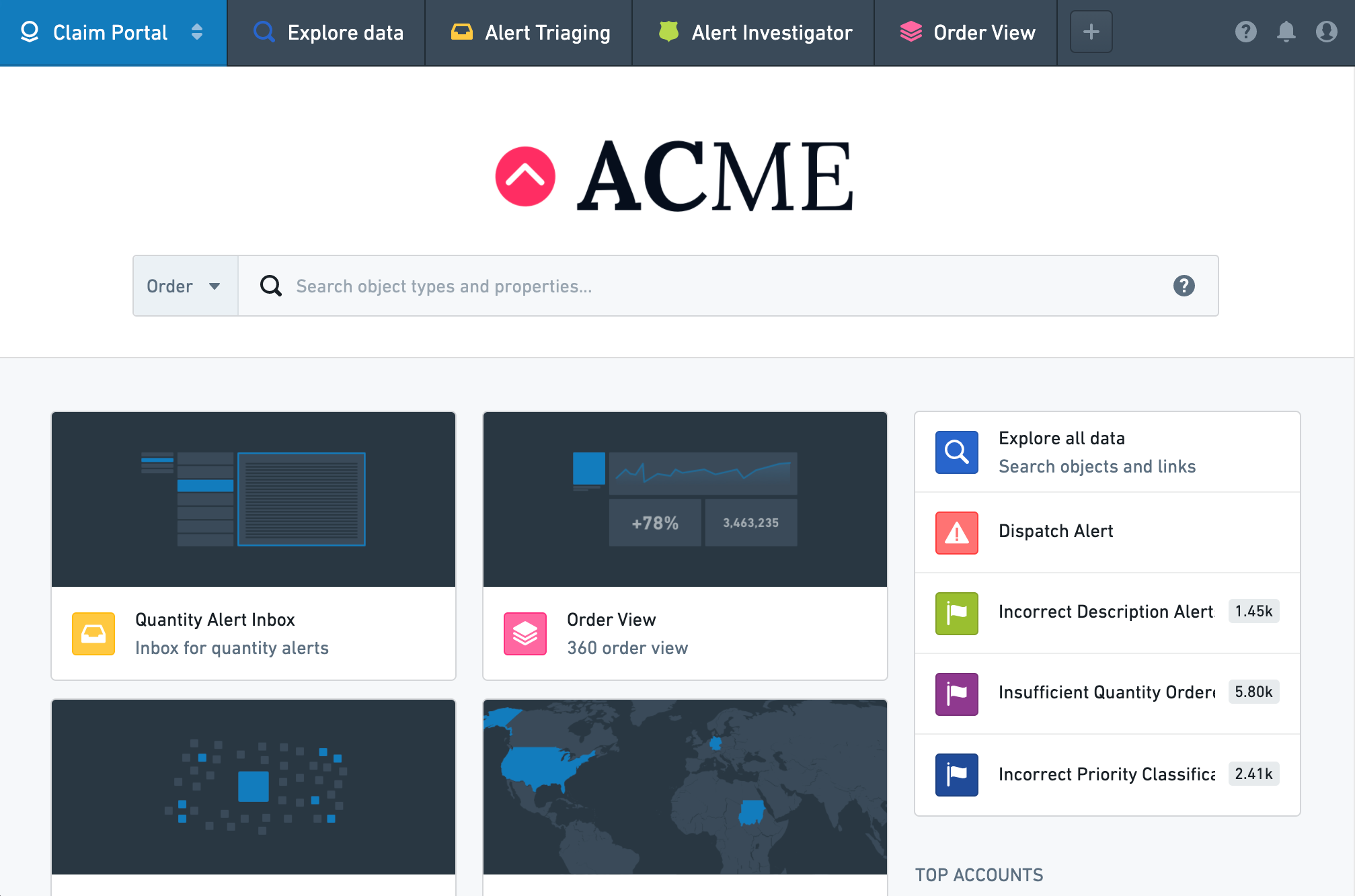
The Carbon application enables the configuration of custom platform experiences, known as workspaces, for specific user groups. Carbon can provide a focused experience for less technical users that need to carry out critical operational workflows.
For example, a Carbon workspace for aircraft parts maintenance might consist of:
- A Workshop module containing a dynamically updated list of parts requiring maintenance,
- A set of Foundry Actions for triaging each part,
- A module that can be used to investigate each part's maintenance issue,
- A Quiver analysis showing maintenance trends over time.
Administrators can create multiple Carbon workspaces tailored to specific user profiles and governed by robust permissions. In each workspace, administrators can highlight relevant workflows and applications, selectively hide the complexity of the overall platform, and restrict navigation outside of the Carbon workspace if necessary.
Carbon workspaces have a customized landing page along with a configured set of modules. When accessing Foundry through a Carbon workspace, a user will see only the subset of applications and resources needed for a specific workflow.
This documentation covers the basics of how to create, configure, and manage Carbon workspaces, as well as examples of several different workspace configurations.
Access Carbon
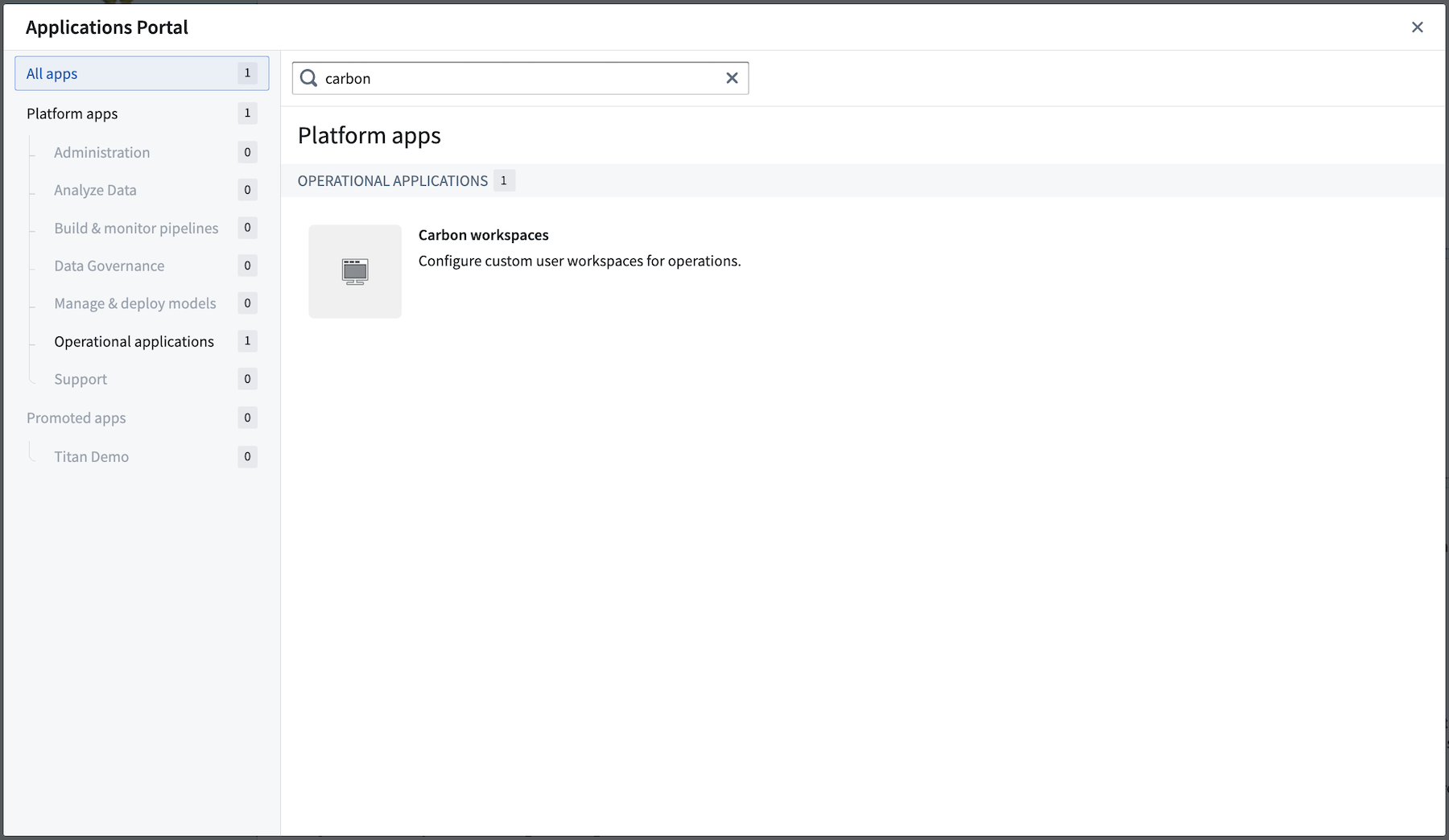
Within Foundry, access Carbon by navigating to the Applications Portal and choosing Carbon workspaces. If you have already created a Carbon workspace and promoted it as an available application, you can search for the workspace name under the Promoted apps section of the Application Portal.
中文翻译
Carbon
Carbon 应用程序支持为特定用户群体配置自定义平台体验,即工作区。Carbon 能够为需要执行关键操作工作流的技术水平较低的用户提供聚焦式体验。
例如,一个用于飞机零部件维护的 Carbon 工作区可能包含:
- 一个 Workshop 模块,其中包含需要维护的零部件的动态更新列表,
- 一组用于对每个零部件进行分类处理的 Foundry Actions,
- 一个可用于调查每个零部件维护问题的模块,
- 一个显示维护趋势随时间变化的 Quiver 分析。
管理员可以创建多个 Carbon 工作区,这些工作区针对特定用户画像量身定制,并由强大的权限系统进行管理。在每个工作区中,管理员可以突出显示相关工作流和应用程序,有选择地隐藏整个平台的复杂性,并在必要时限制用户导航离开 Carbon 工作区。
Carbon 工作区拥有自定义的登录页面以及一组配置好的模块。当用户通过 Carbon 工作区访问 Foundry 时,他们将仅看到特定工作流所需的应用程序和资源子集。
本文档涵盖了创建、配置和管理 Carbon 工作区的基础知识,以及几种不同工作区配置的示例。
访问 Carbon
在 Foundry 中,通过导航至应用程序门户并选择 Carbon workspaces 来访问 Carbon。如果您已经创建了一个 Carbon 工作区并将其提升为可用应用程序,则可以在应用程序门户的 Promoted apps 部分下搜索该工作区名称。