Restrict navigation out of a workspace(限制从工作空间(workspace)中导航出去)
In some cases, you may want to ensure that operational users will only interact with Carbon to curate their experience and restrict access to other Foundry applications or functionality.
There are two levels at which navigation out of Carbon can be restricted: workspace and module.
Disable navigation at the workspace level
Switch to the General configuration tab (highlighted in red in the image below) and locate the Navigation out of Carbon section.

The default setting is Enabled; you can restrict navigation from Carbon interface elements by changing the setting to Disabled. The effects of disabling navigation in this way are as follows:
- External Foundry links will be hidden in the navigation menu.
- The configuration of existing links will be retained in the workspace's configuration, but these links will not be active. This allows you to restore link functionality if toggling Navigation out of Carbon back to the Enabled state.
- The configuration editor will render the External links section as inactive (grayed out) along with a message to notify you that the settings are superseded by the disabling of navigation out of Carbon.

- Navigation from the elements on the right side of the menu bar will be restricted.
- The Help and support dropdown will be hidden entirely.
- The Notifications dropdown will show all notifications. However, links will only be clickable if the links keep the user inside Carbon. For example, a notification about a dataset being shared with the user will show up but will not be actionable. A notification about a Workshop module being shared with the user will be actionable since clicking the link will open that module inside of Carbon.

- The User dropdown will still allow the user to log out and show the username, but users will not be able to click through to the Account page (which is outside of Carbon workspaces).

:::callout{theme="warning"} It might still be possible for users to leave a Carbon workspace via links inside of modules. While most of such links leading to applications should already be covered by the navigation framework and open a new tab in Carbon, it is still possible for actions leading to applications outside of Carbon (like Dataset Preview, Data Lineage, Contour, and so on) to be present in some cases. Use Control Panel settings to restrict access for your users to spaces other than Carbon and to rely on modules to honor such restrictions. Learn more about module-level restrictions below. :::
Disable navigation at the module level
Carbon links that point to modules (using Carbon's navigation framework) will keep the operational user inside the workspace; these links will remain active when navigation out of Carbon workspaces is disabled.
Some navigation actions available across modules may lead the user to applications outside of Carbon workspaces. These include actions to open a backing dataset for an object type, to explore the data lineage of an object type, or to start a new analysis (in Contour, Quiver, or Code Workbooks) on top of an object type. It is not possible to disable these actions on a level of a particular Carbon workspace. Instead, use the Application access page in Control Panel to configure these settings for operational user groups.
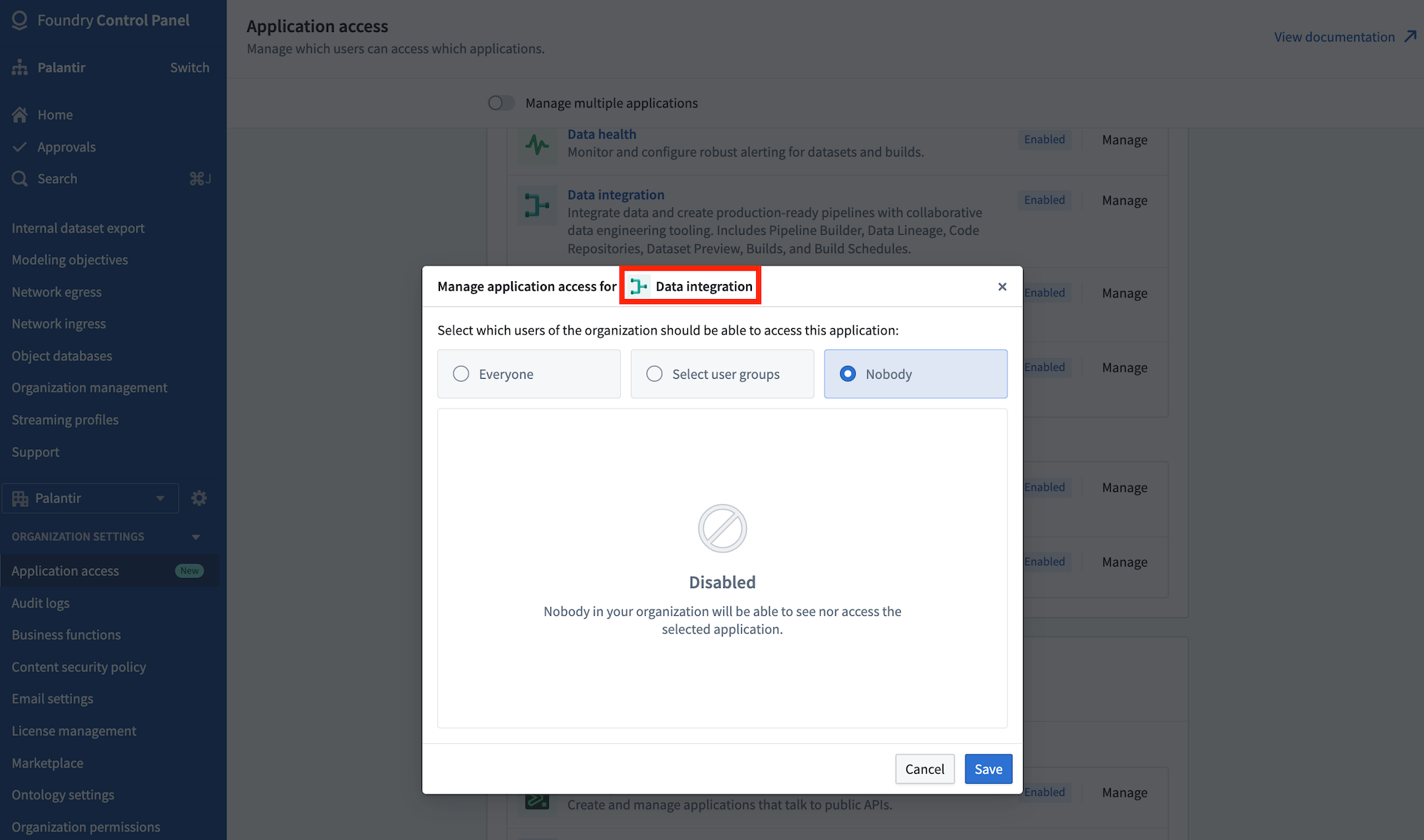
For example, to disable the action to explore the data lineage of an object type, remove access to the Data integration application group. Then, choose to disable all access, or only make the applications available to select users or groups.
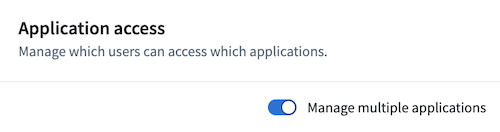
To disable an action to start a new analysis on top of an object type in either Contour, Quiver, or Code Workbook, toggle on the Manage multiple application option at the top of the page.
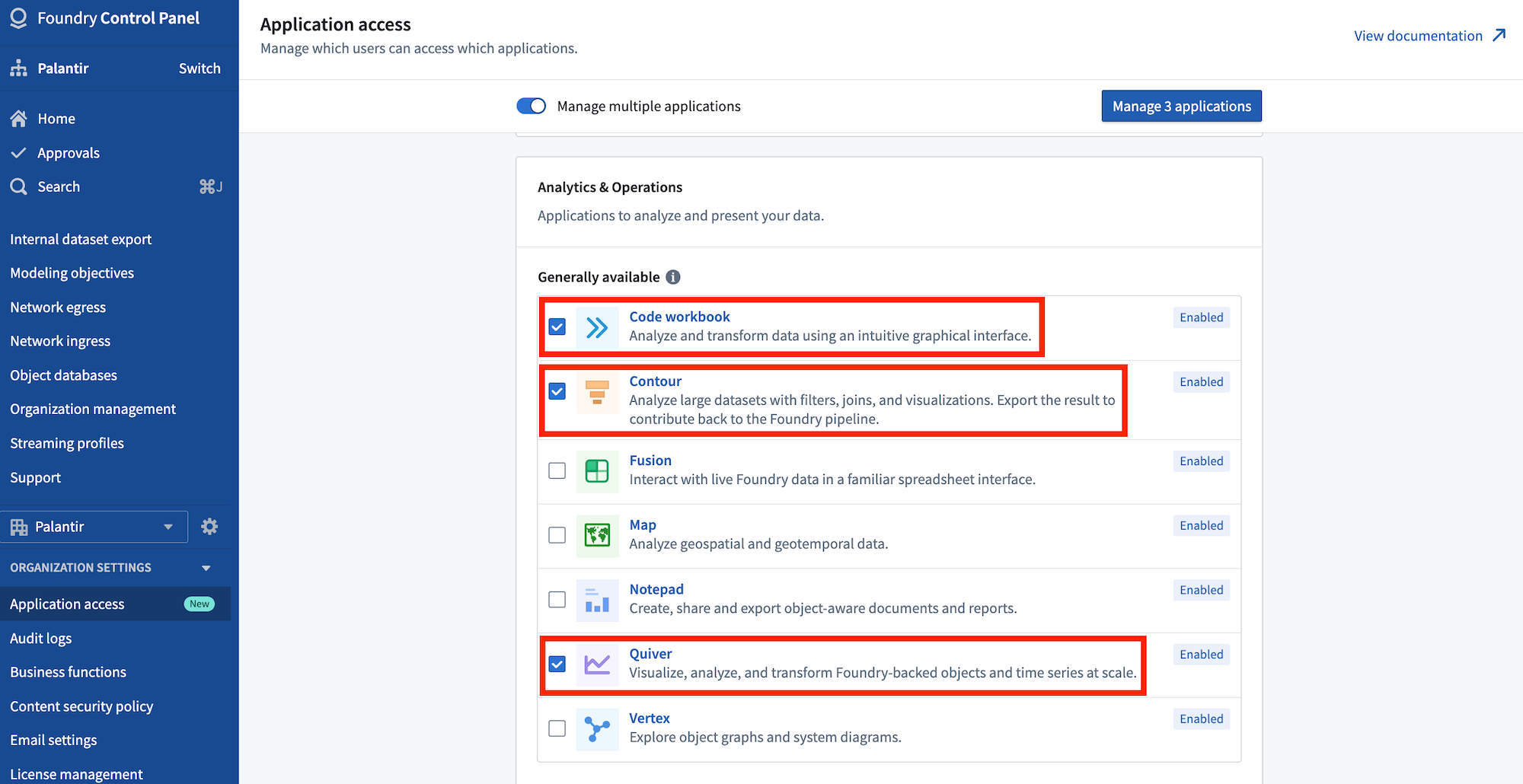
Then, select the applications you wish to disable, and choose the Manage application option in the top right corner to manage access.
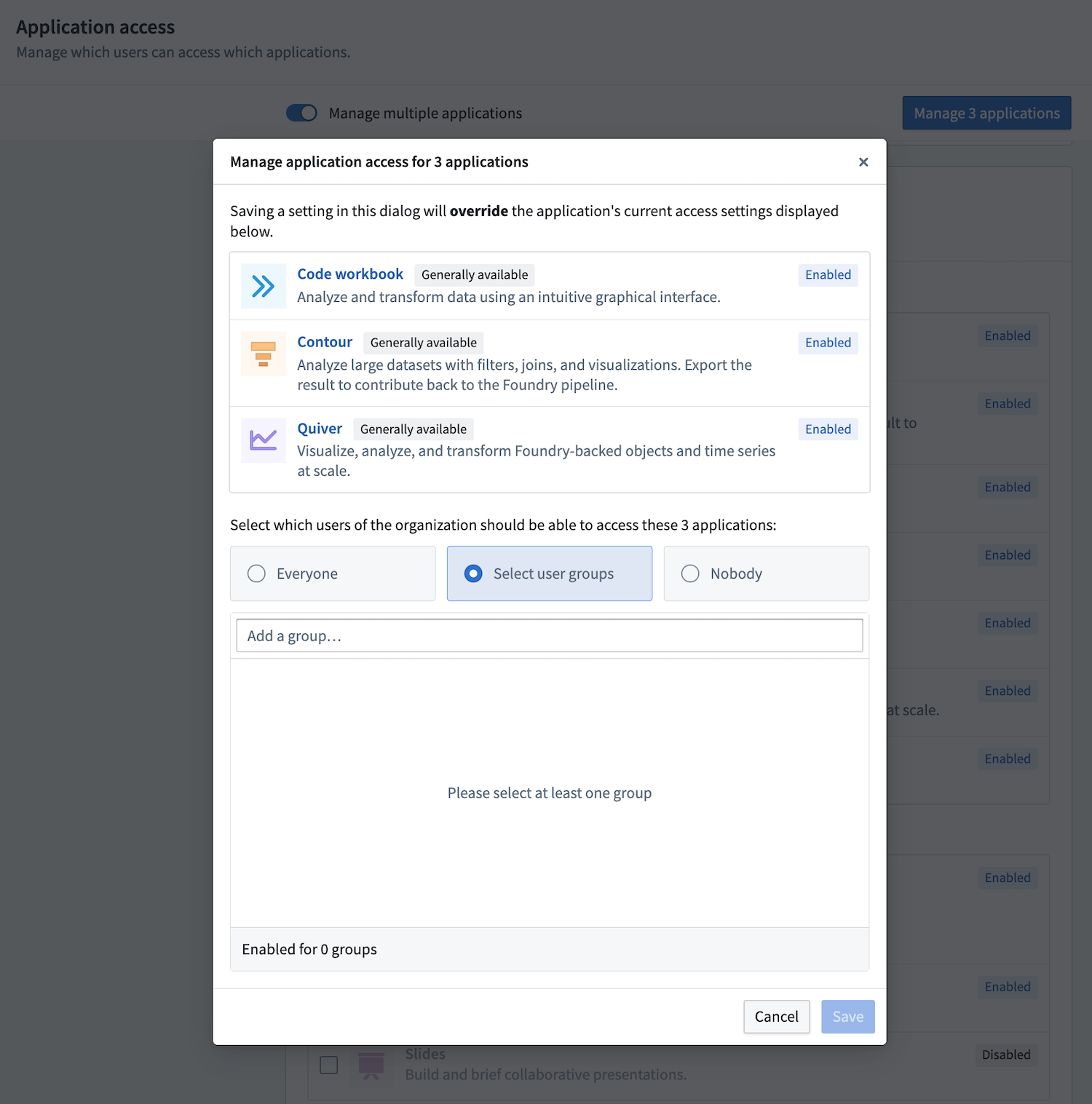
Select Save to apply your changes.
中文翻译
限制从工作空间(workspace)中导航出去
在某些情况下,您可能希望确保操作用户仅与 Carbon 交互以管理其体验,并限制其访问其他 Foundry 应用程序或功能。
限制从 Carbon 中导航出去有两个层级:工作空间(workspace)和模块(module)。
在工作空间层级禁用导航
切换到 常规(General) 配置选项卡(如下图所示红色高亮区域),找到 从 Carbon 中导航出去(Navigation out of Carbon) 部分。
默认设置为 已启用(Enabled);您可以通过将设置更改为 已禁用(Disabled) 来限制从 Carbon 界面元素进行的导航。以这种方式禁用导航的效果如下:
- 导航菜单中的外部 Foundry 链接将被隐藏。
- 现有链接的配置将保留在工作空间的配置中,但这些链接将不会生效。这样,如果您将 从 Carbon 中导航出去(Navigation out of Carbon) 切换回 已启用(Enabled) 状态,就可以恢复链接功能。
- 配置编辑器会将 外部链接(External links) 部分显示为不可用(灰色),并附带一条消息,通知您这些设置已被禁用从 Carbon 中导航出去所取代。
- 菜单栏右侧元素的导航将受到限制。
- 帮助和支持(Help and support) 下拉菜单将被完全隐藏。
- 通知(Notifications) 下拉菜单将显示所有通知。但是,只有当链接将用户保留在 Carbon 内部时,这些链接才可点击。例如,关于数据集与用户共享的通知会显示出来,但无法操作。而关于 Workshop 模块与用户共享的通知则可以操作,因为点击该链接会在 Carbon 内部打开该模块。
- 用户(User) 下拉菜单仍允许用户注销并显示用户名,但用户将无法点击进入账户页面(该页面位于 Carbon 工作空间之外)。
:::callout{theme="warning"} 用户仍有可能通过模块内的链接离开 Carbon 工作空间。虽然大多数指向应用程序的此类链接应已被导航框架覆盖,并在 Carbon 中打开新标签页,但在某些情况下,仍可能存在导致用户进入 Carbon 外部应用程序的操作(如数据集预览、数据沿袭、Contour 等)。请使用 控制面板(Control Panel) 中的设置来限制用户访问 Carbon 以外的空间,并依赖模块来遵守此类限制。有关模块级限制的更多信息,请参见下文。 :::
在模块层级禁用导航
指向模块的 Carbon 链接(使用 Carbon 的 导航框架(navigation framework))将使操作用户保留在工作空间内;当禁用从 Carbon 工作空间中导航出去时,这些链接将保持活动状态。
跨模块可用的某些导航操作可能会将用户引导至 Carbon 工作空间之外的应用程序。这些操作包括:打开对象类型的支持数据集、探索对象类型的数据沿袭,或在对象类型之上启动新的分析(在 Contour、Quiver 或 Code Workbooks 中)。无法在特定 Carbon 工作空间的层级上禁用这些操作。相反,请使用 控制面板(Control Panel) 中的 应用程序访问(Application access) 页面为操作用户组配置这些设置。
例如,要禁用探索对象类型数据沿袭的操作,请移除对 数据集成(Data integration) 应用程序组的访问权限。然后,选择禁用所有访问,或仅将应用程序提供给选定的用户或组。
要禁用启动在 Contour、Quiver 或 Code Workbook 中对对象类型进行新分析的操作,请打开页面顶部的 管理多个应用程序(Manage multiple application) 选项。
然后,选择您希望禁用的应用程序,并点击右上角的 管理应用程序(Manage application) 选项来管理访问权限。
选择 保存(Save) 以应用您的更改。