Manually upload data(手动上传数据)
You can manually upload data from your own sources to use in your Projects. All data should be approved for the purpose of your use case (no personal data, for example) or notional data.
Start by opening the file on your computer to verify its contents. Check the number of header rows and if any of the columns have numeric or date/time data. This information will be useful later.
In the platform, navigate to the desired folder via Files in the workspace navigation sidebar, and then select Your files.
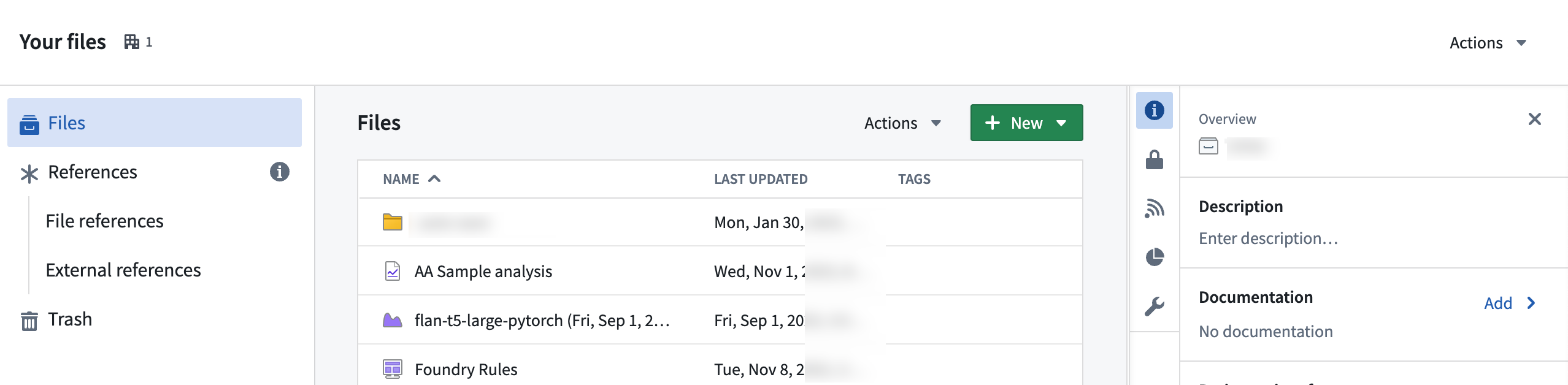
Within your home folder, you can create a folder named data to keep your files organized. Select the folder to navigate to it. You should now be in Your files > data or /<shared-folder-path> > data.
Next, either directly drag and drop files onto your browser for upload into your folder, or alternatively, select + New > Upload files... to start the upload process.

During the upload process, choose how you would like to upload the file(s):
- Upload as media set (recommended): Upload selected files to a new media set.
- Upload to a dataset without a schema: To store a collection of arbitrary files.
- Upload as a raw file without modifying the extension
Then, configure your upload, and choose the Write mode.

Write modes include:
-
Transactionless (Updates reflected immediately): Writes immediately reflected per item, failures limited to the item, and no support for snapshots as deletion and overwrite happen on a per-item basis.
-
Transactional (Transaction-based guarantees, similar to datasets): One open transaction at a time per media set, a maximum of 10,000 files written per transaction, no writes are committed upon build failure, and support for snapshot and incremental builds.
Once set, select Upload to complete.

:::callout{theme="neutral"}
In the Dataset Preview application, you can upload .csv, .tsv, .xls, .xlsm, and .xlsx files directly into a dataset.
:::
中文翻译
手动上传数据
您可以从自己的数据源手动上传数据,以便在项目中使用。所有数据必须符合用例要求(例如,不得包含个人数据),或使用模拟数据。
首先,在计算机上打开文件以验证其内容。检查表头行数,以及是否有包含数值或日期/时间数据的列。这些信息在后续操作中会很有用。
在平台中,通过工作区导航侧边栏中的 Files 导航至目标文件夹,然后选择 Your files。
在您的个人文件夹中,可以创建一个名为 data 的文件夹来整理文件。选择该文件夹进入。此时您应位于 Your files > data 或 /<shared-folder-path> > data 路径下。
接下来,您可以直接将文件拖放到浏览器中以上传至文件夹,或选择 + New > Upload files... 启动上传流程。
在上传过程中,请选择文件的上传方式:
- Upload as media set(推荐): 将所选文件上传至新的媒体集(media set)。
- Upload to a dataset without a schema: 用于存储任意文件的集合。
- Upload as a raw file without modifying the extension: 以原始文件形式上传,不修改扩展名。
然后,配置上传设置,并选择 Write mode(写入模式)。
写入模式包括:
-
Transactionless(更新即时生效):写入操作按项目即时生效,失败仅限于单个项目,不支持快照,因为删除和覆盖操作基于单个项目进行。
-
Transactional(基于事务的保证,类似于数据集):每个媒体集(media set)一次仅允许一个打开的事务,每个事务最多写入 10,000 个文件,构建失败时不提交任何写入操作,支持快照和增量构建。
设置完成后,选择 Upload 完成上传。
:::callout{theme="neutral"}
在 Dataset Preview 应用中,您可以将 .csv、.tsv、.xls、.xlsm 和 .xlsx 文件直接上传至数据集。
:::