Move and share resources(移动和共享资源)
It is simple to move and share resources between spaces on the Palantir platform.
Move resources
Select a file to move, then select the Move icon.
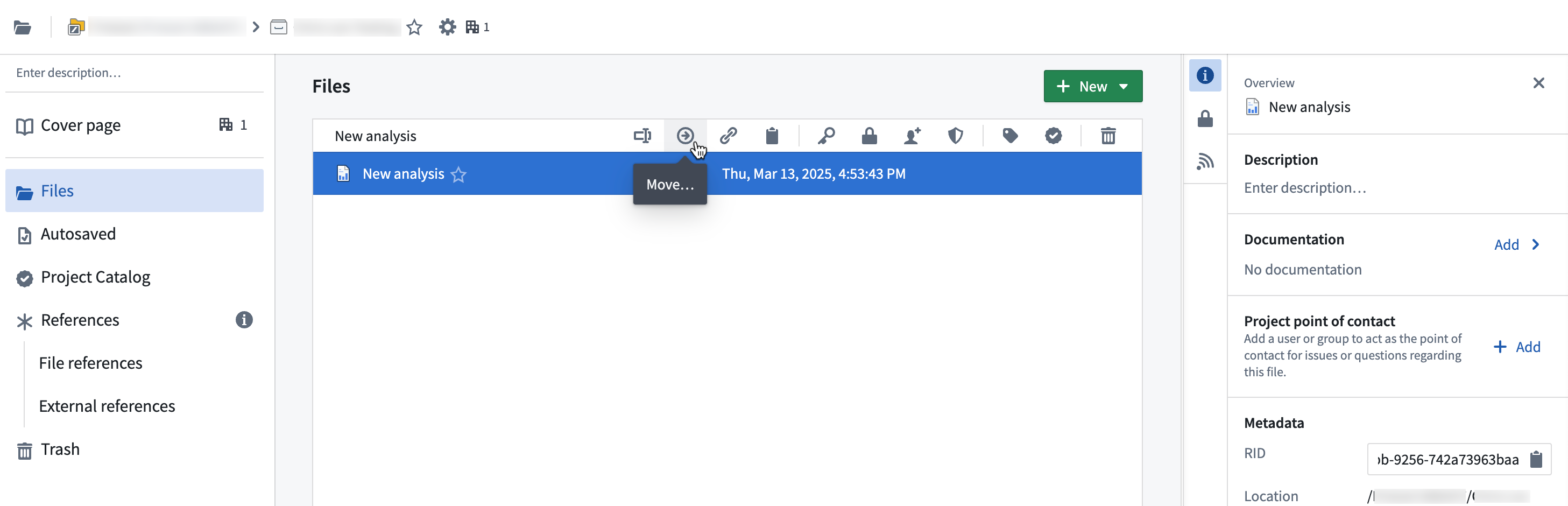
In the Move window, change the file name if desired, choose a new location for your file using the location dropdown menu and select Move. You may also use Browse to navigate for your preferred move location.

:::callout{theme="neutral"}
You will need specific cross-Project permissions to move a file out of a Project and into another. Typically, only the resource Owner can move files out of Projects.
:::
Share and manage resources
When you create a new resource (a dataset or a Contour analysis, for example), you can make the resource available to a group of users by saving it to a relevant Project.
You can also create resources directly from your Project by selecting + New in the upper right of the Project dashboard.

The platform also allows you to share files and other resources and view permissions with Share actions. Select any resource and then the Share icon to view the Share panel.
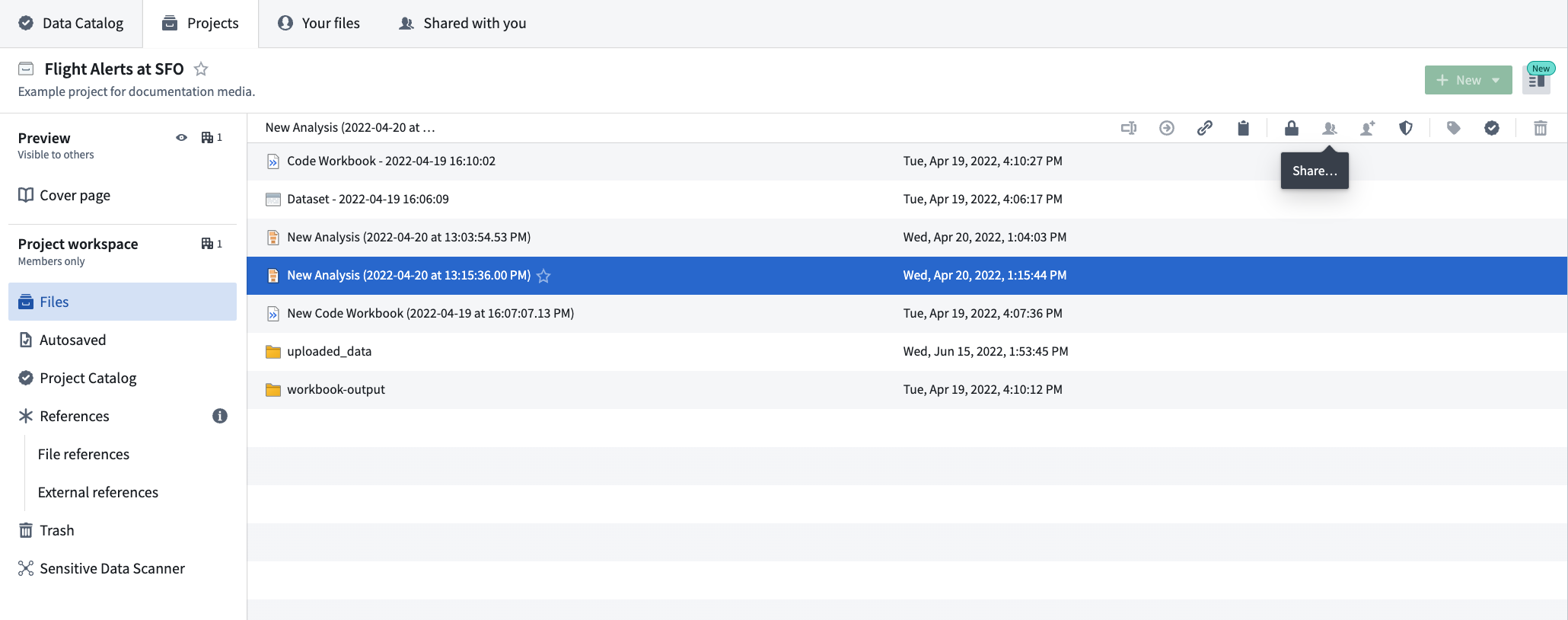
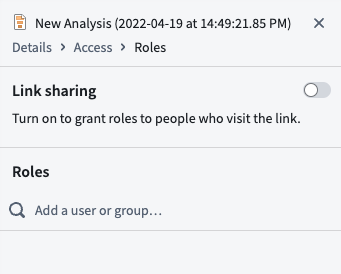
In the Share panel, you can activate link sharing so anyone with the link can access the resource. You can also grant access to specific users or groups.
中文翻译
移动和共享资源
在 Palantir 平台上,在不同空间(space)之间移动和共享资源非常简单。
移动资源
选择要移动的文件,然后点击 移动(Move)图标。
在 移动(Move)窗口中,可根据需要修改文件名,使用位置下拉菜单为文件选择新位置,然后点击 移动(Move)。您也可以使用 浏览(Browse)来导航至您偏好的移动位置。
:::callout{theme="neutral"}
您需要具备特定的跨项目(cross-Project)权限,才能将文件移出一个项目(Project)并移入另一个项目。通常情况下,只有资源的 所有者(Owner)才能将文件移出项目。
:::
共享和管理资源
当您创建新资源(例如数据集(dataset)或 Contour 分析)时,可以通过将其保存到相关项目(Project)中,使该资源可供一组用户使用。
您也可以直接在项目仪表盘(Project dashboard)右上角点击 + 新建(+ New),从项目中直接创建资源。
该平台还允许您通过 共享(Share)操作来共享文件及其他资源,并查看权限。选择任意资源,然后点击 共享(Share)图标,即可查看 共享(Share)面板。
在 共享(Share)面板中,您可以启用链接共享,以便任何拥有链接的人都能访问该资源。您还可以授予特定用户或用户组(group)访问权限。