Quicksearch(快速搜索(Quicksearch))
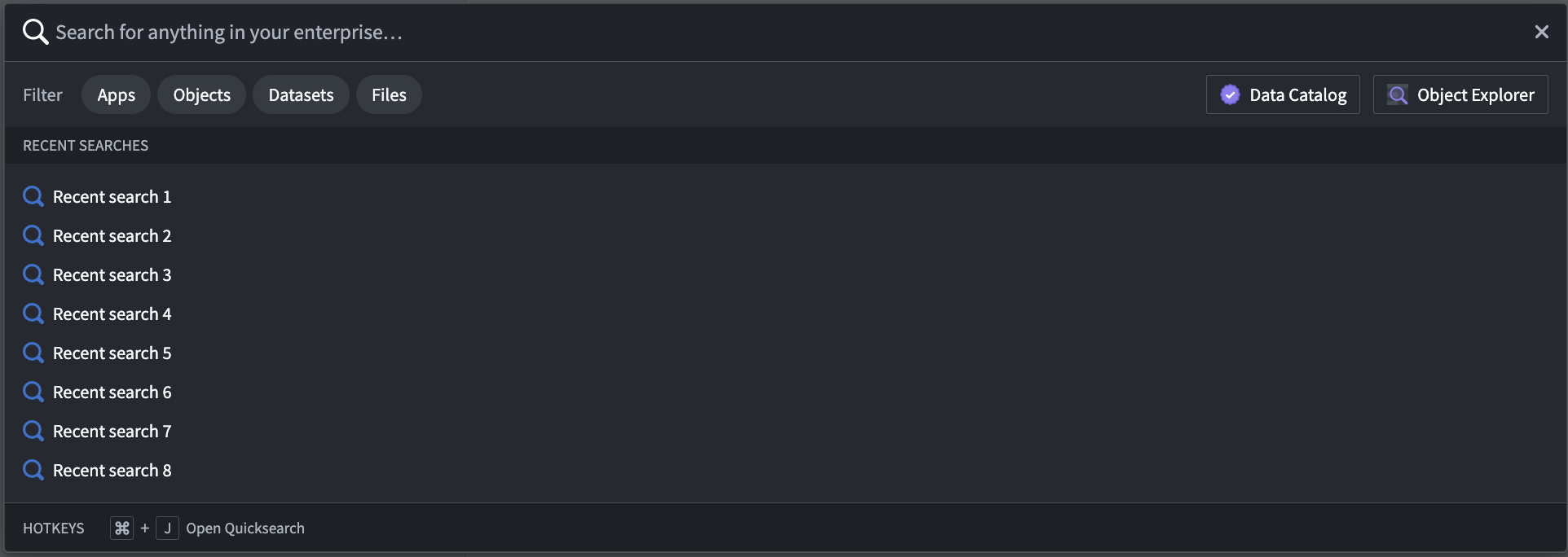
Quicksearch is a tool for fast and easy search, navigation, and discovery in the Palantir platform. Access Quicksearch from the Search icon in the left sidebar, or use Cmd+J (macOS) or Ctrl+J (Windows). Quicksearch consists of two view modes:
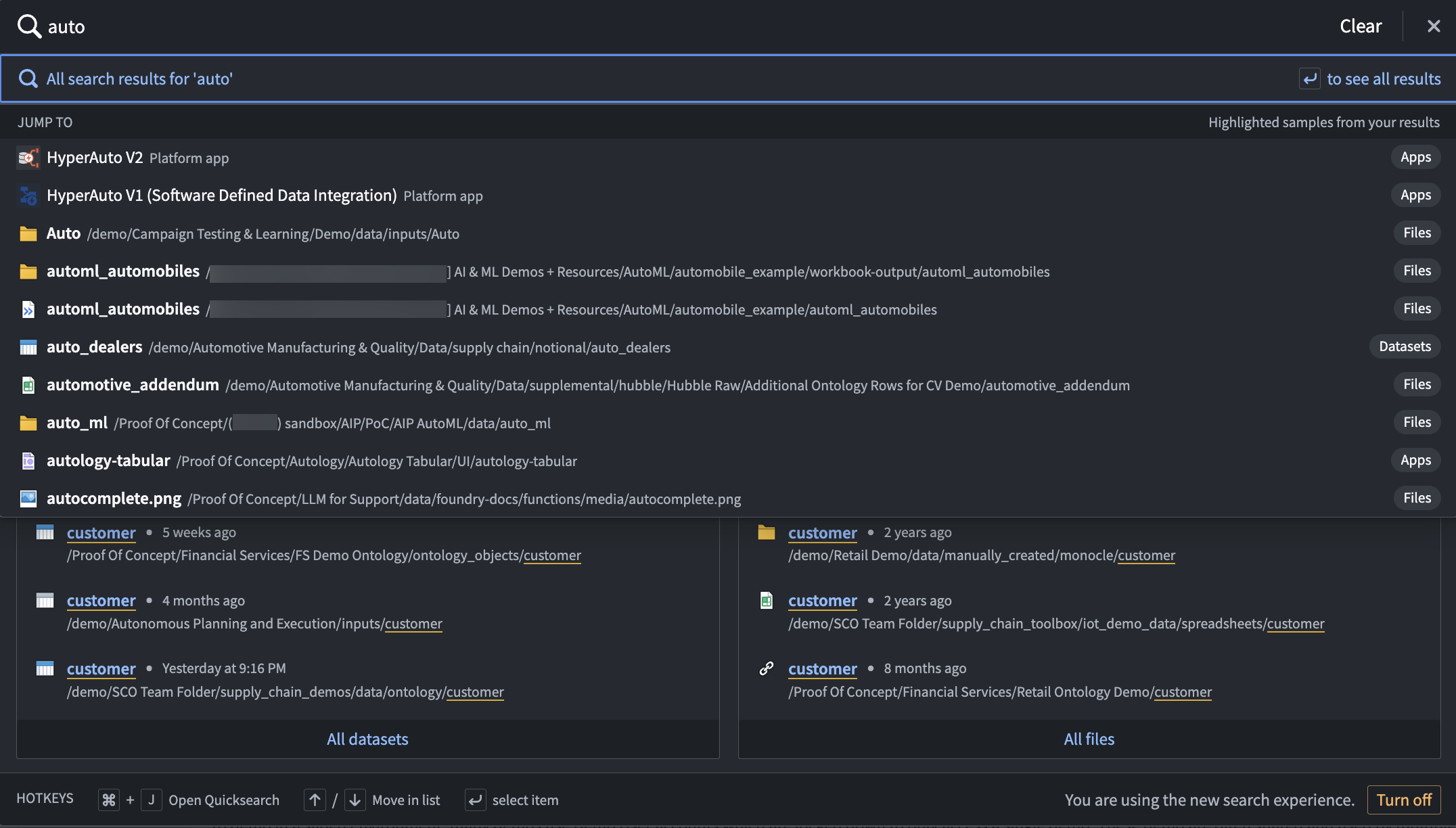
- Jump-to mode: Provides a short list of personalized results to directly navigate users to the main types of available content: platform applications, custom applications, objects, datasets, and other resources.
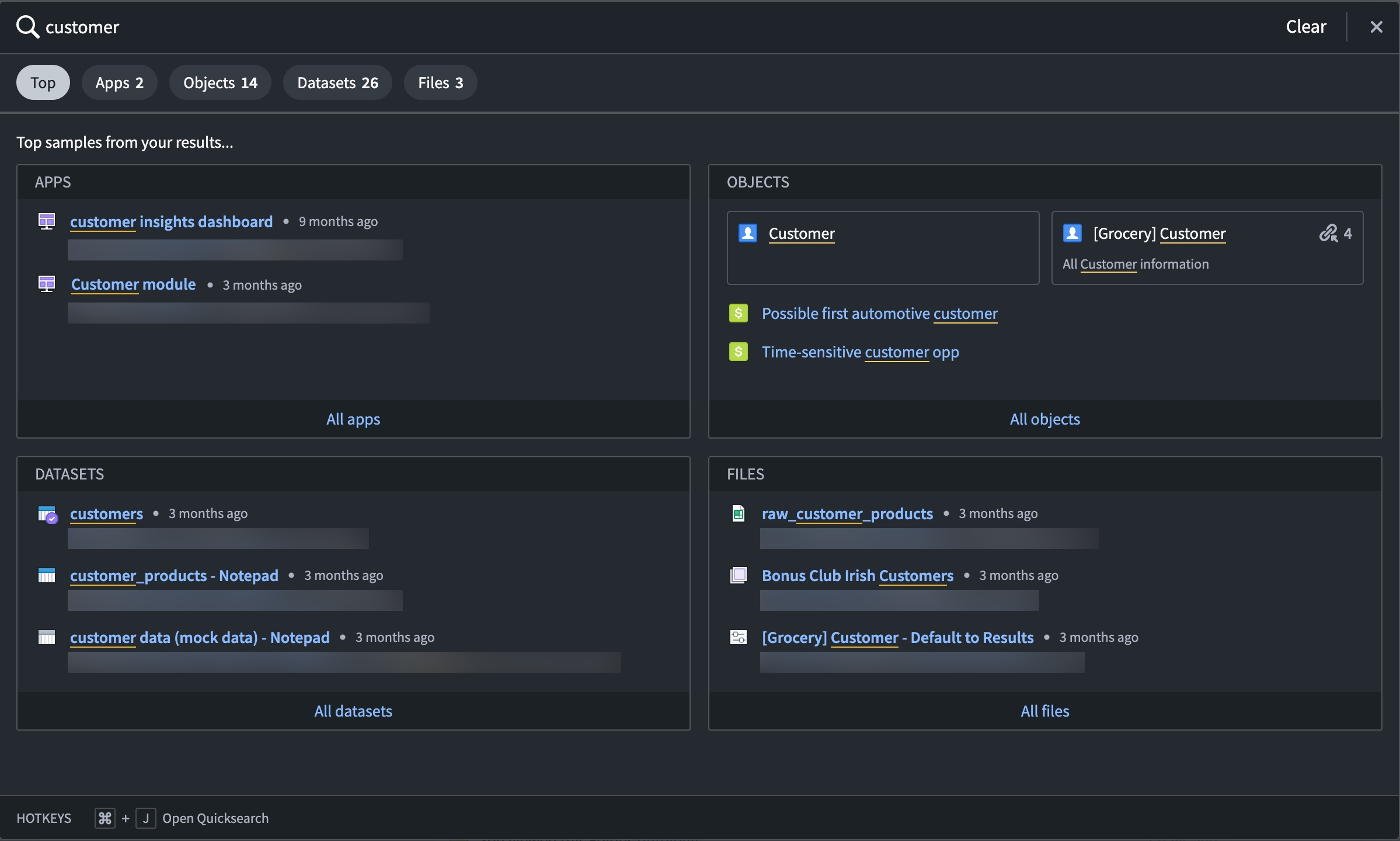
- Full results view: Designed to help users find content and discover what exists in the platform. Users can search for Palantir apps, objects, datasets, and other files using advanced filters and find the most relevant results along with rich metadata.
Jump-to mode
- Easy to access: To open Quicksearch, select Search... in the navigation sidebar, or shortcuts
Cmd+J(macOS) orCtrl+J(Windows). - Navigation-focused: The initial dialog and dropdown are navigation-oriented. Start typing to receive suggestions. Use the keyboard to jump to any page in the platform.
- Search only on titles: Jump-to mode only searches on titles of apps, resources, and objects. To search additional fields and metadata, use the full results mode.
- Single click to full results: From the dialog and dropdown, press
Enter/Returnor filter by Apps, Objects, Datasets, or Files to move to advanced search mode. - Personalized results: Results in Quicksearch are personalized by your recently accessed or favorited resources, and more.
Full results view
- Discovery-focused: Designed for searching and discovering, users can compare multiple search results to find the resources most useful to them.
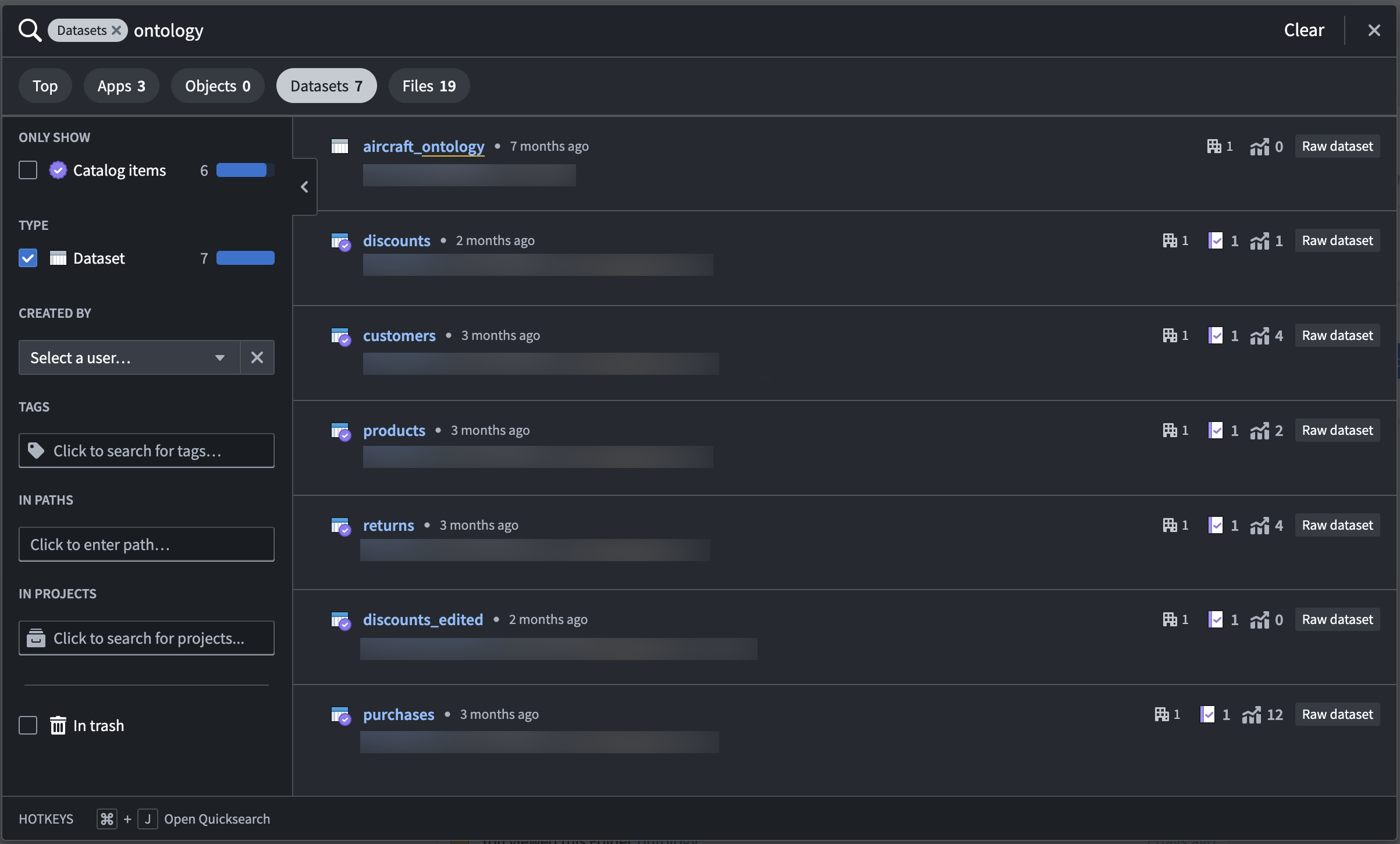
- Search on various fields: Search for descriptions, column names, file paths, and more. Additionally, filter by creator, tags, Projects, folders, and more.
- Tabs: The interface includes a top results tab and four tabs by which to filter: Apps, Objects, Datasets, or Files.
- Metadata: Users can view information on each result to evaluate whether the resource is relevant to them. Search by keyword highlights, file path, view count, last updated time, key security metadata, and more.
- Ranking: Results are ranked based on an algorithm that contains text matching and other boost parameters.
- Filters: Filters are provided for advanced searches. Additionally, by selecting the filter tabs from the initial search dropdown, users can perform complex filter searches (for example, “all reports under project X that were created by me”).
- Permissions: Quicksearch respects all existing permissions in the platform. Content with
Discoverpermissions would open aRequest accessmessage. Users will not see content to which they do not have access.
:::callout{theme="warning"}
Quicksearch does not search across all object instances in the platform. Quicksearch is limited to search for instances on 250 object types, prioritized by Active object types with Prominent, then Normal, and then Experimental status (deprecated and hidden object types are not searched on). If a user cannot find what they are looking for, they are prompted to try searching in Object Explorer, where they can adjust their search to only specific groups of object types, or even specific object types.
:::
Filters
You can quickly find the resources and data you need in the platform with filters in Quicksearch. Filter your search results by choosing from the Apps, Objects, Datasets, or Files result types. You can filter even further by searching within file paths, tags, or projects. Once you apply a filter, the search result view will show only the result type you chose.
As an example, we want to search for "automotive" resources in our enrollment.
Apps
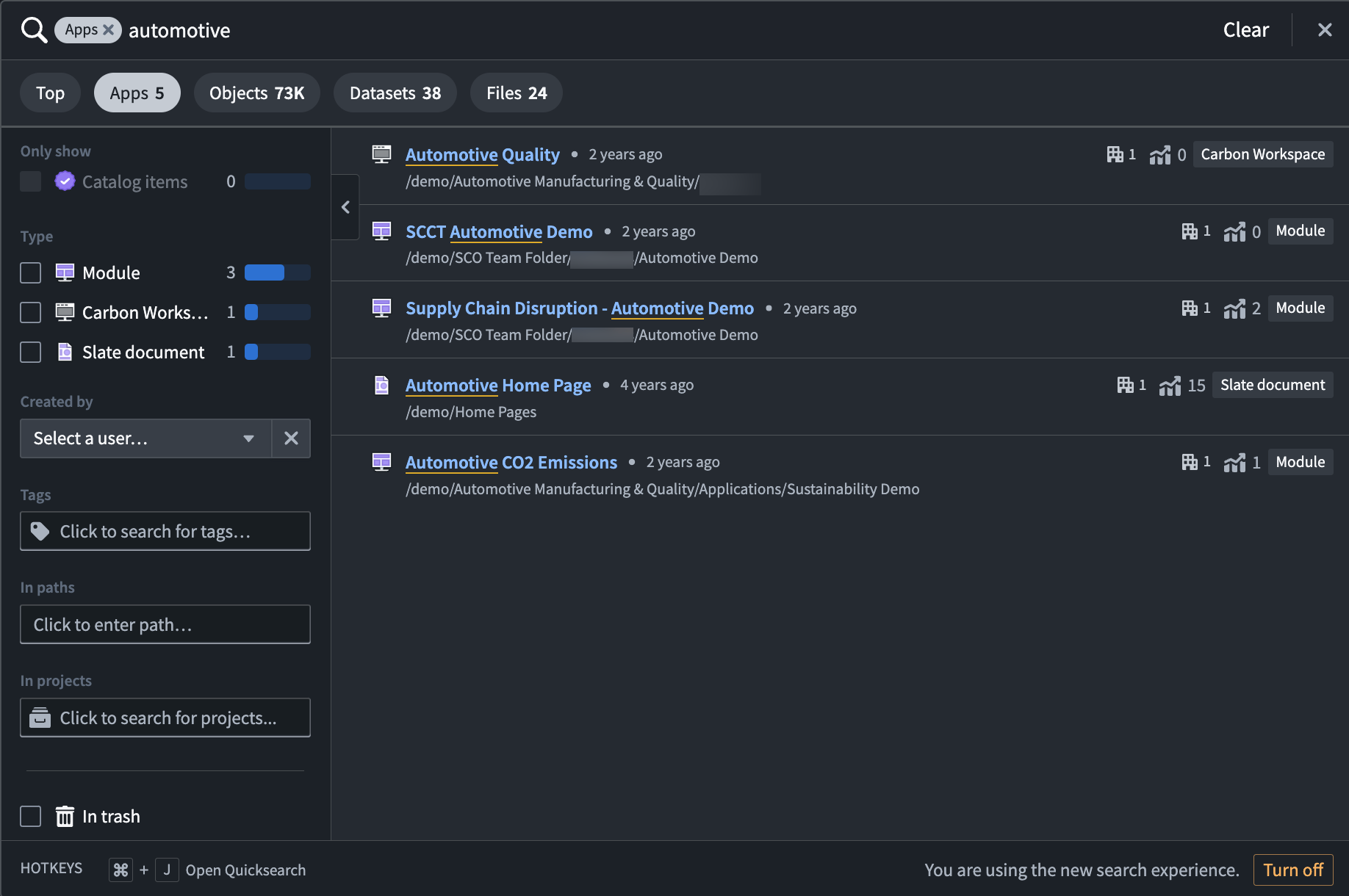
To search for modules, workspaces, or other applications made from Palantir application-building interfaces, you can filter by Apps.
In our "automotive" search example, we can see three Workshop modules, one Carbon workspace, and one Slate document that are correctly recognized as applications built in Palantir.
Objects
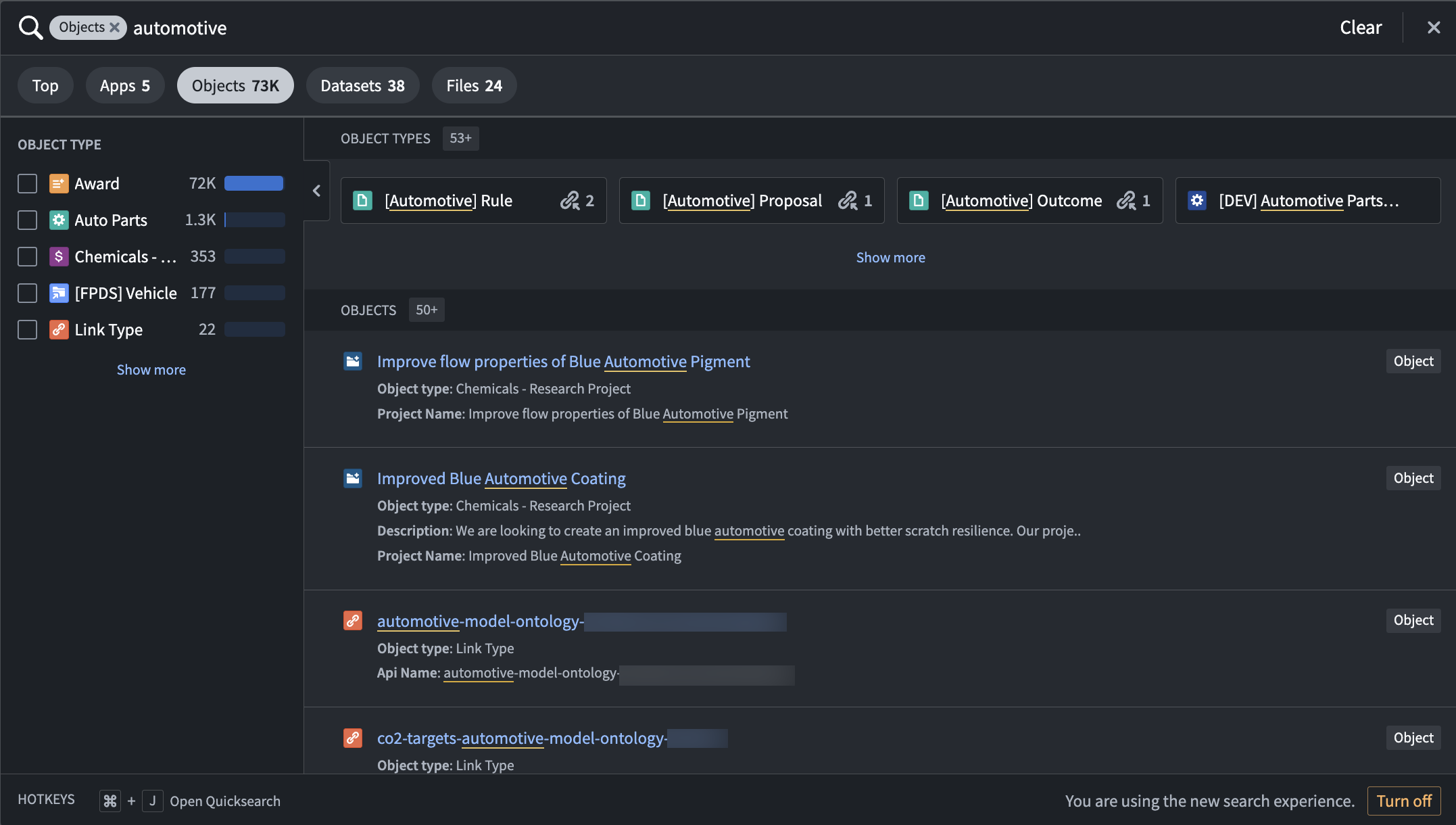
To only view results that are based on Ontology object types, filter by Objects. In this search result view, you can select from object types that match your search terms, choose to edit or view the lineage of object types, and drill down further to individual objects.
When searching for "automotive", we see several object types and object results, with the ability to filter even further into selected object types like Award or Auto Parts.
Datasets
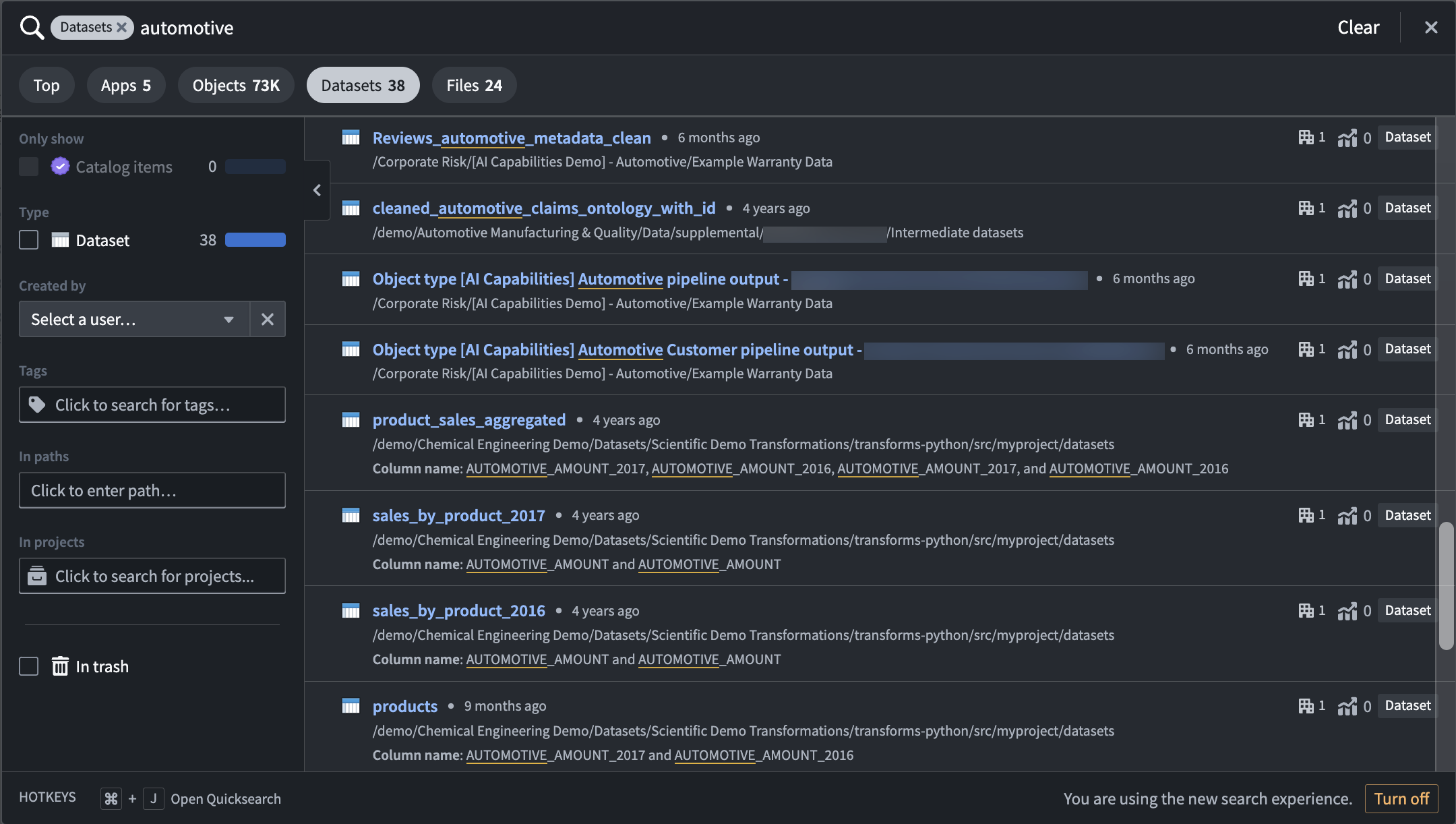
When filtering by Datasets, the results view will show a list of available datasets in the platform that match the search term in a dataset name or in a column name.
Using the same "automotive" example, we can see a list of 38 datasets with matching terms in dataset and column names.
Files
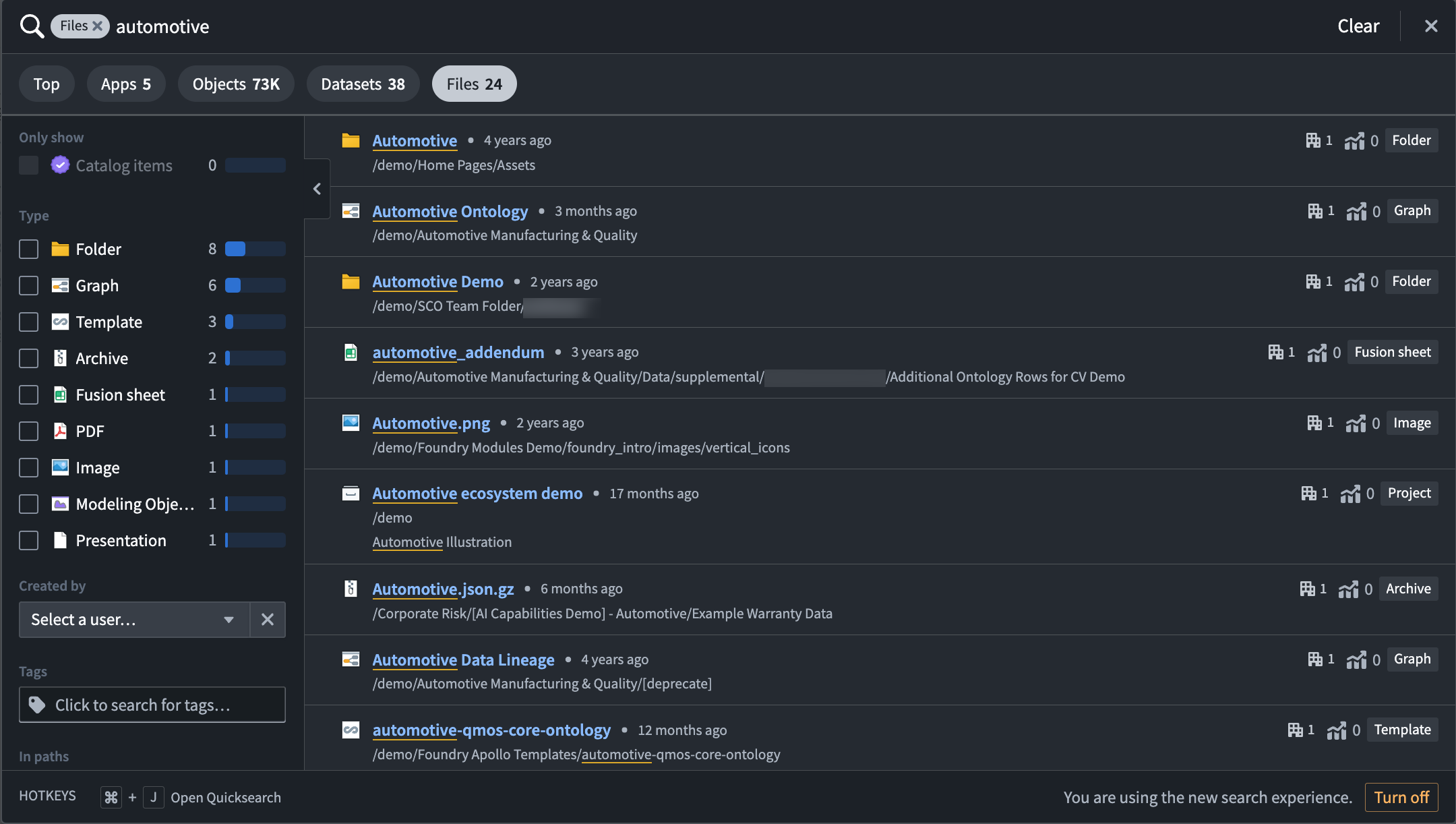
Use the Files tab in Quicksearch to quickly find individual resource files that were added to or created in the platform. Use the filters in the left panel to search specifically for certain file or resource types.
When we search for "automotive", we receive several file results, including folders, graphs, images, and Modeling Objectives.
Advanced Search
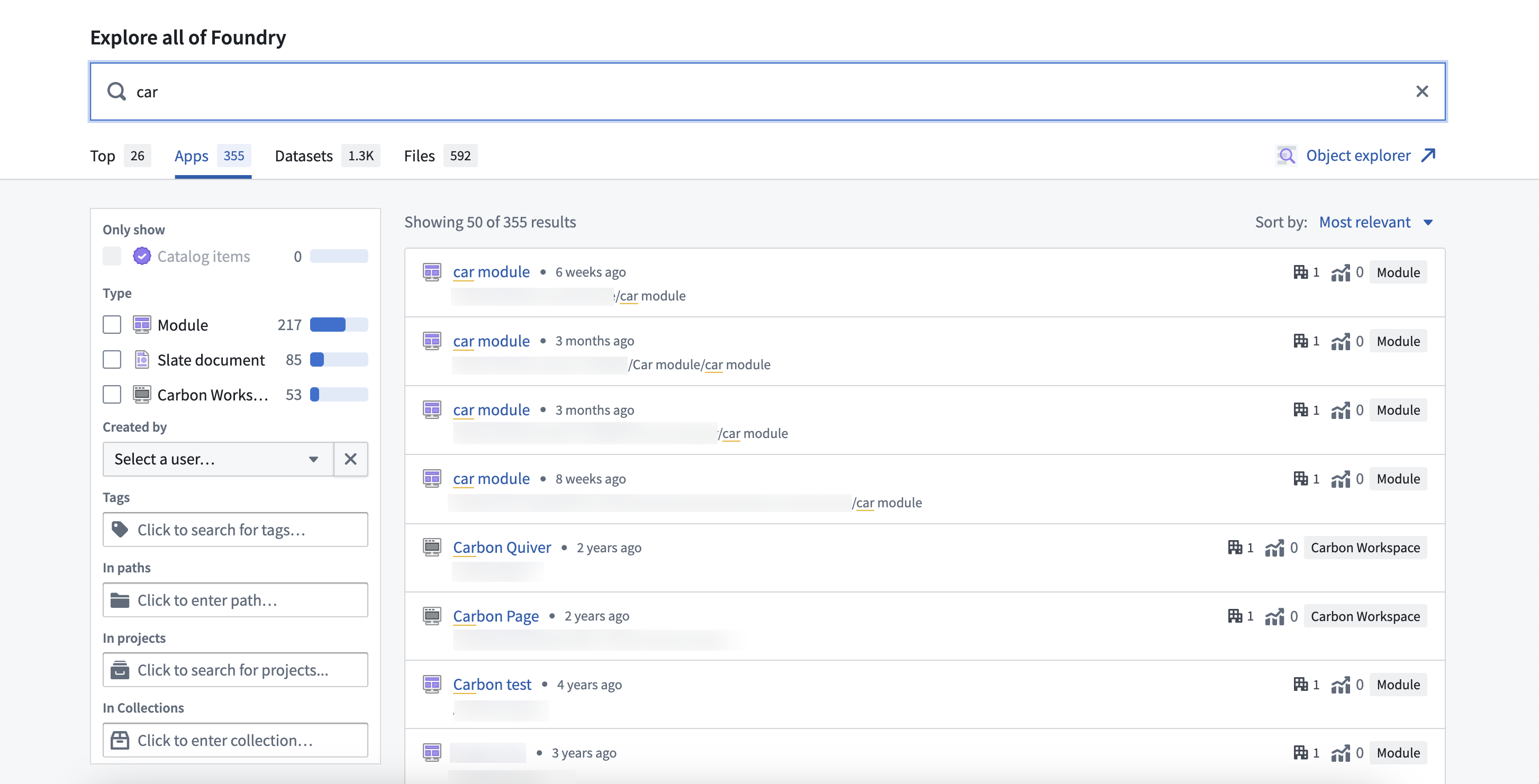
Advanced Search provides a more comprehensive search experience beyond the scope of Quicksearch. This can be useful when you do not know a desired resource's name or metadata. Enter Advanced Search by selecting the "expand" icon in the top-right corner of Quicksearch.

Similar to Quicksearch, Advanced Search offers a Top results tab and other tabs that filter results by category: Apps, Datasets, and Files. To query specific objects, you can navigate from Advanced Search to Object Explorer by selecting Object explorer in the top-right corner.
The complete Advanced Search query is captured in a stateful URL. You can share a query of interest by copying the URL from your browser and sending it to a colleague. Results may differ between users depending on resource access controls.
AIP-powered recommendations [Experimental]
:::callout{theme="warning" title="Experimental"} AIP-powered recommendations are in the experimental phase of development and may not be available on your enrollment. Functionality may change during active development. Contact Palantir Support to request access to this feature. :::
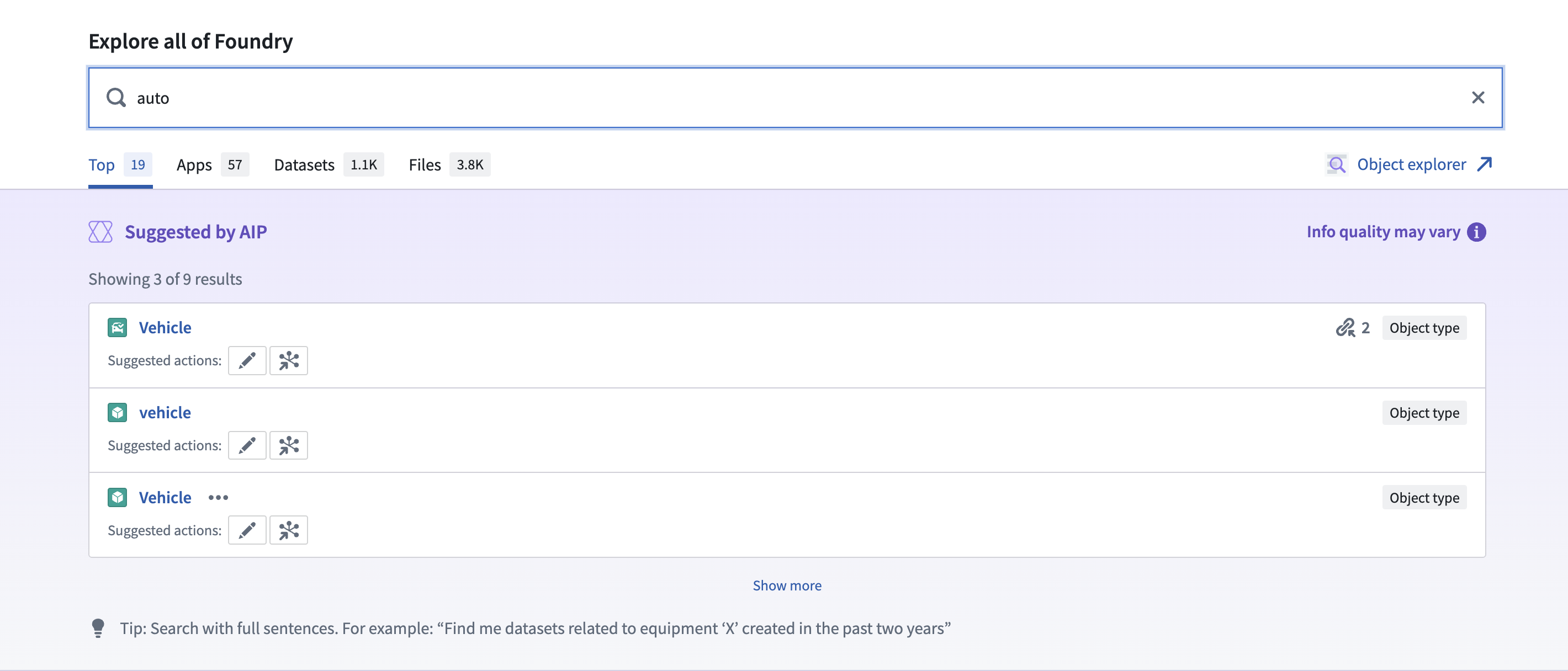
In addition to top results, Advanced Search offers AIP-powered recommendations that can parse full sentences, query semantically, and recommend next steps. These suggestions load in a purple box in the Top tab.
中文翻译
快速搜索(Quicksearch)
快速搜索(Quicksearch)是Palantir平台中用于快速便捷搜索、导航和发现内容的工具。可通过左侧边栏的搜索(Search)图标或使用Cmd+J(macOS)或Ctrl+J(Windows)快捷键访问。快速搜索包含两种视图模式:
- 跳转模式(Jump-to mode): 提供个性化结果的简短列表,直接导航用户至主要可用内容类型:平台应用、自定义应用、对象(objects)、数据集(datasets)及其他资源。
- 完整结果视图(Full results view): 旨在帮助用户查找内容并发现平台中存在的资源。用户可使用高级过滤器搜索Palantir应用、对象、数据集及其他文件,并找到最相关的结果及丰富的元数据(metadata)。
跳转模式(Jump-to mode)
- 易于访问: 要打开快速搜索,请选择导航侧边栏中的搜索...(Search...),或使用快捷键
Cmd+J(macOS)或Ctrl+J(Windows)。 - 以导航为核心: 初始对话框和下拉菜单以导航为导向。开始输入即可获得建议。使用键盘可跳转到平台中的任何页面。
- 仅搜索标题: 跳转模式仅搜索应用、资源和对象的标题。要搜索其他字段和元数据,请使用完整结果模式。
- 单击进入完整结果: 在对话框和下拉菜单中,按
Enter/Return键或通过应用(Apps)、对象(Objects)、数据集(Datasets)或文件(Files)进行筛选,即可进入高级搜索模式。 - 个性化结果: 快速搜索中的结果会根据您最近访问或收藏的资源等进行个性化展示。
完整结果视图(Full results view)
- 以发现为核心: 专为搜索和发现而设计,用户可以比较多个搜索结果,找到对自己最有用的资源。
- 多字段搜索: 可搜索描述、列名、文件路径等内容。此外,还可按创建者、标签、项目(Projects)、文件夹等进行筛选。
- 标签页(Tabs): 界面包含一个顶部结果标签页和四个筛选标签页:应用(Apps)、对象(Objects)、数据集(Datasets)或文件(Files)。
- 元数据(Metadata): 用户可以查看每个结果的相关信息,以评估资源是否与自身需求相关。可通过关键词高亮、文件路径、查看次数、最后更新时间、关键安全元数据等进行搜索。
- 排序(Ranking): 结果基于包含文本匹配和其他提升参数的算法进行排序。
- 筛选器(Filters): 提供高级搜索的筛选器。此外,通过从初始搜索下拉菜单中选择筛选标签页,用户可以执行复杂的筛选搜索(例如,"项目X下由我创建的所有报告")。
- 权限(Permissions): 快速搜索遵循平台中所有现有权限。具有
发现(Discover)权限的内容会显示请求访问(Request access)消息。用户不会看到其无权访问的内容。
:::callout{theme="warning"}
快速搜索不会搜索平台中的所有对象实例(object instances)。快速搜索仅限于搜索250种对象类型(object types)的实例,优先级按活跃(Active)对象类型中的突出(Prominent)、正常(Normal)、实验性(Experimental)状态排序(不搜索已弃用和隐藏的对象类型)。如果用户找不到所需内容,系统会提示尝试在对象浏览器(Object Explorer)中搜索,用户可在其中将搜索范围调整为仅限特定对象类型组,甚至特定对象类型。
:::
筛选器(Filters)
您可以使用快速搜索中的筛选器快速找到平台中所需的资源和数据。通过选择应用(Apps)、对象(Objects)、数据集(Datasets)或文件(Files)结果类型来筛选搜索结果。您还可以通过在文件路径、标签或项目内搜索来进一步筛选。应用筛选器后,搜索结果视图将仅显示您选择的结果类型。
例如,我们想搜索注册环境中的"automotive"资源。
应用(Apps)
要搜索模块、工作区或其他使用Palantir应用构建界面创建的应用,您可以按应用(Apps)进行筛选。
在我们的"automotive"搜索示例中,我们可以看到三个Workshop模块、一个Carbon工作区和一个Slate文档,它们都被正确识别为在Palantir中构建的应用。
对象(Objects)
要仅查看基于本体论对象类型(Ontology object types)的结果,请按对象(Objects)进行筛选。在此搜索结果视图中,您可以选择与搜索词匹配的对象类型,选择编辑或查看对象类型的沿袭(lineage),并进一步深入查看单个对象。
当搜索"automotive"时,我们会看到多个对象类型和对象结果,并且可以进一步筛选到选定的对象类型,如Award或Auto Parts。
数据集(Datasets)
按数据集(Datasets)筛选时,结果视图将显示平台中可用的数据集列表,这些数据集的数据集名称或列名与搜索词匹配。
使用相同的"automotive"示例,我们可以看到38个数据集,其数据集名称和列名中包含匹配词。
文件(Files)
使用快速搜索中的文件(Files)标签页可快速查找已添加或创建到平台中的单个资源文件。使用左侧面板中的筛选器可专门搜索特定文件或资源类型。
当我们搜索"automotive"时,会得到多个文件结果,包括文件夹、图表、图像和建模目标(Modeling Objectives)。
高级搜索(Advanced Search)
高级搜索(Advanced Search)提供了比快速搜索范围更全面的搜索体验。当您不知道所需资源的名称或元数据时,这非常有用。通过选择快速搜索右上角的"展开"图标进入高级搜索。
与快速搜索类似,高级搜索提供顶部(Top)结果标签页和其他按类别筛选结果的标签页:应用(Apps)、数据集(Datasets)和文件(Files)。要查询特定对象,您可以从高级搜索导航到对象浏览器,方法是选择右上角的对象浏览器(Object explorer)。
完整的高级搜索查询会捕获在一个有状态的URL中。您可以通过从浏览器复制URL并发送给同事来分享感兴趣的查询。根据资源访问控制,不同用户的结果可能有所不同。
AIP驱动的推荐 [实验性(Experimental)]
:::callout{theme="warning" title="实验性(Experimental)"} AIP驱动的推荐处于实验性(experimental)开发阶段,可能在您的注册环境中不可用。功能在活跃开发期间可能会发生变化。请联系Palantir支持以请求访问此功能。 :::
除了顶部结果外,高级搜索还提供AIP驱动的推荐,可以解析完整句子、进行语义查询并推荐后续步骤。这些建议会加载在顶部(Top)标签页的紫色框中。