Track a source folder(跟踪源文件夹)
Tracking a source folder allows you to automatically package all resources within a Compass project or folder. Instead of manually selecting and maintaining individual resources, you can designate a folder as the source. DevOps will automatically discover and include the relevant resources it contains every time you release a new version.
This feature is useful when you have a well-defined project that contains all the outputs you want to include in your product.
Configure a new product tracking a source folder
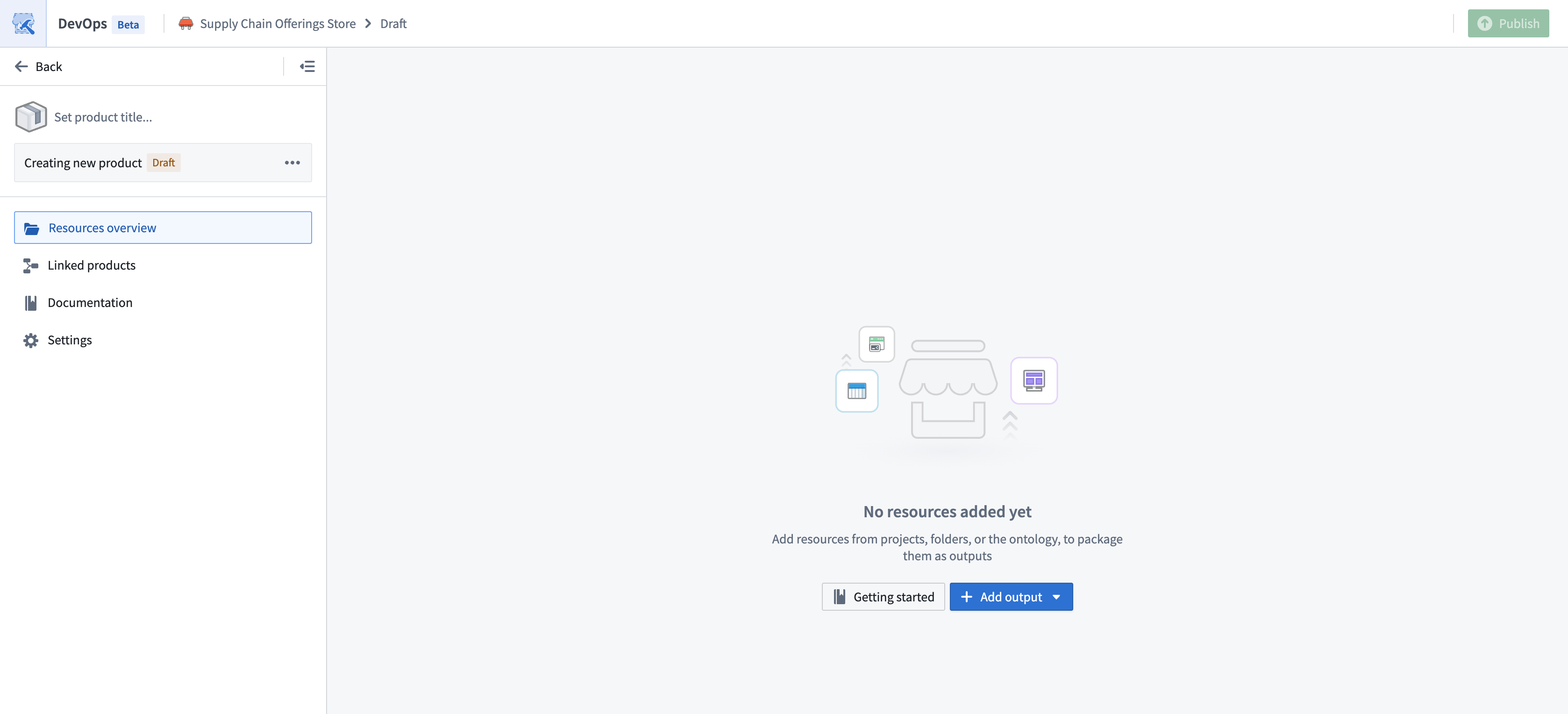
To start a new product draft that tracks a folder, select the Select source folder option in the DevOps landing page.
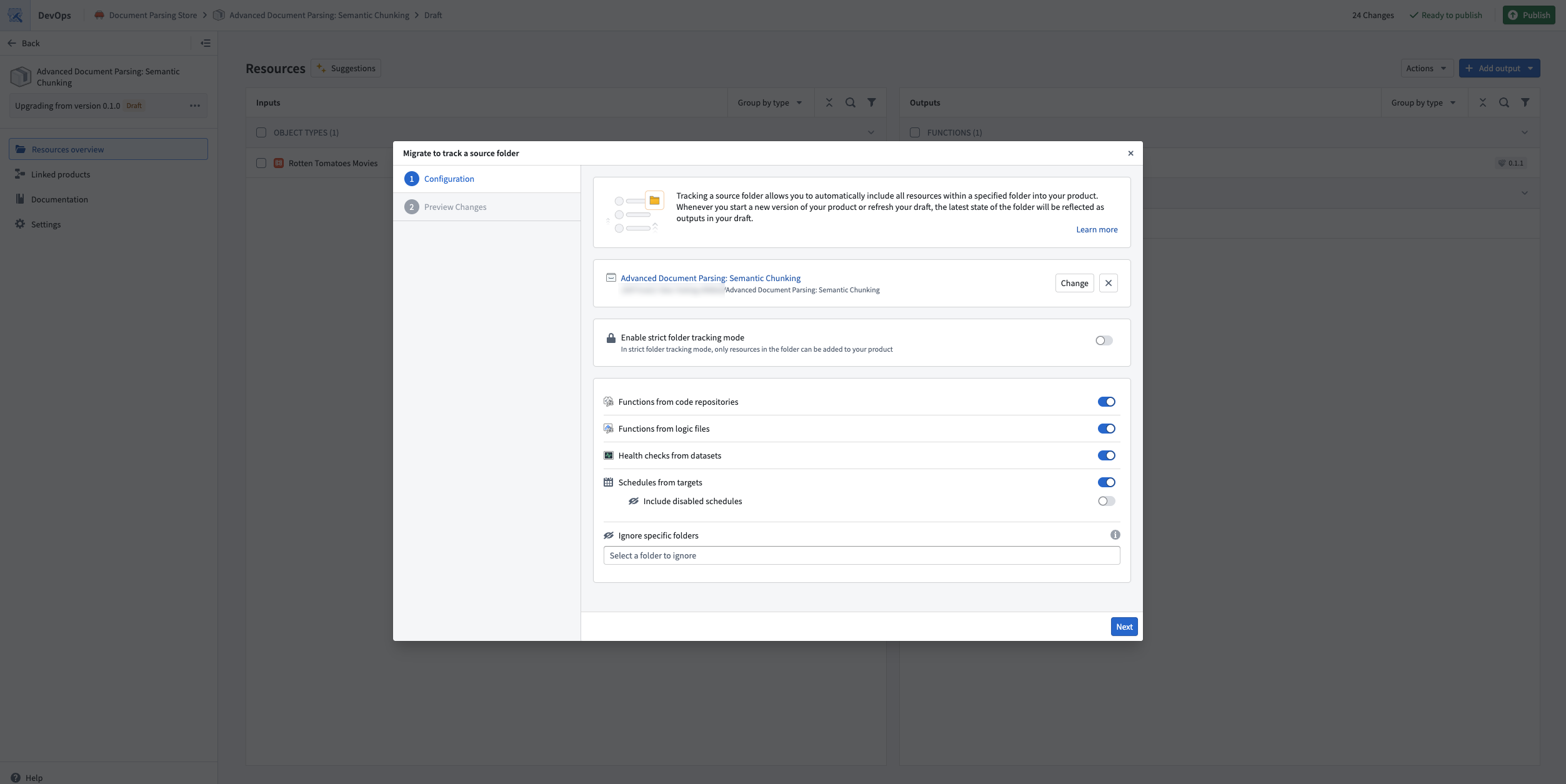
Select the folder that will be used as the source, and configure the initial settings that will be used to create the product.
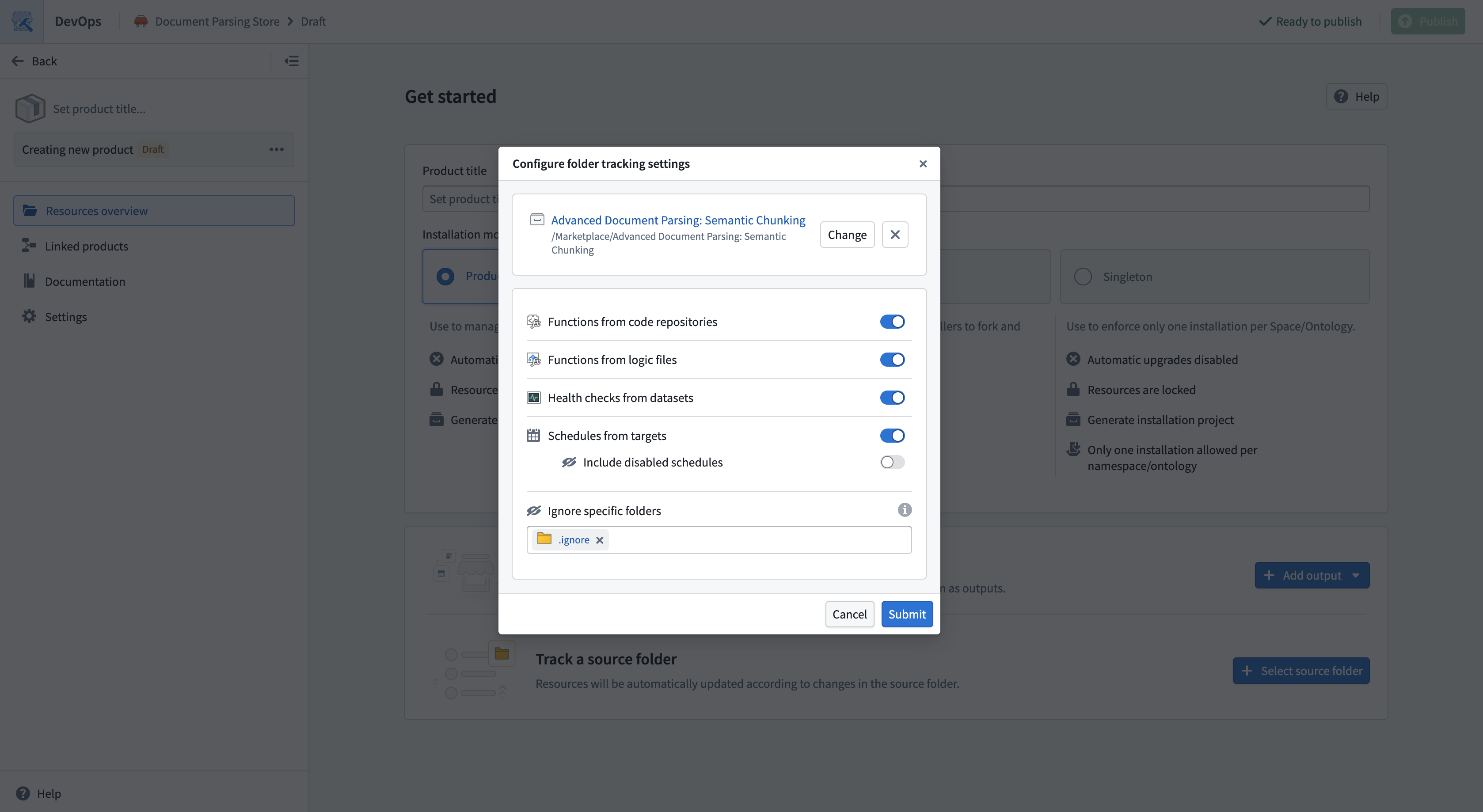
Discovery settings
By default, all files in the project will be included in your product. For files that are not present in the Compass filesystem, you can use settings to automatically track related resources. For example, you can track all health checks that exist on the datasets in the project.
You can edit the settings for tracking a folder at any time by selecting Edit in the folder tracking banner at the top of the page.
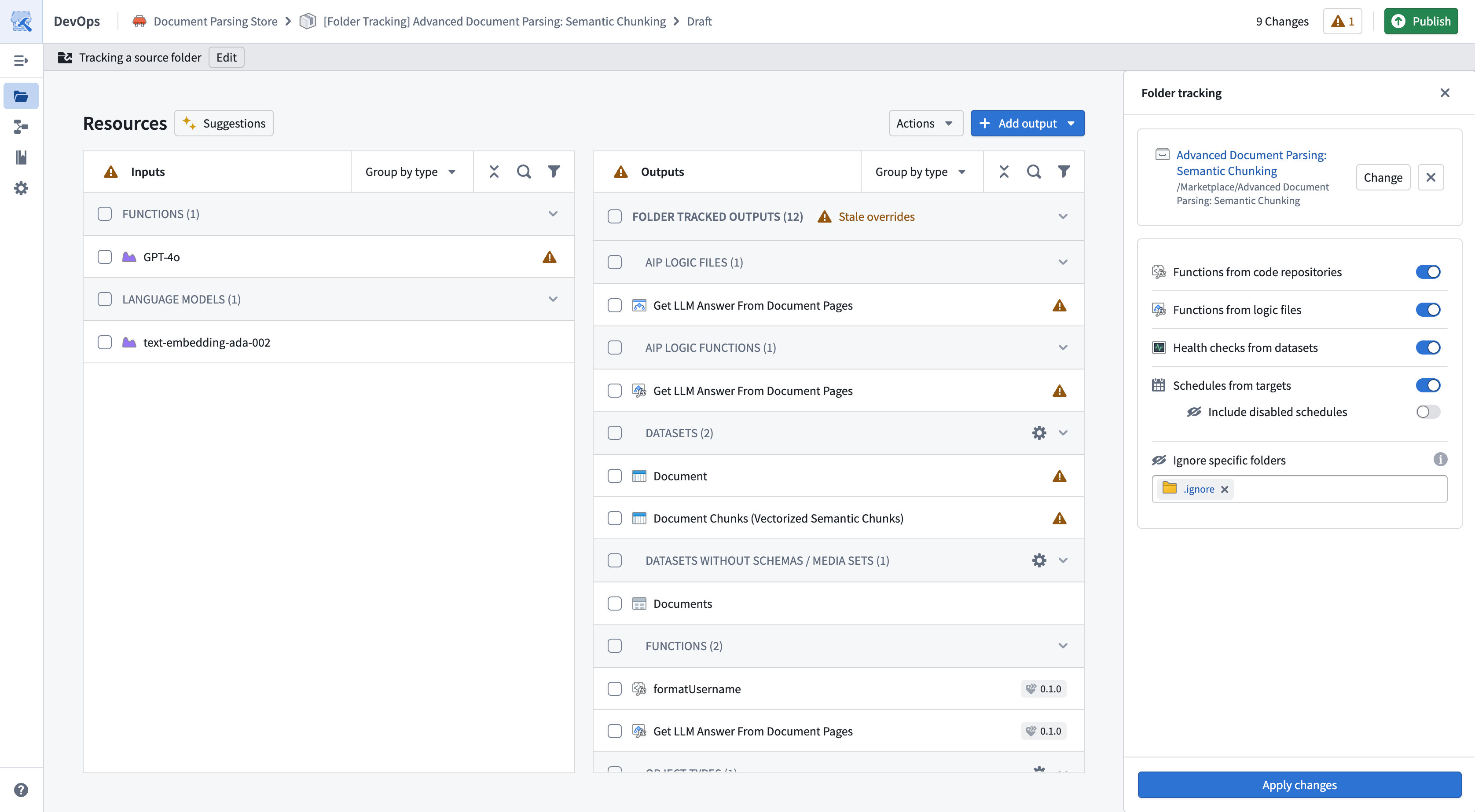
Ignoring resources
Not all resources in a folder may be ready for packaging. For example, you might have a sub-folder for experimental work that should not be included in your product.
To exclude resources:
- Create a sub-folder in the source project that will be ignored in the Compass filesystem.
- Move resources you want to ignore to this sub-folder.
- In your DevOps draft, add the sub-folder to the Ignore specific folders settings. When you ignore a folder, all its contents are also ignored.
Syncing with the source folder
As you make changes to your Compass project, you will want to update your product to reflect those changes.
Every time you Create new version of your published product, the latest changes from the project will be re-synced to reflect resources that have been removed or added to the product.
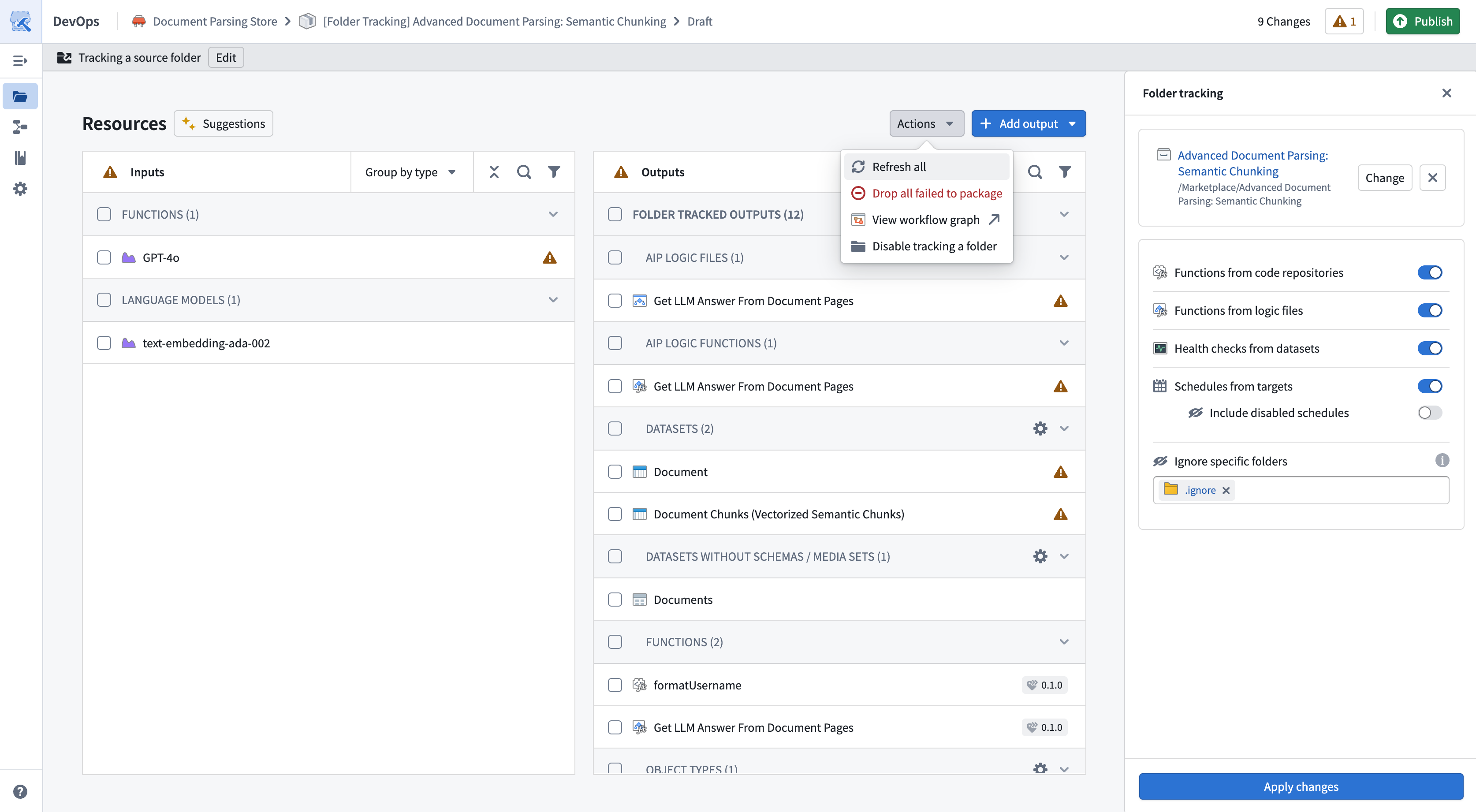
While inside the product draft, you can re-sync your product to the latest changes in your source folder using the Refresh all option.
Manual overrides
When tracking a source folder, you can combine both Manually added outputs and Folder tracked outputs. This allows you to combine automatic discovery with manual control.
You can manually add outputs using the Add output dropdown in the top right. This may be necessary to add resources that do not exist within the Compass filesystem, and that are not covered by discovery settings.
Override default configurations and versions
By default, when you track a folder each resource will be packaged with the default configuration, tracking the latest version of the resource. This allows you to automatically bring in the latest changes without any manual action.
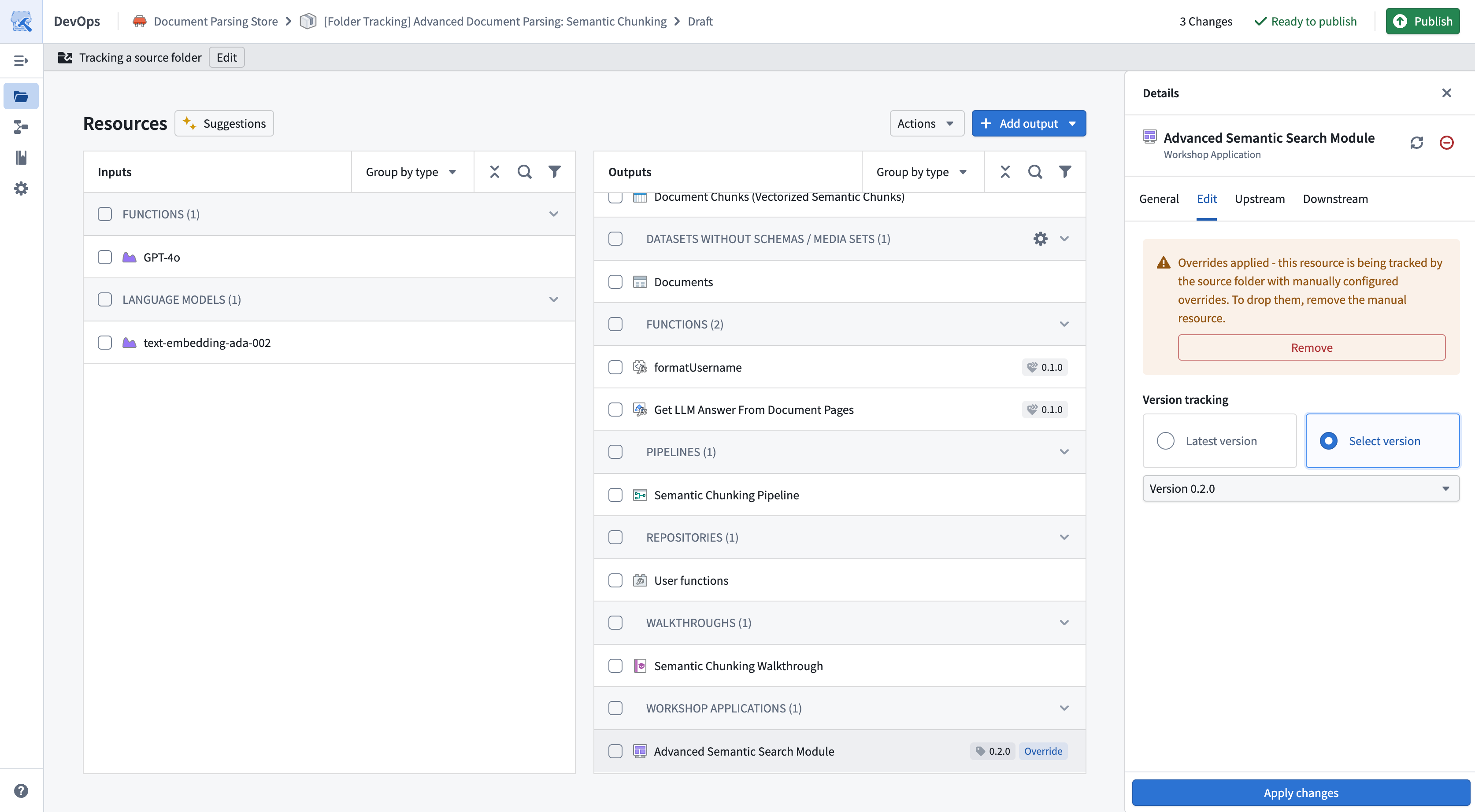
To override the default configuration or version, select the resource to open the Details side panel and navigate to the Edit tab.
Once you have submitted changes, the resource will show an Override tag. Overridden resources are treated as manually added outputs, and continue to persist in new versions. You can remove the override at any time, which will revert the output to track the source folder with defaults.
Stale overrides
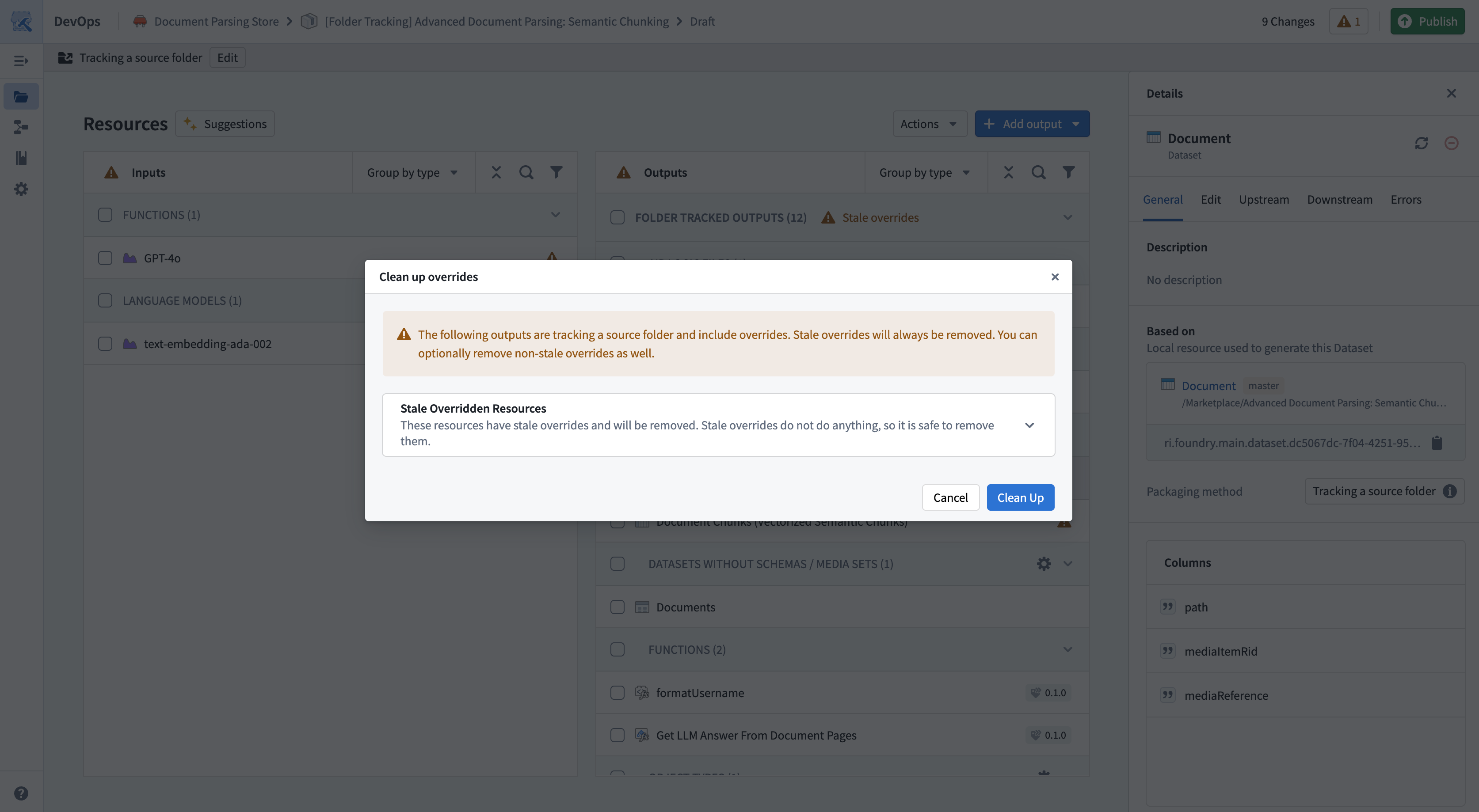
Over time your product may accumulate stale overrides. This can happen for the following reasons:
- There is a resource that was previously a Manually added output and is now tracked as part of your source folder. For example, an object type that was initially manually added, but since migrated to Project based permissions.
- There is a resource with an unnecessary override, because it matches the default configuration or latest version.
You can select the Stale overrides warning in the outputs row to clean them up.
Strict folder tracking
Strict folder tracking enforces that all resources in a product must exist within the source folder. When enabled, you cannot manually add outputs, and all resources must be discovered from the tracked folder. This ensures that your product contents exactly match your source folder.
Enable strict mode
You can enable strict folder tracking when creating a new product or on an existing folder-tracked product:
- New products: Select the Strict folder tracking option in the folder tracking configuration dialog when setting up your product.
- Existing products: Select Edit in the folder tracking banner, then enable the Strict folder tracking option.
Behavior in strict mode
When strict folder tracking is enabled:
- You cannot manually add outputs to your product. The Add output option is disabled.
- All resources must exist within the source folder. Resources that exist outside the tracked folder will cause validation errors.
Validation errors
If your product contains resources that exist outside the source folder, a validation error will be displayed when attempting to publish. To resolve this, you must either move the resources into the source folder or disable strict mode.
Disable strict mode
To disable strict folder tracking, select Edit in the folder tracking banner and disable the Strict folder tracking option. This will allow you to manually add outputs and override configurations as described in Manual overrides.
Migrating to track a source folder
If you have an existing product where resources were added manually, you can perform a one-time migration to configure your product to track a source folder, if your resources share a common Compass project.
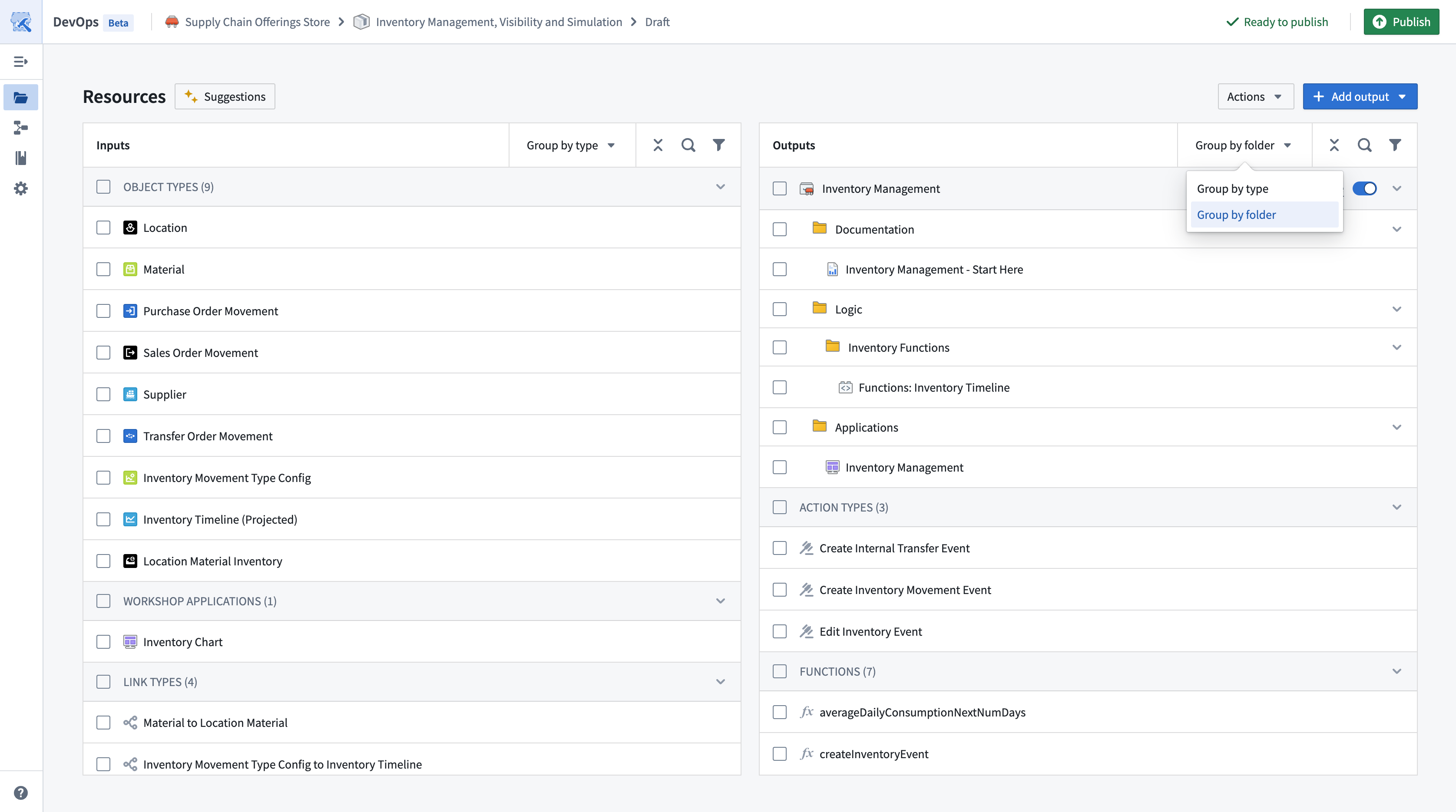
- Navigate to your product in the Group by Folder option. This will allow you to view the lowest common ancestor folder that your resources share.
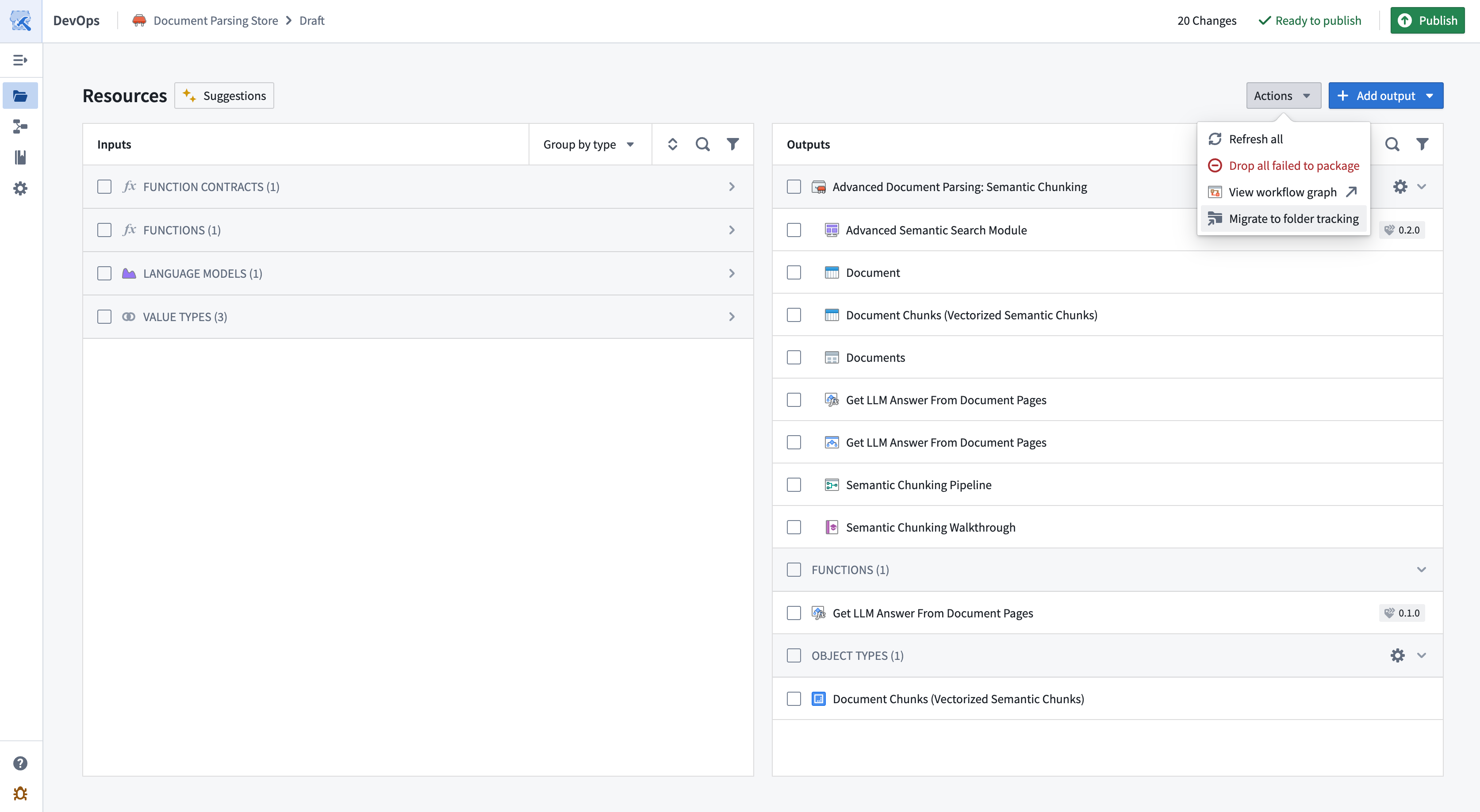
- Under Actions, choose the Migrate to folder option.
- Choose the source folder you want to start tracking.
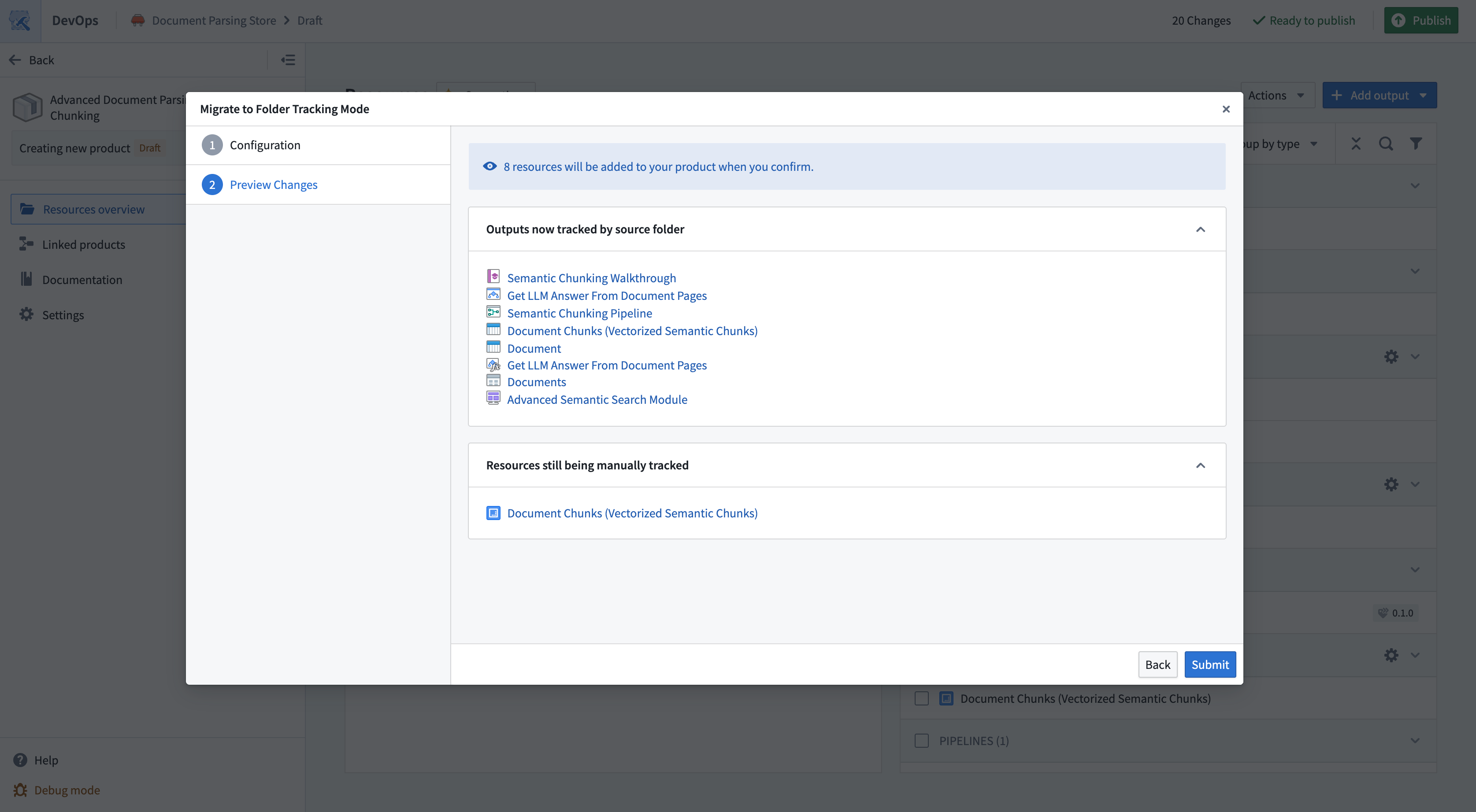
- The migration dialog will show you a preview of the migration. This preview includes resources that will now be tracked as part of the resource. It will also include resources that will continue to be manually tracked, as they are not within the Compass filesystem, for example, Ontology entities that have not been migrated to Project based permissions.
Migrating away from tracking a source folder
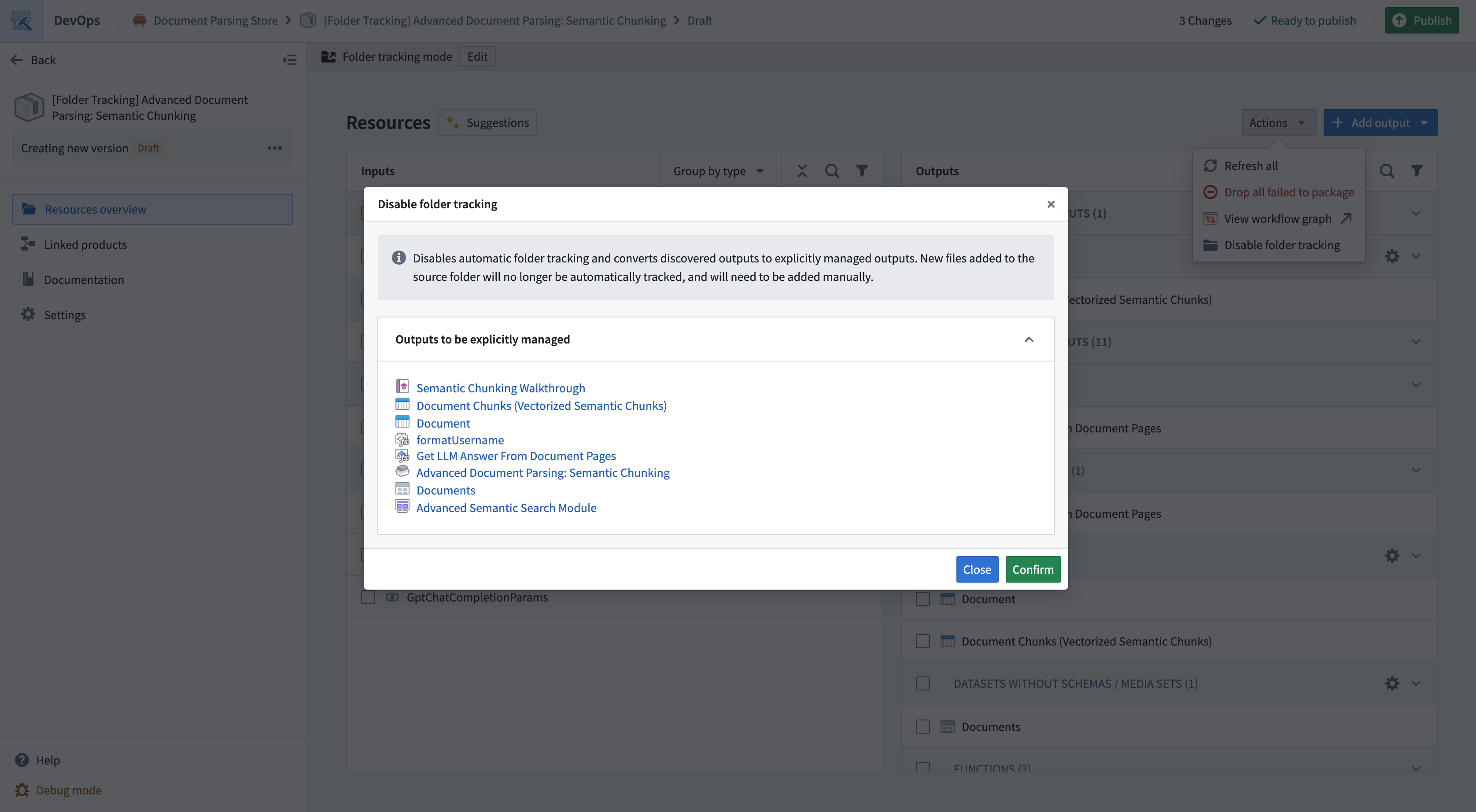
If you decide folder tracking is not suitable for your product, you can switch back to manual output management. Under Actions, choose the Disable folder tracking option. This will open a preview that allows you to view the list of manually added outputs that will replace the tracked source folder.
中文翻译
跟踪源文件夹
跟踪源文件夹允许您自动打包Compass项目或文件夹中的所有资源。您无需手动选择和维护单个资源,只需将某个文件夹指定为源文件夹即可。每次发布新版本时,DevOps会自动发现并包含该文件夹中的相关资源。
当您拥有一个定义良好的项目,且其中包含您想要纳入产品的所有输出时,此功能非常有用。
配置跟踪源文件夹的新产品
要创建跟踪文件夹的新产品草稿,请在DevOps起始页面选择选择源文件夹选项。
选择将用作源的文件夹,并配置用于创建产品的初始设置。
发现设置
默认情况下,项目中的所有文件都将包含在产品中。对于不在Compass文件系统中的文件,您可以使用设置来自动跟踪相关资源。例如,您可以跟踪项目中数据集上的所有健康检查。
您可以随时通过点击页面顶部文件夹跟踪横幅中的编辑来修改文件夹跟踪的设置。
忽略资源
文件夹中的资源可能并非都准备好进行打包。例如,您可能有一个用于实验工作的子文件夹,该文件夹不应包含在产品中。
要排除资源:
- 在源项目中创建一个子文件夹,该子文件夹将在Compass文件系统中被忽略。
- 将您想要忽略的资源移动到该子文件夹中。
- 在您的DevOps草稿中,将该子文件夹添加到忽略特定文件夹设置中。当您忽略一个文件夹时,其所有内容也将被忽略。
与源文件夹同步
当您对Compass项目进行更改时,您需要更新产品以反映这些更改。
每次为已发布的产品创建新版本时,项目中的最新更改将重新同步,以反映产品中已删除或添加的资源。
在产品草稿中,您可以使用全部刷新选项将产品重新同步到源文件夹中的最新更改。
手动覆盖
在跟踪源文件夹时,您可以同时使用手动添加的输出和文件夹跟踪的输出。这使您能够将自动发现与手动控制结合起来。
您可以使用右上角的添加输出下拉菜单手动添加输出。当需要添加不在Compass文件系统中且未被发现设置覆盖的资源时,可能需要这样做。
覆盖默认配置和版本
默认情况下,当您跟踪一个文件夹时,每个资源都将使用默认配置进行打包,并跟踪该资源的最新版本。这样您无需手动操作即可自动引入最新更改。
要覆盖默认配置或版本,请选择该资源以打开详细信息侧面板,然后导航到编辑选项卡。
提交更改后,该资源将显示覆盖标签。被覆盖的资源被视为手动添加的输出,并会在新版本中持续存在。您可以随时移除覆盖,这将使输出恢复为使用默认设置跟踪源文件夹。
过时的覆盖
随着时间的推移,您的产品可能会积累过时的覆盖。这可能是由以下原因造成的:
- 某个资源之前是手动添加的输出,但现在已作为源文件夹的一部分被跟踪。例如,最初手动添加的对象类型,但后来已迁移到基于项目的权限。
- 某个资源存在不必要的覆盖,因为它与默认配置或最新版本匹配。
您可以选择输出行中的过时覆盖警告来清理它们。
严格文件夹跟踪
严格文件夹跟踪强制要求产品中的所有资源都必须存在于源文件夹中。启用后,您无法手动添加输出,所有资源都必须从被跟踪的文件夹中发现。这确保了产品内容与源文件夹完全一致。
启用严格模式
您可以在创建新产品时或对现有文件夹跟踪产品启用严格文件夹跟踪:
- 新产品: 在设置产品时,在文件夹跟踪配置对话框中选择严格文件夹跟踪选项。
- 现有产品: 在文件夹跟踪横幅中选择编辑,然后启用严格文件夹跟踪选项。
严格模式下的行为
启用严格文件夹跟踪后:
- 您无法手动向产品添加输出。添加输出选项将被禁用。
- 所有资源都必须存在于源文件夹中。存在于被跟踪文件夹之外的资源将导致验证错误。
验证错误
如果您的产品包含存在于源文件夹之外的资源,则在尝试发布时会显示验证错误。要解决此问题,您必须将资源移入源文件夹,或禁用严格模式。
禁用严格模式
要禁用严格文件夹跟踪,请在文件夹跟踪横幅中选择编辑,然后禁用严格文件夹跟踪选项。这将允许您按照手动覆盖中的描述手动添加输出和覆盖配置。
迁移到跟踪源文件夹
如果您有一个现有产品,其中的资源是手动添加的,并且这些资源共享一个共同的Compass项目,您可以执行一次性迁移,将产品配置为跟踪源文件夹。
- 在按文件夹分组选项中导航到您的产品。这将允许您查看资源共享的最低公共祖先文件夹。
- 在操作下,选择迁移到文件夹选项。
- 选择您想要开始跟踪的源文件夹。
- 迁移对话框将向您显示迁移预览。此预览包括现在将作为资源一部分被跟踪的资源。它还将包括将继续手动跟踪的资源,因为这些资源不在Compass文件系统中,例如尚未迁移到基于项目的权限的本体论(Ontology)实体。
迁移离开跟踪源文件夹
如果您认为文件夹跟踪不适合您的产品,您可以切换回手动输出管理。在操作下,选择禁用文件夹跟踪选项。这将打开一个预览,允许您查看将替换被跟踪源文件夹的手动添加输出列表。