Manage products(管理产品)
After selecting a store, you will be able to see all products for which you have edit or view access. You can use the filter options located next to the search bar to view published products, product drafts, or both together.
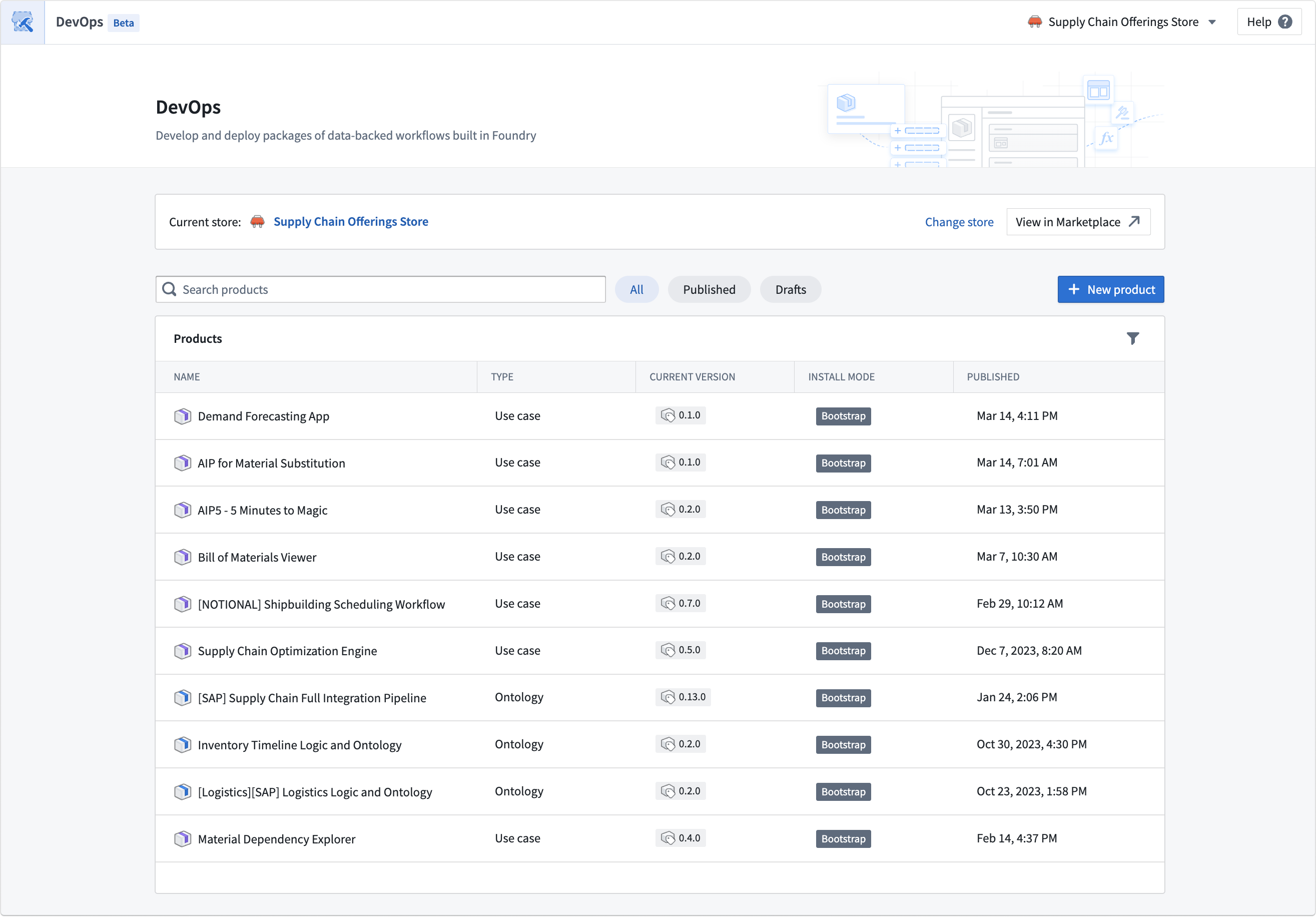
Select a product to see the product overview, from which you can start new versions, review previous versions, and view the latest product version for each stage of release. A preview of the latest version is shown on the product overview page.
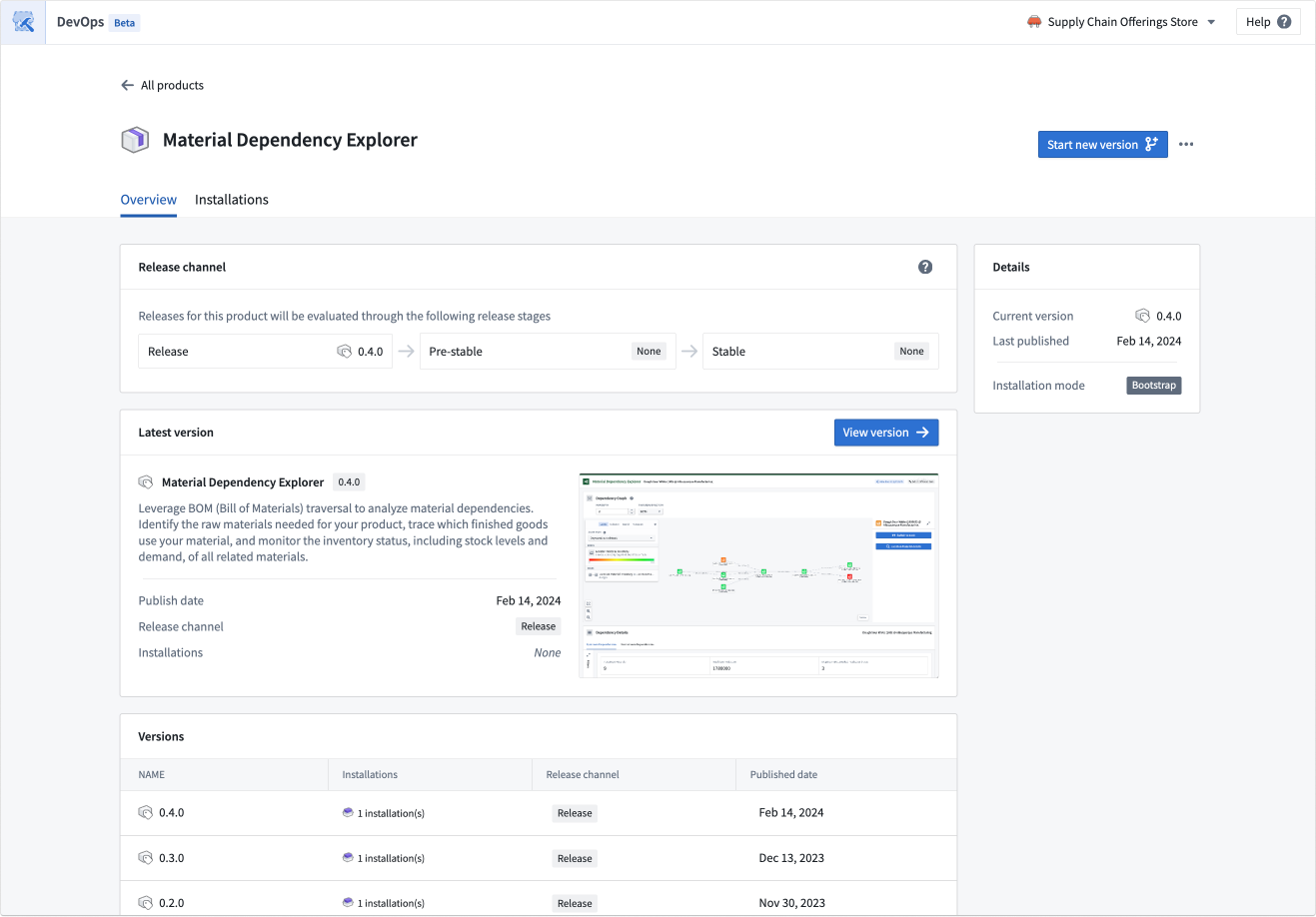
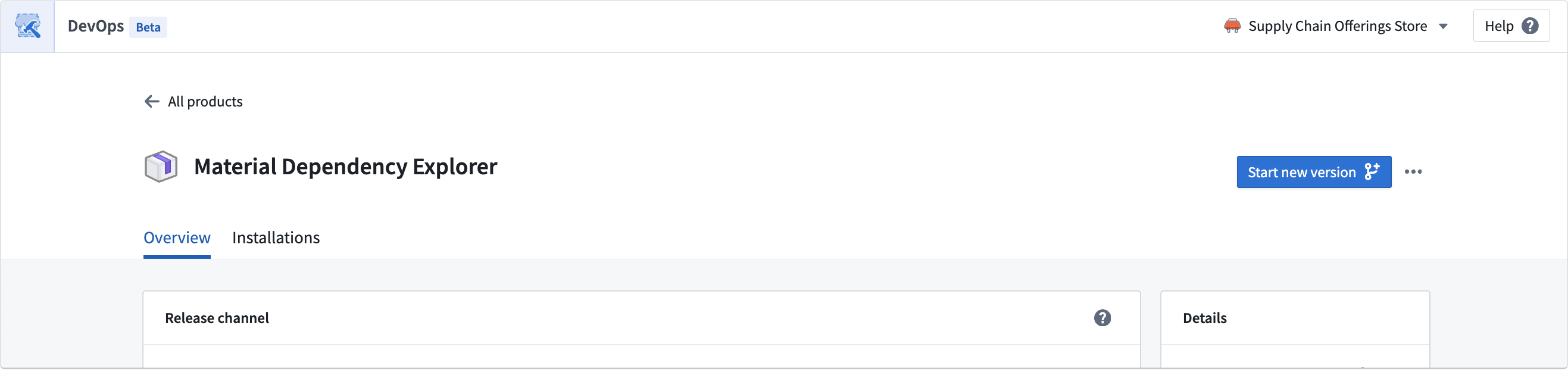
The product page displays all the product's versions in a table, where you can access each version's respective page.
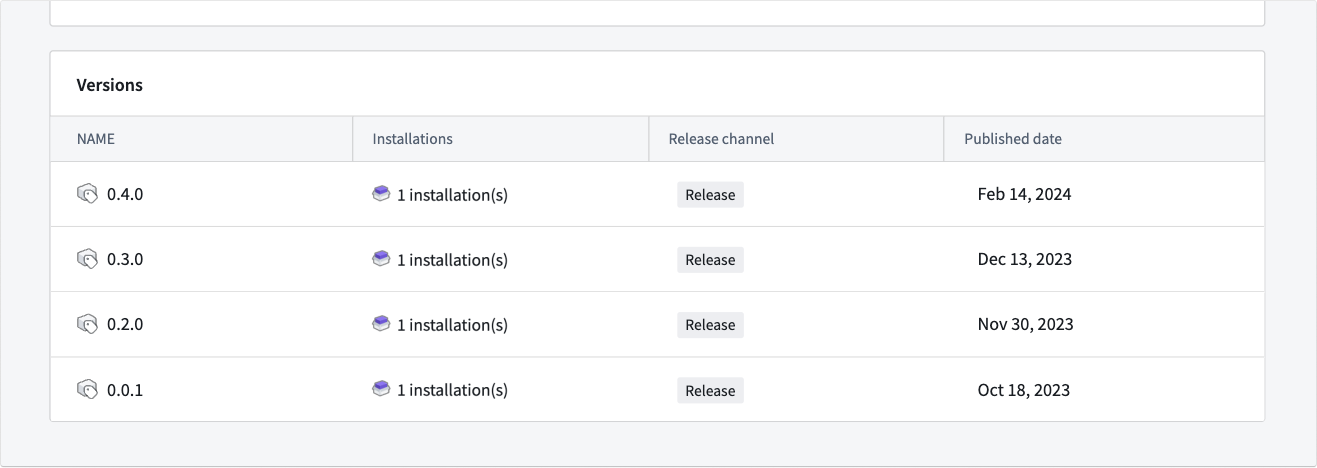
To create a new version, select Start new version from the top-right of the product page.
Product versions
Navigate to product version pages using the version table on the product page. The product version page displays content, inputs, local installations, and changelogs for each version.
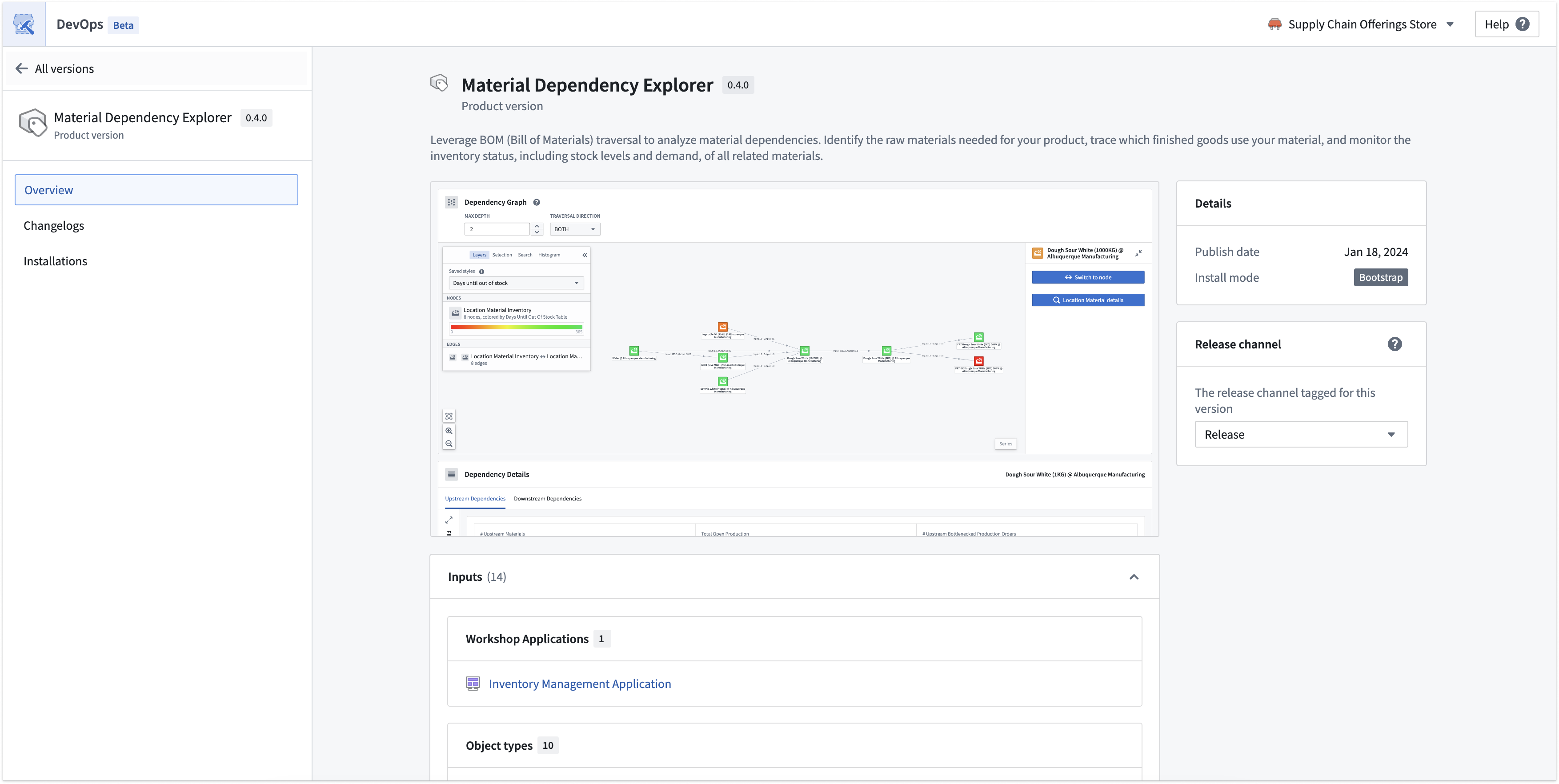
Release channels
You can tag product versions with release channels in order to push a specific version out to relevant installations tracking each channel. Each version can be tagged as Release, Pre-stable, or Stable. Each installation tracks a release channel, and by default, all installations are set to track the Release release channel. This setting can be found in the installation settings during install.
To tag a product version with a release channel, first navigate to a product version page, then choose the release channel with the selector on the right.
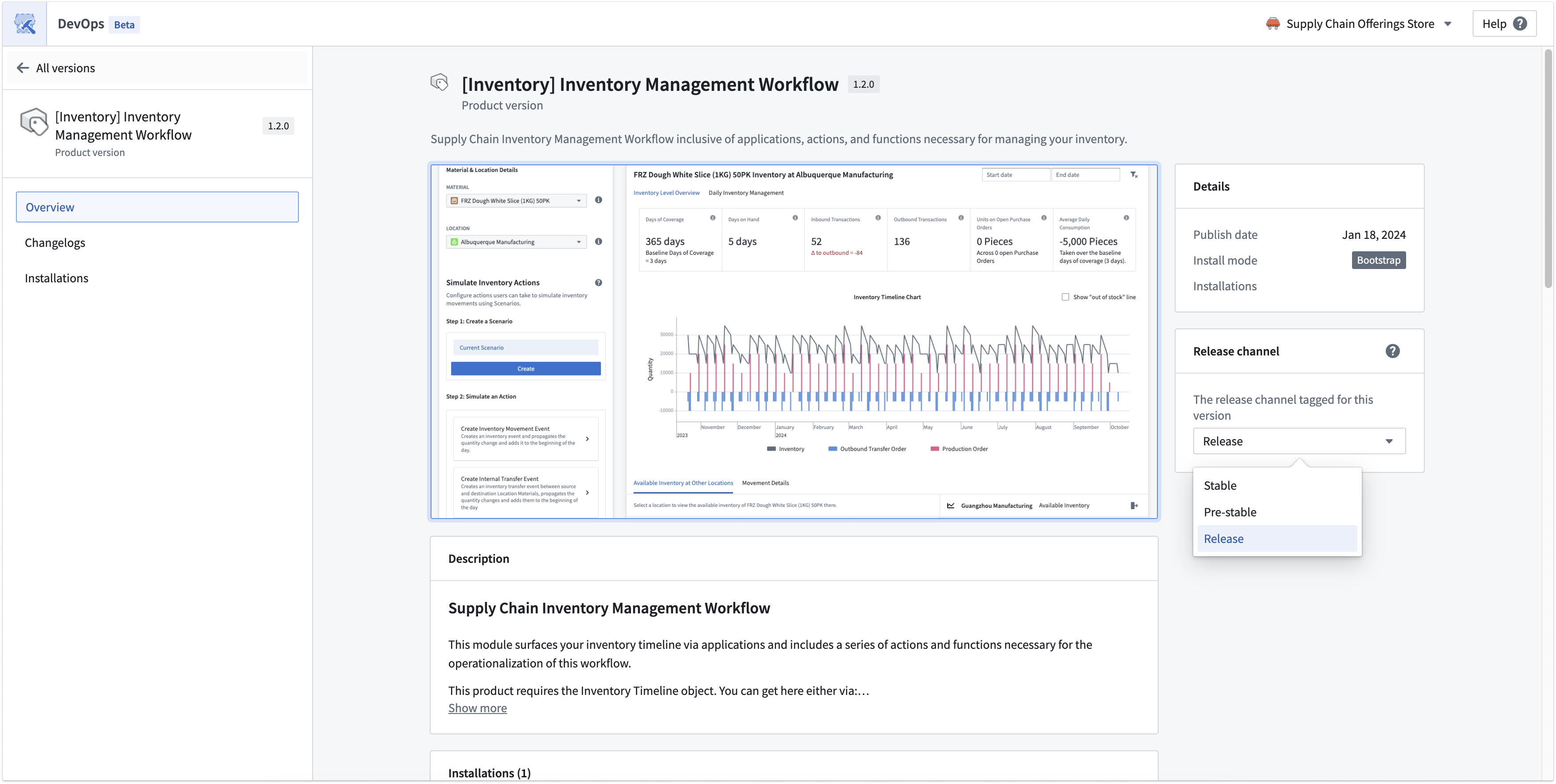
Release channels are hierarchical rather than mutually exclusive. Depending on the track:
- Release: The installation receives the versions tagged as Release, Pre-Stable, or Stable.
- Pre-Stable: The installation receives the versions tagged as Pre-Stable and Stable.
- Stable: The installation receives the versions tagged as Stable.
Configure a Maven coordinate
A Maven coordinate uniquely identifies a product for publishing to connected Apollo hubs. The coordinate is built from four parts:
| Part | Example | Configured in |
|---|---|---|
| Reverse URL | com.palantirfoundry.acme |
Derived from your enrollment URL (for example, acme.palantirfoundry.com) |
| Namespace identifier | my-namespace |
Space management extension in Control Panel |
| Store identifier | my-store |
Settings tab for the store in DevOps |
| Product identifier | my-product |
Product page in DevOps |
The reverse URL, namespace identifier, and store identifier combine to form the Maven group, while the product identifier serves as the artifact ID. For example, an enrollment at acme.palantirfoundry.com with namespace my-namespace, store my-store, and product my-product would produce the coordinate com.palantirfoundry.acme.my-namespace.my-store:my-product.
:::callout{theme="warning"} Do not include any sensitive, restricted, or highly restricted data in any part of the Maven coordinate. :::
Product deprecation
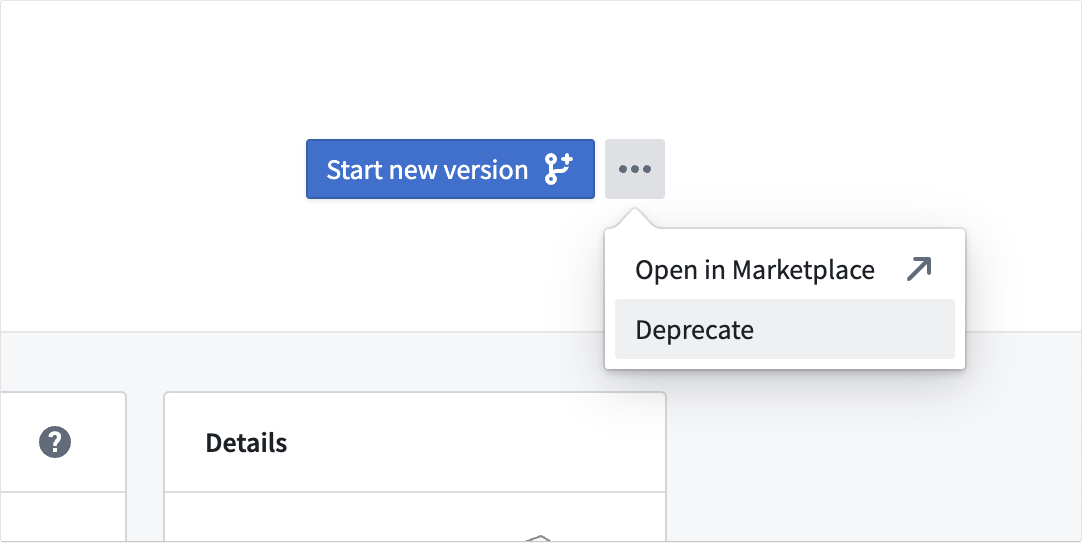
To deprecate a product, select Deprecate from the dropdown menu next to the Start new version button on the product overview page to hide the product from the storefront. Hard deletion of products is not currently supported.
Recall a product version
If a product version needs to be recalled, navigate to the product overview page and use the product version table to find the version you want to recall. Then, select Recall version.
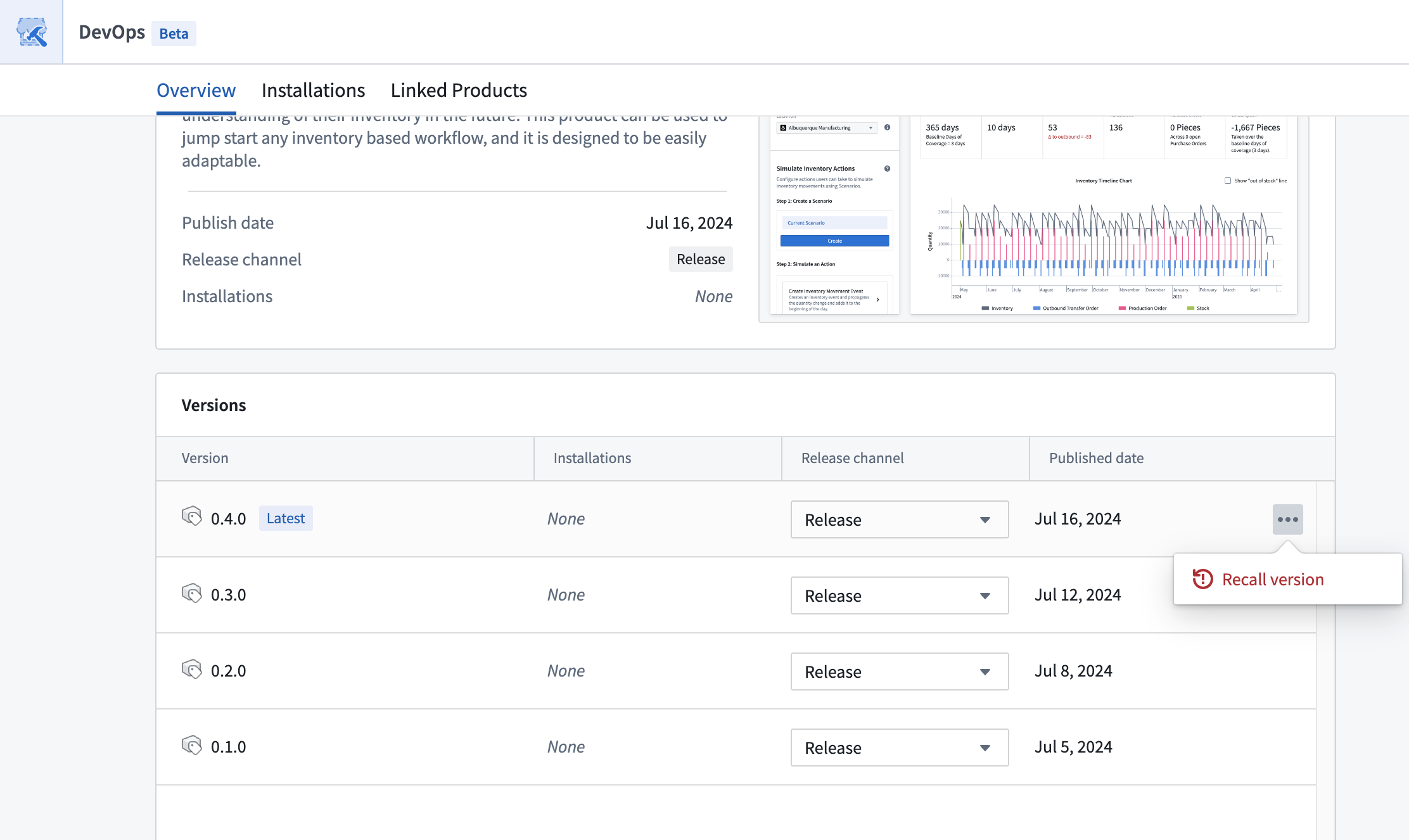
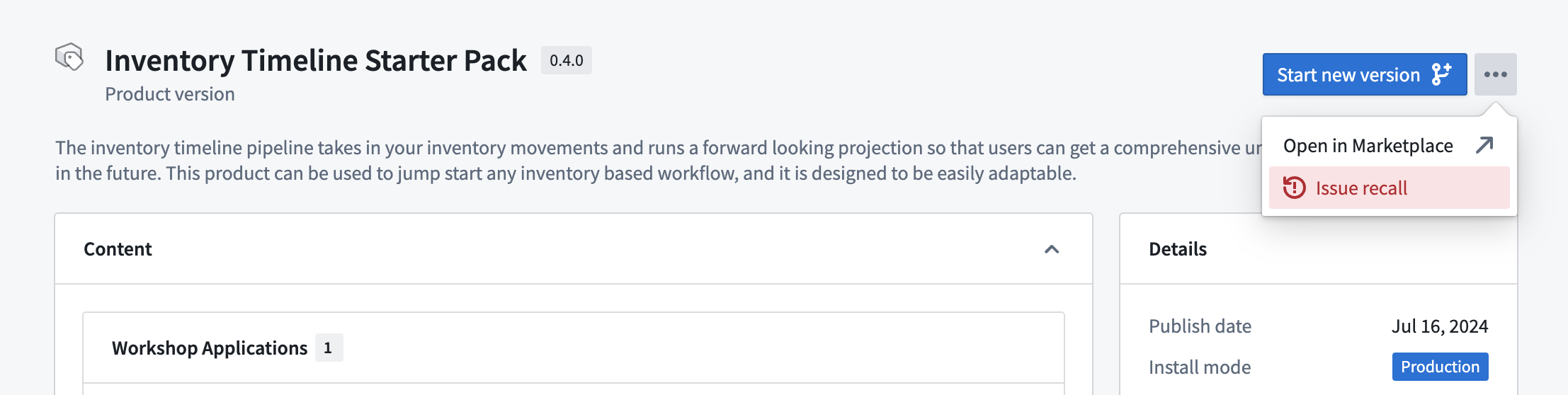
You can also recall a version directly from the product version page, as shown below.
For local Marketplace stores, this action will prevent new manual installations, upgrades, and automatic upgrades from installing the recalled version. If you have already installed a recalled version, existing installations will not be affected. Recalled versions will not be suggested to users and will have limited visibility in the Marketplace.
For remote Marketplace stores, recall actions are not supported. Recalls issued in the local Marketplace store will not be reflected in different enrollments that use the store as a remote store.
If a product with recall information is manually uploaded to another local Marketplace store, the recall information will be retained.
中文翻译
管理产品
选择商店后,您将能够查看所有拥有编辑或查看权限的产品。您可以使用搜索栏旁边的筛选选项来查看已发布的产品、产品草稿,或同时查看两者。
选择某个产品可查看产品概览,从中您可以启动新版本、查看历史版本,以及查看每个发布阶段的最新产品版本。产品概览页面会显示最新版本的预览。
产品页面以表格形式展示该产品的所有版本,您可以通过该表格访问每个版本的对应页面。
要创建新版本,请在产品页面右上角选择启动新版本。
产品版本
通过产品页面上的版本表格导航至产品版本页面。产品版本页面会显示每个版本的内容、输入、本地安装和变更日志。
发布渠道
您可以为产品版本打上发布渠道标签,以便将特定版本推送到跟踪各渠道的相关安装中。每个版本可标记为发布版、预稳定版或稳定版。每个安装都会跟踪一个发布渠道,默认情况下,所有安装都设置为跟踪发布版发布渠道。此设置可在安装过程中的安装设置中找到。
要为产品版本打上发布渠道标签,请先导航至产品版本页面,然后使用右侧的选择器选择发布渠道。
发布渠道是层级结构而非互斥关系。根据跟踪渠道的不同:
- 发布版: 安装会接收标记为发布版、预稳定版或稳定版的版本。
- 预稳定版: 安装会接收标记为预稳定版和稳定版的版本。
- 稳定版: 安装会接收标记为稳定版的版本。
配置 Maven 坐标
Maven 坐标唯一标识一个产品,用于发布到连接的 Apollo 中心。该坐标由四个部分组成:
| 部分 | 示例 | 配置位置 |
|---|---|---|
| 反向 URL | com.palantirfoundry.acme |
根据您的注册 URL 派生(例如 acme.palantirfoundry.com) |
| 命名空间标识符 | my-namespace |
控制面板中的空间管理扩展 |
| 商店标识符 | my-store |
DevOps 中商店的设置选项卡 |
| 产品标识符 | my-product |
DevOps 中的产品页面 |
反向 URL、命名空间标识符和商店标识符组合形成 Maven 组,而产品标识符则作为工件 ID。例如,注册于 acme.palantirfoundry.com、命名空间为 my-namespace、商店为 my-store、产品为 my-product 的配置将生成坐标 com.palantirfoundry.acme.my-namespace.my-store:my-product。
:::callout{theme="warning"} 请勿在 Maven 坐标的任何部分包含任何敏感、受限或高度受限的数据。 :::
产品弃用
要弃用某个产品,请在产品概览页面上从启动新版本按钮旁边的下拉菜单中选择弃用,以将该产品从商店前台隐藏。目前不支持硬删除产品。
召回产品版本
如果需要召回某个产品版本,请导航至产品概览页面,使用产品版本表格找到要召回的版本,然后选择召回版本。
您也可以直接从产品版本页面召回版本,如下所示。
对于本地 Marketplace 商店,此操作将阻止新的手动安装、升级和自动升级安装被召回的版本。如果您已安装被召回的版本,现有安装不会受到影响。被召回的版本不会向用户推荐,并且在 Marketplace 中的可见性将受到限制。
对于远程 Marketplace 商店,不支持召回操作。在本地 Marketplace 商店中发出的召回不会反映在使用该商店作为远程商店的其他注册中。
如果包含召回信息的产品被手动上传到另一个本地 Marketplace 商店,召回信息将得以保留。