Active Preview(主动预览 (Active Preview))
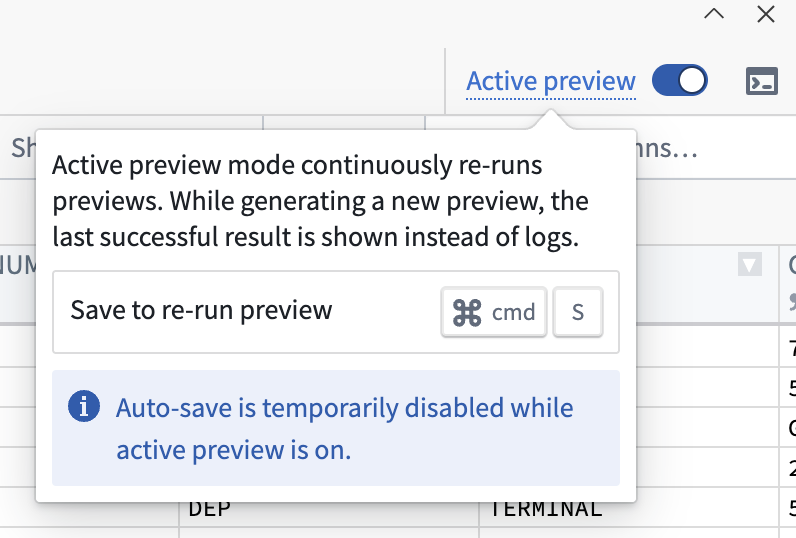
Active Preview is a feature designed to provide you with fast feedback as you develop your transforms. With Active Preview, your preview updates automatically every time you save changes, allowing you to immediately view results or errors as you write or update code.
When Active Preview is enabled, your transform is re-executed on every save. This means the following:
- The preview panel always shows up-to-date intermediate results or errors.
- You do not need to manually trigger a new preview after each change.
- Extensive caching is used to speed up the process, so you get results faster compared to a normal preview.
Caching in Active Preview
Active Preview uses caching to make previews faster. This includes:
- Project resources and context
- Information about your project and its dependencies
- Network checks and setup file contents
- In-memory caching for datasets
When to use Active Preview
Active Preview is ideal for the following workflows:
- Preview with expensive code-defined filters: The result of the code-defined filters is cached, resulting in faster subsequent previews.
- Iterative development: Impact assessment while frequently changing transform logic.
- Transforms with slow preview setup: Reduce waiting time with extra caching.
:::callout{theme="neutral"} Since Active Preview stores filtered input datasets in memory, it is best suited for datasets small enough to fit into available memory. :::
Enable Active Preview
Toggle on Active Preview once you initiate a preview.

Once enabled, any preview you start in the same workspace will launch as an Active Preview session. To exit Active Preview, either Abort the current session or toggle off the option.
Best practices and considerations
- Do not change the name or location of your transform while Active Preview is running: If you need to edit these configurations, abort the Active Preview session, make your changes, then restart.
- Caching and project updates: Sometimes, changes elsewhere in your project (like references) may not appear immediately in your preview due to extensive caching. If you need to view updates right away, stop and restart Active Preview.
- Auto-save is automatically disabled: While Active Preview is running, previews only trigger when you manually save your work. Auto-save will be re-enabled when you exit Active Preview.
- Be mindful of external requests: Every save triggers a new preview. If your transform makes requests to external APIs, those endpoints may see more traffic than usual.
- Only run one preview at a time: While Active Preview is running, you cannot start another preview or use the debug mode. Disable Active Preview first if you need to switch.
- Editing
setup.py: If you need to change yoursetup.pyfile, do so outside of Active Preview sessions for best results.
中文翻译
主动预览 (Active Preview)
主动预览是一项旨在为开发转换逻辑 (transform) 时提供快速反馈的功能。启用主动预览后,每次保存更改时预览都会自动更新,让您在编写或更新代码时能立即查看结果或错误。
启用主动预览后,每次保存都会重新执行转换逻辑。这意味着:
- 预览面板始终显示最新的中间结果或错误。
- 每次更改后无需手动触发新的预览。
- 利用大量缓存加速处理过程,相比普通预览能更快获得结果。
主动预览中的缓存机制
主动预览通过缓存来加快预览速度,包括:
- 项目资源与上下文
- 项目及其依赖项的相关信息
- 网络检查与配置文件内容
- 数据集的内存缓存
何时使用主动预览
主动预览适用于以下工作流程:
- 使用高开销代码定义过滤器的预览: 代码定义过滤器的结果会被缓存,从而加快后续预览速度。
- 迭代开发: 在频繁更改转换逻辑时进行影响评估。
- 预览设置缓慢的转换逻辑: 通过额外缓存减少等待时间。
:::callout{theme="neutral"} 由于主动预览会将过滤后的输入数据集存储在内存中,因此最适合处理能够适配可用内存的小型数据集。 :::
启用主动预览
启动预览后,切换开启 主动预览 (Active Preview)。
启用后,在同一工作区中启动的任何预览都将以主动预览会话形式运行。要退出主动预览,请中止 (Abort) 当前会话或关闭该选项。
最佳实践与注意事项
- 主动预览运行时请勿更改转换逻辑的名称或位置: 如需编辑这些配置,请先中止主动预览会话,完成更改后再重新启动。
- 缓存与项目更新: 由于大量缓存,项目中其他位置的更改(如引用)可能不会立即在预览中显示。如需立即查看更新,请停止并重新启动主动预览。
- 自动保存会自动禁用: 主动预览运行时,仅当您手动保存工作时才会触发预览。退出主动预览后,自动保存将重新启用。
- 注意外部请求: 每次保存都会触发新的预览。如果您的转换逻辑向外部 API 发送请求,这些端点可能会看到比平时更多的流量。
- 每次仅运行一个预览: 主动预览运行时,您无法启动其他预览或使用调试模式。如需切换,请先禁用主动预览。
- 编辑
setup.py: 如需更改setup.py文件,请在主动预览会话之外进行,以获得最佳效果。