Debug the Python environment(调试 Python 环境)
The environment debugger helps with understanding dependencies in Python transforms environments in VS Code. When a dependency installation fails, the environment debugger displays conflicts and reveals the underlying issue, allowing the conflict to be actioned immediately. In cases where an installation succeeds, the environment debugger allows users to understand the transitive dependencies that brought a given package into the environment.
Visualize conflicts
When encountering a solve conflict, the Resolve in environment debugger option will be displayed. This is triggered by the following:
- Installing a dependency using the library panel.
- Starting a preview in an unsolvable environment.
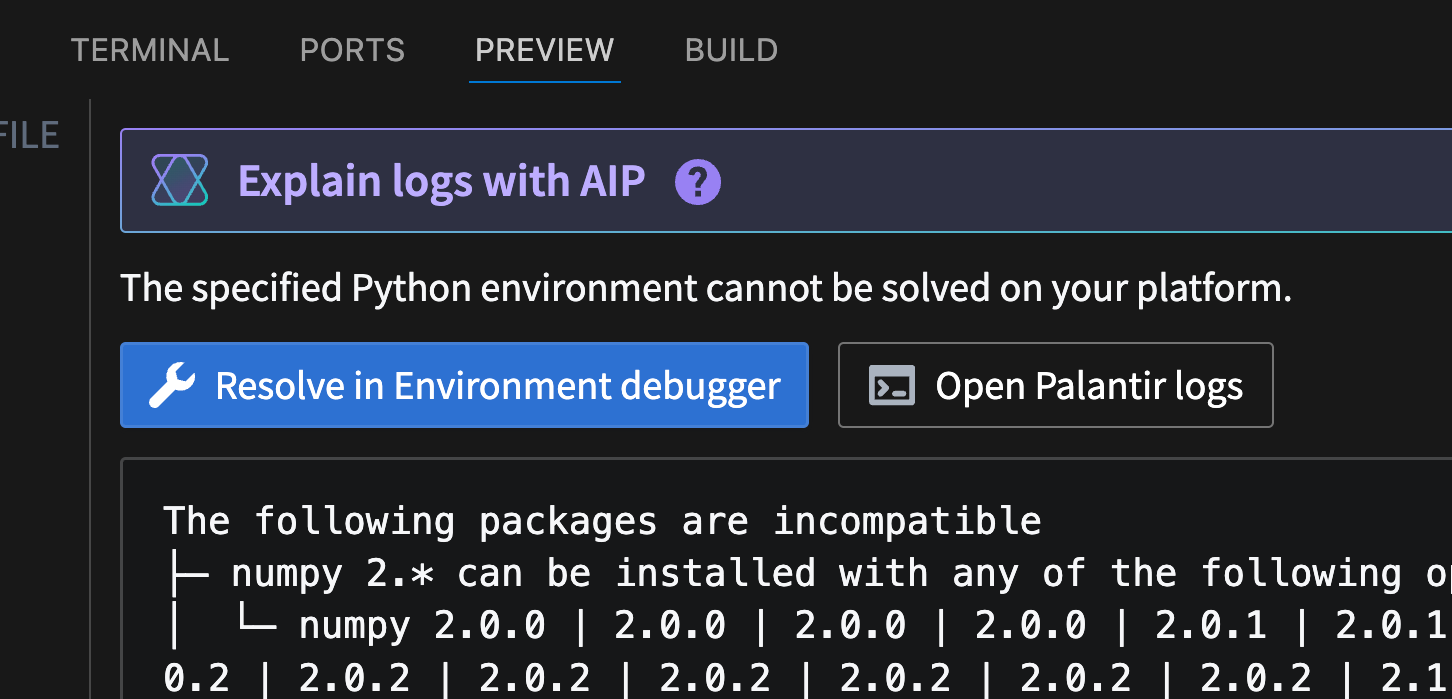
Selecting this option opens a new tab in VS Code with an interactive graph visualizing environment conflicts.
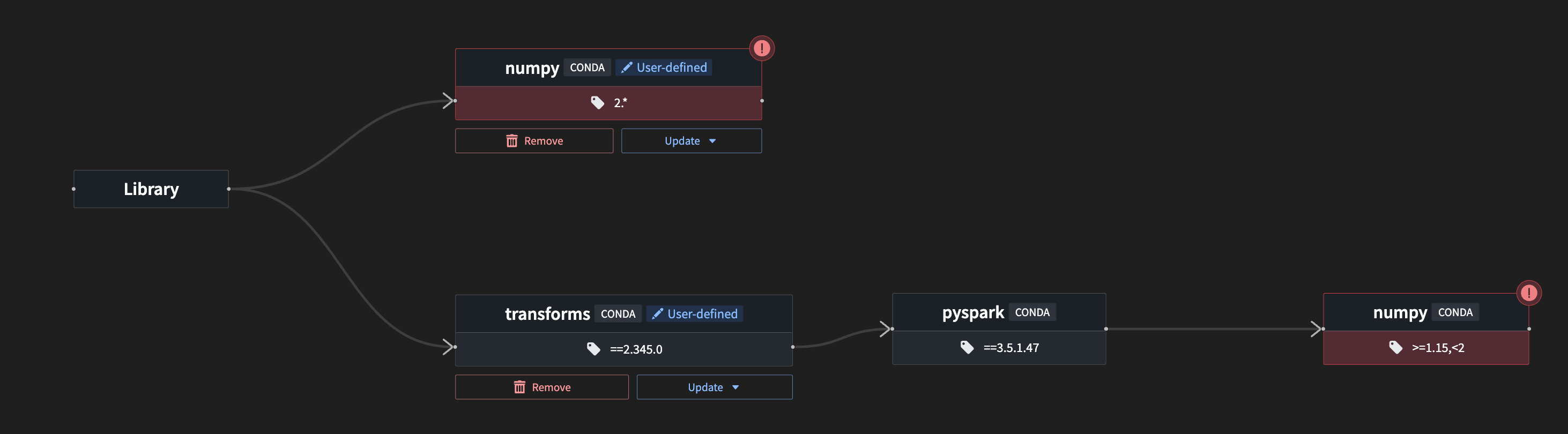
Note the following graph features:
- The graph's root is the user library.
- Nodes in the graph correspond to package version requirements. Requirements are connected to the requirements that they depend on.
- Conflicting package requirements are highlighted in red. These emphasize the conflict's underlying problem.
- Packages coming from your library are marked as
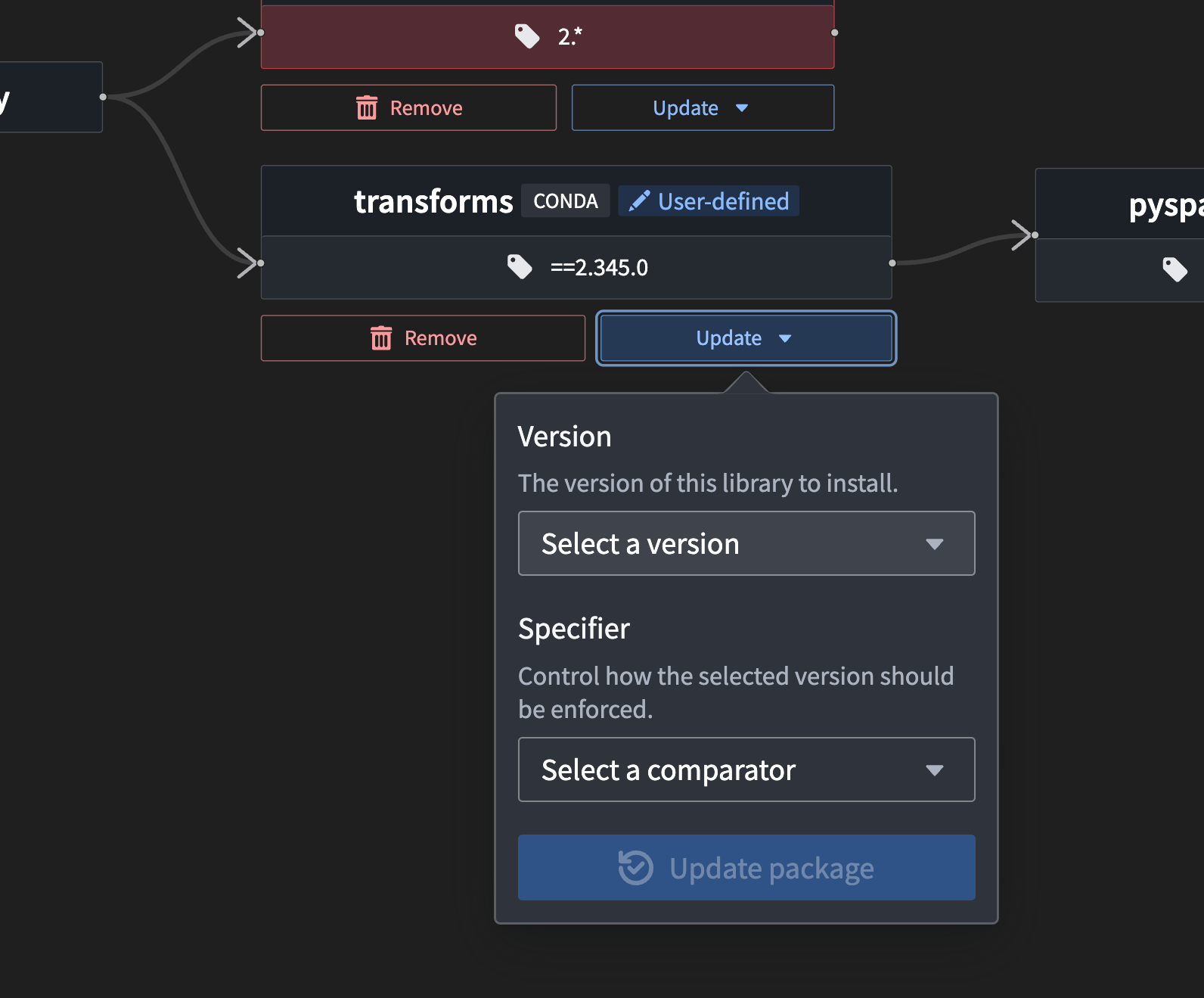
user-defined. User-defined packages will display available actions; removing a dependency or changing the version. This enables conflict resolution without leaving the environment debugger.
Visualize dependency origin
When a Python environment is resolved successfully, the environment debugger can help trace package origins and understand which dependencies caused them to be added to the environment. To view packages, open the hawk lockfile in the .maestro folder. You can then select a package, which will display the View [package name] in environment debugger option above the package. Select this option to open the environment debugger.

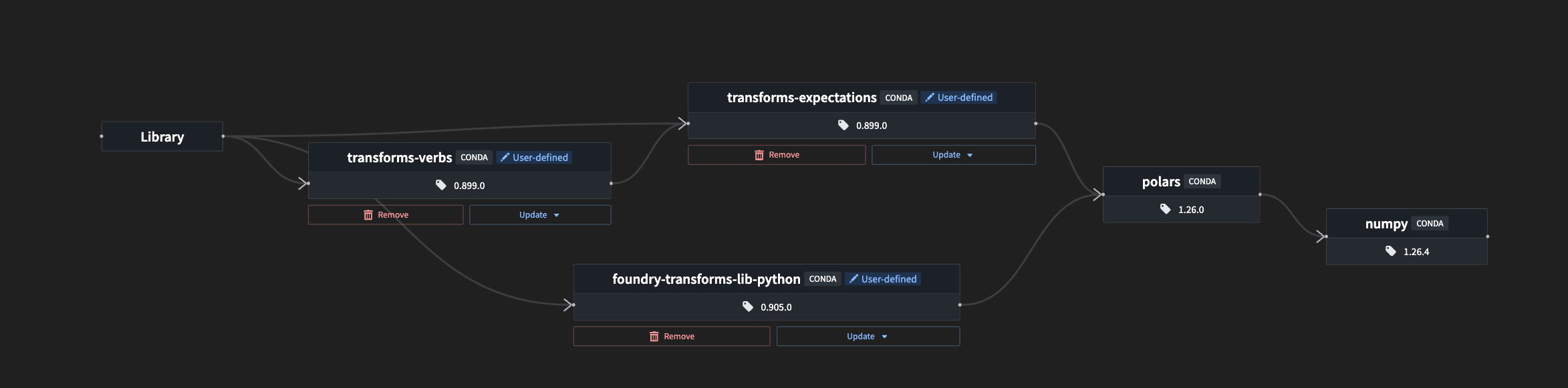
The environment debugger contains a graph displaying the relationship between the selected package and the packages that import it. All transitive paths that cause this package to be required are shown, with their respective versions. This helps trace the origin of the selected package, enabling users to visualize the imports that depend on the selected package and version.
中文翻译
调试 Python 环境
环境调试器(Environment Debugger)可帮助理解 VS Code 中 Python 转换(Transform)环境的依赖关系。当依赖安装失败时,环境调试器会显示冲突并揭示根本问题,从而能够立即处理冲突。在安装成功的情况下,环境调试器允许用户了解将特定包引入环境的传递依赖关系。
可视化冲突
当遇到解析冲突时,将显示在环境调试器中解析(Resolve in environment debugger)选项。该选项由以下操作触发:
- 使用库面板安装依赖。
- 在无法解析的环境中启动预览。
选择此选项将在 VS Code 中打开一个新标签页,其中包含可视化环境冲突的交互式图表。
请注意以下图表特征:
- 图表的根节点是用户库(User Library)。
- 图表中的节点对应包版本要求。要求节点与其依赖的其他要求节点相连。
- 冲突的包要求以红色高亮显示。这些红色节点强调了冲突的根本问题。
- 来自您库的包标记为
用户定义(user-defined)。用户定义的包会显示可用操作:移除依赖或更改版本。这使得无需离开环境调试器即可解决冲突。
可视化依赖来源
当 Python 环境成功解析后,环境调试器可以帮助追踪包的来源,并了解哪些依赖导致它们被添加到环境中。要查看包,请打开.maestro文件夹中的hawk锁定文件(Lockfile)。然后您可以选择一个包,该包上方会显示在环境调试器中查看包名选项。选择此选项即可打开环境调试器。
环境调试器包含一个图表,显示所选包与导入该包的其他包之间的关系。所有导致该包被需要的传递路径都会显示,并附带各自的版本信息。这有助于追踪所选包的来源,使用户能够可视化依赖于该包及其版本的导入关系。