Palantir extension for Visual Studio Code(Palantir Visual Studio Code 扩展)
:::callout{theme="neutral"} VS Code workspaces and the Palantir extension for Visual Studio Code are not affiliated with or endorsed by Microsoft. :::
The Palantir extension for Visual Studio Code aims to integrate many features you see in Code Repositories with VS Code. The extension's features are currently focused on Python transforms.
Access the extension
The Palantir extension for VS Code can be used either as part of a VS Code workspace in the Palantir platform, or as a downloadable extension for your local version of VS Code.
For guidance on choosing between these options, review our documentation on choosing between local development and VS Code workspaces.
From a VS Code workspace
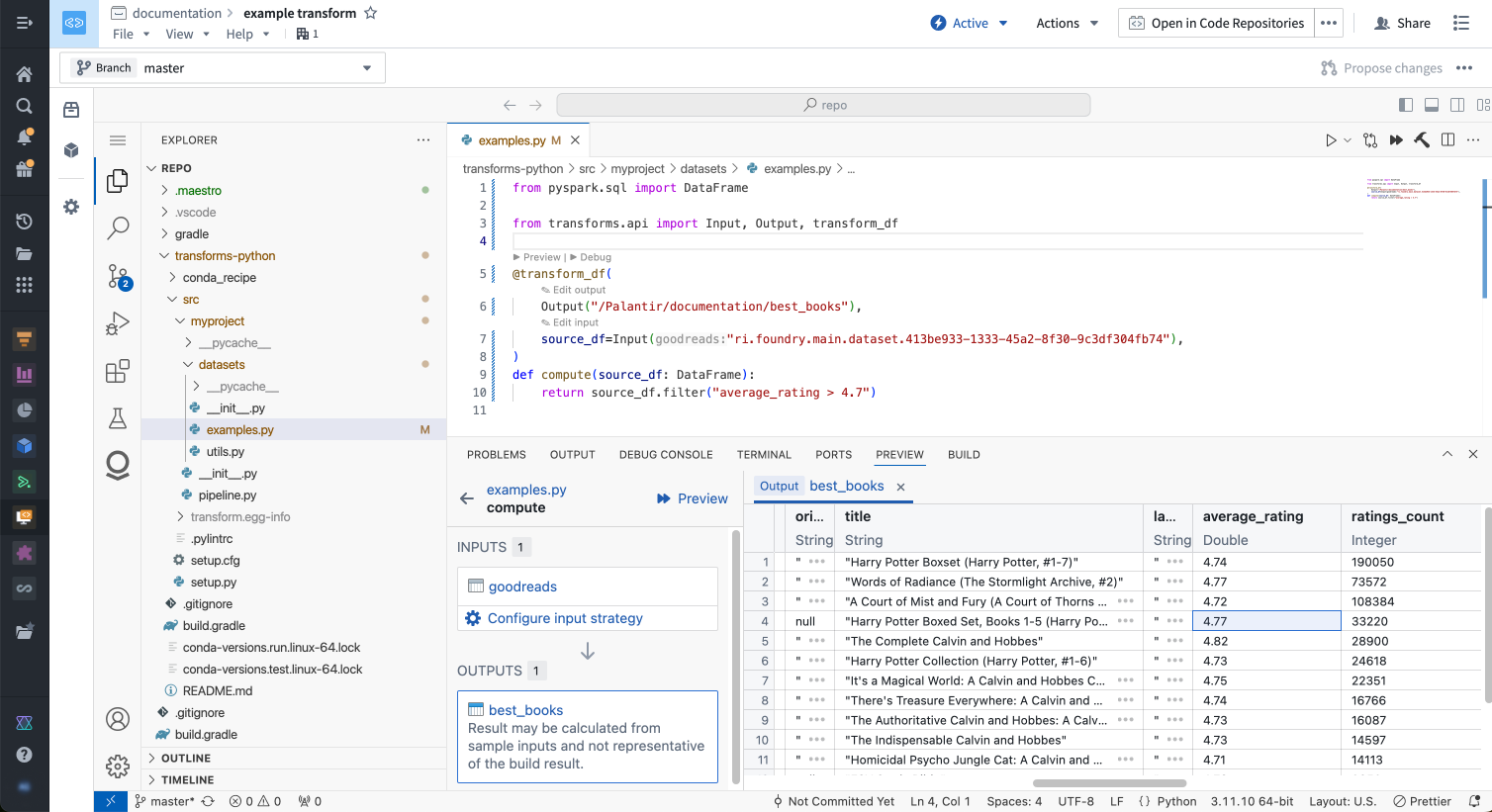
The Palantir extension is available by default in VS Code workspaces. Review the VS Code workspaces documentation to learn more.
Locally
The Palantir extension can also be used in local development, and is the endorsed method for local development for Python transforms.
:::callout{theme="warning"}
You may not have the required permissions to work with the extension locally even if it is available on your enrollment. A platform administrator is required to enable local extension use, and they can grant user access through Control Panel settings.
In order to preview locally, users must have the above Control Panel settings enabled and have downloader permissions on the preview inputs, which are s3-proxy:datasets-read and api:datasets-read. These are privileged operations that allow users to download entire datasets locally, and should be granted with care. In cases where users cannot be granted this permission, the VS Code developer experience is still available through Code Workspaces, which guarantee strict data control.
:::
1. Download the Palantir extension
- Navigate to VS Code Workspaces, then select the settings icon next to the VS Code button in the upper right corner of your screen.
- Choose Local VS Code from the dropdown menu to change the default button language.
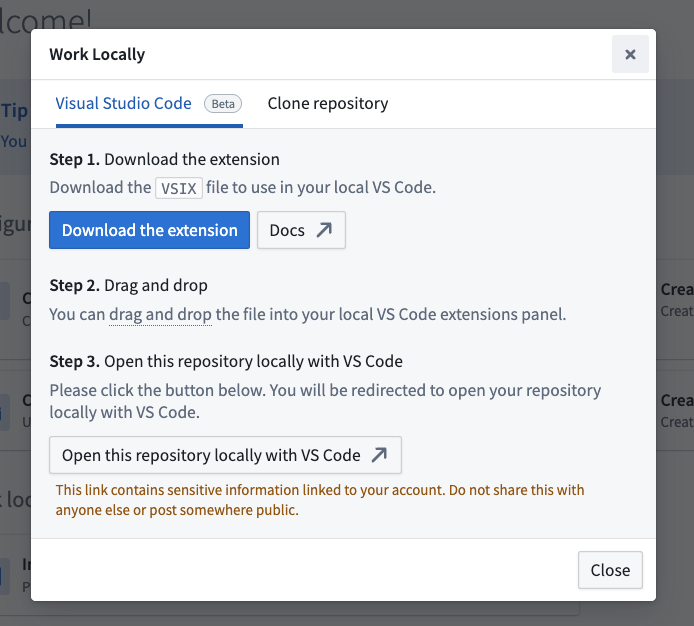
- Select the updated Local VS Code button and follow the instructions in the pop-up window to download the extension.
Note: You only need to download the extension if you have never installed it before.

:::callout{theme="warning"} The Palantir extension for Visual Studio code is not yet available in the Visual Studio Code Marketplace. You can only download the extension from the Palantir platform at this time. :::
2. Install the extension
Install the extension by performing one of the following steps:
- Drag and drop the VSIX file into the VS Code's Extensions sidebar, or
- Use the command
Extensions: Install from VSIX...
3. Open a Palantir code repository
Once the Palantir extension is installed, you should see the Palantir logo on the VS Code sidebar. From the sidebar, you can do one of the following:
- Open a Palantir repository that you already cloned, or
- Select Clone a repository to clone a new Palantir repository. To do this, open a Palantir repository and copy the git remote URL link.
Review other features of the Palantir extension for Visual Studio Code.
中文翻译
Palantir Visual Studio Code 扩展
:::callout{theme="neutral"} VS Code 工作区和 Palantir Visual Studio Code 扩展与微软公司无关联,也未获得其认可。 :::
Palantir Visual Studio Code 扩展旨在将 Code Repositories(代码仓库) 中的众多功能集成到 VS Code 中。该扩展目前主要专注于 Python transforms(转换)功能。
获取扩展
Palantir VS Code 扩展既可作为 Palantir 平台中 VS Code 工作区的一部分使用,也可作为可下载扩展用于本地版本的 VS Code。
关于如何选择这两种方案,请参阅我们的文档:在本地开发与 VS Code 工作区之间选择。
通过 VS Code 工作区使用
Palantir 扩展默认在 VS Code 工作区中可用。请查阅 VS Code 工作区文档 了解更多信息。
本地使用
Palantir 扩展也可用于本地开发,并且是 Python transforms(转换)本地开发的首选方法。
:::callout{theme="warning"}
即使该扩展在您的组织中可用,您也可能没有在本地使用它的必要权限。需要平台管理员启用本地扩展使用,他们可以通过 Control Panel(控制面板)设置 授予用户访问权限。
要在本地预览,用户必须启用上述 Control Panel(控制面板)设置,并拥有预览输入的 downloader 权限,即 s3-proxy:datasets-read 和 api:datasets-read。这些是特权操作,允许用户将整个数据集下载到本地,应谨慎授予。在无法授予用户此权限的情况下,仍可通过 Code Workspaces(代码工作区) 获得 VS Code 开发者体验,该方案可保证严格的数据控制。
:::
1. 下载 Palantir 扩展
- 导航至 VS Code Workspaces(VS Code 工作区),然后选择屏幕右上角 VS Code 按钮旁边的设置图标。
- 从下拉菜单中选择 Local VS Code(本地 VS Code) 以更改默认按钮语言。
- 点击更新后的 Local VS Code(本地 VS Code) 按钮,并按照弹出窗口中的说明下载扩展。
注意:如果您之前从未安装过该扩展,则只需下载一次。
:::callout{theme="warning"} Palantir Visual Studio Code 扩展目前尚未在 Visual Studio Code Marketplace 上架。您目前只能从 Palantir 平台下载该扩展。 :::
2. 安装扩展
通过执行以下任一操作来安装扩展:
- 将 VSIX 文件拖放到 VS Code 的 Extensions(扩展) 侧边栏中,或
- 使用命令
Extensions: Install from VSIX...(扩展:从 VSIX 安装...)
3. 打开 Palantir 代码仓库
安装 Palantir 扩展后,您应该会在 VS Code 侧边栏中看到 Palantir 徽标。在侧边栏中,您可以执行以下任一操作:
- 打开您已克隆的 Palantir 仓库,或
- 选择 Clone a repository(克隆仓库) 来克隆一个新的 Palantir 仓库。为此,请打开一个 Palantir 仓库并复制 git 远程 URL 链接。