Build transforms(构建转换)
The Palantir extension for Visual Studio Code lets you build directly from your editor. After previewing and debugging your transforms, building is the final step before running your code on the full production dataset. Builds execute on the Palantir platform, and you can monitor their progress, view logs, and manage them without leaving your VS Code environment.
Build vs. preview
- Use preview when developing and testing transform logic with sample data or specific data subsets.
- Use build when you are ready to run your transform on the full production dataset and commit changes to your pipeline.
How to initiate a build
You can start a build within your local VS Code environment or an in-platform VS Code workspace in three ways:
Method 1: Command Palette
Select the Palantir: Build on Foundry option from the Command Palette.

Method 2: Palantir side panel
Select the Build icon from the Palantir side panel.
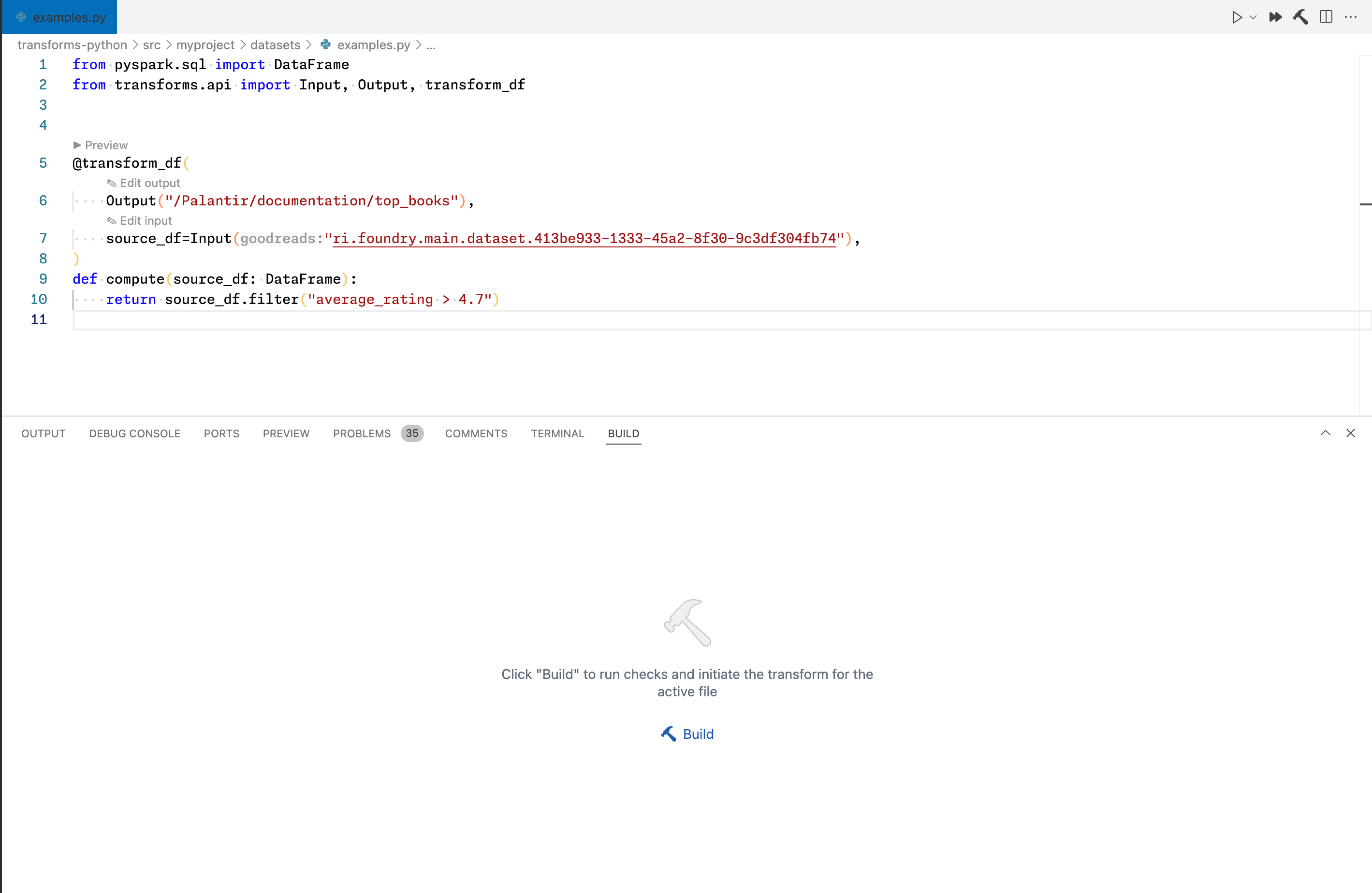
Method 3: Build panel
Open the Build panel and select the Build option.
Understand the build process
You can initiate a build for any file from an open Palantir repository.
:::callout{theme="neutral"} To build a file, you must push all local changes back to the remote repository. :::
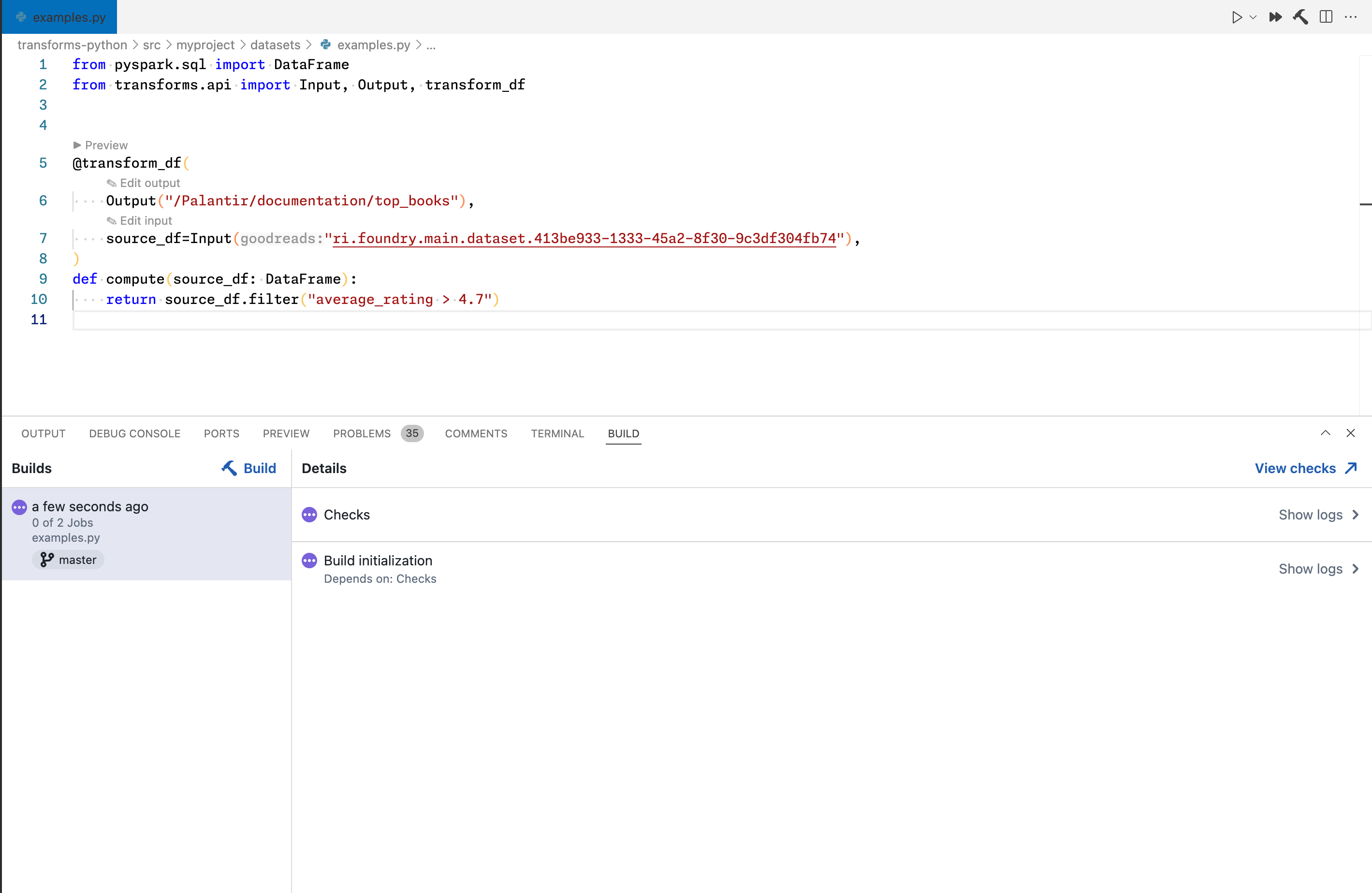
Once your local branch is synchronized with the remote branch, the build process will execute necessary checks and run the build on the Palantir platform with the full dataset.
Navigate to the Builds panel to view build status, access logs, and monitor your output datasets.
中文翻译
构建转换
Palantir Visual Studio Code 扩展让您可以直接在编辑器中进行构建。在预览和调试转换后,构建是在完整生产数据集上运行代码之前的最后一步。构建在 Palantir 平台上执行,您无需离开 VS Code 环境即可监控进度、查看日志并进行管理。
构建与预览
- 使用预览:在开发阶段,使用样本数据或特定数据子集测试转换逻辑。
- 使用构建:当您准备在完整生产数据集上运行转换并将更改提交到流水线时。
如何启动构建
您可以通过以下三种方式在本地 VS Code 环境或平台内的 VS Code 工作区中启动构建:
方法一:命令面板
从命令面板中选择 Palantir: Build on Foundry 选项。
方法二:Palantir 侧面板
从 Palantir 侧面板中选择 Build 图标。
方法三:构建面板
打开 Build 面板并选择 Build 选项。
了解构建过程
您可以为打开的 Palantir 仓库中的任何文件启动构建。
:::callout{theme="neutral"} 要构建文件,您必须先将所有本地更改推送到远程仓库。 :::
一旦本地分支与远程分支同步,构建过程将执行必要的检查,并在 Palantir 平台上使用完整数据集运行构建。
导航到 Builds 面板以查看构建状态、访问日志并监控输出数据集。