Preview transforms(预览转换(Preview transforms))
The Palantir extension for Visual Studio Code allows you to preview Python transforms directly from your local Visual Studio Code environment or a VS Code Workspace in the Palantir platform. Preview is a live testing environment where you can see how your data transformations work before committing them to a full build. Write code and quickly preview changes to receive immediate feedback without builds or context switching.
Why use preview?
Faster development cycles: Get immediate feedback on your transforms without running full pipeline builds. This can save considerable time when iterating on complex logic.
Catch errors early: Spot data issues, logic errors, or unexpected results before they make it into production pipelines.
Experiment confidently: Try different approaches and see results instantly, which is especially useful when exploring data or testing edge cases.
Debug efficiently: See exactly what your code does with real data, making it easier to identify and fix issues.
Preview your transforms
Start a preview
You can start a preview in any of the following four ways, depending on what works best for your workflow:
- Command Palette: Select the Run preview command from the Command Palette.

-
Palantir side panel: Select the Preview icon from the toolbar.
-
CodeLens: Select Preview above the transform.
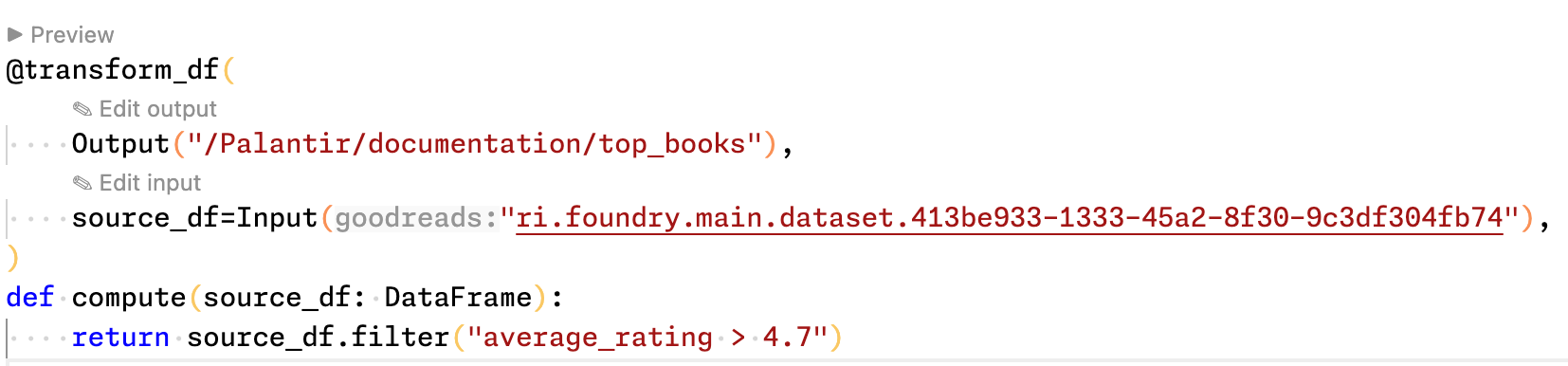
- Preview panel: Open the Preview panel and select the Preview button next to the code filename.
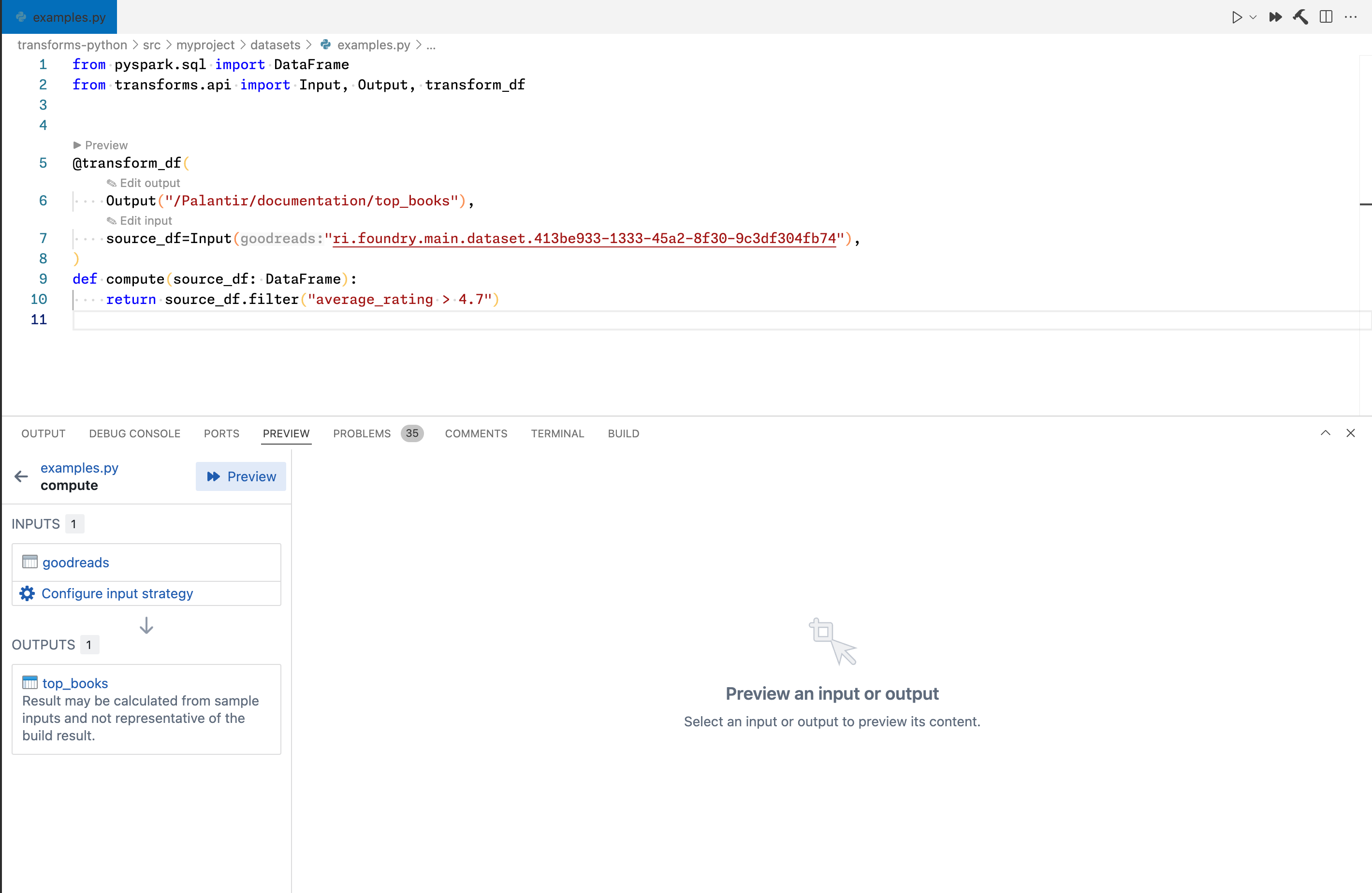
The extension will execute your transform using real data from your inputs and show you the results immediately.
Choose your data loading strategy
One of the most powerful features in transform preview is controlling how data is loaded. This is particularly important because different transformations have different data needs; a simple aggregation works well with any sample, while testing a narrow filter or complex join requires more careful data selection.
To choose a strategy, select Configure input strategy in the Preview panel and choose between Sampled, Full dataset, or Code-defined filters options.
Sampled (default)
The sampled strategy loads a random sample of your input data, with a default of 1000 rows. The subset is randomly sampled from the input, and you can configure the number of rows.
Ideal use: Transformations where sampling is adequate and does not introduce statistical bias. Good for quick sanity checks of transform logic.
Limitations: For certain transformations, such as narrow filters or joins between multiple inputs, the result can be deceivingly short as matching values for the filtering expressions are less likely to appear in the sample. The problem becomes exponentially worse for joins between multiple inputs.
Full dataset
The full dataset option uses intelligent data loading based on your transform logic, and no pre-sampling occurs. Instead, Preview Engine relies on modern data processing engines, such as Spark or Polars, to push down predicates ↗ to the data source level and only download chunks of the dataset that are most likely to match the query.
Ideal use: Filters or other narrowing expressions used anywhere within the transform code may be eligible for pushdown, resulting in fully accurate preview results without much extra computational time incurred. This is especially valuable for testing filters and joins accurately.
Best practice: Some pipelines cannot take full advantage of predicate pushdown (for example, pipelines that do not contain filter expressions). In these cases, you can introduce conditional filter expressions in your code to speed up your preview runs during development. The efficacy of the predicate pushdown logic is highly dependent on the chosen data processing engine. Spark and DuckDB usually produce the fastest results, Polars in streaming mode is adequate, while Pandas does not support predicate pushdown.
Code-defined filters
Write your own custom filter functions that control exactly what data gets loaded during preview. This option allows you to specify your own custom filtering strategy implemented directly in your code.
Ideal use: When you need fine-grained control over what data is used for preview, want to create reusable filtering logic, or need to test specific scenarios that neither random sampling nor full dataset loading address effectively. Sampling can be effectively used to speed up preview, however, this not only requires a sufficiently small output set produced by the filter but also an efficiently implemented filtering logic. This is because the code-defined filter will be run with the entire production dataset as its input.
For more details, review our code-defined input filtering documentation.
Understanding incremental preview results
When working with incremental transforms, the Preview panel provides detailed feedback about how your transform executed. The Python transforms VS Code integration uses the same logic for incremental resolution and evaluation as production builds, so running a preview will produce the same results as a build (ignoring sampling) if it was triggered at the same time.
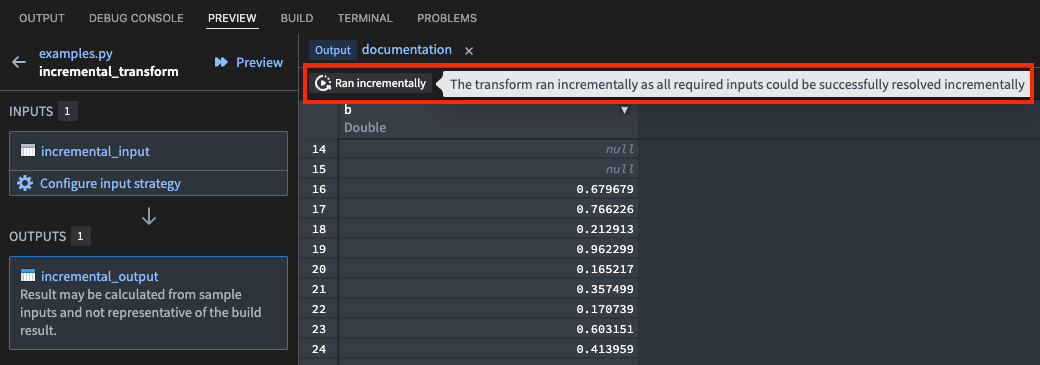
If the transform ran incrementally: A Ran incrementally tag will appear in the Preview panel.
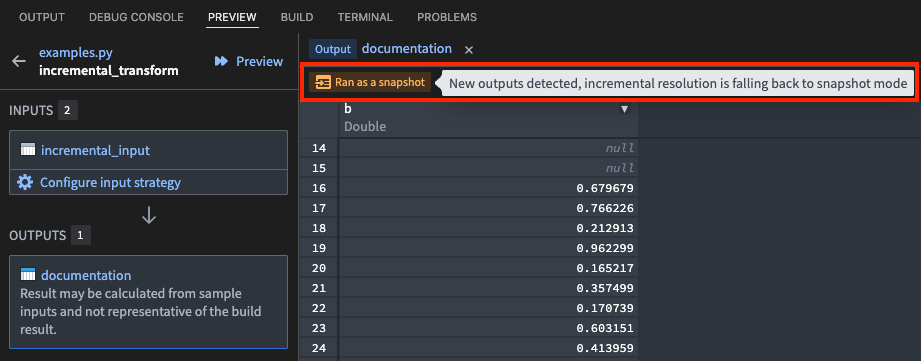
If the transform ran as a snapshot: A Ran as a snapshot tag will appear. Hover over this tag to view the reason why the transform could not run incrementally (such as a change to the semantic_version parameter, or certain transaction types on the inputs).
Incremental preview is supported for both Spark and lightweight transforms, including both v1 and v2 incremental semantics.
For more context on incremental transformations and their evaluation logic, review the incremental transformations documentation.
Additional resources:
- Prerequisites for local development: Setup requirements and permissions
- Spark profiles: Configure Spark behavior during preview
Technical details
Prerequisites for local development
The Palantir extension for Visual Studio Code runs local preview using the Preview Engine. This Preview Engine streams parts of datasets to your machine if you have Download permissions for the data. For more on the security implications and data storage of local preview, review our documentation on security considerations for local development.
:::callout{theme="neutral"} To use preview during local development, local preview must be enabled by your platform administrator from the Code Repositories settings page in Control Panel. :::
For Java transforms local preview setup using Gradle, review our documentation on preview transforms in local development.
When opening a Palantir repository, the extension will configure the environment. Once the environment is set up and transforms are detected, you will be able to execute previews locally.
Feature support comparison
The following table shows the current support matrix for different features between the preview in Code Repositories and VS Code. Code Repositories preview is not only used in Code Repositories. When previewing in VS Code, users can choose to use Full dataset, Sampled, or Code-defined filters (which applies user-defined filters to sample-less) dataset loading modes and all of these result in using Preview Engine.
| Code Repositories | VS Code preview (Preview Engine) | |
|---|---|---|
| Debugging | Supported | Supported |
| Foundry datasets | Supported | Supported |
| Transform generators | Supported | Supported |
| Data expectations | Supported | Supported |
| Lightweight transforms | Supported | Supported |
| Views and object materializations | Supported | Supported |
| Incrementality | Not supported | Supported (v1 and v2 semantics) |
| External transforms | Supported | Supported in Code Workspaces |
| Column statistics and filtering | Supported | Supported |
| Media sets | Not supported | Supported[1] |
| Models | Supported | Supported for Spark transforms[2] |
| Spark profiles | Not supported | Supported for some Spark configurations |
| Cipher | Supported | Supported[3] |
| Language models | Supported | Not supported |
| Virtual tables | Supported | Supported in Code Workspaces |
| Iceberg tables | Not supported | Supported in Code Workspaces |
| Complex input sampling | Supported | Supported with Code-defined (tabular and raw files) |
| Preview variables during debugging | Supported | Supported |
| Spark sidecars | Not supported | Not supported |
[1] Only put_media_item is supported in media set output preview. Incremental is not supported for media set preview.
[2] Model input and output preview is supported in both VS Code workspaces and local development. Model input preview is only supported in VS Code workspaces.
[3] Cipher columns display the placeholder text **DATA WILL BE ENCRYPTED AT BUILD TIME** during preview. Encryption is applied at build time.
Spark profiles
Spark profiles allow users to quickly define and use custom spark configuration values to specify the behavior of the Spark engine while previewing or building the transform. Review the documentation on Spark profiles for more details.
VS Code preview applies some configurations from the previewed transform's Spark profiles. This includes configurations that affect the runtime behavior of the execution engine, most often for maintaining backward compatibility during breaking changes. It is not possible to change the resources allocated for preview through Spark profiles; this can be changed separately on the Code Workspaces settings page.
Both built-in and user-defined Spark profiles are supported during preview. Options omitted from the list below are ignored:
spark.sql.legacy.timeParserPolicyspark.sql.parquet.datetimeRebaseModeInReadspark.sql.legacy.parquet.datetimeRebaseModeInReadspark.sql.legacy.parquet.datetimeRebaseModeInWritespark.sql.analyzer.failAmbiguousSelfJoinspark.sql.legacy.dataset.nameNonStructGroupingKeyAsValuespark.sql.legacy.fromDayTimeString.enabledspark.sql.legacy.typeCoercion.datetimeToString.enabledspark.sql.legacy.followThreeValuedLogicInArrayExistsspark.sql.legacy.allowUntypedScalaUDFspark.sql.legacy.allowNegativeScaleOfDecimalspark.sql.legacy.allowHashOnMapTypespark.sql.legacy.avro.datetimeRebaseModeInReadspark.sql.legacy.avro.datetimeRebaseModeInWritespark.sql.legacy.charVarcharAsStringspark.sql.optimizer.collapseProjectAlwaysInlinespark.foundry.sql.allowAddMonthsspark.sql.parquet.int96AsTimestamp
External transforms
External transforms in Code Workspaces enforce strict export controls. The Code Workspaces application maintains a historical record of a workspace's inputs, so previous inputs that contain additional security markings may stop a preview due to marking violations. Additionally, the application accounts for all previously incorporated container markings when a workspace computes its marking security checks and export controls to avoid the inappropriate exposure of marked data.
If a workspace contains markings that are incompatible with an external transform, restart the workspace without checkpoints to clear tracked markings. Review the external transforms documentation for additional information.
中文翻译
预览转换(Preview transforms)
Palantir Visual Studio Code 扩展允许您直接从本地 VS Code 环境或 Palantir 平台中的 VS Code Workspace 预览 Python 转换。预览是一个实时测试环境,您可以在将数据转换提交到完整构建之前查看其运行效果。编写代码并快速预览更改,无需构建或切换上下文即可获得即时反馈。
为什么要使用预览?
更快的开发周期: 无需运行完整流水线构建即可获得转换的即时反馈。在迭代复杂逻辑时,这可以节省大量时间。
尽早发现错误: 在数据问题、逻辑错误或意外结果进入生产流水线之前发现它们。
自信地实验: 尝试不同的方法并立即查看结果,这在探索数据或测试边缘情况时尤其有用。
高效调试: 使用真实数据准确查看代码的运行情况,从而更容易识别和修复问题。
预览您的转换
启动预览
您可以通过以下四种方式中的任意一种启动预览,具体取决于哪种方式最适合您的工作流程:
-
命令面板: 从命令面板中选择 Run preview 命令。
-
Palantir 侧面板: 从工具栏中选择 Preview 图标。
-
CodeLens: 选择转换上方的 Preview。
-
预览面板: 打开 Preview 面板,然后选择代码文件名旁边的 Preview 按钮。
扩展将使用来自输入的真实数据执行您的转换,并立即向您显示结果。
选择数据加载策略
转换预览中最强大的功能之一是控制数据如何加载。这一点尤其重要,因为不同的转换有不同的数据需求;简单的聚合操作适用于任何样本,而测试狭窄的过滤条件或复杂的连接则需要更仔细的数据选择。
要选择策略,请在 Preview 面板中选择 Configure input strategy,然后在 Sampled、Full dataset 或 Code-defined filters 选项中进行选择。
采样(Sampled,默认)
采样策略加载输入数据的随机样本,默认行数为 1000 行。该子集是从输入中随机采样的,您可以配置行数。
理想用途: 采样足够且不会引入统计偏差的转换。适用于对转换逻辑进行快速健全性检查。
局限性: 对于某些转换,例如狭窄的过滤条件或多个输入之间的连接,结果可能会出奇地短,因为匹配过滤表达式的值不太可能出现在样本中。对于多个输入之间的连接,问题会呈指数级恶化。
完整数据集(Full dataset)
完整数据集选项基于您的转换逻辑使用智能数据加载,并且不进行预采样。相反,预览引擎(Preview Engine)依赖现代数据处理引擎(如 Spark 或 Polars)将谓词下推 ↗到数据源级别,并且仅下载最有可能匹配查询的数据集块。
理想用途: 转换代码中任何位置使用的过滤条件或其他缩小范围的表达式可能符合下推条件,从而在不增加太多额外计算时间的情况下获得完全准确的预览结果。这对于准确测试过滤条件和连接尤其有价值。
最佳实践: 某些流水线无法充分利用谓词下推(例如,不包含过滤表达式的流水线)。在这些情况下,您可以在代码中引入条件过滤表达式,以在开发期间加快预览运行速度。谓词下推逻辑的有效性高度依赖于所选的数据处理引擎。Spark 和 DuckDB 通常产生最快的结果,流模式下的 Polars 表现尚可,而 Pandas 不支持谓词下推。
代码定义过滤(Code-defined filters)
编写您自己的自定义过滤函数,精确控制在预览期间加载哪些数据。此选项允许您指定直接在代码中实现的自定义过滤策略。
理想用途: 当您需要对预览使用的数据进行精细控制、想要创建可重用的过滤逻辑,或者需要测试随机采样和完整数据集加载都无法有效处理的特定场景时。采样可以有效地用于加速预览,但这不仅需要过滤条件产生足够小的输出集,还需要高效实现的过滤逻辑。这是因为代码定义的过滤将使用整个生产数据集作为其输入来运行。
有关更多详细信息,请查阅我们的代码定义输入过滤文档。
理解增量预览结果
在处理增量转换时,Preview 面板会提供有关转换执行方式的详细反馈。Python 转换 VS Code 集成使用与生产构建相同的增量解析和评估逻辑,因此,如果在同一时间触发,运行预览将产生与构建相同的结果(忽略采样)。
如果转换是增量运行的: Preview 面板中将出现 Ran incrementally 标签。
如果转换是作为快照运行的: 将出现 Ran as a snapshot 标签。将鼠标悬停在此标签上可以查看转换无法增量运行的原因(例如,semantic_version 参数发生更改,或输入上的某些事务类型)。
Spark 和轻量级转换均支持增量预览,包括 v1 和 v2 增量语义。
有关增量转换及其评估逻辑的更多背景信息,请查阅增量转换文档。
其他资源:
- 本地开发先决条件:设置要求和权限
- Spark 配置文件:在预览期间配置 Spark 行为
技术细节
本地开发先决条件
Palantir Visual Studio Code 扩展使用预览引擎(Preview Engine)运行本地预览。如果您拥有数据的 Download 权限,此预览引擎会将部分数据集流式传输到您的机器。有关本地预览的安全影响和数据存储的更多信息,请查阅我们关于本地开发安全注意事项的文档。
:::callout{theme="neutral"} 要在本地开发期间使用预览,必须由您的平台管理员从控制面板的 Code Repositories 设置页面启用本地预览。 :::
有关使用 Gradle 进行 Java 转换本地预览设置的信息,请查阅我们关于本地开发中的预览转换的文档。
打开 Palantir 仓库时,扩展将配置环境。一旦环境设置完毕并检测到转换,您将能够在本地执行预览。
功能支持对比
下表显示了代码仓库(Code Repositories)和 VS Code 中预览功能当前的支持矩阵。代码仓库预览不仅用于代码仓库。在 VS Code 中预览时,用户可以选择使用 Full dataset、Sampled 或 Code-defined filters(将用户定义的过滤条件应用于无样本数据集)数据集加载模式,所有这些模式都使用预览引擎。
| 代码仓库(Code Repositories) | VS Code 预览(预览引擎) | |
|---|---|---|
| 调试(Debugging) | 支持 | 支持 |
| Foundry 数据集 | 支持 | 支持 |
| 转换生成器 | 支持 | 支持 |
| 数据期望 | 支持 | 支持 |
| 轻量级转换 | 支持 | 支持 |
| 视图和对象物化 | 支持 | 支持 |
| 增量性 | 不支持 | 支持(v1 和 v2 语义) |
| 外部转换 | 支持 | 在 Code Workspaces 中支持 |
| 列统计和过滤 | 支持 | 支持 |
| 媒体集 | 不支持 | 支持[1] |
| 模型 | 支持 | 支持 Spark 转换[2] |
| Spark 配置文件 | 不支持 | 支持某些 Spark 配置 |
| Cipher | 支持 | 支持[3] |
| 语言模型 | 支持 | 不支持 |
| 虚拟表 | 支持 | 在 Code Workspaces 中支持 |
| Iceberg 表 | 不支持 | 在 Code Workspaces 中支持 |
| 复杂输入采样 | 支持 | 支持代码定义(表格和原始文件) |
| 调试期间的预览变量 | 支持 | 支持 |
| Spark 辅助容器 | 不支持 | 不支持 |
[1] 媒体集输出预览仅支持 put_media_item。媒体集预览不支持增量。
[2] VS Code workspaces 和本地开发均支持模型输入和输出预览。模型输入预览仅在 VS Code workspaces 中支持。
[3] Cipher 列在预览期间显示占位文本 **DATA WILL BE ENCRYPTED AT BUILD TIME**。加密在构建时应用。
Spark 配置文件
Spark 配置文件允许用户快速定义和使用自定义 Spark 配置值,以指定在预览或构建转换时 Spark 引擎的行为。有关更多详细信息,请查阅Spark 配置文件文档。
VS Code 预览会应用来自被预览转换的 Spark 配置文件中的一些配置。这包括影响执行引擎运行时行为的配置,通常用于在发生破坏性更改时保持向后兼容性。无法通过 Spark 配置文件更改分配给预览的资源;这可以在 Code Workspaces 设置页面上单独更改。
预览期间支持内置和用户定义的 Spark 配置文件。下表中未列出的选项将被忽略:
spark.sql.legacy.timeParserPolicyspark.sql.parquet.datetimeRebaseModeInReadspark.sql.legacy.parquet.datetimeRebaseModeInReadspark.sql.legacy.parquet.datetimeRebaseModeInWritespark.sql.analyzer.failAmbiguousSelfJoinspark.sql.legacy.dataset.nameNonStructGroupingKeyAsValuespark.sql.legacy.fromDayTimeString.enabledspark.sql.legacy.typeCoercion.datetimeToString.enabledspark.sql.legacy.followThreeValuedLogicInArrayExistsspark.sql.legacy.allowUntypedScalaUDFspark.sql.legacy.allowNegativeScaleOfDecimalspark.sql.legacy.allowHashOnMapTypespark.sql.legacy.avro.datetimeRebaseModeInReadspark.sql.legacy.avro.datetimeRebaseModeInWritespark.sql.legacy.charVarcharAsStringspark.sql.optimizer.collapseProjectAlwaysInlinespark.foundry.sql.allowAddMonthsspark.sql.parquet.int96AsTimestamp
外部转换
Code Workspaces 中的外部转换强制执行严格的导出控制。Code Workspaces 应用程序会维护工作区输入的历史记录,因此包含额外安全标记的先前输入可能会因标记违规而阻止预览。此外,当工作区计算其标记安全检查并导出控制时,应用程序会考虑所有先前合并的容器标记,以避免标记数据的不当暴露。
如果工作区包含与外部转换不兼容的标记,请重新启动工作区而不使用检查点以清除跟踪的标记。有关其他信息,请查阅外部转换文档。