AI development tools(AI 开发工具)
AI development tools can be used in VS Code workspaces to assist with code generation, testing, debugging, and optimization.
Continue
Continue ↗ is an open source extension for VS Code. Continue provides features for AI code generation, including chat ↗, inline edits ↗, codebase indexing ↗, custom context selection ↗, and more.
In the Palantir platform, Continue is preconfigured to work with Palantir-provided language models, and has added knowledge about relevant Palantir SDKs and your Python transforms or OSDK repository. This contextual understanding of your data structures, Ontology, and organization allows Continue to generate more accurate and relevant code.
Get started
Below are some commands and actions you can use to get started with Continue:
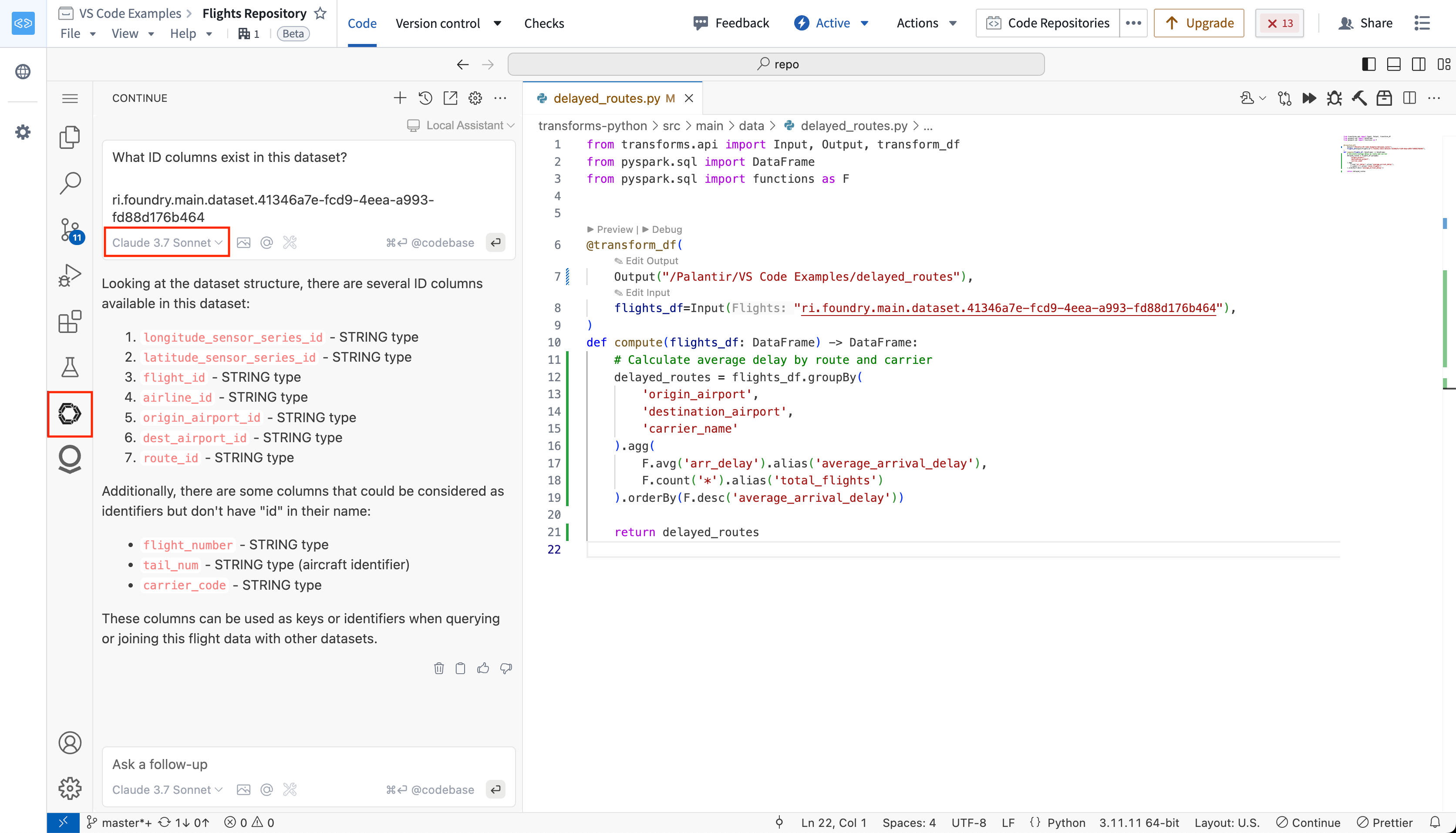
- Open the Continue extension from the VS Code sidebar, and use the model picker to select a Palantir-provided model.
- Select a code snippet in the editor and use the command
cmd/ctrl + Lto add context to a new chat. - Select a code snippet in the editor and use the command
cmd/ctrl + Ito edit the selected code. - Enter
@filename,@folderor@codebaseto reference parts of your codebase. - Enter
@problemsto include linting errors in open files.
Python transforms
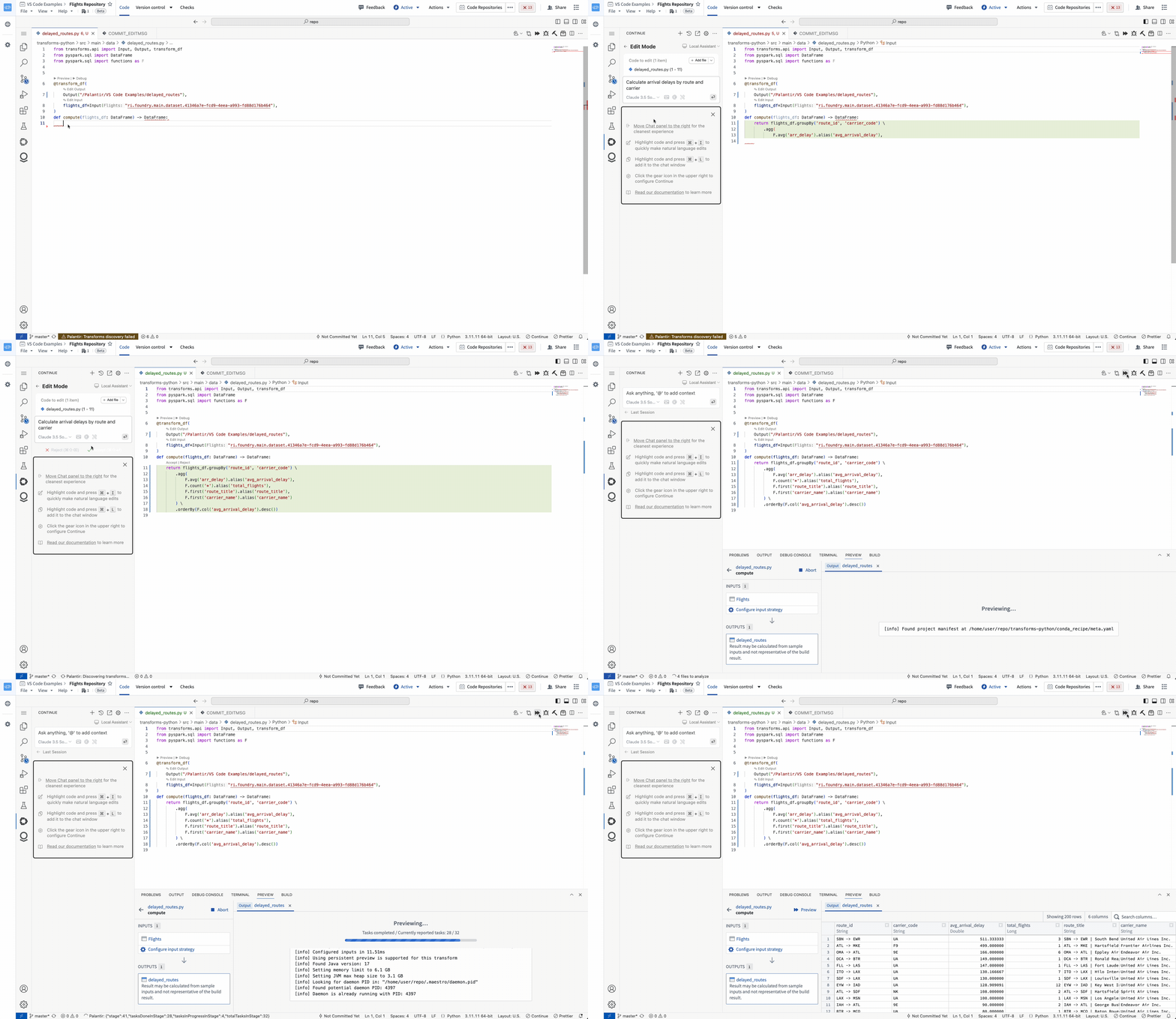
In Python transforms repositories, Continue is preconfigured to understand how to write Python transforms. This includes knowledge of the following topics:
- The Python transforms SDK and related Palantir APIs.
- Dataset schemas: Include a dataset RID in your message, or in added context to automatically include dataset schemas and metadata.
- Foundry-specific conventions and best practices.
Ask How do I write a transform? to get started.
OSDK
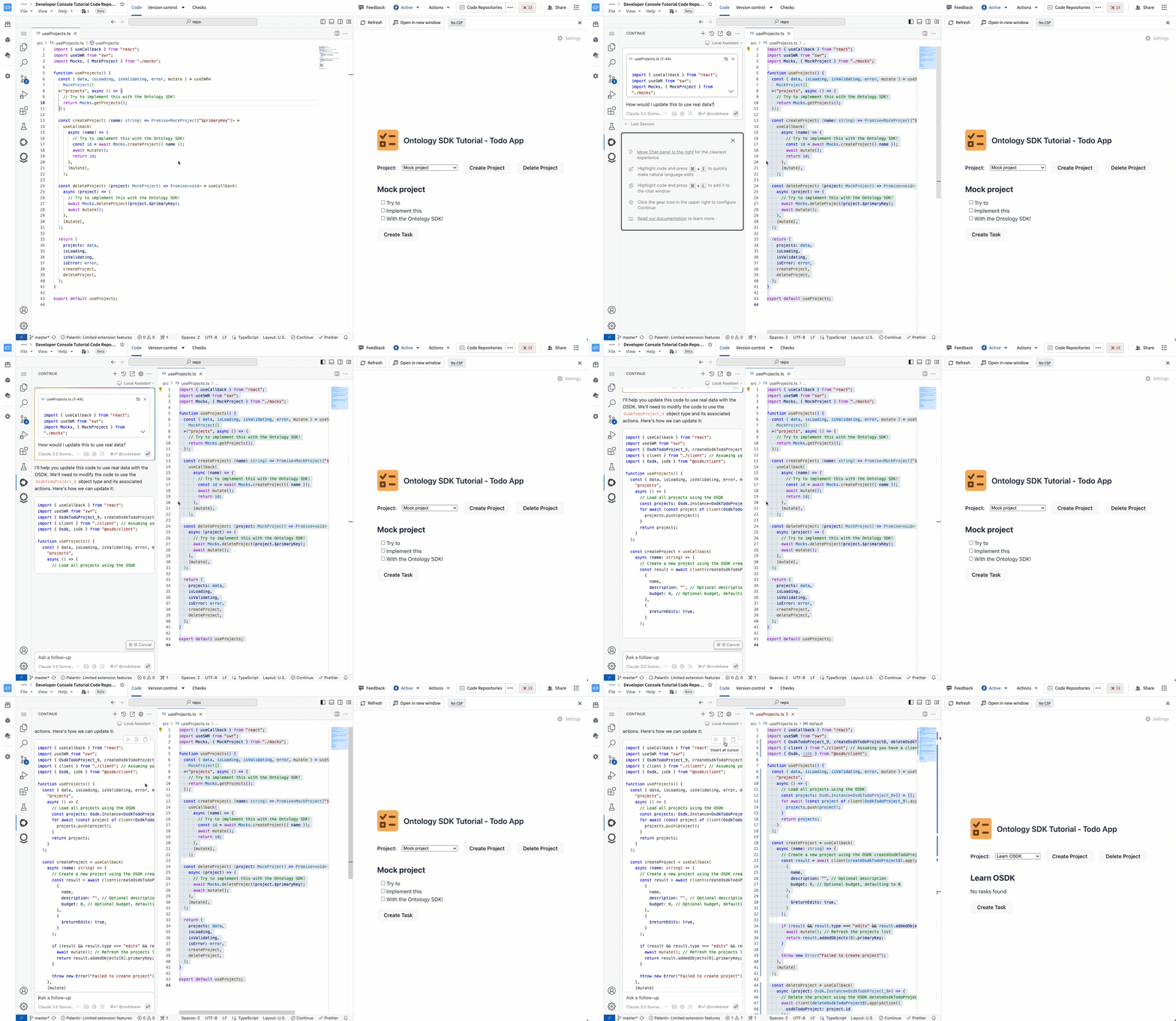
In TypeScript OSDK repositories, Continue is preconfigured to understand the OSDK included in your repository. This includes the following:
- The TypeScript OSDK and its associated libraries.
- Ontology objects and their metadata, links, Actions and imported functions.
Ask Tell me about my OSDK in your repository to get started.
Palantir MCP integration
Palantir MCP is integrated into VS Code workspaces by default. The MCP provides context from your code, library, and Foundry context to the LLM agent. It also offers agent tools to take actions within your repository and Foundry.
The following tools are provided by Palantir MCP in a VS Code workspace:
- Context tools for OSDK, Python, and TypeScript function repositories.
- Preview tools for Python transforms, allowing the agent to run a transform and fix errors if they occur.
- Ontology management tools for you to explore and modify the ontology.
- Developer Console tools for the agent to update and regenerate the OSDK without leaving your IDE.
- Foundry navigation tools to investigate Foundry project contents, view individual dataset schemas, and run SQL queries.

For more information, review our Palantir MCP documentation.
Pricing
Continue is included with VS Code workspaces at no additional charge. Usage of Palantir-provided models will incur compute costs according to Palantir's AIP compute pricing model.
Security
Continue in VS Code workspaces is preconfigured to use the Palantir-provided models available on your enrollment. To maintain the same level of security offered across the platform, we do not recommend adding additional models directly in the Continue extension. To add additional models use Control Panel.
Availability
Continue is automatically available in VS Code workspaces if AIP is enabled on your enrollment. No additional installation or configuration is required. Contact your Palantir administrator to enable AIP for your enrollment.
Note: AIP feature availability is subject to change and may differ between customers.
VS Code workspaces and the Palantir extension for Visual Studio Code are not affiliated with or endorsed by Microsoft.
The Continue extension is a product of Continue Dev, Inc. No affiliation or endorsement is implied.
中文翻译
AI 开发工具
AI 开发工具可在 VS Code 工作区中使用,协助进行代码生成、测试、调试和优化。
Continue
Continue ↗ 是一个面向 VS Code 的开源扩展。Continue 提供 AI 代码生成功能,包括聊天 ↗、内联编辑 ↗、代码库索引 ↗、自定义上下文选择 ↗等。
在 Palantir 平台中,Continue 已预配置为与 Palantir 提供的语言模型配合使用,并增加了关于相关 Palantir SDK 以及您的 Python transforms 或 OSDK 仓库的知识。这种对您的数据结构、本体(Ontology)和组织的上下文理解,使 Continue 能够生成更准确、更相关的代码。
快速入门
以下是一些可用于开始使用 Continue 的命令和操作:
- 从 VS Code 侧边栏打开 Continue 扩展,使用模型选择器选择一个 Palantir 提供的模型。
- 在编辑器中选择一段代码,使用命令
cmd/ctrl + L将上下文添加到新聊天中。 - 在编辑器中选择一段代码,使用命令
cmd/ctrl + I编辑所选代码。 - 输入
@filename、@folder或@codebase来引用代码库的各个部分。 - 输入
@problems以包含打开文件中的 linting 错误。
Python transforms
在 Python transforms 仓库中,Continue 已预配置为理解如何编写 Python transforms。这包括以下主题的知识:
- Python transforms SDK 及相关 Palantir API。
- 数据集模式(Dataset schemas):在消息或添加的上下文中包含数据集 RID,以自动包含数据集模式和元数据。
- Foundry 特定的约定和最佳实践。
询问 How do I write a transform? 即可开始。
OSDK
在 TypeScript OSDK 仓库中,Continue 已预配置为理解仓库中包含的 OSDK。这包括以下内容:
- TypeScript OSDK 及其相关库。
- 本体对象及其元数据、链接、操作(Actions)和导入的函数。
在仓库中询问 Tell me about my OSDK 即可开始。
Palantir MCP 集成
Palantir MCP 默认集成到 VS Code 工作区中。MCP 向 LLM 代理提供来自您的代码、库和 Foundry 上下文的上下文信息。它还提供代理工具,用于在您的仓库和 Foundry 中执行操作。
在 VS Code 工作区中,Palantir MCP 提供以下工具:
- OSDK、Python 和 TypeScript 函数仓库的上下文工具。
- Python transforms 的预览工具,允许代理运行 transform 并在出现错误时修复错误。
- 本体管理工具,供您探索和修改本体。
- 开发者控制台(Developer Console)工具,供代理在不离开 IDE 的情况下更新和重新生成 OSDK。
- Foundry 导航工具,用于调查 Foundry 项目内容、查看单个数据集模式以及运行 SQL 查询。
有关更多信息,请查阅我们的 Palantir MCP 文档。
定价
Continue 随 VS Code 工作区提供,无需额外付费。使用 Palantir 提供的模型将根据 Palantir 的 AIP 计算定价模型产生计算成本。
安全性
VS Code 工作区中的 Continue 已预配置为使用您的注册(enrollment)上可用的 Palantir 提供模型。为保持平台提供的相同安全级别,我们不建议直接在 Continue 扩展中添加其他模型。要添加其他模型,请使用控制面板(Control Panel)。
可用性
如果您的注册已启用 AIP,则 Continue 会自动在 VS Code 工作区中可用。无需额外安装或配置。请联系您的 Palantir 管理员为您的注册启用 AIP。
注意:AIP 功能可用性可能随时更改,且不同客户之间可能存在差异。
VS Code 工作区和适用于 Visual Studio Code 的 Palantir 扩展与 Microsoft 无关联,也未获得其认可。
Continue 扩展是 Continue Dev, Inc. 的产品。不暗示任何关联或认可关系。