VS Code workspaces(VS Code 工作区(VS Code workspaces))
:::callout{theme="neutral"} VS Code workspaces and the Palantir extension for Visual Studio Code are not affiliated with or endorsed by Microsoft. :::
:::callout{theme="neutral"} VS Code workspaces is available by default in all Organizations where Code Workspaces is enabled. :::
VS Code workspaces bring the power of Microsoft's VS Code ↗ IDE directly into the Palantir platform. VS Code workspaces are development environments deployed on Palantir infrastructure that leverage Code Workspaces to provide an integrated development environment (IDE) for writing production-ready code. Whether you are building Python transforms, developing OSDK React applications, or working on compute modules (see a full list of supported workflows here), VS Code workspaces provide a familiar, powerful environment with automatic environment setup and seamless integration with Foundry resources.
Why use VS Code workspaces?
Learn more about the benefits of VS Code workspaces.
Get started with VS Code workspaces
Access a workspace
- Open an existing or create a new supported repository in VS Code.
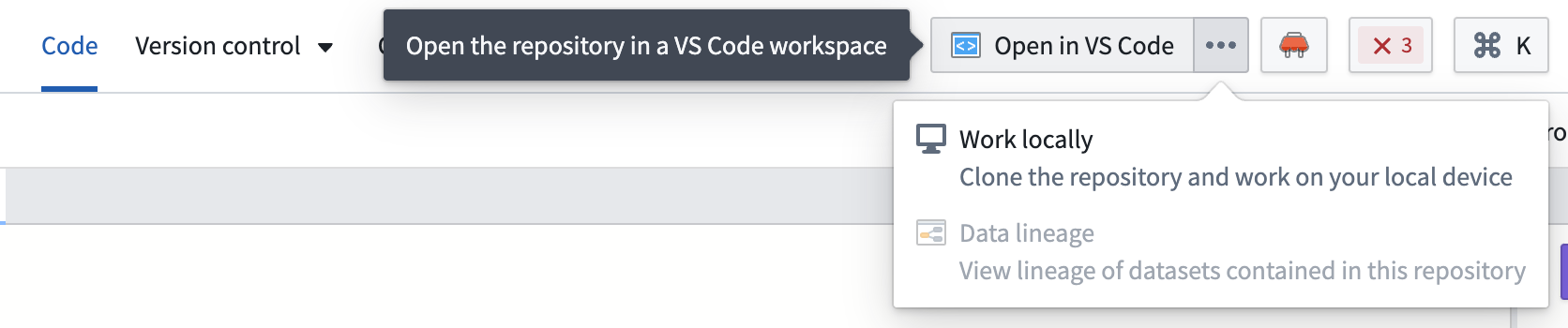
- From Code Repositories, you can select Open in VS Code in the upper right corner (shown for supported repositories).
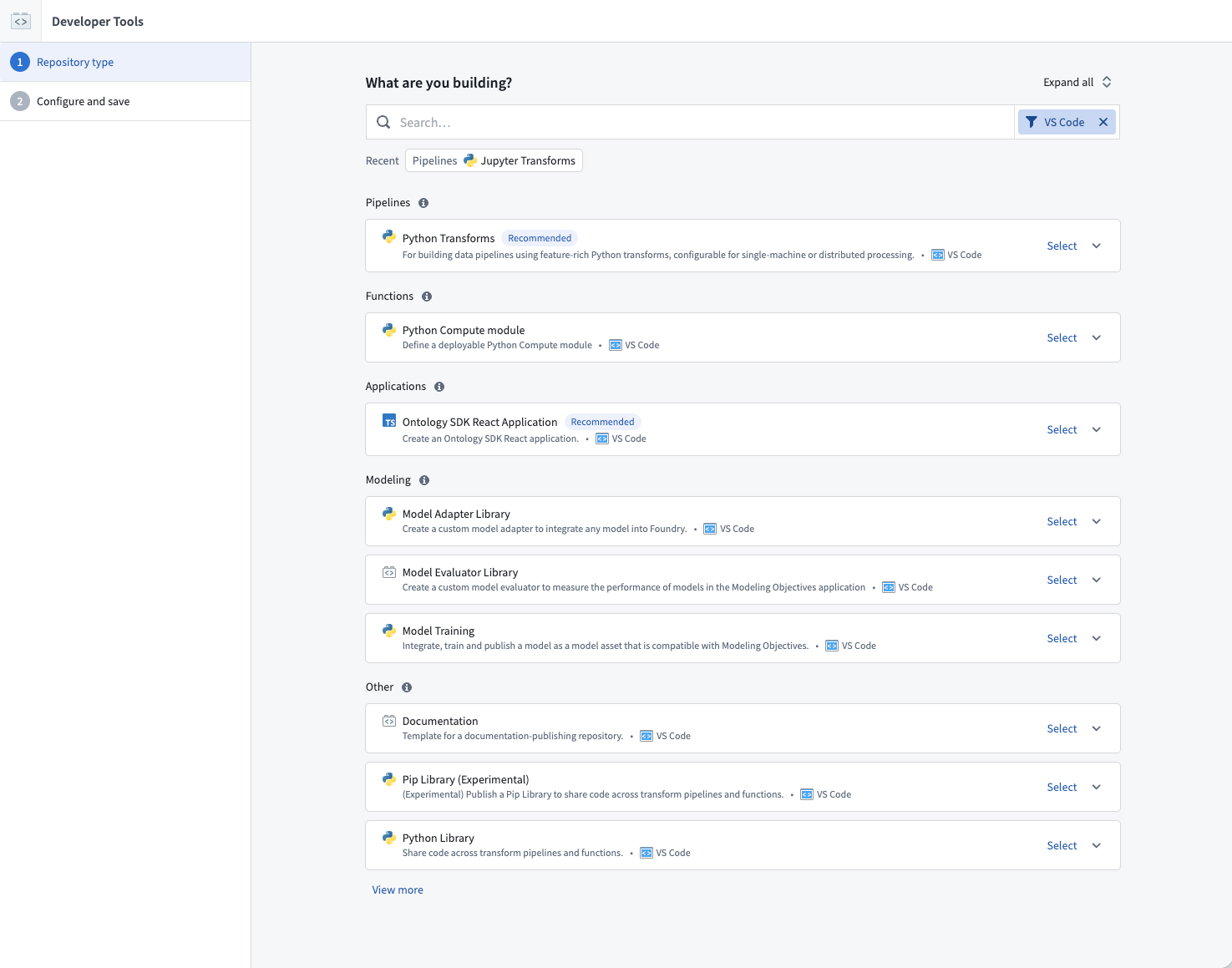
- At the time of creating a new repository, selecting VS Code will automatically bring you into a VS Code workspace.
- Your environment is ready, and you can start coding.
Make VS Code your default editor
You can make VS Code your default code editor for all supported repository types by navigating to the Settings tab within any repository and selecting Open repositories in a VS Code workspace by default.
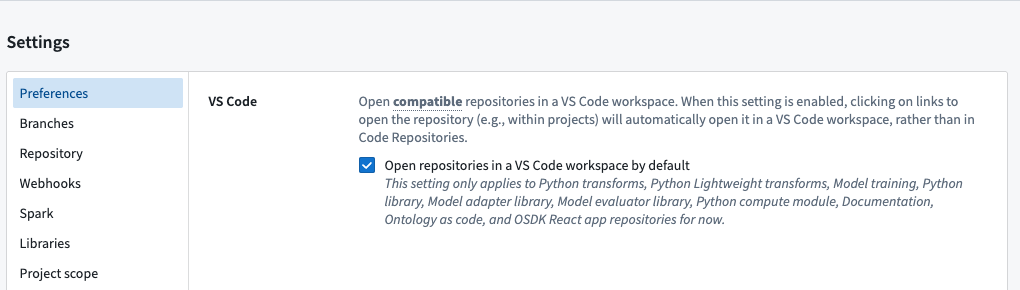
Note that some repositories will open in VS Code regardless of the default setting, since these repository types have been optimized for VS Code workspaces.
Supported workflows
VS Code workspaces support the workflows described in the sections below.
Python transforms
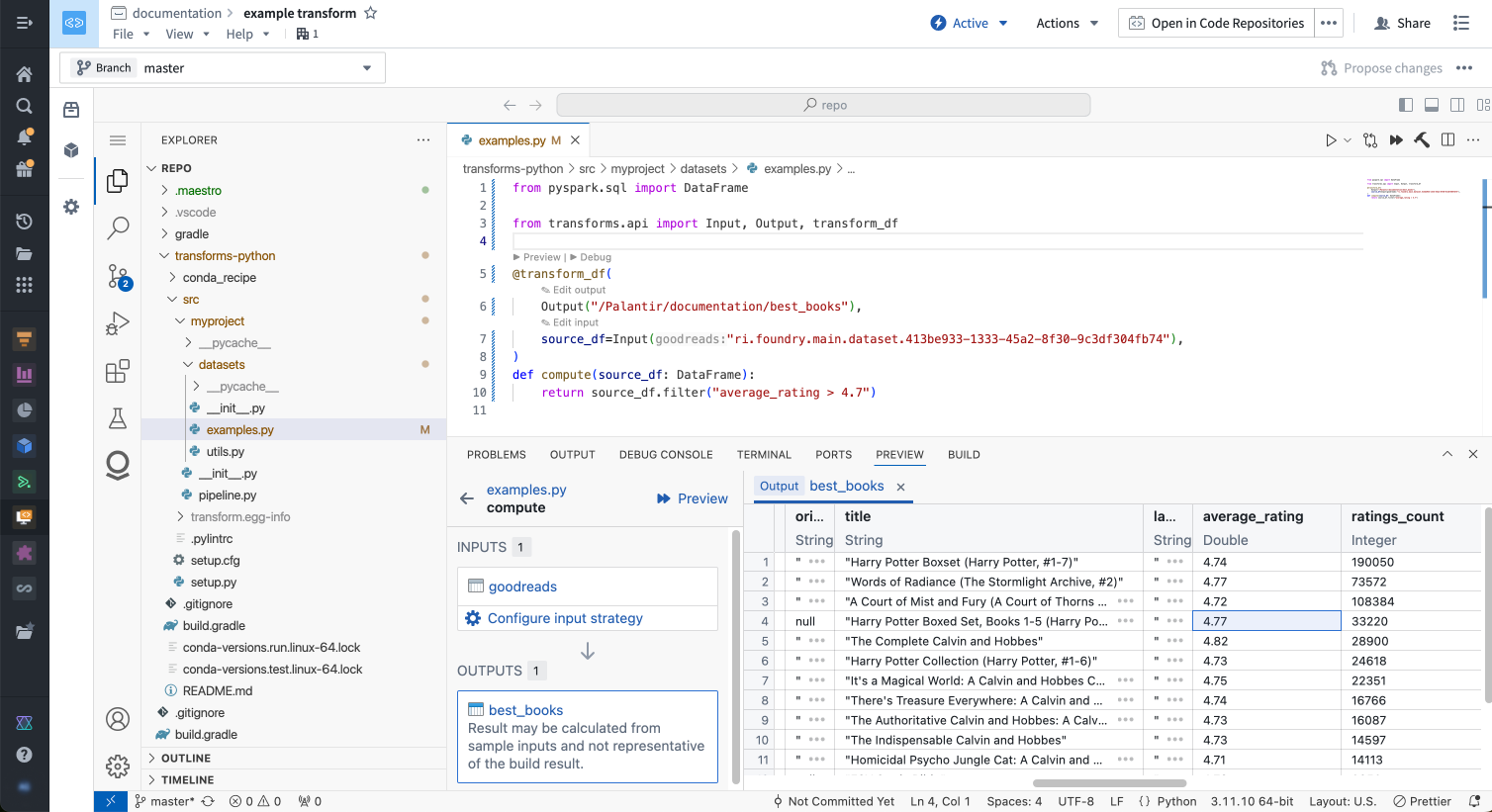
The Palantir extension automatically sets up your Python environment at startup and provides the following:
- Preview integration with sample-less and code-defined filtering options
- Debugging support with variable inspection
- Build triggers from inside your editor
- Resource paths displayed with resource identifiers for easy navigation
- Automatic code environment setup
- Code snippets for common patterns
Learn more about Python transforms.
OSDK React applications
VS Code is integrated with Developer Console, allowing you to rapidly build React applications. You can create a VS Code workspace in the Code repository section of your Developer Console.
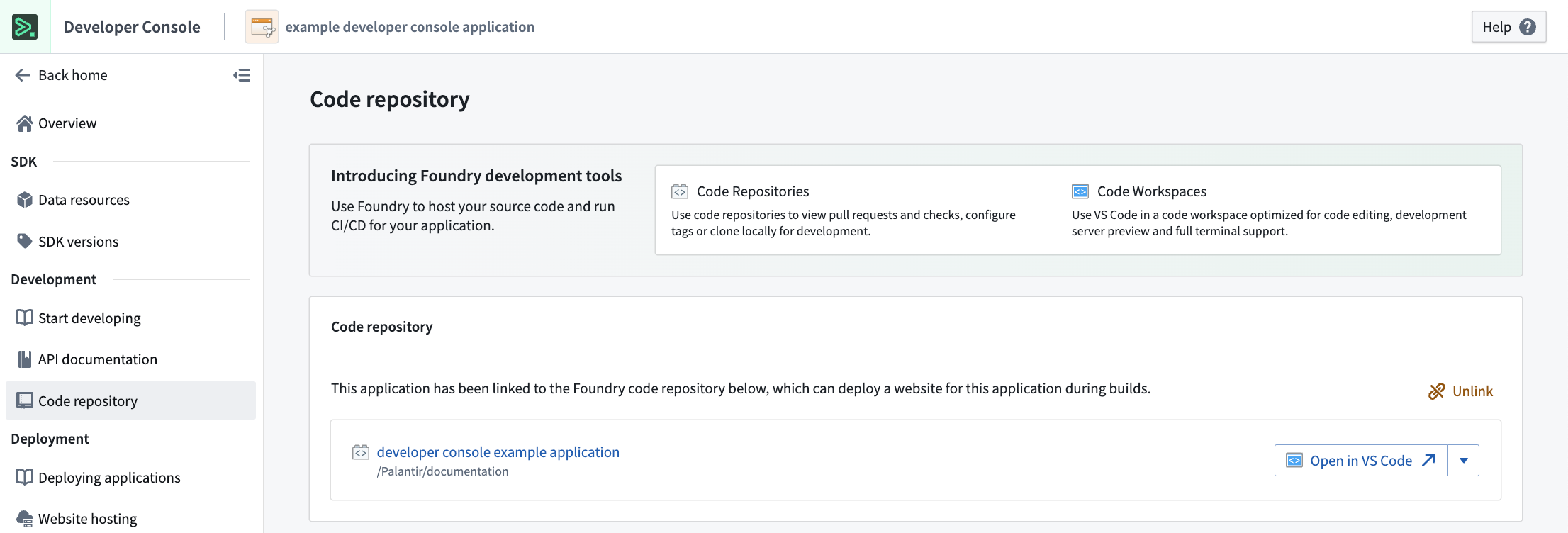
Key features include:
- Full Ontology integration with OSDK to interact with your unique Ontology resources
- Git repository configuration with OAuth pre-configured
- CI setup to deploy your website on every release
- Automatic node/npm environment setup
- Development server with live reload for instant feedback
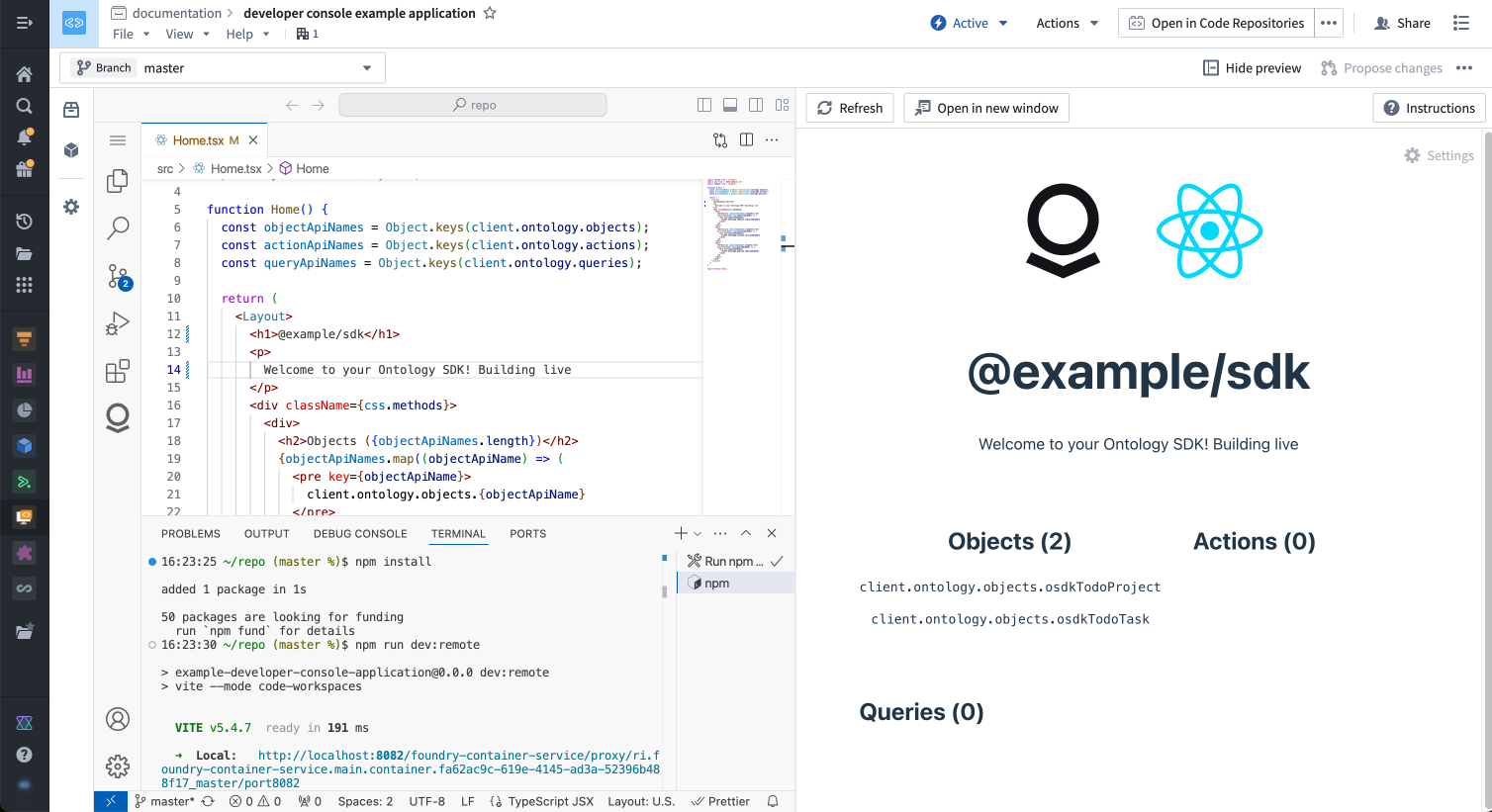
Learn more about OSDK React applications.
Other supported workflows
- Compute modules: Build Python compute modules with run and debug capabilities.
- Python libraries: Develop and debug reusable Python libraries.
Reference: VS Code workspaces vs. Code Repositories
VS Code and Code Repositories serve different primary purposes:
-
Code Repositories: A Palantir-built IDE focused on all code-management needs, including editing, version control, change management, and continuous integration. This is the intended platform tool for pull request reviews and repository management.
-
VS Code: A VS Code environment deployed on Palantir infrastructure and accessible from the Palantir platform. Provides the familiar VS Code editing experience with automatic environment setup and integration with Foundry resources through the Palantir extension for Visual Studio Code.
-
Palantir extension for Visual Studio Code (local): An extension you install in your local VS Code application to integrate directly with Foundry. Provides preview, debug, and build capabilities for Python transforms while working on your local machine.
Feature comparison
| Feature | Code Repositories | VS Code workspaces | Palantir extension for Visual Studio Code |
|---|---|---|---|
| Transforms | |||
| Python transform preview | Yes | Yes | Yes |
| Full data preview | Preview data sample, with the ability to pre-filter the input sample | Yes | Yes |
| Debugger support | Yes | Yes | Yes |
| Java transforms | Yes | No | No |
| Unit tests | Yes | Yes | Yes |
| OSDK React applications | |||
| Typescript Language Server | No | Yes | Yes |
| Live reload code changes | No | Yes | Yes |
| Python compute modules | |||
| Run and debug Python files | No | Yes | Yes |
| Python libraries | |||
| Run and debug Python files | No | Yes | Yes |
| Workflows | |||
| SQL integration | Yes | No | No |
| Typescript function preview | Yes | No | No |
| IDE | |||
| Shell terminal | No | Yes (Remote host) | Yes |
| Keybinding customization | No | Yes | Yes |
| Public extension support | N/A | No | Yes, if allowed by your organization |
| AI Assistance | AIP Autocomplete | Yes, Continue extension | No |
Choose your development environment
You have two options for using VS Code with Foundry. For a detailed comparison to help you decide which is right for you, review our documentation on choosing between local development and VS Code workspaces.
The Palantir extension for Visual Studio Code provides native integrations with the Palantir platform, including many features you see in Code Repositories.
Learn more about the features of the Palantir extension.
Pricing
For VS Code workspace pricing information see Code Workspaces compute usage.
中文翻译
VS Code 工作区(VS Code workspaces)
:::callout{theme="neutral"} VS Code 工作区及 Palantir Visual Studio Code 扩展与 Microsoft 无关联,也未获得其认可。 :::
:::callout{theme="neutral"} 在所有启用了代码工作区(Code Workspaces)的组织中,VS Code 工作区默认可用。 :::
VS Code 工作区将 Microsoft 的 VS Code ↗ IDE 的强大功能直接引入 Palantir 平台。VS Code 工作区是部署在 Palantir 基础设施上的开发环境,利用代码工作区提供集成开发环境(IDE),用于编写生产级代码。无论您是在构建 Python 转换(transforms)、开发 OSDK React 应用,还是处理计算模块(compute modules)(在此查看所有支持的工作流),VS Code 工作区都能提供一个熟悉且强大的环境,并具备自动环境设置和与 Foundry 资源的无缝集成功能。
为何使用 VS Code 工作区?
VS Code 工作区入门
访问工作区
- 在 VS Code 中打开一个现有的支持的工作流仓库,或创建一个新的。
- 在代码仓库(Code Repositories)中,您可以点击右上角的在 VS Code 中打开(适用于支持的仓库)。
- 创建新仓库时,选择 VS Code 将自动将您带入 VS Code 工作区。
- 环境准备就绪,您可以开始编码。
将 VS Code 设为默认编辑器
您可以通过导航至任意仓库中的设置选项卡,并选择默认在 VS Code 工作区中打开仓库,将 VS Code 设为所有支持仓库类型的默认代码编辑器。
请注意,某些仓库无论默认设置如何,都会在 VS Code 中打开,因为这些仓库类型已针对 VS Code 工作区进行了优化。
支持的工作流
VS Code 工作区支持以下各节所述的工作流。
Python 转换(Python transforms)
Palantir 扩展会在启动时自动设置您的 Python 环境,并提供以下功能:
OSDK React 应用
VS Code 与开发者控制台(Developer Console)集成,使您能够快速构建 React 应用。您可以在开发者控制台的代码仓库部分创建 VS Code 工作区。
主要功能包括:
- 与 OSDK 完全集成,与您独特的本体(Ontology)资源进行交互
- 预配置 OAuth 的 Git 仓库配置
- CI 设置,可在每次发布时部署您的网站
- 自动 node/npm 环境设置
- 支持实时重载的开发服务器,提供即时反馈
其他支持的工作流
- 计算模块(Compute modules): 构建支持运行和调试功能的 Python 计算模块。
- Python 库(Python libraries): 开发和调试可复用的 Python 库。
参考:VS Code 工作区与代码仓库(Code Repositories)对比
VS Code 和代码仓库服务于不同的主要目的:
-
代码仓库: Palantir 自建的 IDE,专注于所有代码管理需求,包括编辑、版本控制、变更管理和持续集成。这是用于拉取请求审查和仓库管理的平台工具。
-
VS Code: 部署在 Palantir 基础设施上、可从 Palantir 平台访问的 VS Code 环境。提供熟悉的 VS Code 编辑体验,具备自动环境设置和通过 Palantir Visual Studio Code 扩展与 Foundry 资源集成的功能。
-
Palantir Visual Studio Code 扩展(本地): 安装在本地 VS Code 应用中的扩展,用于直接与 Foundry 集成。在本地机器上工作时,为 Python 转换提供预览、调试和构建功能。
功能对比
| 功能 | 代码仓库 | VS Code 工作区 | Palantir Visual Studio Code 扩展 |
|---|---|---|---|
| 转换 | |||
| Python 转换预览 | 是 | 是 | 是 |
| 完整数据预览 | 预览数据样本,可对输入样本进行预过滤 | 是 | 是 |
| 调试器支持 | 是 | 是 | 是 |
| Java 转换 | 是 | 否 | 否 |
| 单元测试 | 是 | 是 | 是 |
| OSDK React 应用 | |||
| TypeScript 语言服务器 | 否 | 是 | 是 |
| 代码更改实时重载 | 否 | 是 | 是 |
| Python 计算模块 | |||
| 运行和调试 Python 文件 | 否 | 是 | 是 |
| Python 库 | |||
| 运行和调试 Python 文件 | 否 | 是 | 是 |
| 工作流 | |||
| SQL 集成 | 是 | 否 | 否 |
| TypeScript 函数预览 | 是 | 否 | 否 |
| IDE | |||
| Shell 终端 | 否 | 是(远程主机) | 是 |
| 快捷键自定义 | 否 | 是 | 是 |
| 公共扩展支持 | 不适用 | 否 | 是(如果组织允许) |
| AI 辅助 | AIP 自动补全 | 是,Continue 扩展 | 否 |
选择您的开发环境
您有两种选择可在 Foundry 中使用 VS Code。如需详细对比以帮助您决定哪种方案最适合您,请查阅我们关于在本地开发与 VS Code 工作区之间选择的文档。
Palantir Visual Studio Code 扩展提供与 Palantir 平台的原生集成,包括您在代码仓库中看到的许多功能。
定价
有关 VS Code 工作区的定价信息,请参阅代码工作区计算用量。