Recommendations(建议(Recommendations))
A recommendation in Linter represents a single action you can take to migrate one or more resources from the detected, potentially suboptimal state towards a more desirable state. Recommendations are generated once Linter runs a sweep of rules over a given scope.
Linter recommendations contain a Foundry resource, and your ability to see a recommendation is inherited from your permissions to view its underlying resource. A recommendation can belong to one or more projects and, for some modes, can contain an estimate of the impact of following its suggested action.
Once a user actions on the recommendation, another Linter sweep must occur to confirm rule criteria and remove the recommendation from the view.
Filter to recommendations
Use the left sidebar to filter the displayed recommendations by resource type, rule, project, or assignee.

Recommendation context
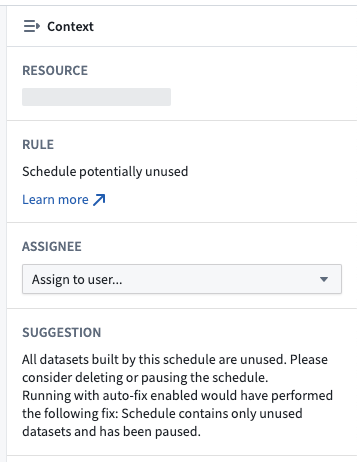
Use the right sidebar to pull recommendation context and learn more about why it appeared, the potential effects of the current state, and required actions to move the resource to a more desired state.
Recommendation state
A recommendation can be in one of three states that can be changed based on user interactions:
- Default: A recommendation that has not been actioned on after a Linter sweep is in a default state. It will remain in this state unless it is snoozed or removed from the view following another sweep.
- Snoozed: You can choose to snooze a recommendation if you are unable to take action at a given time. Review the section below to learn more.
- Snooze expired: A previously snoozed recommendation will move into the snooze expired state once the allotted timeframe of the snooze has passed.
Snooze a recommendation
If you are unable to immediately action on one or more recommendations, you can choose to snooze them and avoid seeing them repeatedly. Use the action bar to set up a snooze for the selected recommendation(s); enter a reason for the snooze, and provide a time when the snooze will expire. After that time, the recommendation will no longer be in the snoozed state.
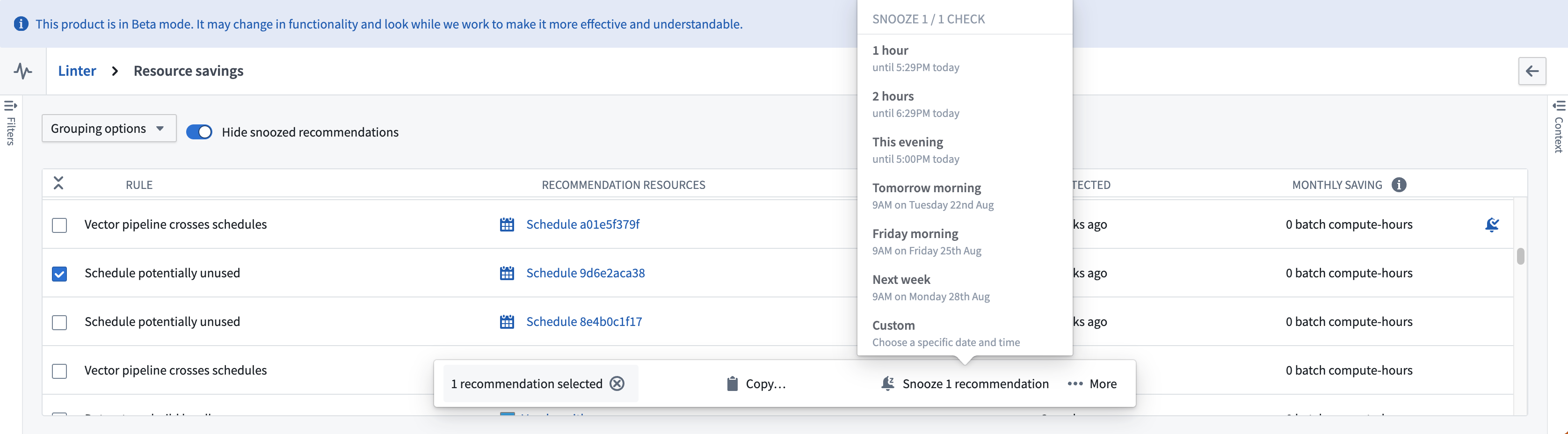
Snoozed recommendations are indicated by an orange dot and a snoozed alarm symbol. You can choose to un-snooze a recommendation from the action bar.

Assign a recommendation
Recommendations can be assigned to individual users for tracking purposes. To assign a recommendation, select the recommendation and use the Assignee selector in the right context panel to assign it to a user.
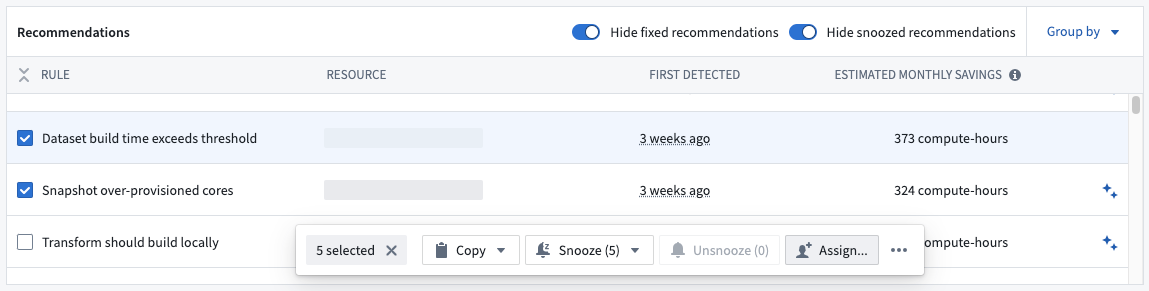
Multiple recommendations can be assigned through the bulk action bar.
The assignee filter in the left sidebar can be used to filter recommendations assigned to the current user or specified user(s).
中文翻译
建议(Recommendations)
Linter 中的一条建议代表一个可执行的操作,用于将一个或多个资源从检测到的潜在次优状态迁移至更理想的状态。当 Linter 对指定范围执行规则扫描后,便会生成建议。
Linter 建议包含一个 Foundry 资源,您查看建议的权限继承自您对该底层资源的查看权限。一条建议可归属于一个或多个项目,并且在某些模式下,还会包含执行建议操作后可能产生的影响预估。
一旦用户对建议执行操作,必须再次运行 Linter 扫描以确认规则条件,并将该建议从视图中移除。
筛选建议
使用左侧边栏,按资源类型、规则、项目或负责人(assignee)筛选显示的建议。
建议上下文
使用右侧边栏查看建议上下文,了解其出现的原因、当前状态的潜在影响,以及将资源迁移至更理想状态所需执行的操作。
建议状态
一条建议可处于以下三种状态之一,并可根据用户操作进行变更:
- 默认(Default): 在 Linter 扫描后未被操作的建议处于默认状态。除非被推迟(snoozed)或在后续扫描后从视图中移除,否则将保持此状态。
- 已推迟(Snoozed): 若暂时无法执行操作,可选择推迟建议。请参阅下文了解更多信息。
- 推迟已过期(Snooze expired): 当推迟的指定时间到期后,之前被推迟的建议将进入推迟已过期状态。
推迟建议
若无法立即对一条或多条建议执行操作,可选择推迟它们以避免反复看到。使用操作栏为选中的建议设置推迟:输入推迟原因,并指定推迟到期时间。到期后,该建议将不再处于已推迟状态。
已推迟的建议以橙色圆点和推迟闹钟符号标识。您可以通过操作栏取消推迟建议。
分配建议
建议可分配给特定用户以便跟踪。要分配建议,请选中该建议,然后在右侧上下文面板中使用负责人(Assignee)选择器将其分配给某位用户。
可通过批量操作栏同时分配多条建议。
左侧边栏中的负责人筛选条件可用于筛选分配给当前用户或指定用户的建议。