Core concepts(核心概念)
Branching
Software developers typically use version control systems to coordinate work in a codebase. This enables multiple engineers to contribute to the same code safely.
In the Palantir platform, you can think about data and change management the way software developers think about code: you need a way to allow many people to make changes and interact with the same data without interfering with someone else's work. Global Branching takes the best practices from software development and applies them to the Palantir platform, harnessing a common feature of version control systems called branching.
At a high level, branching allows you to fork your existing environment and work on components of your end-to-end workflow in a contained branch. When you are satisfied with your changes, you can merge the changes introduced by your branch back into the main branch.
Branching workflow
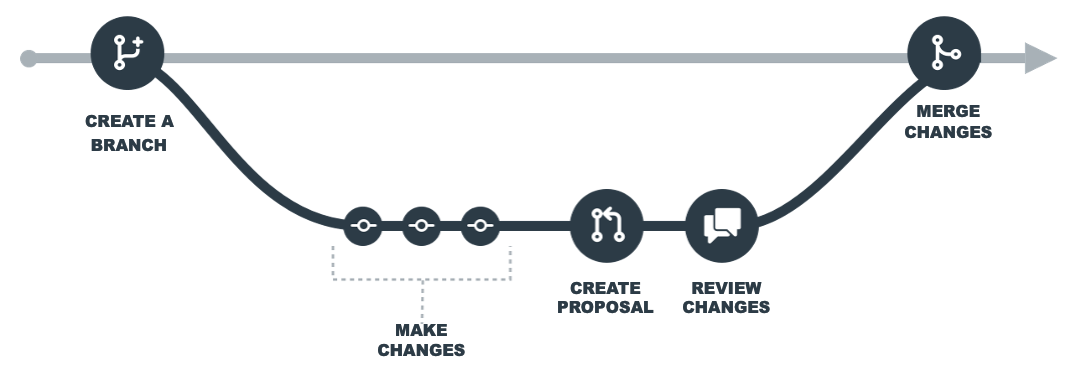
Global branches can be created within Foundry applications or directly in the Global Branching application. The diagram below shows how you can use a branching workflow to make changes to resources in the Palantir platform.
Create or access a branch
You can create a branch from the branch selector in a Foundry application or through the Global Branching application.
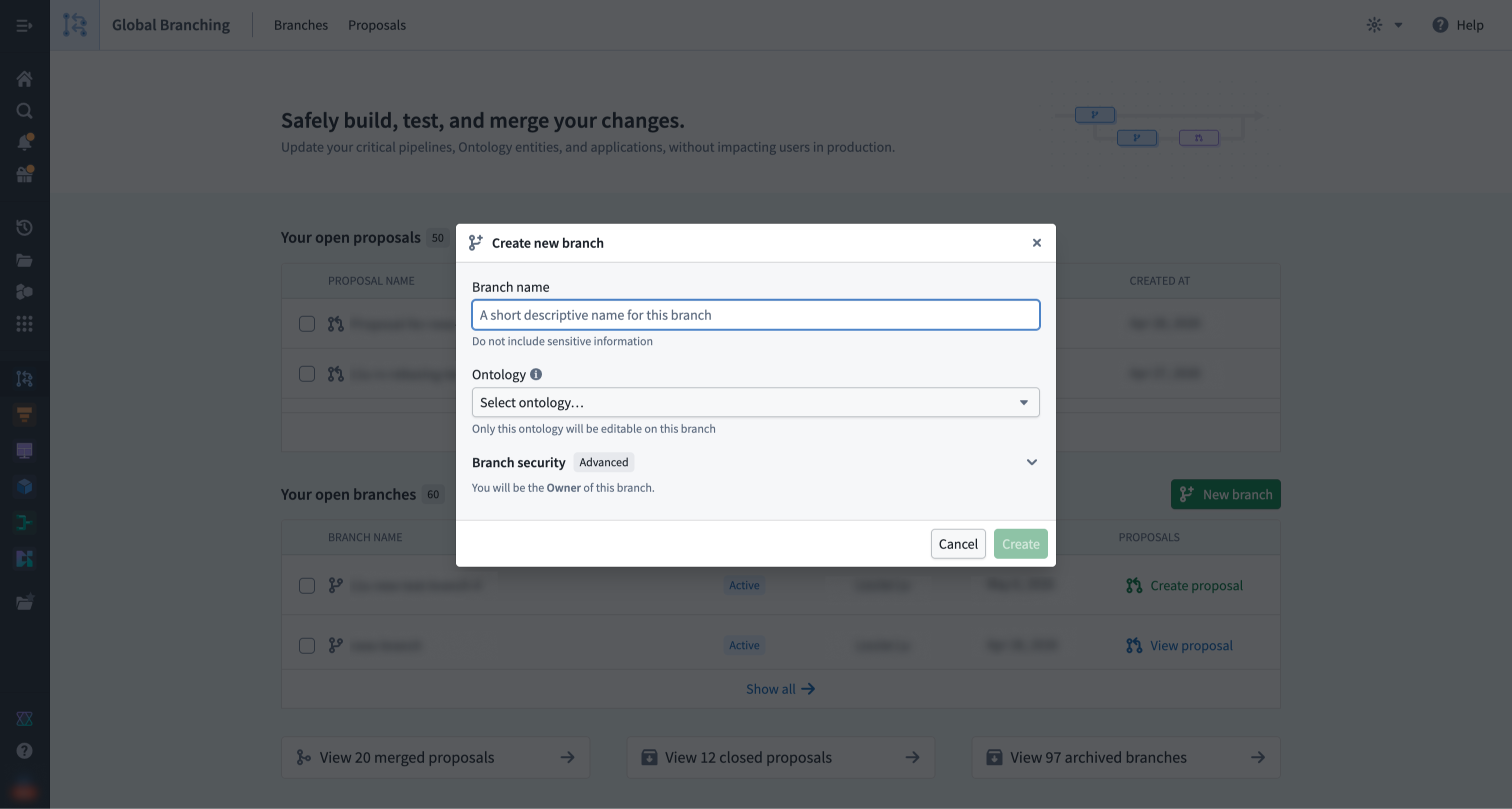
Refer to the Branch security documentation for more information on how ontology, organization, and space are relevant to branch creation.
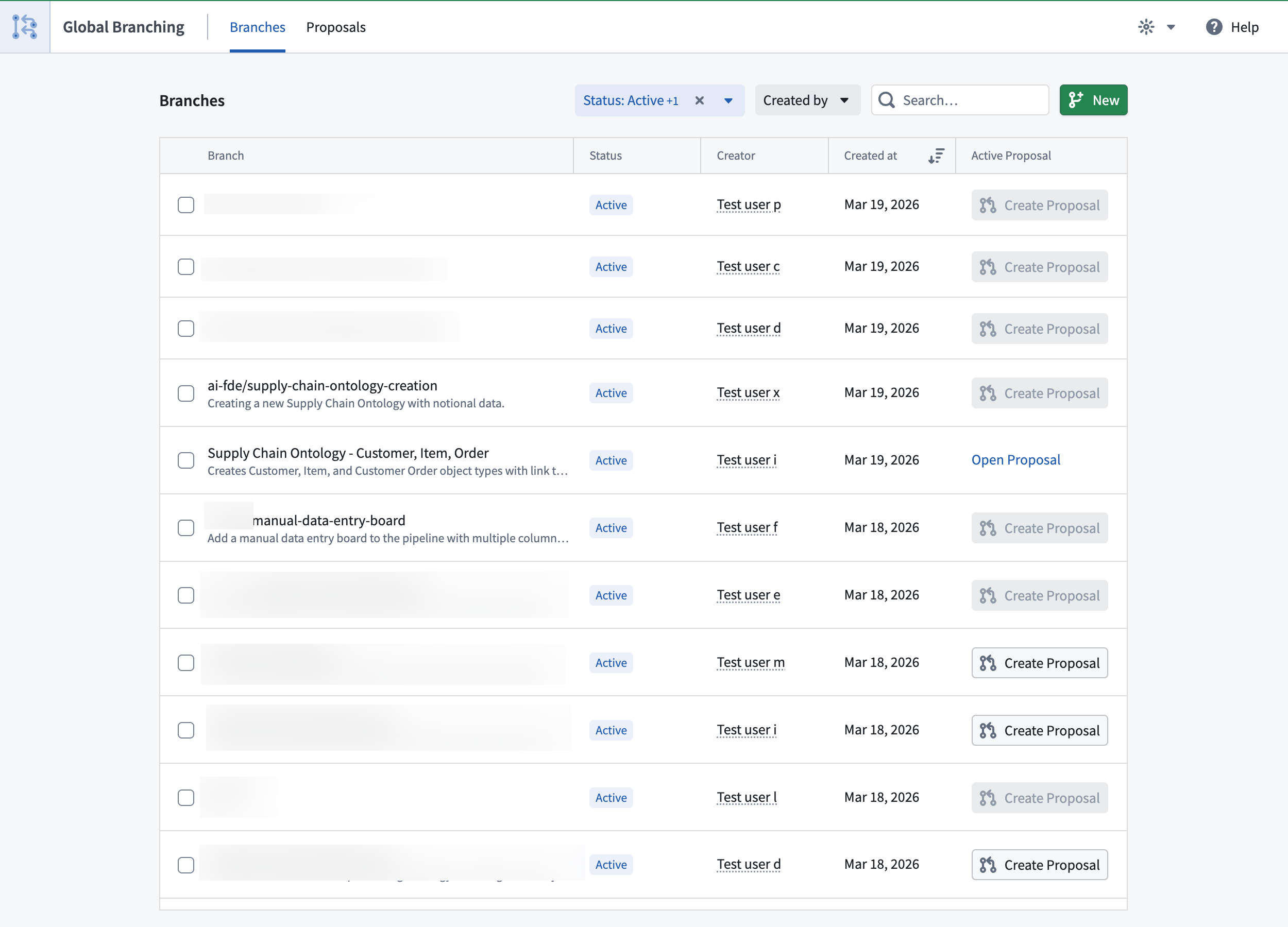
To access an existing global branch, select it in the branch selector in any supported application. You can also find and navigate to an existing branch from the Branches tab in the Global Branching application.
When working on a global branch in a supported application, the branch taskbar will be visible.

Make changes on a branch
Editing resources
Within your branch, you can make changes to Foundry resources without affecting the main branch. However, creating or deleting Foundry resources on a branch will affect main. This does not apply to ontology resources: you can create, modify, or delete entities on the branch without affecting the main branch.
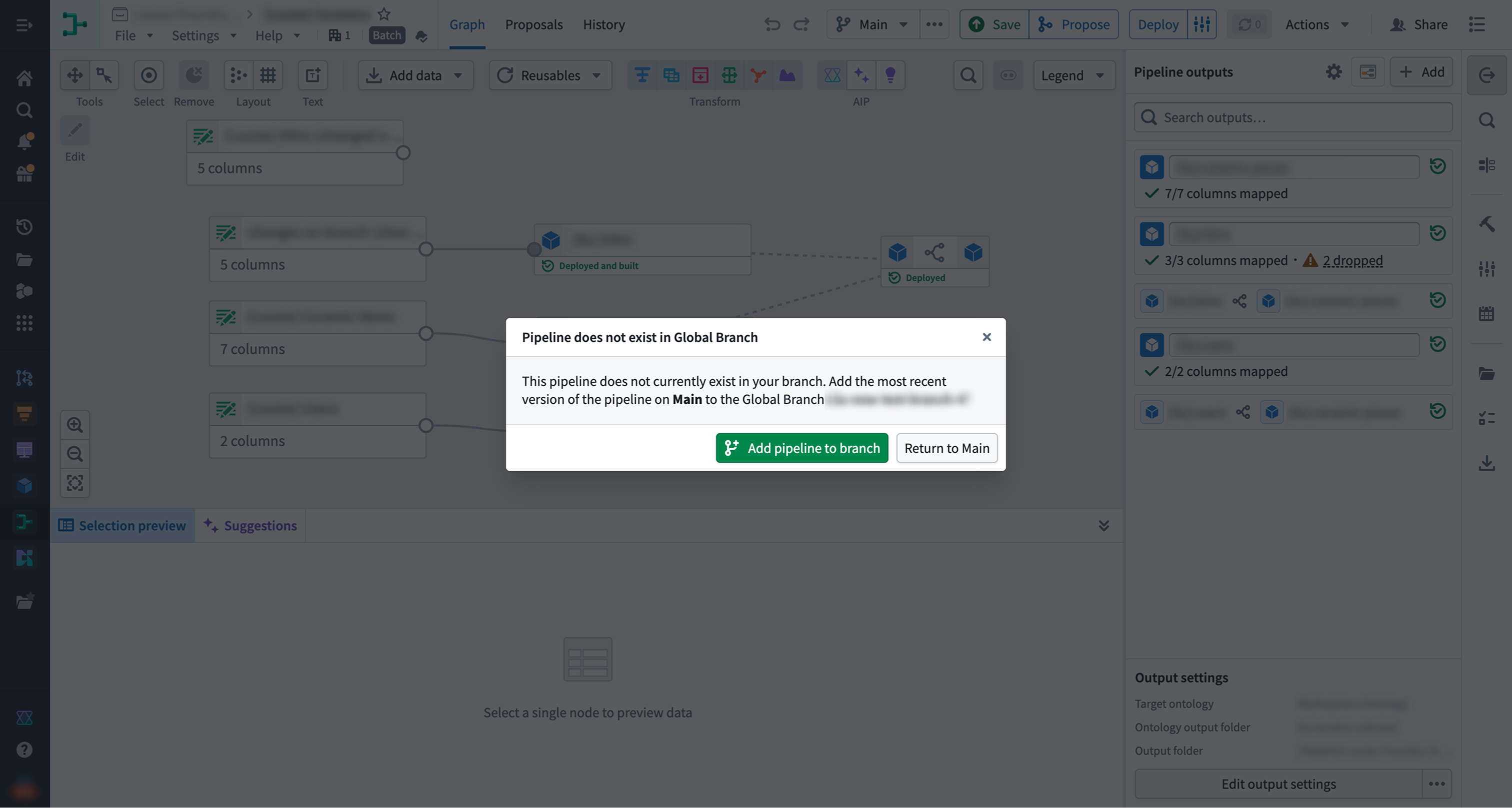
To start making changes to a resource, some applications require you to add the resource to your branch upfront; others add it automatically after you save your first changes. When upfront addition is required, you will be prompted when you select the branch.
Updates from the main branch
While you are making changes to a resource on your branch, the same resource may be updated on the main branch. To pick up those updates, rebase your branch — that is, merge the changes from main into your branch and reapply your previously saved branch changes on top.
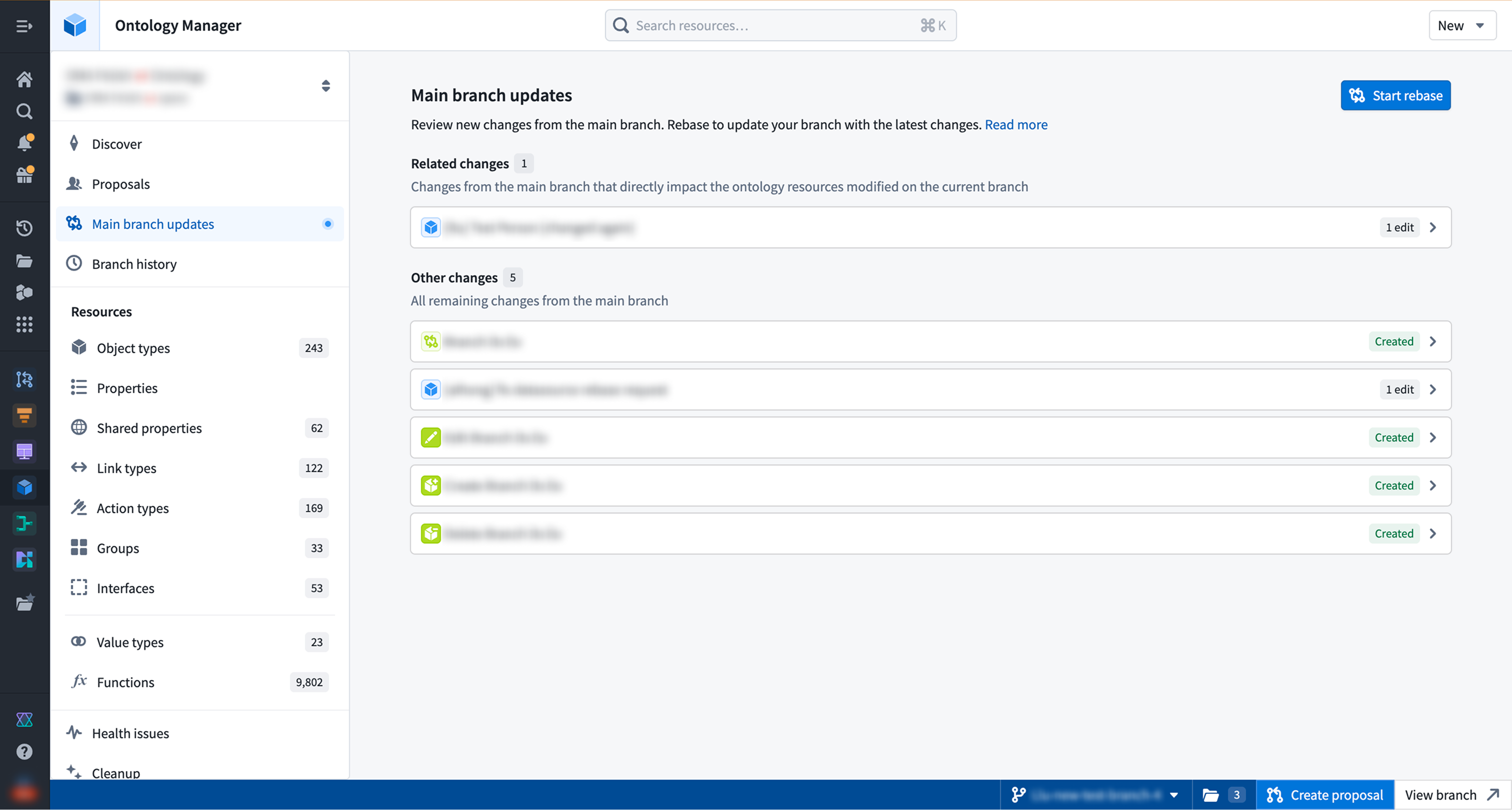
Removing changes from your branch
Removing a resource from a branch returns its state to the version of the resource on the main branch. You can remove resources from a branch directly from the Global Branching application or from the branch taskbar.
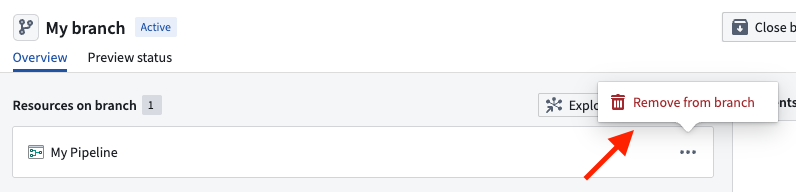
:::callout{theme="warning"} It is possible to break your branch state by removing a resource, so it is important to check the lineage of your resource and ensure that no other branched resources rely on your changes. :::
Create and prepare a proposal
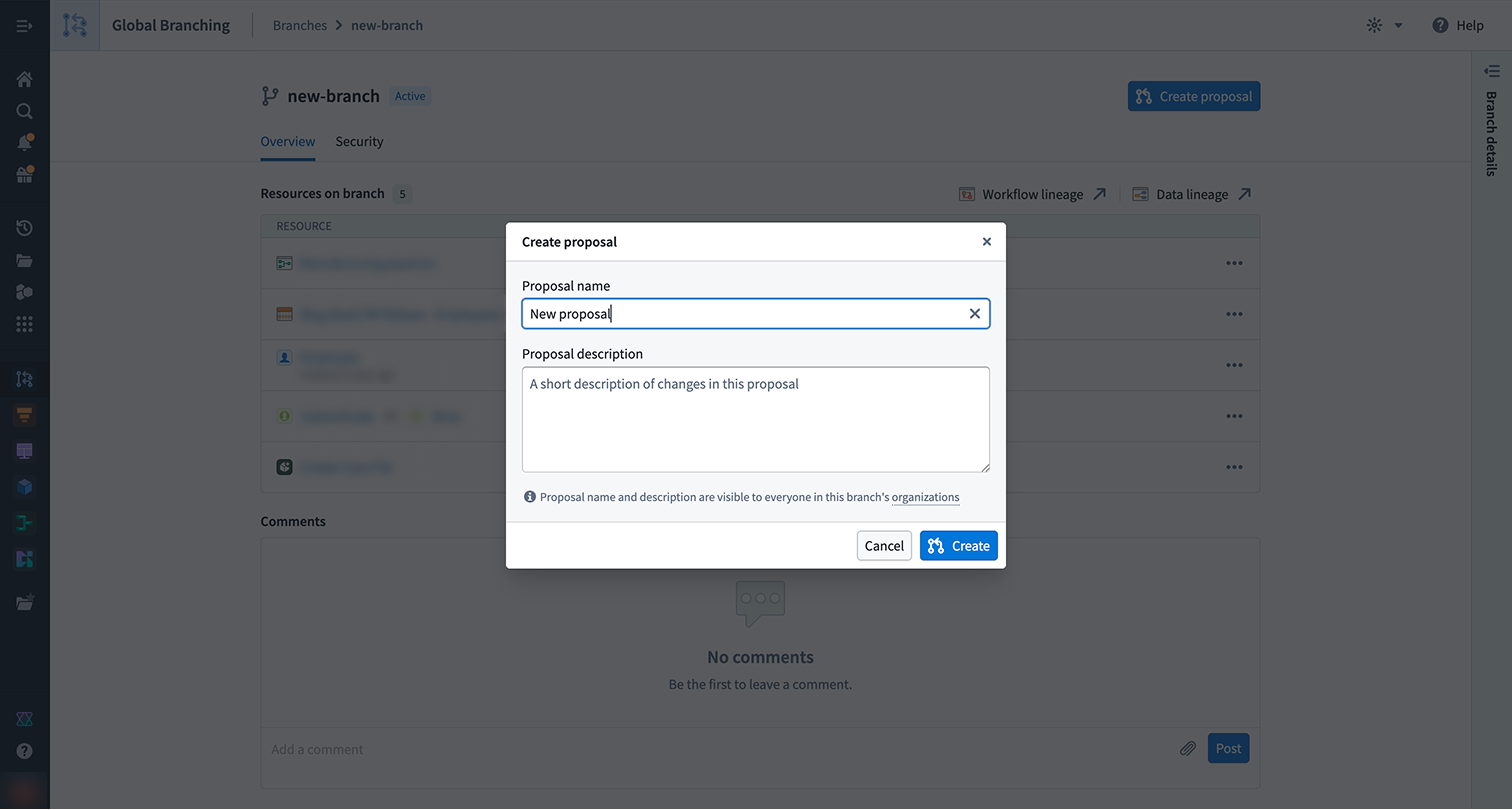
When you are satisfied with the state of your branch, create a proposal to start reviewing and ultimately merging your changes into the main branch. To get started, either select Create proposal from the Global Branching application or the same option from the branch taskbar. A proposal has a description field that allows you to provide information required to review the changes and supports markdown text.
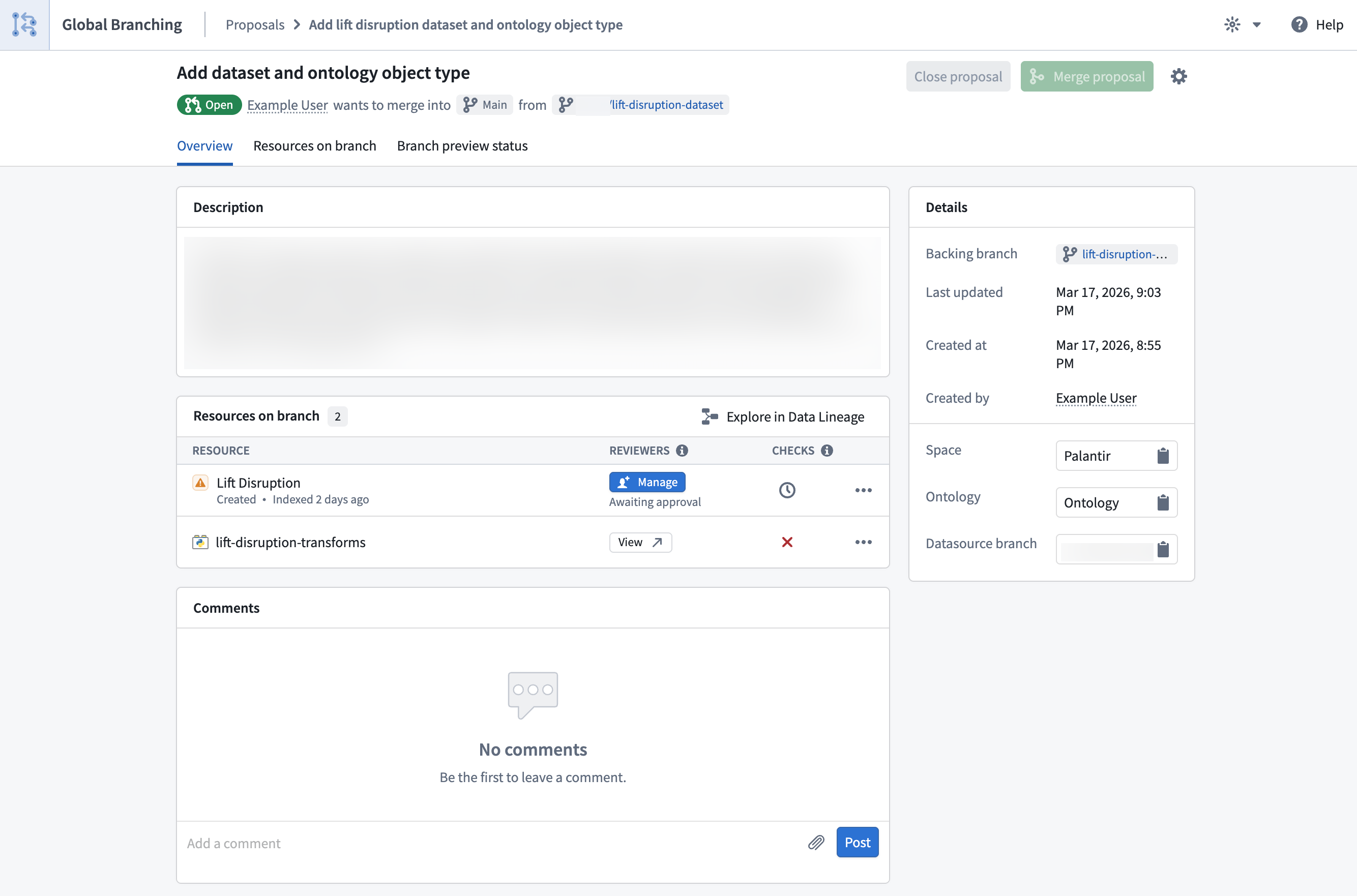
From the proposal page or the branch taskbar, you can use checks to view the readiness of your resources to merge, as well as assign reviewers.
Checks
When a proposal is created, checks will run on each resource to determine if the proposal can be merged.
Checks surface any issues that may prevent a resource from merging, including conflicts between the main branch and your current branch as well as required approvals. All checks for branched resources must pass in order to merge a proposal.
Rebasing and conflict resolution
In order for a branch to be in a mergeable state, all of its resources need to be mergeable with the latest version of the main branch. When a resource is out-of-date with main or cannot be merged cleanly, the rebasing check fails. You will be redirected to the appropriate application to rebase your branched resource. If there are conflicts between your branched resource and the resource on main, you will have to resolve those conflicts in order for the rebasing check to pass.
To view documentation on how different applications implement rebasing, refer to the integrations page.
Global Branching auto-resolves any non-conflicting changes during a rebase. For true conflicts — where the same property of the same resource was edited on both main and your branch — there is no automatic resolution; you must pick one version manually before the rebase can proceed.
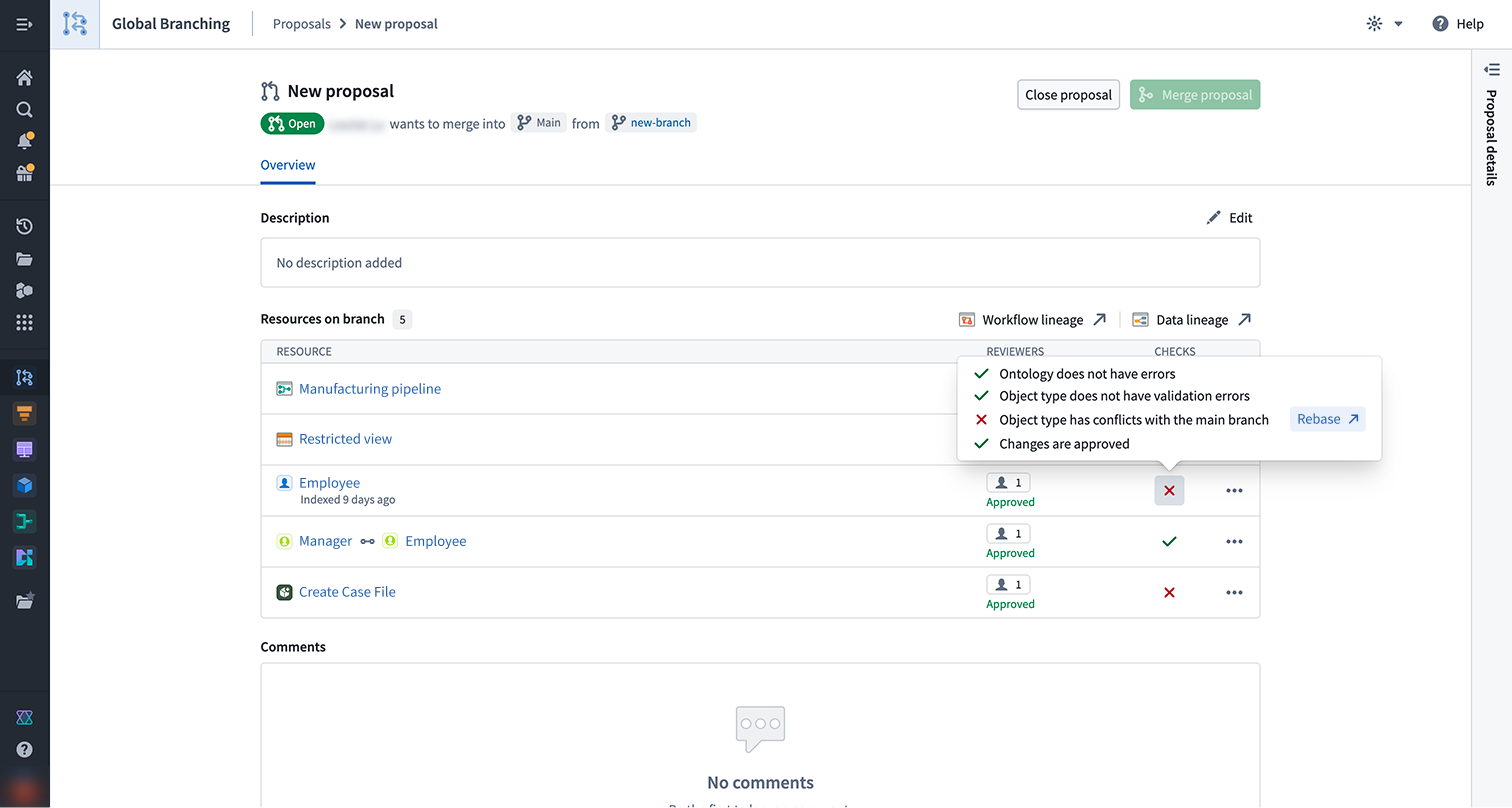
Adding reviewers
To merge your branch, all approval policies must be satisfied. Non-protected resources still require approval from a user with edit-level permissions, which may be granted automatically when the contributor satisfies the policy. Protected resources require a review from the required reviewers defined in the resource protection and approval policies.
For each resource marked Awaiting approval, select Manage to assign the required reviewers and view the associated approval policies. Once a reviewer is assigned, they will receive a notification.
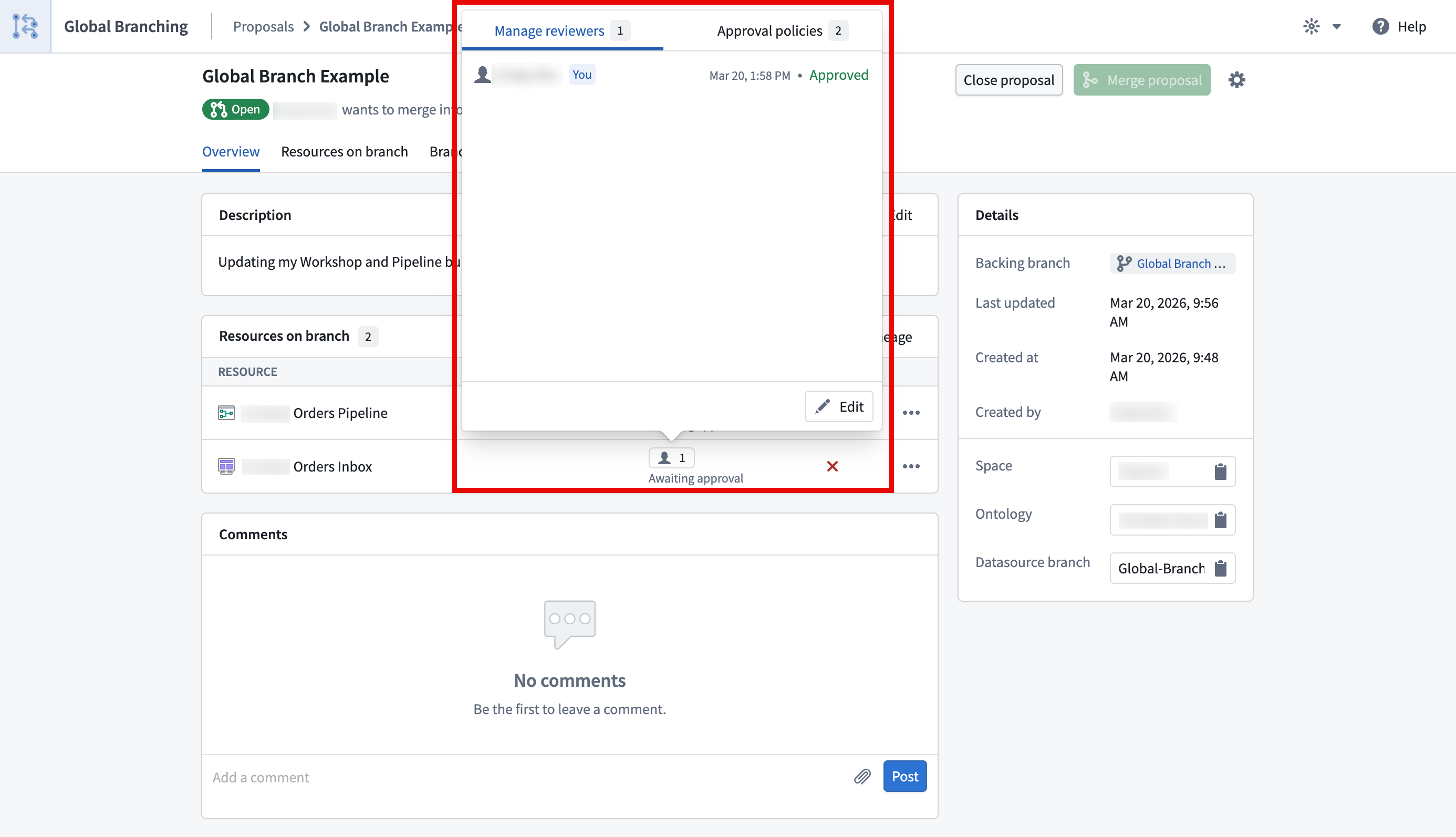
For Code Repositories and Pipeline Builder pipelines, the approval policy is defined within the resource.
Review a proposal
Assigned reviewers can access the resource's review page by selecting Review from either the branch taskbar or the Global Branching application.
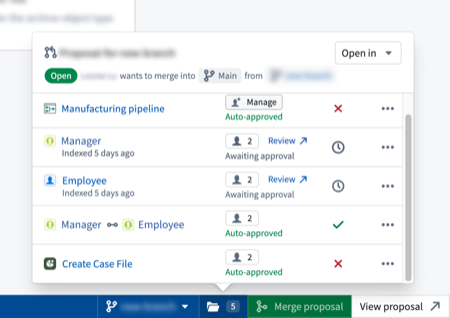
:::callout{theme="warning" title="Rejecting changes to resources on a proposal"}
A single rejection from any user during the review process will cause the resource's changes to be Rejected. This will
prevent the entire proposal from merging. The rejecting user will be required to re-review the changes and Approve them before
the proposal can be merged.
:::
Merge a proposal
Once changes have been approved and all checks have passed, the proposal can be merged into the main branch by selecting Merge proposal in the branch taskbar or from the Global Branching application. Merge permissions are explained in the branch security documentation.
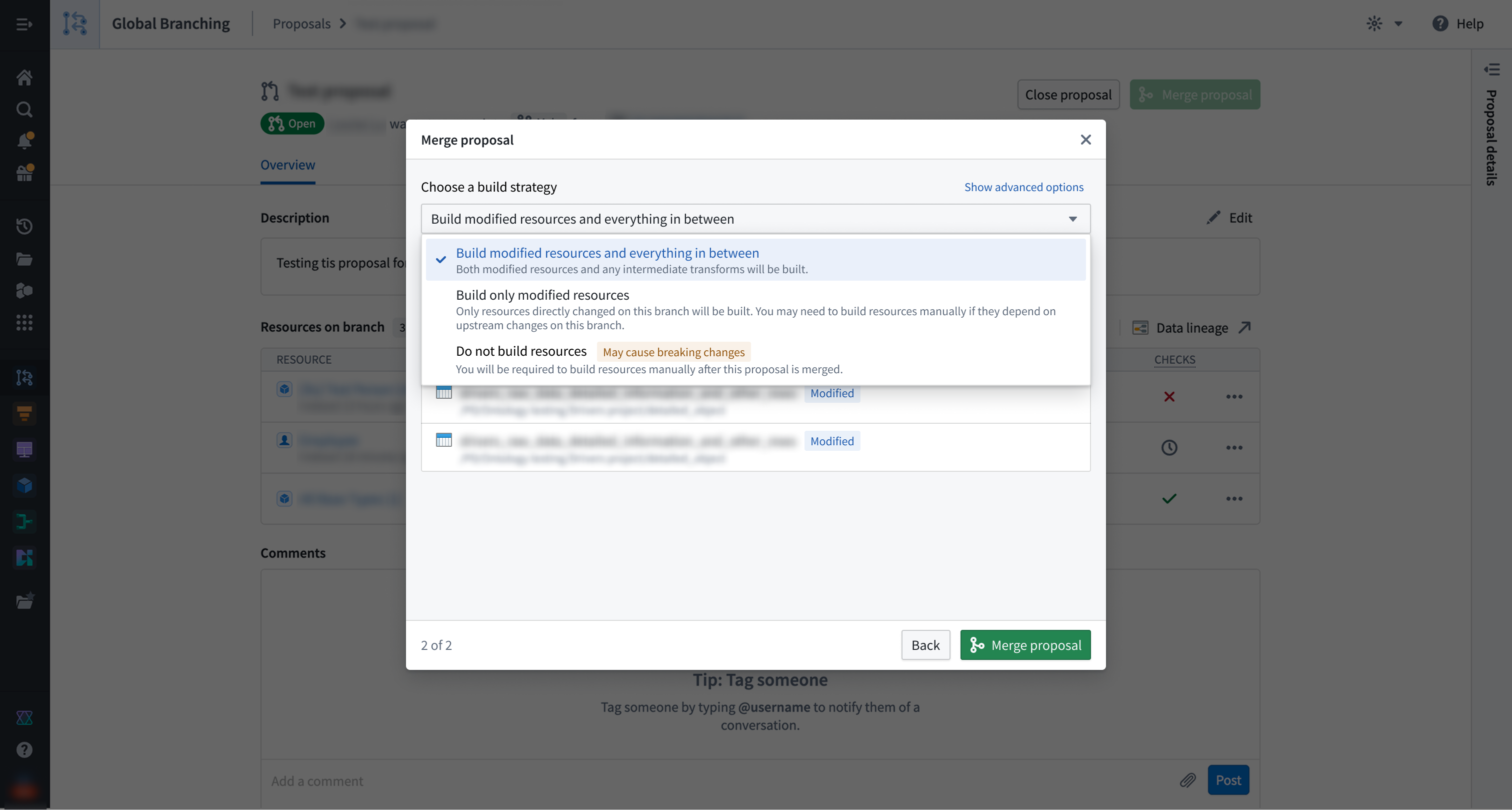
When merging a proposal, you can trigger builds for the affected resources, including those not directly changed on the branch. There are three build options:
- Build all affected resources: All resources affected by changes on your branch will be built, so that data in upstream changes flow as required downstream.
- Build modified resources only: Only resources directly changed on this branch will be built. You may need to build resources manually if they depend on upstream changes to this branch.
- Do not build resources: No resources will be built. You will be required to manually build resources after the proposal has merged.
In case of a partial merge failure, the proposal page will show which resources successfully merged and which failed to merge and remain on the branch. You cannot currently revert a partially-failed merge. You must resolve any errors shown and try to merge your proposal again.
Branch and proposal lifecycle
Branch lifecycle
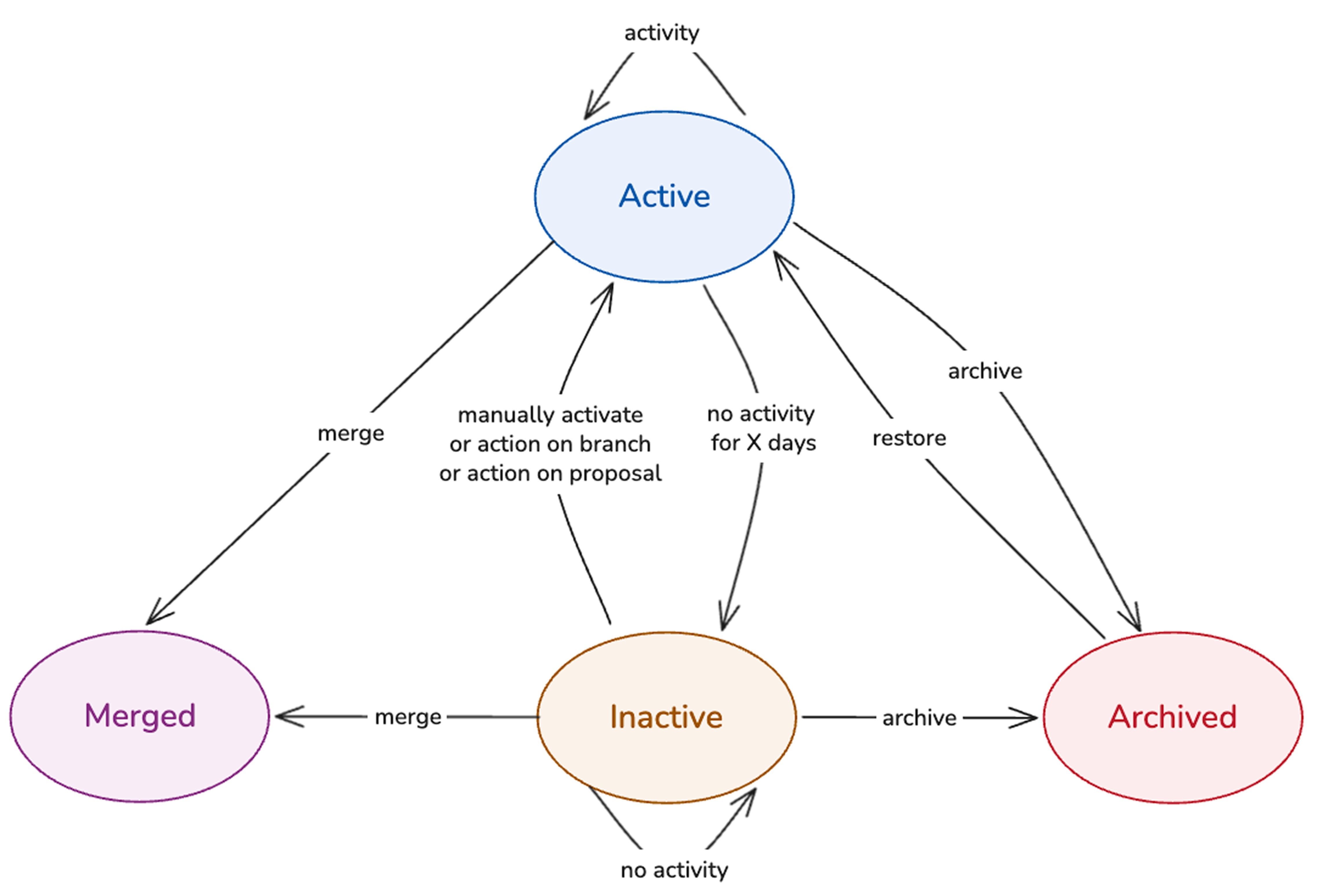
When a branch is created, its status is set to Active. From there, the branch can move into one of the following states: Inactive, Archived, or Merged. The four available branch states are defined as follows:
-
Active: A branch that is being worked on or going through the merge process. Data built or indexed on an active branch is retained while it stays active.
-
Inactive: A branch that is automatically marked as inactive after a configurable period of no activity. In this state, ontology resources are de-indexed, and data deletion follows after a specified number of days. Builds of resources on an inactive branch will immediately fail. When a branch is marked as inactive, you will receive both an email notification and an in-platform notification.
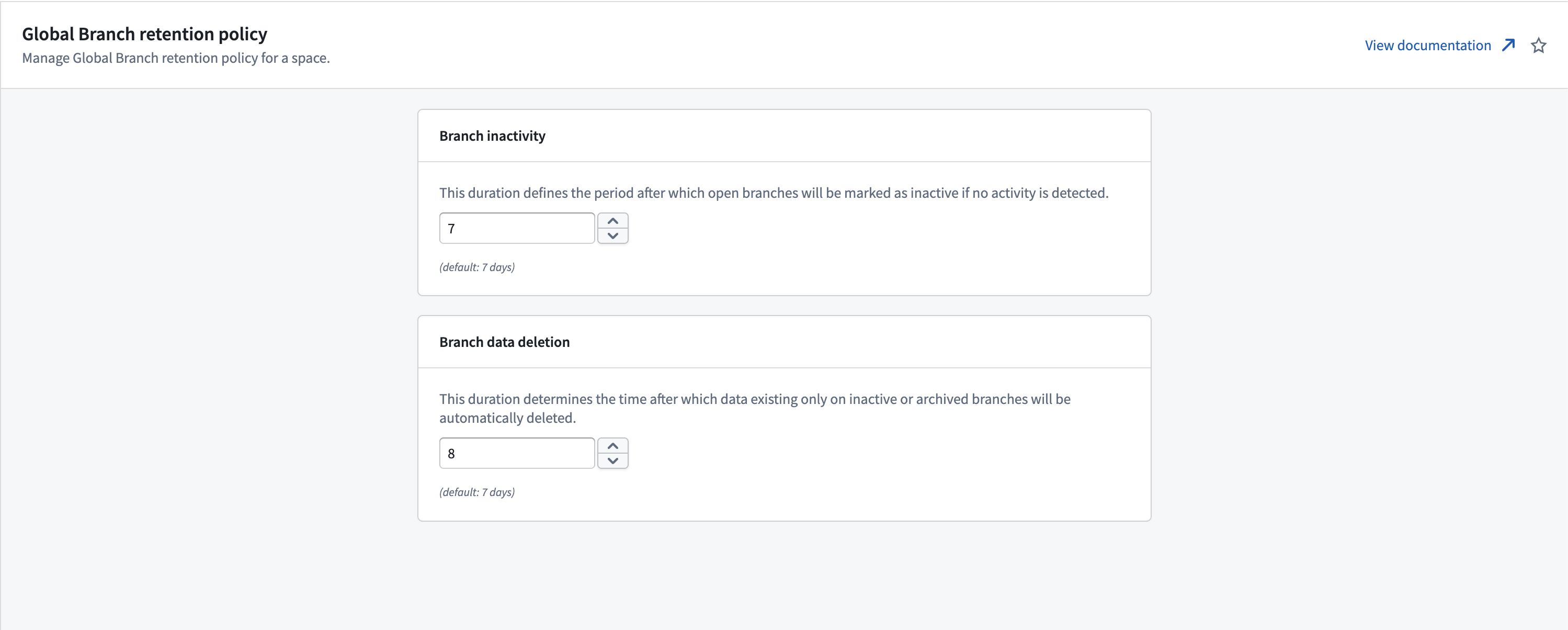
- The period after which a branch is marked as inactive and data deletion is triggered is defined in Control Panel, under Control Panel > Spaces > Actions > Global branch retention policy. By default, branch inactivity is set to 35 days, and branch data deletion is triggered after 7 days.
- To move an inactive branch back to an active state, you can manually remove the Inactive label on the branch.
-
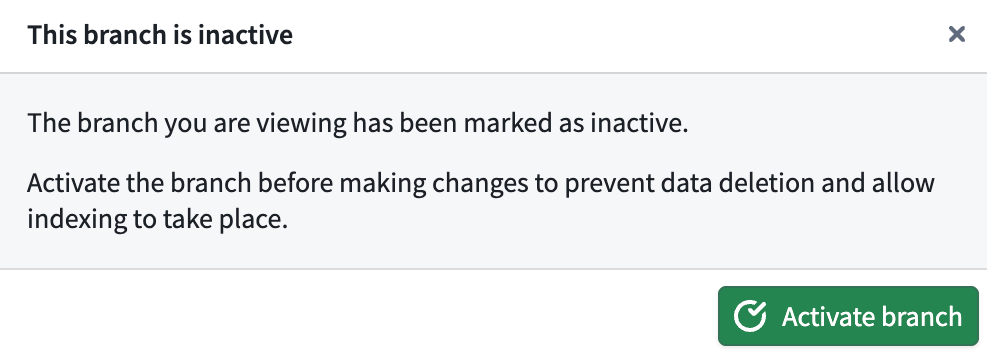
A dialog warns you that the branch is inactive when you open a resource on it. Select Activate branch to activate the branch. If you instead close the dialog, you can continue interacting with the resource, although this is not recommended.
-
Archived: A branch that is no longer being worked on; archiving is always manual. You will receive both an email notification and an in-platform notification. De-indexing, build failure, and data deletion on archived branches work in the same way as on inactive branches. Metadata, such as resources previously modified, is retained, and archived branches can be restored. Archived branches do not appear in the branch selector, but can be opened and restored in the Global Branching application.
-
A dialog warns you that the branch is archived when you open a resource on it. Select Restore branch to restore the branch. If you instead close the dialog, you can continue interacting with the resource, although this is not recommended.

-
Merged: A branch whose proposal has been merged. Merged branches are terminal: they cannot be restored, do not appear in the branch selector, and are only accessible from the Global Branching application.
Working with previously inactive or archived branches
When a branch has been inactive or archived, de-indexing of ontology entities or deletion of logic and data may have occurred for resources on the branch. If the branch is later activated or restored, you may need to perform the following actions to replace deleted or de-indexed data:
- Ontology entities: To trigger re-indexing of ontology entities, make a no-op change such as a minor update to the description of the ontology resource or reindex via the banner in Ontology Manager.
- Code repositories: If job specs have been deleted, make a no-op change such as editing a comment in the relevant transforms of your repository, then commit. Running a build from within the code repository will then re-put logic to the relevant datasets and build them. Running this first build from other applications such as Data Lineage will not put the job specs.
- Pipeline builder: Deploy and build from pipeline builder to re-put job specs and data on your branch.
- Build schedules: Builds on archived or inactive branches will automatically fail. If a schedule builds resources on the branch, it may be paused due to repeated build failure. You can resume the schedule manually from the Build Schedules application or Data Lineage.
Known limitations
- After repeated build failures, schedules on inactive or archived branches will automatically pause. If you reactivate your branch, manually un-pause the schedule on the branch if necessary.
- During local development, for example when using git directly to interact with branched resources from your local machine, you will not be prevented from working on an inactive or archived branch. Materialized data and/or job specs based on any changes you make may be deleted.
AI FDE
- AI FDE does not allow modifying inactive or archived branches; it prompts you to reactivate or restore the branch to continue.
Proposal lifecycle
A proposal can be in one of three states:
- Open: A proposal that is in progress or approved.
- Merged: A proposal that has been merged into the
mainbranch. - Closed: A proposal that has been closed and was not merged.
中文翻译
核心概念
分支(Branching)
软件开发人员通常使用版本控制系统来协调代码库中的工作。这使得多名工程师能够安全地为同一代码库做出贡献。
在 Palantir 平台中,您可以像软件开发人员管理代码一样来思考数据与变更管理:您需要一种方法,允许多人进行更改并与相同数据交互,而不会干扰他人的工作。全局分支(Global Branching) 汲取了软件开发的最佳实践并将其应用于 Palantir 平台,利用了版本控制系统中一项名为分支(Branching) 的常见功能。
从宏观上看,分支允许您分叉现有环境,并在一个独立的分支中处理端到端工作流的各个组件。当您对更改满意后,可以将分支引入的更改合并回 main 分支。
分支工作流
全局分支可以在 Foundry 应用程序中创建,也可以直接在 Global Branching 应用程序中创建。下图展示了如何使用分支工作流对 Palantir 平台中的资源进行更改。
创建或访问分支
您可以通过 Foundry 应用程序中的分支选择器或通过 Global Branching 应用程序创建分支。
有关本体(Ontology)、组织和空间如何与分支创建相关的更多信息,请参阅分支安全性文档。
要访问现有的全局分支,请在任何受支持应用程序的分支选择器中选择该分支。您也可以在 Global Branching 应用程序的分支选项卡中找到并导航至现有分支。
在受支持的应用程序中处理全局分支时,分支任务栏将可见。
在分支上进行更改
编辑资源
在您的分支内,您可以对 Foundry 资源进行更改,而不会影响 main 分支。但是,在分支上创建或删除 Foundry 资源会影响 main。这不适用于本体资源:您可以在分支上创建、修改或删除实体,而不会影响 main 分支。
要开始对资源进行更改,某些应用程序要求您提前将资源添加到分支中;其他应用程序则会在您保存首次更改后自动添加。当需要提前添加时,系统会在您选择分支时提示您。
来自 main 分支的更新
当您在分支上对资源进行更改时,同一资源可能会在 main 分支上被更新。要获取这些更新,请对您的分支进行变基(Rebase)——即将 main 的更改合并到您的分支中,并在其之上重新应用您之前保存的分支更改。
从分支中移除更改
从分支中移除资源会将其状态恢复为 main 分支上的资源版本。您可以直接从 Global Branching 应用程序或分支任务栏中从分支移除资源。
:::callout{theme="warning"} 移除资源可能会破坏分支状态,因此务必检查资源的血缘关系,并确保没有其他已分支的资源依赖于您的更改。 :::
创建并准备提案(Proposal)
当您对分支状态满意后,请创建提案以开始审查并最终将更改合并到 main 分支。要开始操作,请从 Global Branching 应用程序或分支任务栏中选择创建提案。提案包含一个描述字段,允许您提供审查更改所需的信息,并支持 Markdown 文本。
在提案页面或分支任务栏中,您可以使用检查(Checks)功能查看资源是否已准备好合并,并分配审查者。
检查
创建提案后,系统将对每个资源运行检查,以确定提案是否可以合并。
检查会显示任何可能阻止资源合并的问题,包括 main 分支与当前分支之间的冲突以及所需的审批。所有针对已分支资源的检查必须通过才能合并提案。
变基与冲突解决
为了使分支处于可合并状态,其所有资源都需要能够与 main 分支的最新版本合并。当资源相对于 main 已过时或无法干净地合并时,变基检查将失败。系统会将您重定向到相应的应用程序以对已分支资源进行变基。如果您的已分支资源与 main 上的资源之间存在冲突,您必须解决这些冲突才能使变基检查通过。
要查看有关不同应用程序如何实现变基的文档,请参阅集成页面。
Global Branching 会在变基期间自动解决任何非冲突的更改。对于真正的冲突——即 main 和您的分支上同时编辑了同一资源的同一属性——系统不会自动解决;您必须在变基继续之前手动选择一个版本。
添加审查者
要合并分支,必须满足所有审批策略。非受保护资源仍需要具有编辑级别权限的用户进行审批,当贡献者满足策略时可能会自动授予该权限。受保护资源需要由资源保护与审批策略中定义的必需审查者进行审查。
对于每个标记为等待审批的资源,选择管理以分配所需的审查者并查看相关的审批策略。分配审查者后,他们将收到通知。
对于代码库(Code Repositories)和 Pipeline Builder 管道,审批策略在资源内部定义。
审查提案
分配的审查者可以通过从分支任务栏或 Global Branching 应用程序中选择审查来访问资源的审查页面。
:::callout{theme="warning" title="拒绝提案中资源的更改"}
在审查过程中,任何用户的单次拒绝都会导致资源的更改被拒绝。这将
阻止整个提案合并。拒绝的用户需要重新审查更改并批准它们,然后才能
合并提案。
:::
合并提案
一旦更改获得批准且所有检查均已通过,即可通过在分支任务栏或 Global Branching 应用程序中选择合并提案将提案合并到 main 分支。合并权限在分支安全性文档中有详细说明。
合并提案时,您可以触发受影响资源的构建,包括那些未在分支上直接更改的资源。共有三种构建选项:
- 构建所有受影响资源: 将构建受分支更改影响的所有资源,以便上游更改中的数据按需流向下游。
- 仅构建已修改资源: 仅构建在此分支上直接更改的资源。如果资源依赖于此分支的上游更改,您可能需要手动构建它们。
- 不构建资源: 不构建任何资源。您需要在提案合并后手动构建资源。
如果发生部分合并失败,提案页面将显示哪些资源成功合并,哪些合并失败并保留在分支上。目前无法恢复部分失败的合并。您必须解决显示的任何错误并尝试再次合并提案。
分支与提案生命周期
分支生命周期
创建分支时,其状态设置为 Active。此后,分支可进入以下状态之一:Inactive、Archived 或 Merged。这四种可用的分支状态定义如下:
-
Active: 正在处理或正在进行合并过程的分支。在 Active 分支上构建或索引的数据在其保持 Active 状态期间会被保留。
-
Inactive: 在可配置的非活动期后自动标记为 Inactive 的分支。在此状态下,本体资源将被取消索引,并在指定天数后执行数据删除。在 Inactive 分支上构建资源将立即失败。当分支被标记为 Inactive 时,您将收到电子邮件通知和平台内通知。
- 分支被标记为 Inactive 并触发数据删除的期限在控制面板(Control Panel) 中定义,路径为控制面板 > 空间 > 操作 > 全局分支保留策略。默认情况下,分支非活动期设置为 35 天,分支数据删除在 7 天后触发。
- 要将 Inactive 分支恢复为 Active 状态,您可以手动移除分支上的 Inactive 标签。
-
当您在 Inactive 分支上打开资源时,会弹出一个警告对话框。选择激活分支以激活该分支。如果您选择关闭对话框,仍可继续与该资源交互,但不建议这样做。
-
Archived: 不再处理的分支;归档始终是手动操作。您将收到电子邮件通知和平台内通知。Archived 分支上的取消索引、构建失败和数据删除机制与 Inactive 分支相同。元数据(如之前修改的资源)会被保留,且 Archived 分支可以恢复。Archived 分支不会出现在分支选择器中,但可以在 Global Branching 应用程序中打开和恢复。
-
当您在 Archived 分支上打开资源时,会弹出一个警告对话框。选择恢复分支以恢复该分支。如果您选择关闭对话框,仍可继续与该资源交互,但不建议这样做。
-
Merged: 其提案已被合并的分支。Merged 分支是终态:它们无法恢复,不会出现在分支选择器中,且只能从 Global Branching 应用程序访问。
处理先前处于 Inactive 或 Archived 状态的分支
当分支处于 Inactive 或 Archived 状态时,分支上的资源可能已发生本体实体取消索引或逻辑和数据删除。如果稍后激活或恢复该分支,您可能需要执行以下操作来替换已删除或取消索引的数据:
- 本体实体: 要触发本体实体的重新索引,请进行无操作更改,例如对本体资源的描述进行微小更新,或通过 Ontology Manager 中的横幅重新索引。
- 代码库: 如果作业规范已被删除,请进行无操作更改,例如编辑代码库中相关转换的注释,然后提交。从代码库内部运行构建将重新把逻辑推送到相关数据集并构建它们。从数据血缘(Data Lineage)等其他应用程序运行首次构建不会推送作业规范。
- Pipeline Builder: 从 Pipeline Builder 部署并构建,以重新将作业规范和数据推送到您的分支上。
- 构建计划: 在 Archived 或 Inactive 分支上的构建将自动失败。如果计划构建分支上的资源,它可能会因重复构建失败而暂停。您可以从 Build Schedules 应用程序或数据血缘中手动恢复该计划。
已知限制
- 在多次构建失败后,Inactive 或 Archived 分支上的计划将自动暂停。如果您重新激活分支,请在必要时手动取消暂停分支上的计划。
- 在本地开发期间,例如直接使用 git 从本地计算机与已分支资源交互时,系统不会阻止您在 Inactive 或 Archived 分支上工作。基于您所做更改的物化数据和/或作业规范可能会被删除。
AI FDE
- AI FDE 不允许修改 Inactive 或 Archived 分支;它会提示您重新激活或恢复分支以继续。
提案生命周期
提案可处于以下三种状态之一:
- Open: 正在进行或已批准的提案。
- Merged: 已合并到
main分支的提案。 - Closed: 已关闭且未合并的提案。