Build an application(构建应用程序)
This page guides you through the build lifecycle of a Pilot application, from ontology generation through seed data. For creating a new application, see Getting started. For deploying to production, see Deploy an application.
Ontology generation
After you describe your application, Pilot analyzes your prompt and creates the data model for your application using the ontology architect agent. Pilot creates the following resources based on your prompt:
- Object types that represent the core entities in your application. For example, a task management application might include
Task,Project, andTeam Memberobject types with relevant properties. - Action types for your workflow. For example,
Create Task,Update Task Status,Assign Task, andDelete Task. - Link types that define relationships between object types. For example, a link between
TaskandProjectto indicate which project a task belongs to.
The ontology architect documents design decisions in the chat panel, explaining the rationale for each entity. You can view the generated ontology graph by switching to the Ontology tab. For more details on the ontology graph, see the ontology tab documentation.
To refine the ontology, type instructions in the chat panel. For example, you might ask Pilot to add a new property, change a property type, or create a new relationship between object types.
:::callout{theme="neutral"} If you attach existing ontology entities as context, Pilot will use them instead of creating duplicates. See Provide context and attachments for details. :::
Design specification
Once the ontology is defined, the design agent creates a detailed design specification for your application. The design agent reads the ontology and your requirements, then produces a design specification with the following:
- A color palette and semantic status colors
- Typography, including font family, sizes, and line heights
- A layout for the main application views
- Form design and interaction patterns such as hover states, animations, and validation feedback
You can view a summary of the design specification in the chat panel. The design specification guides the front-end generation that follows.
Frontend generation
The app builder agent implements the front end using the ontology and design specification. This agent performs the following tasks:
- Reads the design specification, ontology definitions, and OSDK documentation
- Builds a React application that uses OSDK hooks for real-time data loading and mutations
- Generates components for creating, updating, filtering, and deleting records
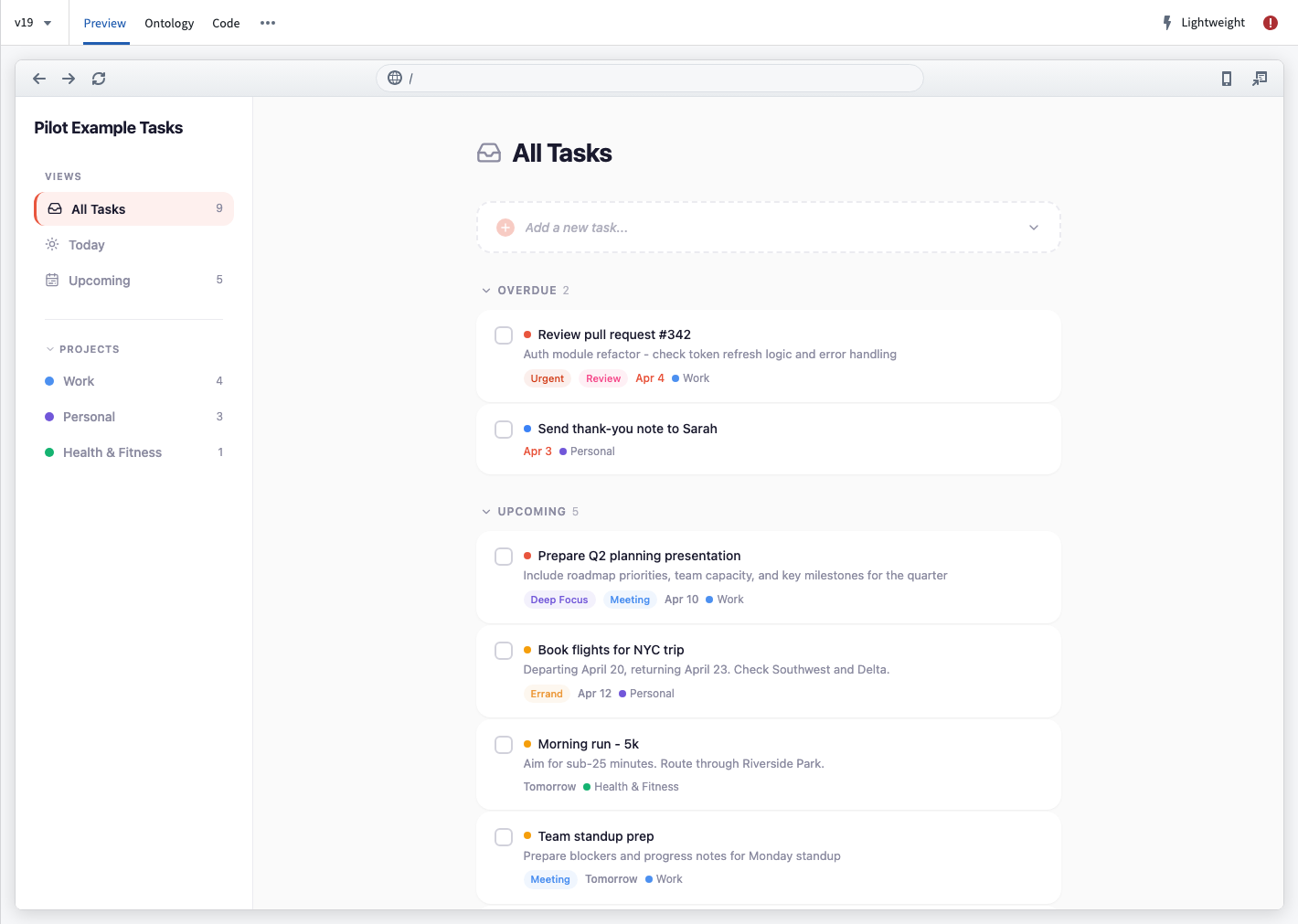
When the agent finishes, the Preview tab displays a live preview of your application running in the container. You can interact with the preview to test functionality, and the device selector lets you preview the application at different screen sizes.
Seed data
In editor view, Pilot generates seed data in the container so that AI agents never access real enterprise data. This prevents Pilot from hard-coding production values into your application code. You can view generated records in the Ontology tab by selecting an object type node and opening the data preview panel. See the ontology tab documentation for details.
To validate your application against real ontology data, switch to the Deploy view. On a deployment branch, ontology schema changes are scoped to that branch and do not affect Main until you merge. On Main, any actions performed in the application are live ontology edits. For details, see Deploy an application.
Iterate on your application
After the initial build, you can refine your application through follow-up prompts.
- Add features: Describe new functionality, and Pilot updates the ontology, design, and code as needed.
- Fix issues: If the preview shows unexpected behavior, describe the problem and Pilot investigates and applies a fix.
- Change the design: Request color, layout, or typography changes and the design agent updates the specification.
- Upload reference material: Attach documents, images, or wireframes to guide Pilot. See Provide context and attachments.
- Edit code directly: The code tab provides an embedded editor where you can make changes to the application source code directly.
- Switch models or modes: Use a different AI model, or switch between act and plan modes depending on the task. See Models and agent modes for more information.
If you encounter build errors in the Preview tab, you can select Fix with Pilot to prompt Pilot to diagnose and resolve the issue automatically.
中文翻译
构建应用程序
本页面将引导您完成 Pilot 应用程序的构建生命周期,从本体生成到种子数据。如需创建新应用程序,请参阅入门指南。如需部署到生产环境,请参阅部署应用程序。
本体生成(Ontology generation)
在您描述应用程序后,Pilot 会分析您的提示词,并使用本体架构代理(ontology architect agent)为应用程序创建数据模型。Pilot 会根据您的提示词创建以下资源:
- 对象类型(Object types):代表应用程序中的核心实体。例如,任务管理应用程序可能包含
Task、Project和Team Member等对象类型及其相关属性。 - 操作类型(Action types):用于工作流程。例如,
Create Task、Update Task Status、Assign Task和Delete Task。 - 链接类型(Link types):定义对象类型之间的关系。例如,
Task和Project之间的链接,用于指示任务所属的项目。
本体架构代理会在聊天面板中记录设计决策,解释每个实体的设计理由。您可以通过切换到本体(Ontology)选项卡来查看生成的本体图。有关本体图的更多详情,请参阅本体选项卡文档。
如需优化本体,请在聊天面板中输入指令。例如,您可以要求 Pilot 添加新属性、更改属性类型,或在对象类型之间创建新关系。
:::callout{theme="neutral"} 如果您附加现有本体实体作为上下文,Pilot 将使用这些实体而不会创建重复项。详情请参阅提供上下文和附件。 :::
设计规范(Design specification)
本体定义完成后,设计代理(design agent)会为您的应用程序创建详细的设计规范。设计代理会读取本体和您的需求,然后生成包含以下内容的设计规范:
- 调色板和语义状态颜色
- 排版,包括字体族、字号和行高
- 主要应用程序视图的布局
- 表单设计和交互模式,如悬停状态、动画和验证反馈
您可以在聊天面板中查看设计规范的摘要。设计规范将指导后续的前端生成。
前端生成(Frontend generation)
应用程序构建代理(app builder agent)使用本体和设计规范来实现前端。该代理执行以下任务:
- 读取设计规范、本体定义和 OSDK 文档
- 构建使用 OSDK 钩子(hooks)进行实时数据加载和变更的 React 应用程序
- 生成用于创建、更新、过滤和删除记录的组件
代理完成后,预览(Preview)选项卡会显示应用程序在容器中运行的实时预览。您可以与预览交互以测试功能,设备选择器允许您在不同屏幕尺寸下预览应用程序。
种子数据(Seed data)
在编辑器视图中,Pilot 会在容器中生成种子数据,这样 AI 代理就永远不会访问真实的企业数据。这可以防止 Pilot 将生产环境的值硬编码到应用程序代码中。您可以通过选择对象类型节点并打开数据预览面板,在本体(Ontology)选项卡中查看生成的记录。详情请参阅本体选项卡文档。
如需根据真实本体数据验证应用程序,请切换到部署(Deploy)视图。在部署分支上,本体模式更改仅限于该分支,在合并之前不会影响 Main。在 Main 上,应用程序中执行的任何操作都是实时的本体编辑。详情请参阅部署应用程序。
迭代应用程序
初始构建完成后,您可以通过后续提示词来优化应用程序。
- 添加功能: 描述新功能,Pilot 会根据需要更新本体、设计和代码。
- 修复问题: 如果预览显示意外行为,请描述问题,Pilot 会调查并应用修复。
- 更改设计: 请求更改颜色、布局或排版,设计代理会更新规范。
- 上传参考资料: 附加文档、图片或线框图以指导 Pilot。请参阅提供上下文和附件。
- 直接编辑代码: 代码选项卡提供嵌入式编辑器,您可以直接修改应用程序源代码。
- 切换模型或模式: 使用不同的 AI 模型,或根据任务在执行模式(act mode)和计划模式(plan mode)之间切换。更多信息请参阅模型和代理模式。
如果在预览(Preview)选项卡中遇到构建错误,您可以选择使用 Pilot 修复(Fix with Pilot),让 Pilot 自动诊断并解决问题。