Getting started(入门指南)
This page walks you through creating your first application with Pilot. By the end of this guide, you will have a working application with generated ontology entities, a design specification, frontend code, and seed data running in a live preview.
Open Pilot
To open Pilot, select Pilot from the application menu in the Foundry navigation sidebar. If you do not see Pilot in the application menu, confirm that your enrollment has Pilot enabled and that you have access to a project with ontology write permissions.
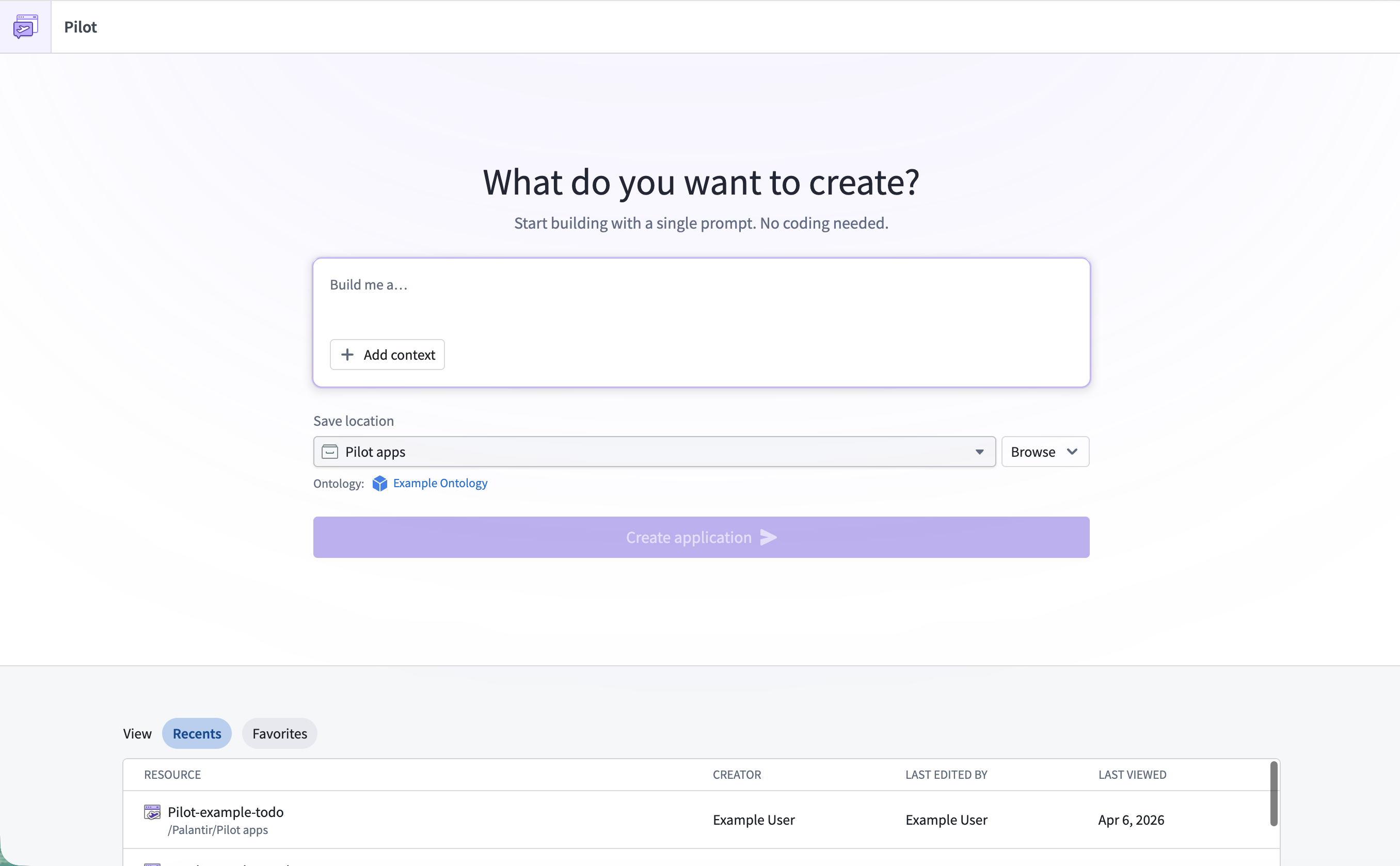
The Pilot welcome screen displays a prompt input, a Save location selector, and a list of recent applications.
Create your first application
- In the prompt input, describe the application you want to build. For example:
Build a task management application for tracking team projects with priorities and deadlines. - (Optional) Select Add to attach additional context, such as existing object types, action types, or reference documents. For more details, see Provide context and attachments.
- Confirm the Save location, which determines the ontology where Pilot will use existing entities or create new ones.
- Select Create application.
Pilot creates an isolated container where all code and ontology edits are safely made until you deploy the application explicitly.
Wait for your container
After you select Create application, Pilot provisions a container for your application. This process may take a few moments. You can monitor progress using the status indicator in the top-right corner of the workspace. For more details on status monitoring, see The Pilot workspace.
Explore the workspace
Once the container is ready, the Pilot workspace will open. The workspace has two main areas:
- Chat panel (left): A chat interface where you can interact with Pilot to refine your application. The chat panel includes the prompt input, message history, and context attachments.
- Application view (center): Four tabs for viewing different aspects of your application:
- Preview: A live preview of your generated application.
- Ontology: An interactive graph showing the object types, action types, and relationships created by Pilot.
- Code: The complete application source code in an embedded editor.
- Pilot Logs: Container logs for debugging.
For a detailed walkthrough of each workspace area, see The Pilot workspace.
Refine with follow-up prompts
After Pilot finishes the initial build, you can continue iterating by typing follow-up prompts in the chat panel. For example:
- Add new features:
Add a dashboard that shows project completion statistics - Change the design:
Use a dark color scheme with blue accents - Modify the ontology:
Add a priority field to the task object type with values High, Medium, and Low
Pilot processes your request and updates the relevant parts of the application. Changes appear in the live preview as soon as the agent finishes.
Next steps
- Build an application: Understand the full build lifecycle, including ontology generation, design specification, and seed data.
- The Pilot workspace: Learn about each workspace area in detail.
- Deploy an application: Promote your application to production.
中文翻译
入门指南
本页面将引导您使用 Pilot 创建第一个应用程序。完成本指南后,您将拥有一个可运行的应用程序,其中包含生成的 Ontology 实体、设计规范、前端代码以及可在实时预览中运行的种子数据。
打开 Pilot
要打开 Pilot,请从 Foundry 导航侧边栏的应用程序菜单中选择 Pilot。如果在应用程序菜单中未看到 Pilot,请确认您的注册已启用 Pilot,并且您有权访问具有 Ontology 写入权限的项目。
Pilot 欢迎界面会显示一个提示输入框、一个保存位置选择器以及一个最近应用程序列表。
创建您的第一个应用程序
- 在提示输入框中,描述您要构建的应用程序。例如:
构建一个任务管理应用程序,用于跟踪团队项目,包含优先级和截止日期。 - (可选)选择添加以附加更多上下文,例如现有的对象类型(Object Types)、操作类型(Action Types)或参考文档。更多详情,请参阅提供上下文和附件。
- 确认保存位置,该位置决定了 Pilot 将使用现有实体还是创建新实体的 Ontology。
- 选择创建应用程序。
Pilot 会创建一个隔离容器,在您显式部署应用程序之前,所有代码和 Ontology 编辑操作都将在此容器中安全进行。
等待容器就绪
选择创建应用程序后,Pilot 会为您的应用程序配置一个容器。此过程可能需要一些时间。您可以通过工作区右上角的状态指示器监控进度。有关状态监控的更多详情,请参阅Pilot 工作区。
探索工作区
容器就绪后,Pilot 工作区将打开。工作区包含两个主要区域:
- 聊天面板(左侧):一个聊天界面,您可以通过它与 Pilot 交互以优化应用程序。聊天面板包含提示输入框、消息历史和上下文附件。
- 应用程序视图(中央):四个选项卡,用于查看应用程序的不同方面:
- 预览(Preview): 生成应用程序的实时预览。
- Ontology: 一个交互式图表,显示由 Pilot 创建的对象类型、操作类型和关系。
- 代码(Code): 嵌入式编辑器中的完整应用程序源代码。
- Pilot 日志(Pilot Logs): 用于调试的容器日志。
有关每个工作区区域的详细说明,请参阅Pilot 工作区。
通过后续提示进行优化
Pilot 完成初始构建后,您可以在聊天面板中输入后续提示来继续迭代。例如:
- 添加新功能:
添加一个显示项目完成统计数据的仪表板 - 更改设计:
使用深色配色方案,搭配蓝色点缀 - 修改 Ontology:
为任务对象类型添加一个优先级字段,其值为高、中、低
Pilot 会处理您的请求并更新应用程序的相关部分。代理完成后,更改会立即显示在实时预览中。