Ontology tab(本体标签页)
The Ontology tab in the Pilot workspace displays an interactive graph of the ontology entities that Pilot created or reused for your application. Use this tab to review your data model, inspect entity details, and preview seed data.
Ontology graph
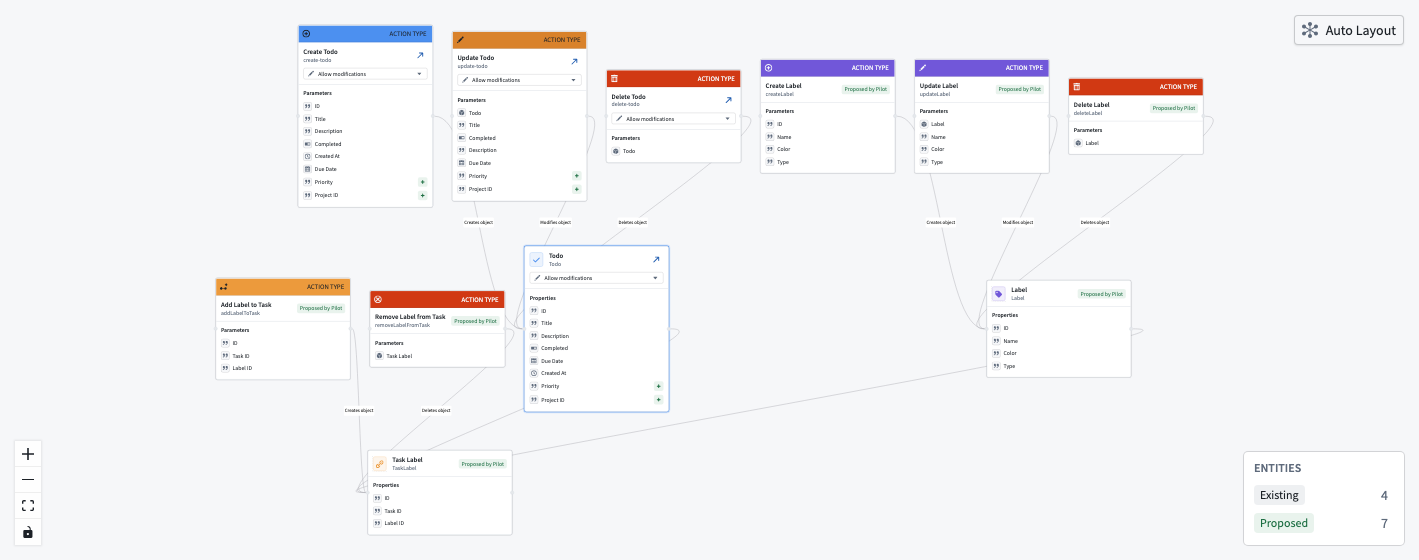
The ontology graph is an interactive visualization that displays the following information:
- Object type nodes: Represent the core entities in your application, displayed with their properties.
- Action type nodes: Represent the actions available for each object type.
- Link type edges: Show relationships between object types.
You can pan, zoom, and select nodes to explore the graph. The graph uses an automatic hierarchical layout to arrange nodes and edges.
Entity status legend
The ontology graph includes a status legend that indicates the state of each entity:
- Existing: Entities from the ontology that Pilot is reusing, with any modifications Pilot has made.
- Proposed: Entities that Pilot created in the current session.
You can filter the graph by entity status to focus on specific categories.
Data preview
Select an object type node to open the data preview panel. The data preview panel contains the following details:
- The properties defined for the object type
- Sample records from the seed data generated by Pilot
- The number of records available
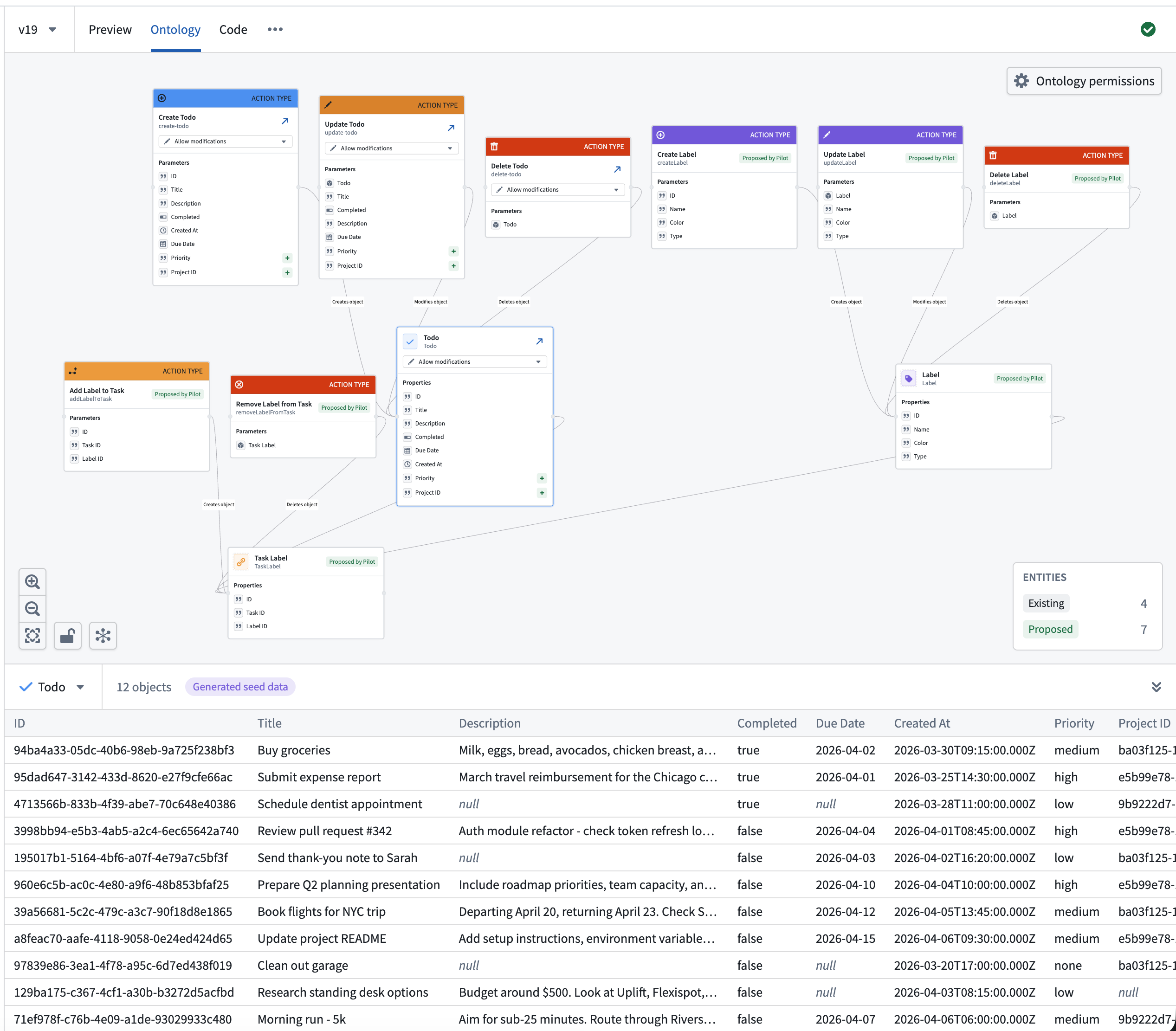
Use the data preview to verify that the generated seed data matches your expectations. If the data does not look correct, ask Pilot to regenerate or adjust seed data in the chat panel.
Modify the ontology through chat
You can modify the ontology by typing instructions in the chat panel. Pilot uses a specialized ontology architect agent to process ontology changes. Common modifications include the following:
- Adding a new property to an object type:
Add a "due date" property to the Task object type - Creating a new object type:
Create a Category object type with a name and description - Adding a relationship:
Link each Task to a Category - Changing a property type:
Change the priority property from a string to an enum with values High, Medium, and Low
After Pilot applies the changes, the ontology graph updates to reflect the new structure. The app builder agent then updates front-end code to use the modified ontology.
中文翻译
本体标签页
本体标签页(Ontology tab)在 Pilot 工作区中显示一个交互式图谱,展示 Pilot 为您的应用程序创建或重用的本体实体。使用此标签页可查看数据模型、检查实体详情以及预览种子数据。
本体图谱
本体图谱是一个交互式可视化工具,显示以下信息:
- 对象类型节点(Object type nodes): 代表应用程序中的核心实体,并显示其属性。
- 操作类型节点(Action type nodes): 代表每个对象类型可用的操作。
- 链接类型边(Link type edges): 显示对象类型之间的关系。
您可以平移、缩放和选择节点来探索图谱。该图谱使用自动分层布局来排列节点和边。
实体状态图例
本体图谱包含一个状态图例,指示每个实体的状态:
- 现有(Existing): Pilot 正在重用的本体中的实体,以及 Pilot 所做的任何修改。
- 提议(Proposed): Pilot 在当前会话中创建的实体。
您可以按实体状态过滤图谱,以聚焦于特定类别。
数据预览
选择一个对象类型节点以打开数据预览面板。数据预览面板包含以下详细信息:
- 为该对象类型定义的属性
- Pilot 生成的种子数据中的样本记录
- 可用记录的数量
使用数据预览来验证生成的种子数据是否符合您的预期。如果数据看起来不正确,请在聊天面板中要求 Pilot 重新生成或调整种子数据。
通过聊天修改本体
您可以通过在聊天面板中输入指令来修改本体。Pilot 使用专门的本体架构师代理(ontology architect agent)来处理本体变更。常见的修改包括以下内容:
- 向对象类型添加新属性:
为 Task 对象类型添加一个"截止日期"属性 - 创建新的对象类型:
创建一个包含名称和描述的 Category 对象类型 - 添加关系:
将每个 Task 链接到一个 Category - 更改属性类型:
将 priority 属性从字符串更改为枚举,包含 High、Medium 和 Low 三个值
Pilot 应用更改后,本体图谱会更新以反映新的结构。然后,应用构建器代理(app builder agent)会更新前端代码以使用修改后的本体。