Provide context and attachments(提供上下文和附件)
Pilot produces better results when you provide relevant context alongside your prompts. This page describes the types of context you can attach and best practices for effective prompting.
Ontology context
You can attach existing ontology entities to your prompt, allowing Pilot to use an existing data model instead of creating duplicate entities. Attach ontology context using the steps below:
- Select Add in the chat panel.
- Choose the type of entity to attach:
- Object types: Existing object types from your ontology
- Action types: Existing action types from your ontology
- Functions: Existing Foundry functions (when available)
- Search for and select the entities you want to include.
Selected entities appear as tags in the context area below the prompt input. Each tag displays the entity name and an indicator for edit permissions.
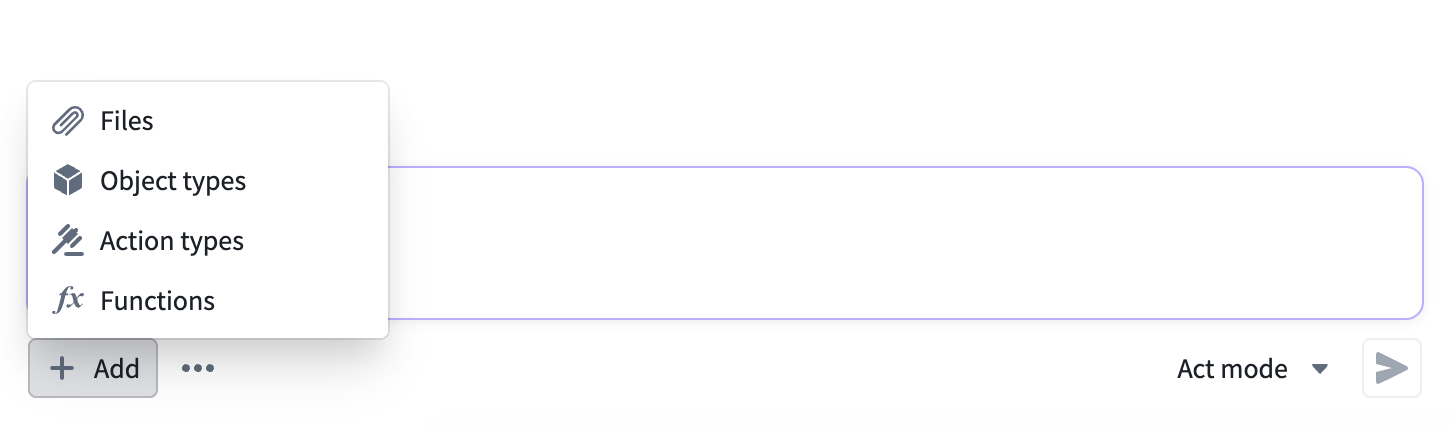
:::callout{theme="neutral"} Providing ontology context allows Pilot to use an existing data model. This is especially useful when building an application that extends or integrates with data already in your ontology. :::
Document uploads
You can upload documents to provide additional context for your application. Supported formats include:
- PDF: Requirements documents, specifications, data dictionaries
- Markdown: Technical documentation, API references
- Plain text: Notes, requirements, or any text-based reference material
To upload a document, select Add in the chat panel and choose Files. You can also drag and drop files into the chat panel or paste content from your clipboard.
Pilot reads the uploaded documents and uses them to inform your application's design and implementation.
Image uploads
You can upload images to guide Pilot's design and layout decisions. Common use cases include:
- Screenshots of existing applications you want to replicate or improve
- Wireframes and mockups showing desired layouts
- Design system references showing color palettes and component styles
Pilot interprets uploaded images and incorporates visual elements into the design specification and front end generation. To upload an image, select Add and choose Files, or paste an image directly from your clipboard.
Effective prompting tips
The quality of your prompt directly affects the quality of the generated application. Consider these guidelines:
- Be specific about the data model: Describe the entities, properties, and relationships your application needs. For example, instead of
Build a project tracker, tryBuild a project tracker with projects that have a name, description, status (Active, Completed, On Hold), and a list of tasks with priorities and due dates. - Describe user workflows, not just screens: Explain what users should be able to do, not just what the interface should look like. For example:
Users should be able to filter tasks by status and assignee, drag tasks between status columns, and receive a notification when a task is overdue. - Reference uploaded context: When you attach documents or images, describe what they contain and how Pilot should use them. For example:
Use the attached wireframe as the layout for the main dashboard. The sidebar should match the navigation structure shown in the image. - Iterate incrementally: Start with core functionality and add features through follow-up prompts rather than trying to describe everything at once.
中文翻译
提供上下文和附件
当您在提示词中附加上下文时,Pilot 能够生成更优质的结果。本页介绍可附加的上下文类型,以及有效提示的最佳实践。
本体上下文
您可以将现有的本体实体附加到提示词中,使 Pilot 能够使用现有数据模型,而无需创建重复实体。按以下步骤附加本体上下文:
- 在聊天面板中选择 添加。
- 选择要附加的实体类型:
- 对象类型: 本体中现有的对象类型
- 操作类型: 本体中现有的操作类型
- 函数: 现有的 Foundry 函数(如可用)
- 搜索并选择要包含的实体。
选中的实体将以标签形式显示在提示词输入框下方的上下文区域中。每个标签显示实体名称和编辑权限指示器。
:::callout{theme="neutral"} 提供本体上下文使 Pilot 能够使用现有数据模型。这在构建扩展或集成本体中已有数据的应用程序时尤其有用。 :::
文档上传
您可以上传文档来为应用程序提供额外上下文。支持的格式包括:
- PDF: 需求文档、规格说明、数据字典
- Markdown: 技术文档、API 参考
- 纯文本: 笔记、需求或任何基于文本的参考资料
要上传文档,请在聊天面板中选择 添加,然后选择 文件。您也可以将文件拖放到聊天面板中,或从剪贴板粘贴内容。
Pilot 会读取上传的文档,并利用这些信息来指导应用程序的设计和实现。
图像上传
您可以上传图像来指导 Pilot 的设计和布局决策。常见用例包括:
- 要复制或改进的现有应用程序截图
- 显示所需布局的线框图和模型图
- 显示配色方案和组件样式的设计系统参考
Pilot 会解读上传的图像,并将视觉元素融入设计规范和前端生成中。要上传图像,请选择 添加 并选择 文件,或直接从剪贴板粘贴图像。
有效提示技巧
提示词的质量直接影响生成应用程序的质量。请参考以下指南:
- 明确描述数据模型: 说明应用程序所需的实体、属性和关系。例如,与其说“构建一个项目跟踪器”,不如尝试“构建一个项目跟踪器,包含具有名称、描述、状态(进行中、已完成、已暂停)的项目,以及带有优先级和截止日期的任务列表”。
- 描述用户工作流程,而非仅描述界面: 说明用户应能执行的操作,而不仅仅是界面的外观。例如:“用户应能按状态和负责人筛选任务,在状态列之间拖拽任务,并在任务逾期时收到通知”。
- 引用已上传的上下文: 当您附加文档或图像时,请说明其内容以及 Pilot 应如何使用它们。例如:“使用附带的线框图作为主仪表盘的布局。侧边栏应与图像中显示的导航结构一致”。
- 逐步迭代: 从核心功能开始,通过后续提示逐步添加功能,而不是试图一次性描述所有内容。