Configure sources and data syncs within Pipeline Builder(在 Pipeline Builder 中配置数据源(Source)与数据同步(Sync))
You can create and import Foundry-provided JDBC sources and sync datasets directly in Pipeline Builder.
Import a source in Pipeline Builder
You can now import any Data Connection source to your Pipeline Builder pipeline, with the two methods listed below.
Import sources from input datasets
If your input data was created directly from a Data Connection sync, then you can add the source to the Pipeline Builder graph by selecting the input data node and then using the Add source to graph option.

Search over all sources and import or create a source
You can access the dialog to search over, import, and create sources through the Add data toolbar button, or through the Import data to Foundry action after creating a new pipeline.

Select Import data to Foundry. To create a new source, select the source type under Connect to a new source... Otherwise, to select an existing source, search for the name or type of the existing source and select the source under Connect to an existing source...
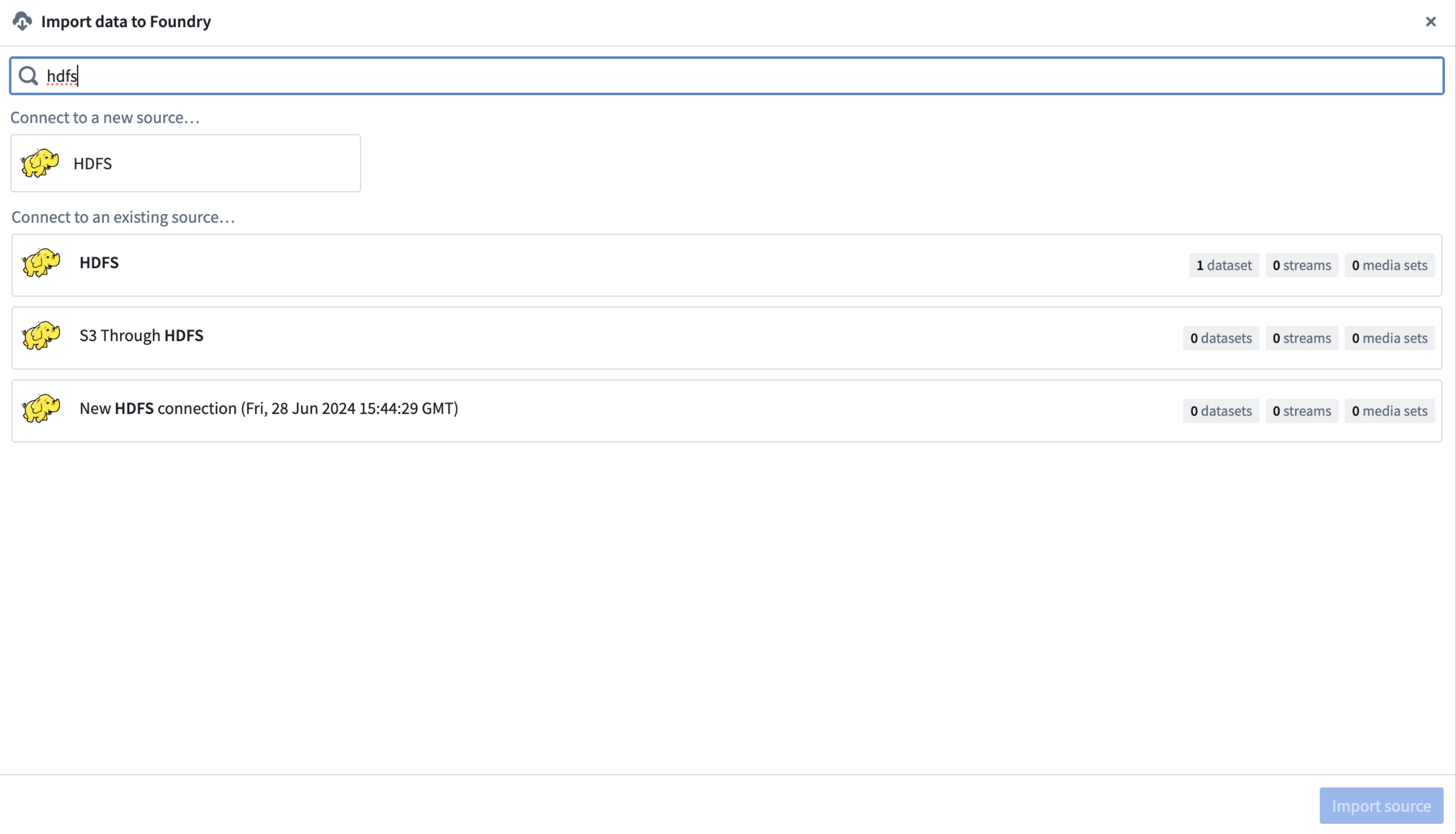
After the source is imported, you should see a new link on the graph between the imported source and any datasets synced from it.

Once a source is imported, you can either import already synced data from the source, configure the source, or explore the source and create syncs.
:::callout{theme="warning"} Actions available will depend on the source type and your permissions for the source. :::

For more information on sources and configuration options, review the Data Connection source documentation.
Create or configure a source in Pipeline Builder
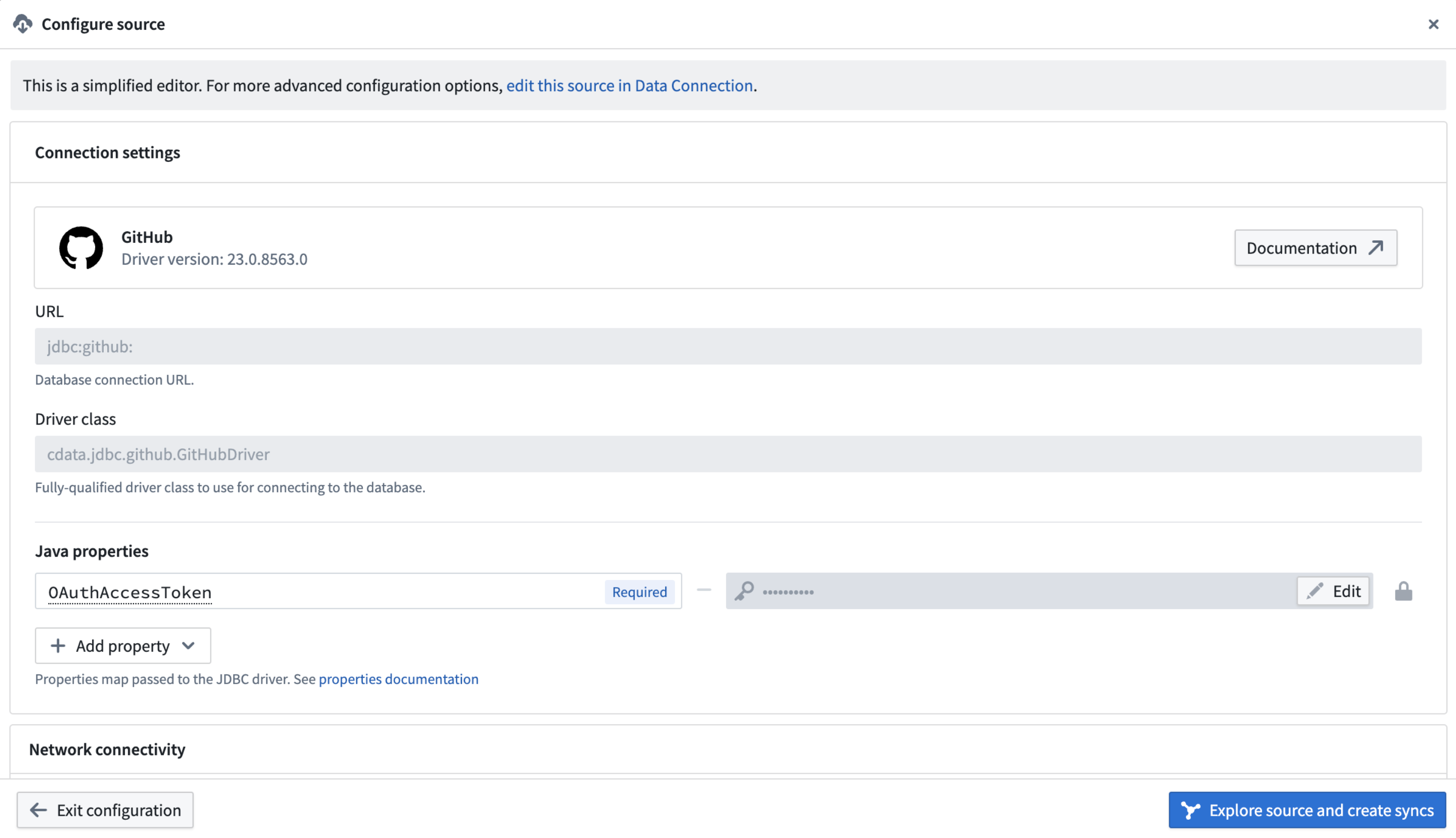
Once the source is imported select Configure Source.
Note that Pipeline Builder solely supports Foundry worker sources that only require the mandatory configuration fields. Optional fields are not supported. Connection sources that are more complex can be created or configured in Data Connection.
From the editor, you will be able to specify required source-specific configuration as well as network egress policies. If any type of further configuration is needed, you can also edit your source in Data Connection.
Create a sync in Pipeline Builder
Select Explore source and create syncs. Note that this option will only show up for sources that produce batch dataset syncs.
If you do not see the Explore source and create syncs option, double check that you have the correct permissions.
In the source explorer dialog, you will be able to see the data available from source. Select the data you want to sync by using the + sign icon located inline with the name. Note that Pipeline Builder currently only supports batch dataset syncs.
:::callout{theme="warning"} Creating and running a sync will only build the synced dataset once. Any deploys will not re-build the synced dataset. To build the synced dataset, configure schedules, or edit the sync, open the sync in Data Connection. :::
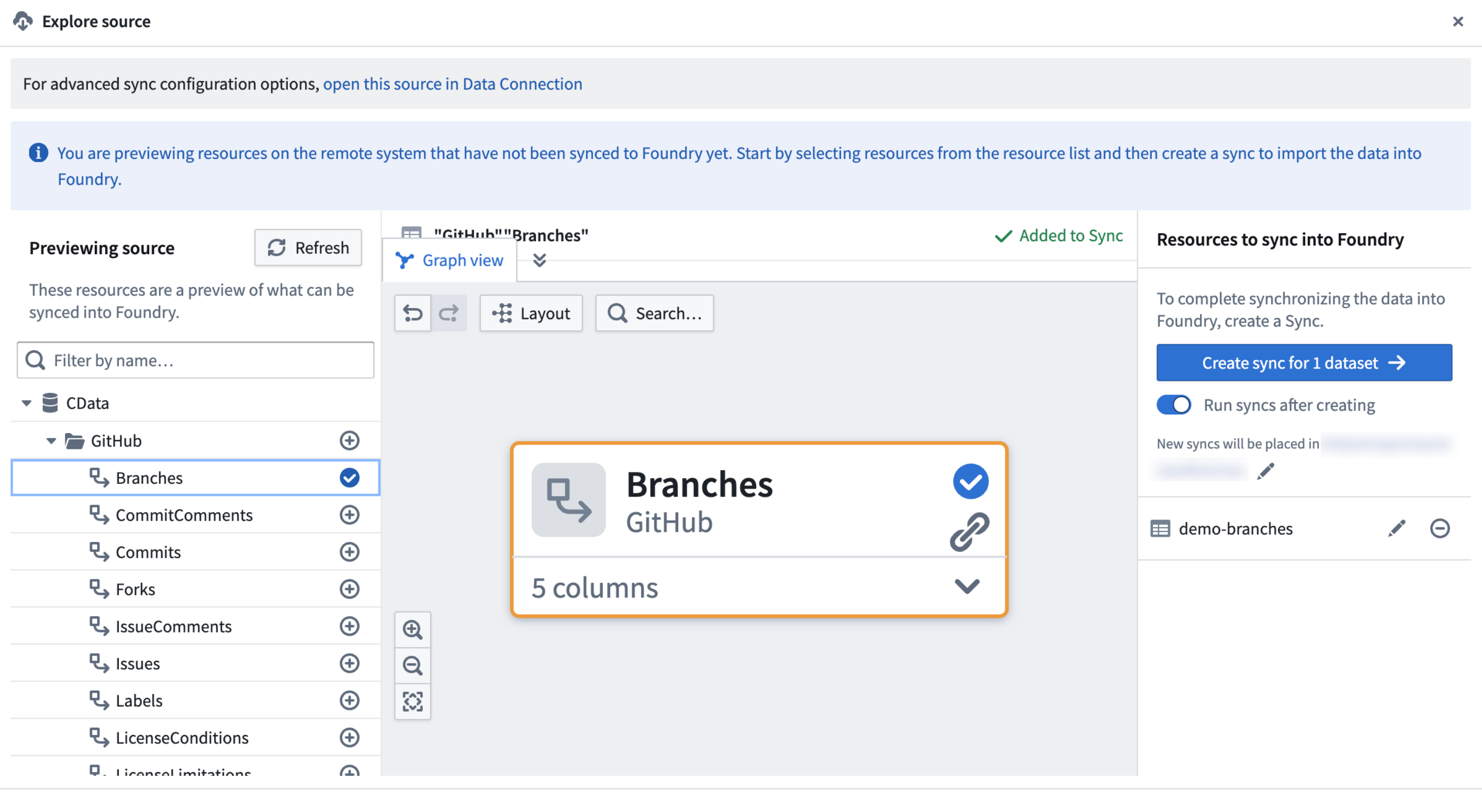
To manage advanced sync options, or for a full list of options when creating syncs, review the documentation for setting up a sync in Data Connection.
中文翻译
在 Pipeline Builder 中配置数据源(Source)与数据同步(Sync)
您可以在 Pipeline Builder 中直接创建和导入 Foundry 提供的 JDBC 数据源,并同步数据集(Dataset)。
在 Pipeline Builder 中导入数据源
现在您可以通过以下两种方法,将任意数据连接(Data Connection)数据源导入到 Pipeline Builder 管道(Pipeline)中。
从输入数据集导入数据源
如果您的输入数据直接来自数据连接同步,则可以选择输入数据节点,然后使用 将数据源添加到图表(Add source to graph) 选项,将其添加到 Pipeline Builder 图表中。
搜索所有数据源并导入或创建数据源
您可以通过 添加数据(Add data) 工具栏按钮,或在创建新管道后通过 将数据导入 Foundry(Import data to Foundry) 操作,访问搜索、导入和创建数据源的对话框。
选择 将数据导入 Foundry(Import data to Foundry)。要创建新数据源,请在 连接到新数据源...(Connect to a new source...) 下选择数据源类型。否则,要选择现有数据源,请搜索现有数据源的名称或类型,然后在 连接到现有数据源...(Connect to an existing source...) 下选择该数据源。
导入数据源后,您应该会在图表中看到导入的数据源与其同步的任何数据集之间出现一条新连线。
导入数据源后,您可以导入该数据源中已同步的数据、配置数据源,或浏览数据源并创建同步。
:::callout{theme="warning"} 可用的操作取决于数据源类型以及您对该数据源的权限。 :::
有关数据源及配置选项的更多信息,请查阅数据连接数据源文档。
在 Pipeline Builder 中创建或配置数据源
导入数据源后,选择 配置数据源(Configure Source)。
请注意,Pipeline Builder 仅支持仅需填写必填配置字段的 Foundry 工作节点(Foundry worker) 数据源。可选字段不受支持。更复杂的数据连接源可以在数据连接中创建或配置。
在编辑器中,您将能够指定所需的数据源特定配置以及网络出口策略(Network egress policies)。如果需要任何类型的进一步配置,您还可以在数据连接中编辑数据源。
在 Pipeline Builder 中创建同步
选择 浏览数据源并创建同步(Explore source and create syncs)。请注意,此选项仅对生成批处理数据集同步(Batch dataset syncs)的数据源显示。
如果您没有看到 浏览数据源并创建同步(Explore source and create syncs) 选项,请再次确认您拥有正确的权限。
在数据源浏览器对话框中,您将能够查看数据源中可用的数据。通过点击名称旁边的 + 号图标,选择要同步的数据。请注意,Pipeline Builder 目前仅支持批处理数据集同步。
:::callout{theme="warning"} 创建并运行同步只会构建一次同步的数据集。任何部署都不会重新构建该同步数据集。要构建同步数据集、配置调度或编辑同步,请在数据连接中打开该同步。 :::
要管理高级同步选项,或查看创建同步时的完整选项列表,请查阅在数据连接中设置同步的文档。